Understand roles and member access
Find who belongs to your workroom and understand what their roles allow them to do.
In this lesson
Understand roles and member access
Find who belongs to your workroom and understand what their roles allow them to do.
Before you start: You need permission to view Membership and Roles & Access.
Steps
Open Workroom Settings → Membership. Look at the active members, revoked members and pending invitations. A pending invitation is not yet an active member.
Find the teammate you want to check and confirm their current membership and assigned role. Match the right person rather than relying on a similar display name.
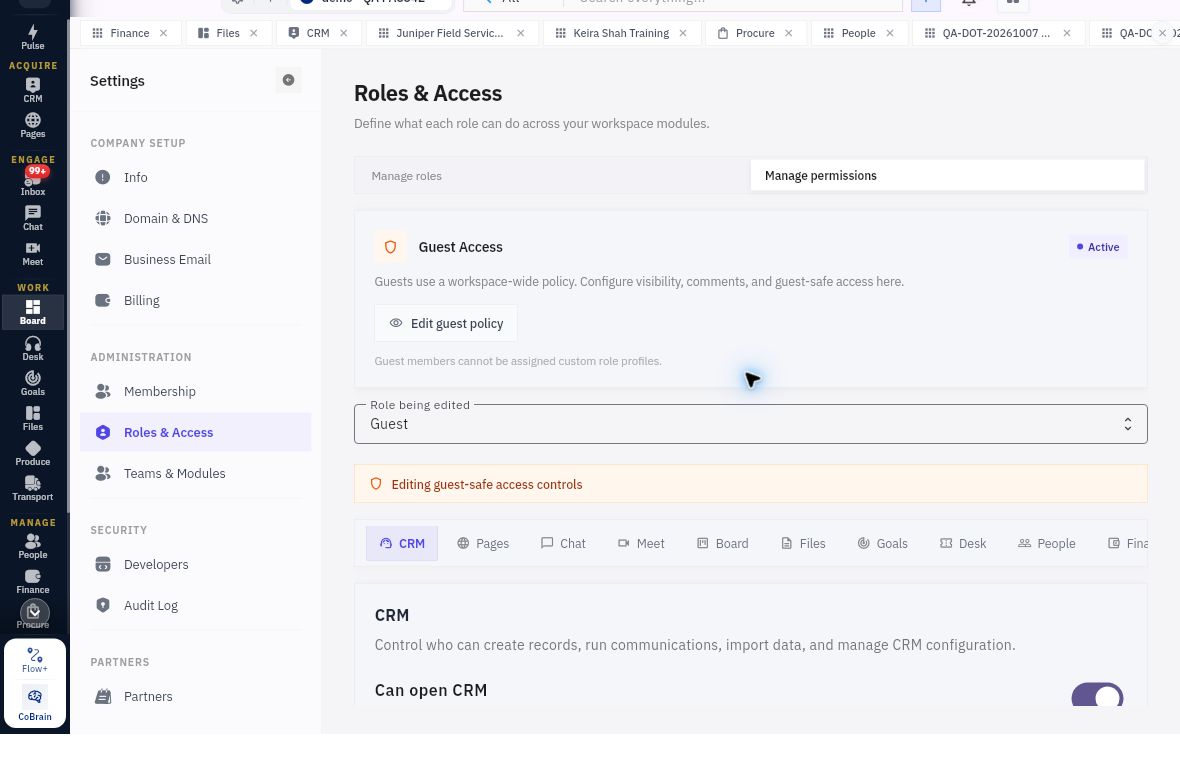
Open Roles & Access → Manage roles and select the relevant role. Confirm Role being edited, then look at its assignments.
Find the module the teammate needs. Read both its access setting and the individual action permissions. Being able to open CRM, for example, does not necessarily allow someone to create, edit or communicate from it.
Compare those permissions with the teammate’s work. If something is missing, ask your workroom administrator to review the role and any relevant team or record access.
Check the result
Expected result
You can explain the difference between joining a workroom, having a role and being allowed to perform a particular action.
Common pitfalls
- A role’s name is not its permission list—read the actual settings.
- Review the displayed Guest policy before trying to assign a custom role to a guest.
Continue learning
In this series: Manage your workroom — guide 2 of 8.
- Previous: Check your workroom defaults
- Next: Create a custom role
- Browse tutorials
Turn what you learned into the way the team works.
Mark this lesson complete once the workflow exists in your workspace—not simply when you reach the bottom.