Check your domain and email setup
Find your workroom’s plan, domain status and email prerequisites before setting up business mail.
In this lesson
Check your domain and email setup
Find your workroom’s plan, domain status and email prerequisites before setting up business mail.
Before you start: You need access to Billing, Domain & DNS and Business Email. If you will change DNS, make sure you control the domain and understand its existing website and mail services.
Steps
Open Settings → Billing. Check your plan, billing cycle and seats so you know whether the service and team size you need fit your current plan.
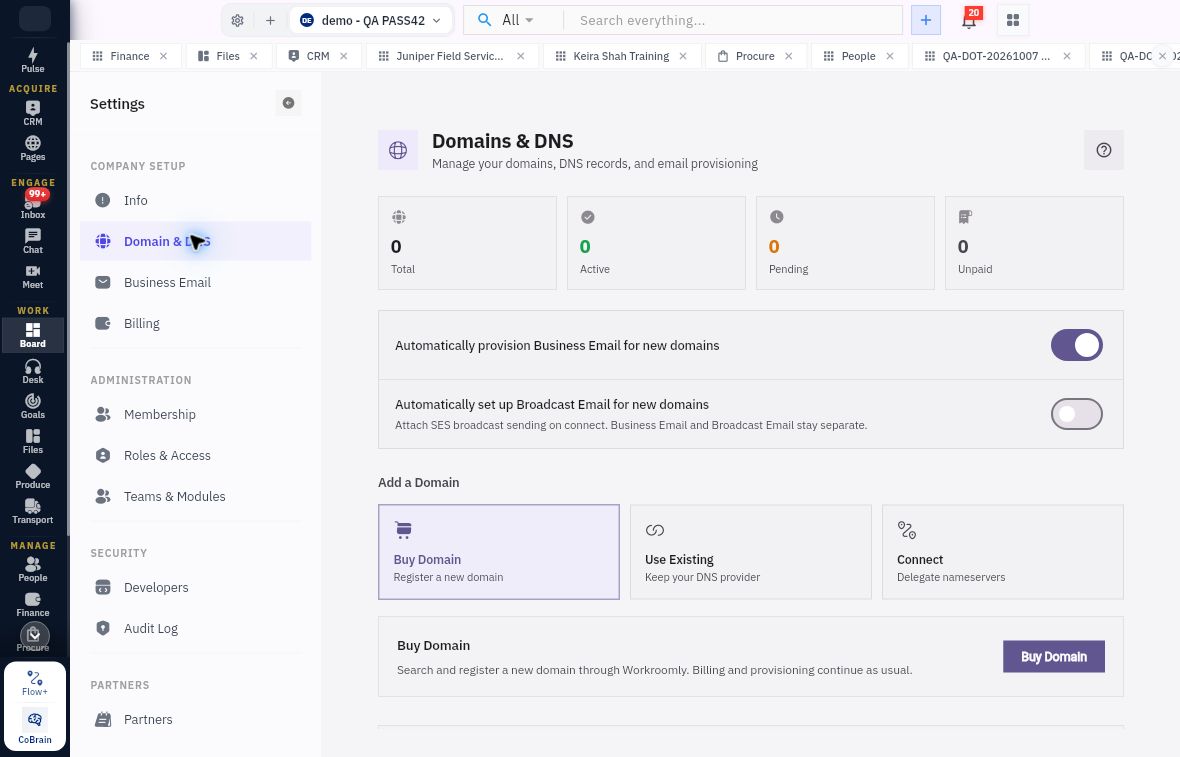
Open Domain & DNS. Review the domain list and status counts. Check the separate Business Email and Broadcast defaults.
Choose the route that matches your situation: Buy Domain is for a new registration; Use Existing keeps your DNS provider; Connect delegates nameservers. Read the route’s description before continuing.
For an existing domain, the Use Existing Domain form starts with Domain Name and Continue. Use your own domain and follow that route’s instructions; do not substitute example DNS values from a screenshot.
Open Business Email → Email Accounts. Check whether Add Account is available. If the page asks you to connect a domain first, complete the domain setup before creating mailboxes.
Check the result
Expected result
You know which domain route applies and whether your workroom is ready for mailbox setup.
Common pitfalls
- Changing nameservers can affect an existing website or email service.
- A connected domain and a created mailbox are different steps; test mail delivery before relying on a new mailbox.
Continue learning
In this series: Manage your workroom — guide 5 of 8.
Turn what you learned into the way the team works.
Mark this lesson complete once the workflow exists in your workspace—not simply when you reach the bottom.