Create a custom role
Create a named role from a starting permissions preset, then review what that role allows before assigning it to people.
In this lesson
Create a custom role
Create a named role from a starting permissions preset, then review what that role allows before assigning it to people.
Before you start: You need administrator permission to create roles. Decide what the role is for—for example, a team that needs a different set of permissions from the standard Member role.
Steps
Open Settings → Roles & Access. Check the existing roles first. Reuse a suitable role rather than creating another with the same purpose.
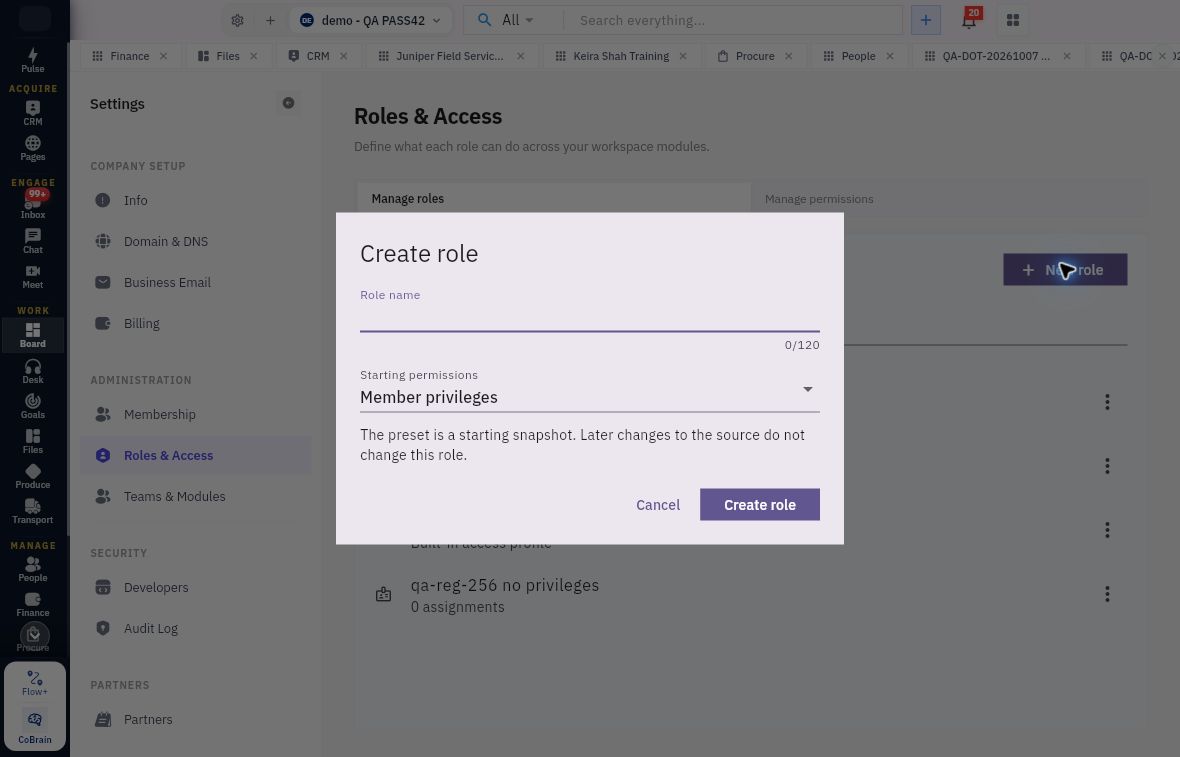
Select New role. In Create role, enter a clear Role name that describes the work, such as Project coordinators.
Choose Starting permissions. The form initially shows Member privileges; select the preset that is closest to what this role needs. The preset is a starting snapshot: later changes to the original preset do not automatically update your new role.
Select Create role once. Return to Manage roles, find the name you entered and open it. Confirm Role being edited before reviewing its module and action permissions.
Check whether the new role gives the right starting access. Review its assignments before making later changes: changing a shared role can affect everyone assigned to it.
Check the result
Expected result
Your new role is available in Manage roles, with a recognisable name and a permissions preset you have reviewed. Creating a role does not itself prove that a teammate has been assigned to it.
Common pitfalls
- A module access setting and the individual permissions inside that module are separate.
- Teams & Modules also distinguishes custom teams from People departments; use the displayed helper text when checking their module availability.
Continue learning
In this series: Manage your workroom — guide 3 of 8.
Turn what you learned into the way the team works.
Mark this lesson complete once the workflow exists in your workspace—not simply when you reach the bottom.