Start onboarding and update its checklist
Create an onboarding event from the intended template and record progress only when the corresponding work is complete.
Part of Coordinate a starter’s first week
In this lesson
Start onboarding and update its checklist
Create an onboarding event from the intended template and record progress only when the corresponding work is complete.
Before you start: Have the employee record, onboarding date, checklist template and responsible owner. Review any Board delivery or learning-path settings in the template before using it.
Steps
1. Open People → Lifecycle → Templates. Find the intended template and use its row menu → Edit to check Event Type → Onboarding, step titles, descriptions, responsibility labels, required flags and delivery settings. Select Cancel after inspection.
2. Open Lifecycle → Journey. Search the employee with All Types and All Statuses. If the intended onboarding event already exists, skip steps 3–5 and open its checklist in step 6.
3. Select Create Event. Select the actual employee search result, set Event Type → Onboarding and check the Effective Date.
4. Continue to the template or custom-steps stage and select the intended template. Continue to assignment and notes, choosing the appropriate Assigned To person where applicable and adding a useful onboarding note.
5. Review the employee, type, date, template, step count and assignment, then select Create Event once. Return to Journey and find the event by employee, type and date. Inspect View Details to check the saved summary.
6. Open Lifecycle → Onboarding, find the same event and choose its three-dot menu → View Steps. Read each item and its current state before changing it.
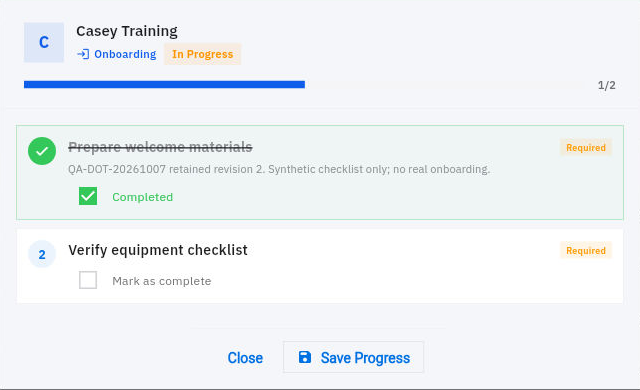
7. After completing a specific piece of onboarding work, select Mark as complete for that item and choose Save Progress. Leave already-correct completed items and unfinished work unchanged.
Check the result
8. Reopen View Steps and check the individual items, not just the overall percentage. Confirm the remaining work with its owner. A checklist item can be complete while the wider onboarding process is still in progress.
Expected result
The correct employee has an onboarding checklist, and its recorded progress reflects work actually completed.
Common pitfalls
- Typing an employee name is not selecting the employee record. Check the chosen identity at final review.
- A template’s responsibility label is not proof that a task or learning assignment reached someone. Check delivery separately when your process depends on it.
- If creation returns an empty-looking list, reload and find the original event before creating a duplicate.
Continue learning
In this series: Manage the employee journey — guide 7 of 25.
- Previous: Prepare an offer letter draft
- Next: Create a leave type
- Browse tutorials
Turn what you learned into the way the team works.
Mark this lesson complete once the workflow exists in your workspace—not simply when you reach the bottom.