Submit a receipt-backed travel claim
Submit an employee-funded travel expense with the correct receipt, amount and business purpose for review.
In this lesson
Submit a receipt-backed travel claim
Submit an employee-funded travel expense with the correct receipt, amount and business purpose for review.
Before you start: Have the actual receipt and business purpose, correct employee and department, and Finance-approved expense coding. Check that the same cost was not funded by a company payment, advance or another claim.
Steps
1. Open Finance → Expenses and claims → Expense claims. Search the receipt number and claim purpose and inspect possible duplicates. If the same claim already exists, skip steps 2–6 and continue at step 7 only if it is still an eligible complete Draft.
2. Select New and choose the exact Employee and Department. Select an Expense request only when that is the actual source relationship.
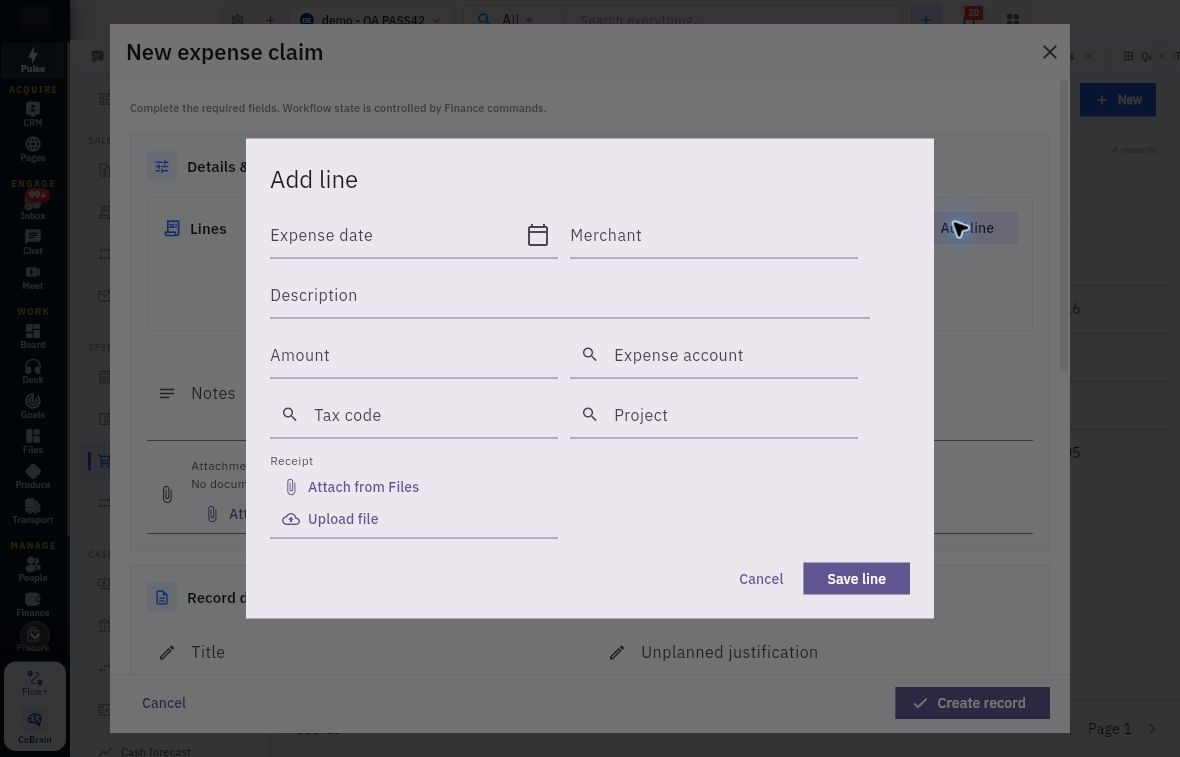
3. Select Add line. Set Expense date, Merchant, Description and Amount. Select the correct Expense account and any applicable Tax code or Project.
4. At Receipt, choose Attach from Files for the existing intended receipt, or Upload file for the actual document. Check its readable contents and retained association—not just its filename.
Check the result
5. Reconcile the amount with the receipt components and funding explanation, then select Save line. Add only the other genuine lines belonging to this claim.
6. Complete Title, Unplanned justification, Notes, Claim date, Currency and Exchange rate. Review the employee, department, complete lines and evidence, then select Create record once. Reopen the saved claim and check its retained details.
7. For the eligible complete Draft, select Workflow actions → Submit. Read the confirmation for the exact claim and confirm once. Do not submit again if it has already moved into review.
8. Reopen the same claim reference and check its current review state, amount, employee and receipt association. Identify the responsible reviewer and resolve any evidence or coding question through that review.
9. Track reimbursement separately after the required decisions. A submitted or reviewed claim is not proof that a reimbursement payment or settlement exists.
Expected result
The claim records the actual employee-funded trip and receipt and is available for the configured internal review.
Common pitfalls
- Do not substitute a different employee because they are easier to select.
- A filename or attachment chip does not prove the receipt supports the amount. Read the actual document.
- If a response is uncertain, find the original claim before creating another or retrying submission.
Continue learning
In this series: Purchasing and financial follow-through — guide 5 of 6.
Turn what you learned into the way the team works.
Mark this lesson complete once the workflow exists in your workspace—not simply when you reach the bottom.