Prepare an offer letter draft
Prepare an offer with explicit compensation units, dates and candidate-facing terms, without sending it during drafting.
In this lesson
Prepare an offer letter draft
Prepare an offer with explicit compensation units, dates and candidate-facing terms, without sending it during drafting.
Before you start: Have the approved offer terms, correct application and current letter content or template. Check the candidate’s identity and any existing offer version before preparing another.
Steps
1. Open People → Recruit → Pipeline. Find the exact candidate and vacancy, scrolling horizontally if needed. Use Open, not Advance or Reject, to read the application.
2. Compare Candidate Information and Application Details with the approved offer. Check Recruit → Offers for an existing matching draft. If it exists, skip steps 3–6 and review that retained version in step 7 instead of creating another through a second route.
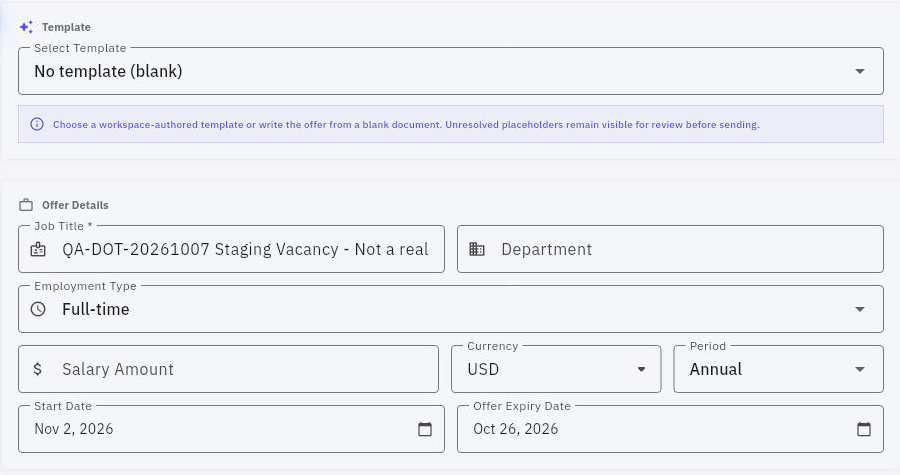
3. For a needed new draft, return to the application and select Create Offer Letter. Confirm the named candidate and email in the composer. Choose the approved Template, or use blank content when that is the intended approach.
4. Check Job Title, Department and Employment Type. Enter the agreed Salary Amount, select the exact Currency, and choose Period—Annual, Monthly or Hourly. Do not assume values copied from the vacancy have the right basis.
5. Set Start Date and Offer Expiry Date. Review Offer Letter Content for hours, location, manager, conditions and response instructions. Put essential terms in the candidate-facing letter, not only Internal Notes.
Check the result
6. Review any letterhead and unresolved placeholders. Turn off Open offer in Mailroom compose for this draft-only workflow, then select Save Draft when the form is complete. If the control is unavailable, resolve the missing or invalid fields rather than inventing a salary or other term.
7. Open Recruit → Offers and locate the saved candidate and draft version. Check the retained terms and current state. If no draft can be found after checking filters and reloading, resolve the original attempt before creating another.
Expected result
The offer is prepared as a checked draft for the next review step. Saving or previewing it is not sending it, accepting it or hiring the candidate.
Common pitfalls
- Open Mailroom Compose is a separate communication action. Review the exact recipient and final content before any later send.
- An Offer pipeline stage alone does not prove that an offer letter exists or has been accepted.
- Hiring can affect employee records, onboarding and member access. Do not use a stage transition as a shortcut for an incomplete hiring decision.
Continue learning
In this series: Manage the employee journey — guide 6 of 25.
Turn what you learned into the way the team works.
Mark this lesson complete once the workflow exists in your workspace—not simply when you reach the bottom.