Create a leave type
Define the leave type’s annual amount, paid treatment and approval requirement, then check the saved settings.
In this lesson
Create a leave type
Define the leave type’s annual amount, paid treatment and approval requirement, then check the saved settings.
Before you start: Have the leave policy’s agreed type name, days per year and paid/approval settings. You need the relevant People administration permissions.
Steps
1. Open People → Leave → Admin → Leave Types. Search or inspect the exact intended name. If the correct type already exists, skip steps 2–4 and inspect its saved settings in step 5.
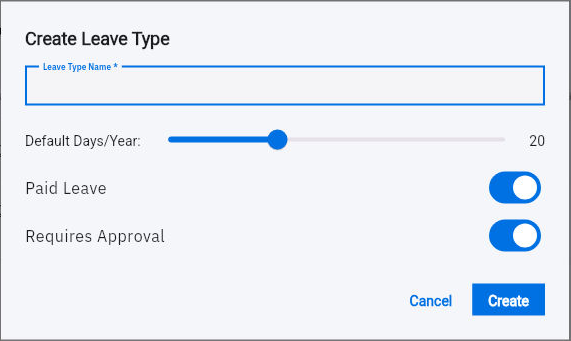
2. Select Create Leave Type. Enter the full Leave Type Name so employees can distinguish it from other types.
3. Move Default Days/Year to the agreed value and read the displayed number. Do not use the initial slider value simply because it is already selected.
4. Check Paid Leave and Requires Approval against the policy. Review all four values together, then select Create once.
Check the result
5. Find the saved type and open its pencil. Compare the name, days per year and both toggles, then select Cancel after checking. If a result is uncertain, inspect the existing list before creating another type.
6. Open Admin → Balances to check the relevant employee, leave type and year before anyone relies on the new type for a request. Review Total Days, Used, Carried Over and Remaining on that same row; scroll horizontally if necessary.
7. Resolve any separate balance, work-pattern, accrual or carryover setup with the People owner. The type’s four fields do not by themselves establish every policy rule or an employee’s current entitlement.
Expected result
The leave type retains the intended settings, and you know which employee-balance checks are still needed before use.
Common pitfalls
- Default days per year is not automatically the employee’s current remaining balance.
- Paid Leave does not prove a payroll payment, and Requires Approval does not identify every reviewer in your organisation’s routing.
- Initialize Balances is not a refresh button. Use it only as part of the intended balance-setup process.
Continue learning
In this series: Manage the employee journey — guide 8 of 25.
Turn what you learned into the way the team works.
Mark this lesson complete once the workflow exists in your workspace—not simply when you reach the bottom.