Check a team member’s access before work starts
Check that a teammate can reach the work they need, and distinguish their employee record from their workroom membership and permissions.
In this lesson
Check a team member’s access before work starts
Check that a teammate can reach the work they need, and distinguish their employee record from their workroom membership and permissions.
Before you start: You need access to People and the relevant Settings pages, the teammate’s exact work email, and a clear description of the work they need to do. Agree which workroom, modules and records are needed; do not start with a request for unrestricted access.
Steps
1. Confirm the workroom, then open People → Directory → Employees. Search by the teammate’s full work email. Open the matching profile and check the department, position and Workspace access. An Active employee record does not itself mean the person has a linked account or can sign in.
2. Open Workroom Settings → Membership and find the same account. Check whether it is an active member or a pending invitation. If the invitation is pending, have the intended recipient complete the normal invitation process before relying on their access. Do not invite a second account simply because the employee record already exists.
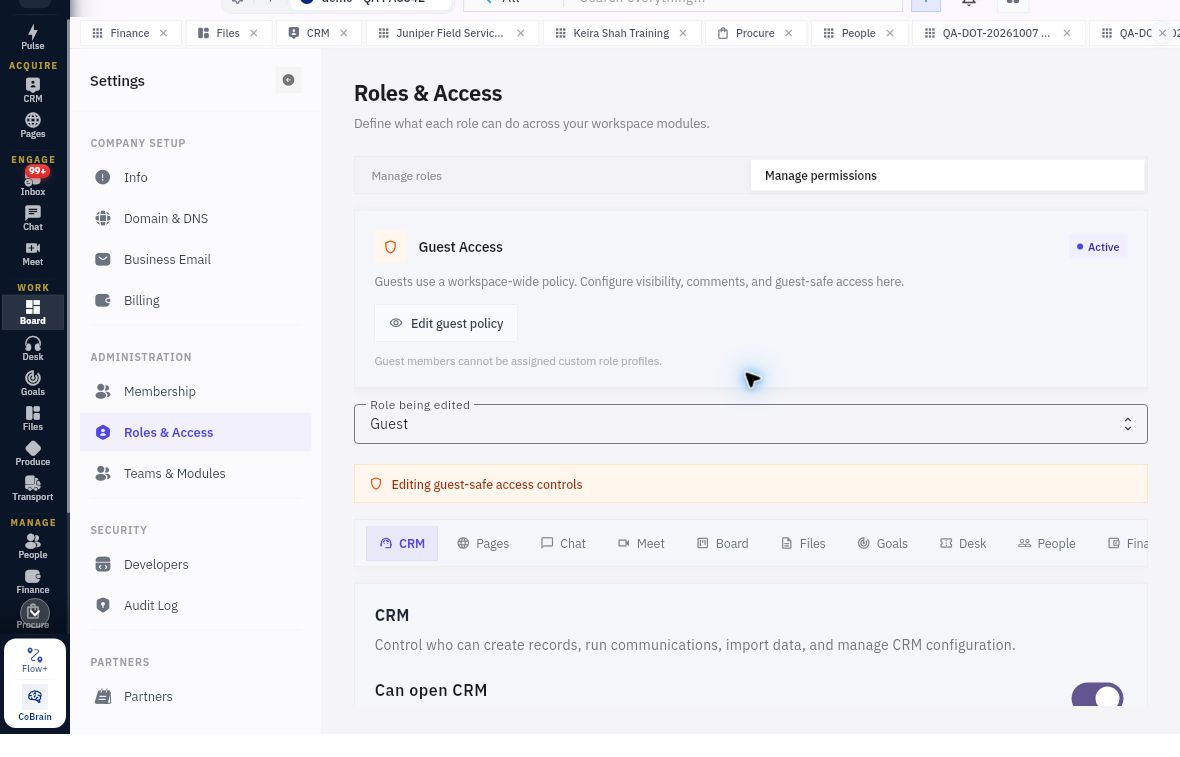
3. Open Roles & Access. Identify the relevant role and its assignment information. Check Role being edited before reading permissions: a correctly configured but unassigned role does not establish the teammate’s permissions.
4. Read the permissions needed for the task separately. For example, Can open CRM is different from Create leads or Edit leads. A person who only needs to review an enquiry may not need to change it. If the account is a Guest, review the Guest policy; guests cannot receive custom role profiles.
5. Open Teams & Modules. Distinguish the teammate’s custom team from their People department. Review the relevant module availability. Where the person belongs to both, the more restrictive custom-team or department module setting applies; this does not replace the detailed permission check.
Check the result
6. Ask the teammate to use their own account to open one ordinary record or document needed for the job, in the intended workroom. Have them confirm they can read the right content and reach the relevant task. Your administrator view cannot show what their account can actually use.
7. If required access is missing or broader than intended, ask the workroom administrator to reconcile the specific membership, assignment or scope. Include the exact workroom, account and required action. Resume the work when the teammate can use the correct record; do not broaden access to unrelated private content as a workaround.
Expected result
You know whether the teammate is ready to start the agreed work, or which specific access change the administrator must resolve. Employee status, membership, module availability and record access have been checked as separate things.
Common pitfalls
- An invitation, role name or employee department is not proof of usable access.
- Do not assume a blank custom-role selection means no permissions; built-in Member privileges may still apply.
- Avoid changing role toggles during a review. Permission changes can affect more people than the one teammate you are checking.
Continue learning
In this series: Customer support and improvement — guide 1 of 6.
Turn what you learned into the way the team works.
Mark this lesson complete once the workflow exists in your workspace—not simply when you reach the bottom.