Pages course 03 — Publish and trace an enquiry to CRM
Publication, visitor access, stored responses and CRM handling are separate results. A page can say Published while its intended address fails, and a success panel can appear without proving that a response was retained. This chapter explains the Publish Inspector and the complete trace from one approved submission to its destination.
Part of Pages module course
In this lesson
Release preparation and access choices
Publication, visitor access, stored responses and CRM handling are separate results. A page can say Published while its intended address fails, and a success panel can appear without proving that a response was retained. This chapter explains the Publish Inspector and the complete trace from one approved submission to its destination.
In this chapter
- Review the release before pressing Publish
- Use the actual address and domain instructions
- Verify the released version in the intended audience context
- Submit one identifiable approved response
- Find the same response in Submissions
- Compare the destination independently
- Practise the trace and diagnose the first mismatch
Review the release before pressing Publish
Reopen the exact page and compare the current content, fields and route with the approved version. Confirm the intended audience, actual address, destination workroom/space and responsible handler. Editing a draft and exposing it publicly are different actions. Do not click Publish merely to discover whether it opens another confirmation.
The editor can show Publish for an unpublished page or Update Publish for a published page. Read the current control and state carefully. Do not assume an edit to a live page is isolated from visitors until you understand the supported draft/publication behaviour. An old approval does not cover an altered booking promise or new data field.
Open Inspector Publish for the publication settings. The displayed status, customer-facing state and primary hostname describe the selected target. Public is an access choice; Protected link is an alternative described as allowing people with a secure access link to open the page. Selecting Public is an intended access mode, not proof of anonymous reachability.
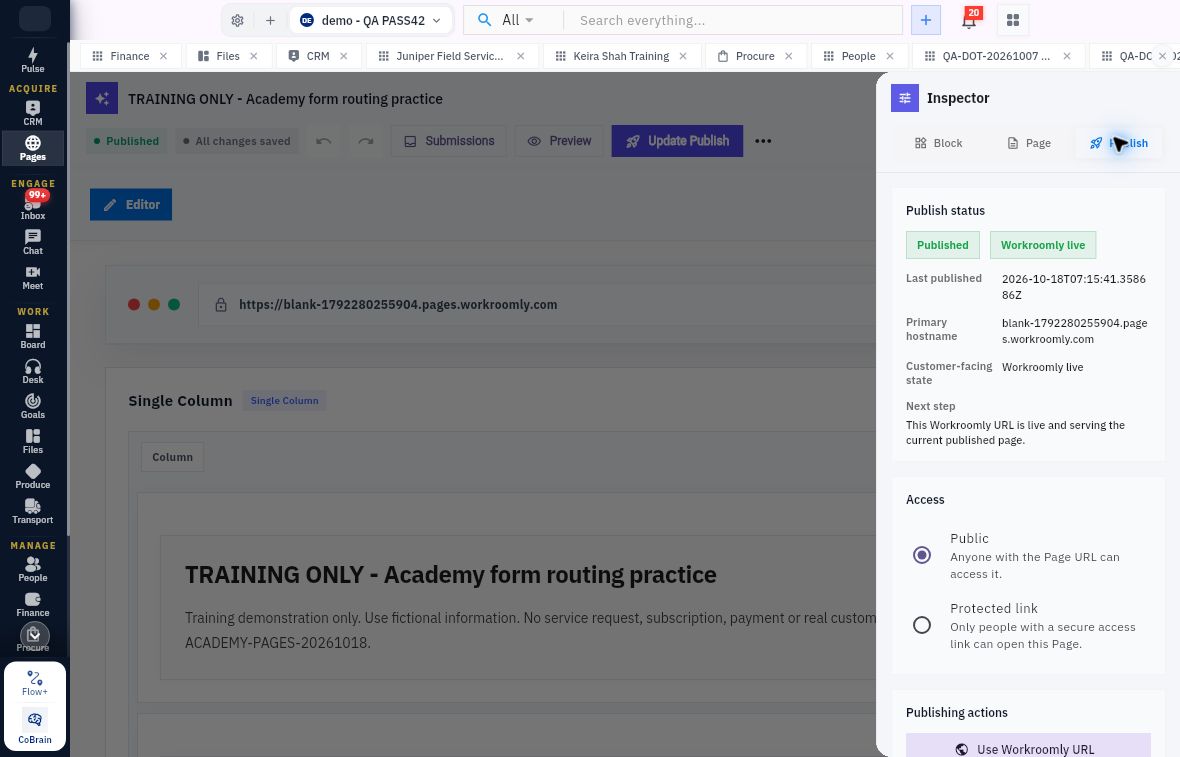
Visitor access submissions and CRM handoff
Use the actual address and domain instructions
Publication actions include Use Workroomly URL, Managed domain and External domain. A target can offer Refresh status, Open, Copy URL, Disconnect and Make primary, with the current primary target's action unavailable where appropriate. Refreshing status is different from disconnecting a target; do not use a consequential action to troubleshoot a display.
Copy the actual supplied URL. Its host and path identify the destination; changing the host can send you to another environment. Do not invent an address from the page title or replace a failing public host with a guessed staging address. A signed-in editor or staging visit is not an anonymous public test.
For a custom domain, obtain the exact record type, name and target from the supported product flow and use the authorised domain administrator. A domain label or green state does not supply DNS values. Do not guess a CNAME target, alter unrelated mail records or bypass a certificate warning. The managed/external flow can require its own setup and verification; the Workroomly URL illustration is not a universal domain recipe.
An optional external tracker snippet is also a separate decision. It can introduce additional data sharing and communication/privacy requirements. Do not paste a tracker simply because the Publish tab offers a field. Built-in analytics and an external tracker are not the same configuration.
Verify the released version in the intended audience context
When publication is authorised, use the supported action once, wait for the result and independently reopen the page directory and Overview. Compare the actual state. If the outcome is uncertain, inspect before repeating the action.
Open the approved address in the intended context. Record whether the browser is signed in or signed out, and read the entire visitor-facing page. Compare headline, body, fields, button, success expectation and footer with the reviewed version. If an anonymous launch is intended, a successful private preview does not close that requirement.
If access fails, preserve the exact address, visible result and known publication state for the responsible owner. Do not submit through a different page to claim this one works. A status that says Workroomly live and a failed visitor load can both be observations that need reconciliation.
Submit one identifiable approved response
Use a bounded test only after the page, address, fictional data and destination are approved. For example, use a distinct training name and an address ending in example.invalid, with no expectation of delivery. First confirm that no earlier uncertain attempt already created the response.
Enter only the planned values at the approved visitor address. Check required fields, submit once and note the time and visible result. A confirmation panel establishes what the visitor saw; the next steps establish storage and routing. Do not send an email, rerun a route or create a manual Lead as part of this initial verification.
Find the same response in Submissions
Return to the exact page and open Submissions. Read the Forms, Statuses, routing and time filters before interpreting an empty list. All Forms, All Statuses, All routing and All time are the illustrated broad selections. Use the actual Refresh control where available, not Run Current Routes.
Find the response by its page/form context, distinctive values and time. Open it and compare every entered value, including intentionally unmapped fields. Read processing status, destination type/reference and any error text. A status such as Successfully routed describes processing; it still needs a value comparison at the destination.
Activity records receipt, routing and processing events. Expanded Metadata can identify the submission, form, page, processed display and referrer. Preserve timestamps as displayed and use an explicit timezone only when the screen or reliable source supplies it. Do not infer a timezone from your own location.
Run Current Routes is not a refresh button. Re-executing routing can have side effects and requires a deliberate recovery decision. If processing is Pending, preserve the existing response and inspect its state. If Failed, retain the error, route and destination observations for the responsible owner before any authorised correction or retry.
Compare the destination independently
Open CRM through normal navigation in the intended workroom and space. Use the supported destination reference where available, or locate the candidate by exact values and state that limitation. Open, leave and reopen the actual Lead. Compare the mapped name and email with the stored response.
A response may expose a destination identifier while the Lead detail does not show that same identifier. In that case, report the route's reference plus independent value corroboration; do not claim a second identifier comparison you could not make. A similarly named Lead in another workroom, or one created manually yesterday, does not establish this response's result.
Check Owner, lifecycle state, Source and communication settings separately. Unassigned means the technical route may have completed while ownership remains open. New does not mean qualified. Subscribed is a stored communication state, not proof that the visitor agreed to marketing. An enquiry request should not become newsletter permission by implication.
An internal handoff should identify the page, form, submission, destination, submitted purpose, mapped-value result, current owner, next action and communication limits. Then use the supported team process to establish an eligible handler and acceptance. Naming a person in a plan is not a native assignment or their agreement to act.
Practise the trace and diagnose the first mismatch
Suppose one response retains a name and email, reports Completed to a Lead, and the reopened Lead has the correct name but an older email. Topic is absent from the Lead because it was intentionally unmapped. The Lead is Unassigned.
The name matches; the email is a routing-value discrepancy; Topic's absence is consistent with the mapping plan; and ownership remains unresolved. Completed does not erase the wrong email. Preserve the source and destination observations, ask for the authorised correction/retest decision, and avoid another submission that could obscure the first result.
Your expected result is a trace of one response with clear boundaries: correct visitor context, retained values, processing result, independently checked destination and an owned next action where established. It is not proof of an email, meeting, sale or delivery unless those separate actions actually occurred.
Turn what you learned into the way the team works.
Mark this lesson complete once the workflow exists in your workspace—not simply when you reach the bottom.