CRM course 06 — Understand CRM configuration and complete the customer workflow
CRM configuration shapes what colleagues can record, how work moves and which commercial defaults appear. A small setting change can affect many records. This chapter explains the main configuration screens so you can read them accurately and prepare a controlled change. Use inspection only unless you are authorised to administer the selected CRM space.
Part of CRM module course
In this lesson
Lifecycle fields and governance setup
CRM configuration shapes what colleagues can record, how work moves and which commercial defaults appear. A small setting change can affect many records. This chapter explains the main configuration screens so you can read them accurately and prepare a controlled change. Use inspection only unless you are authorised to administer the selected CRM space.
In this chapter
- Separate stages statuses and steps
- Define custom fields before adding them
- Read Governance steps and transitions
- Read Commercial defaults as defaults
- Prepare templates from the correct Files asset
- Make one controlled change at a time
- Complete the customer workflow
Separate stages statuses and steps
Open CRM → your space → Config → Lifecycle flow. Lead stages and Deal stages are separate columns. Cards display the stage order, entity, SLA, counts of guardrails, statuses, steps and transitions, and a Blueprint default. SLA is the displayed time target; a label alone does not establish an automatic deadline or escalation.
The stage card's pencil opens Edit stage, with Stage name, SLA target, Entity type and Accent color. Entity type distinguishes Lead from Deal. Changing that type is not a harmless rename. Use Cancel for inspection; an authorised change requires Save changes, reopening the stage and checking affected records and transitions.
Config → Statuses provides Add status, search and All, Prospect, Lead and Deal filters. Edit status separates Label, Internal name, Description, Color (hex), Order, Applies to and Category. The internal name identifies the status for dependencies; a friendly label serves readers. In the illustrated Prospect status, the helper explains that Prospect statuses are not tied to pipeline stages.
Lower controls include Requires follow-up, Lock stage movement and Enable auto assignment. Their settings concern different behaviours. A follow-up toggle is not evidence that a task was created, and an assignment toggle does not identify the eventual person. Test the relevant outcome in an approved environment after any saved change.
Define custom fields before adding them
Open Config → Custom fields. The Field library groups cards by object and shows label, API/internal identity, type, required marker and options count where applicable. Search the existing definitions before adding a near-duplicate.
Add custom field opens Label, Internal name, Object, Field type, Required and Visible in UI. The helper can generate the internal name when left blank. Choose the correct object rather than accepting the initial selection. A field intended for a Deal should not accidentally be created for Prospect.
Field types include Text, Phone, Number, Dropdown, Multi-select, Lookup and Score. Choose from the decision the field supports. A controlled list can avoid spelling variants; a Number needs a clear unit; a Lookup needs a supported target relationship. Selecting Dropdown exposes Options. Check the accepted entry format in that control rather than borrowing a comma-separated convention from an unrelated form.
Define the meaning, owner, allowed values and treatment of unknown/not applicable first. “Proposal reviewed” and “Proposal review reference” answer different questions. A required field can still contain inaccurate text. Visible in UI concerns presentation, not permission to read sensitive information. Do not store credentials or unnecessary personal information in CRM fields.
After an authorised addition, reopen the field library and inspect an appropriate record. Check missing, valid and invalid values before relying on the field in a movement rule. A successfully saved field card alone does not prove the rule is enforced.
Read Governance steps and transitions
Open Config → Governance. Governance studio separates Steps, Governed transitions and Approval queue. The Steps view groups Blueprint steps by stage and marks the default. It is a grouped list, not a wizard that requires you to complete every group.
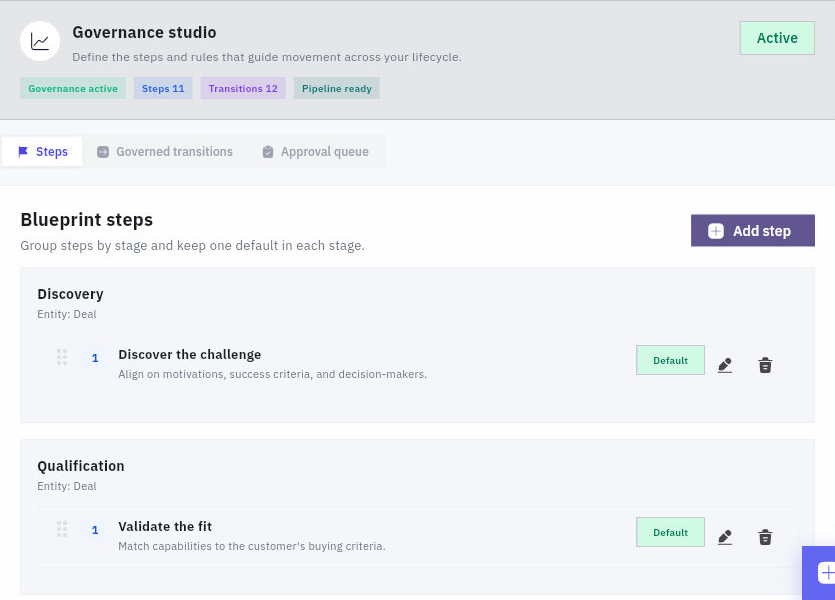
Transitions and commercial configuration
A step editor includes Pipeline stage, Step name, Step outcome, SLA target, Accent color, Description, Default step for this stage and Guardrails. The step inherits its entity from the stage. A default may be unavailable to turn off until another default is selected in that stage; plan the replacement rather than leaving the stage without its starting instruction.
In Governed transitions, read the source and destination before choosing Edit rules. The active toggle is a separate control, not the editor opener. The form's From step and To step establish the endpoints. Mark as conversion (Lead to Deal) requires an appropriate Lead-to-Deal pair; an ordinary Deal-stage move is not a conversion.
Required fields identifies fields to fill before movement; the illustrated list includes Account, Close date, Deal amount, Deal name, Owner, Primary contact, Stage, Status and custom fields. Conditional fields highlights optional fields when conditions apply. A highlighted field is not necessarily a blocking requirement.
Condition notes is explanatory text for people. The interface explicitly distinguishes stored notes from executable conditions. Writing “score >= 70” or “scope approved” there does not configure that rule. Use supported requirements and separately verified approval controls for actual enforcement.
Allowed CRM roles, Record owner only, Allow admin override, Requires approval and Transition active address different questions: who may act, whether ownership restricts them, whether an administrator can override, whether approval is needed and whether the transition is enabled. Assignment offers Keep owner, Lead manager, Round robin and Manual assignment. If Lead manager is selected but no lead manager is assigned, the mode alone does not establish a recipient.
For inspection, Cancel. For an authorised rule change, compare the entire form with the agreed instruction, use Save rules, reopen the exact transition and test permitted, blocked and approval-required cases. Do not delete a transition or alter roles merely to get a training example through it.
Read Commercial defaults as defaults
Open Config → Commercial. Commercial defaults summarises Currency, Forecast periods, Stale after, Default validity, Document types, Renewal notices, Number padding, Annual reset, Payment terms, Taxes, Approval roles, Close governance and CoBrain matching. These are shared choices, not evidence that a particular customer accepted them.
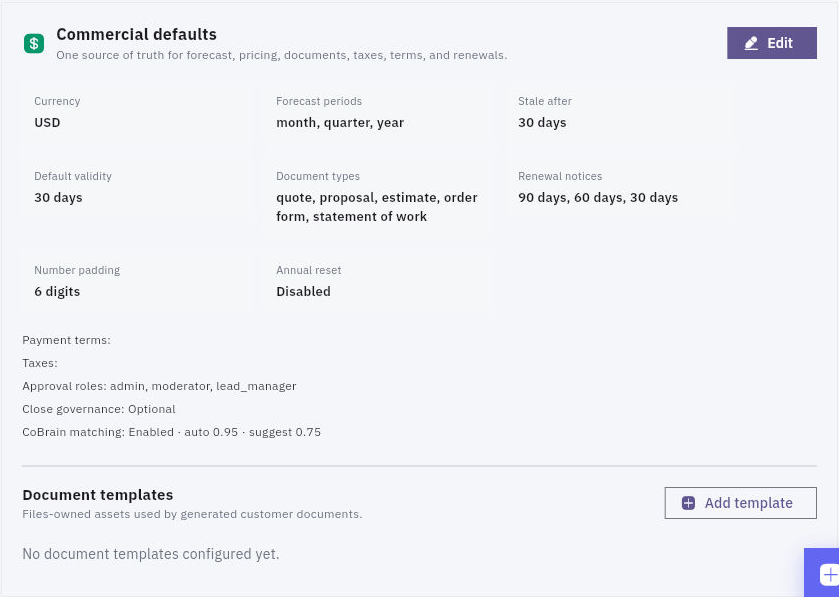
Defaults templates and integrated workflow
Edit opens Commercial configuration. The top fields include CRM currency, Stale forecast days and Default validity days. Stale forecast review is different from how long an offer remains valid. Payment terms and Renewal notice days use comma-separated inputs. Sequence padding (1-12) controls the width of the numeric portion, while individual prefixes distinguish Quote, Proposal, Estimate, Order form and SOW. Reset document sequences annually is a separate choice; review numbering dependencies before changing it.
Tax options (Name:rate, comma separated) specifies an input format, not the correct tax treatment for your business. Keep an approved specification and confirm how rates are represented before entry. Changing CRM currency does not prove existing documents were converted or Finance adopted the same setting.
Document approval controls include approver roles and escalation thresholds for discount, contract value and maximum validity. Require approval for every commercial document, Require commercial terms before submission, Require payment terms before submission and approval for non-standard payment terms are separate rules. Closing controls can require structured win/loss, a primary buying-committee Contact, a primary reason or a competitor for Closed Lost. Do not interpret a broad “Optional” summary as proof that every specific requirement is off.
Under relationship intelligence, inspect whether CoBrain matching runs, its selected signals, auto-link and suggestion confidence, stale-interaction days and related-link options. A confidence threshold is a configuration value, not proof that a proposed match is correct. Preserve reviewed identity and link provenance when investigating a match.
Prepare templates from the correct Files asset
The Document templates area is separate from defaults. Add template opens Name, Document type, required Template asset, optional Logo asset, Sections (comma separated), Default for this document type and Active. The initial section list can include header, customer, lines, totals and terms.
Choose an approved Files-owned asset through the supported chooser. A pasted filename is not the asset relationship. Confirm the exact version, type, sections and active/default state before saving. Then reopen the template and inspect a generated sample output through the authorised process. A saved template record does not prove placeholders, customer data, terms and layout render correctly.
Make one controlled change at a time
Suppose your team wants new offers to remain valid for 21 days instead of 30. Record the current default, intended new value, effective point, responsible approver and which documents should be affected. Keep currency, taxes, numbering, approvals and matching unchanged. Test a newly prepared sample document and an existing document separately; do not assume changing a default rewrites history.
After saving, reopen Commercial defaults and the editor to compare the intended field and neighbouring settings. If the result differs or an action fails, reconcile current state before retrying. Restoring a previous default may not repair documents created while the changed setting was active, so plan the recovery and affected-record review before release.
Complete the customer workflow
Use one approved sample enquiry to explain the full path. Identify its organisation and person, the need on its Lead, the particular purchase on its Deal and the evidence for its next stage. Find the chronological note and linked task that make the next action accountable. Read the exact commercial version and recalculate its price. Explain what still must happen before agreement, Finance processing and delivery.
Then decide whether a campaign, broadcast, journey or renewal is appropriate. A single service enquiry does not automatically belong in all four. Read the forecast with its period, currency basis and probability, and identify the configuration that governs the action you intend to take.
You have completed the course when you can find the right record, explain its fields and relationships, perform the authorised action through its actual controls, and reopen the result without confusing a label with a business outcome. For unavailable or unclear controls, give the responsible owner the exact space, record, action and observed restriction. Do not invent a substitute workflow or create duplicates to make the screen match an example.
Turn what you learned into the way the team works.
Mark this lesson complete once the workflow exists in your workspace—not simply when you reach the bottom.