Pages course 01 — Build a clear page in the editor
Pages brings together visitor-facing content, a form and the handling of its responses. A useful page tells the visitor what they can request and gives your team enough information to take the next step. This course follows a simple example: an enquiry about an initial planning conversation. It is not an instant report, a booked appointment or a purchase.
Part of Pages module course
In this lesson
Page purpose navigation and editor context
Pages brings together visitor-facing content, a form and the handling of its responses. A useful page tells the visitor what they can request and gives your team enough information to take the next step. This course follows a simple example: an enquiry about an initial planning conversation. It is not an instant report, a booked appointment or a purchase.
Start in an approved practice workroom. Use an existing permitted draft where possible. The screenshots show a separate training page and illustrate controls; they are not instructions to edit that shared example.
In this chapter
- Navigate the module and select the right page
- Define the whole page before changing a template
- Create a draft and understand the editor
- Read structure and choose blocks deliberately
- Complete page metadata as well as visible copy
- Review and reopen before continuing
Navigate the module and select the right page
Open Pages from the module rail after checking the workroom name. The main destinations are Summary, Pages and Submissions. Summary provides workroom-level figures. Pages provides the page directory, search, status filtering and New Page. Submissions provides captured responses. These are different scopes: a workroom total does not identify the result of one particular form.
Search for the full intended title and read its state before opening it. A page's own detail includes Overview, Analytics, Submissions and Settings, with actions such as Preview Page and Edit Page. Overview can show publication mode, address information and counts of sections, blocks and forms. Compare the actual page identity rather than relying on a familiar headline.
Three labels answer different questions. Draft or Published describes publication state. All changes saved describes the editor's saving state. An Active route describes handling configuration. A saved unpublished page can have an active route without contradiction. None of those labels proves a visitor reached the page or a response arrived.
Define the whole page before changing a template
For the planning-conversation example, use a clear headline such as “Plan a clearer first week for your team.” Explain that a person will review the enquiry before agreeing a next step. Ask for only the information needed to handle that request. A visitor should not have to guess whether clicking the button books a meeting or merely requests one.
Make a content inventory: internal name, headline, body, offer, preparation guidance, form title and explanation, field labels, submit button, success message and footer. Include template images, logos, links, prices, statistics and testimonials. A template's “2,000 satisfied clients” claim is not evidence about your business. Remove or replace unsupported content through the appropriate editing controls rather than correcting only the headline.
The Page name helps your team find the record. The hero headline helps the visitor understand the offer. The form title describes the requested action. They can differ while remaining consistent. Changing the internal name does not automatically change the headline or browser metadata.
Create a draft and understand the editor
If a new draft is needed and authorised, choose New Page, select the intended template, then Use Template once. Lead Capture Sprint is one illustrated starting template. Wait for the editor to show the resulting page and saved state. If the response is uncertain, search the directory before repeating creation.
The canvas displays the arrangement. The Inspector changes with the selected item. If it is hidden, open More builder actions → Inspector panel. Its Page tab applies to the whole page; Block applies to the selected content element; Publish concerns publication and access.
Select the page context on the canvas, then Inspector Page to read Page name. Select Hero Section, then Block to inspect Hero content → Headline. Select the form title to inspect Form Widget. If the panel shows a different item, select the intended block again before editing. A visible cursor does not guarantee you are changing the right level.
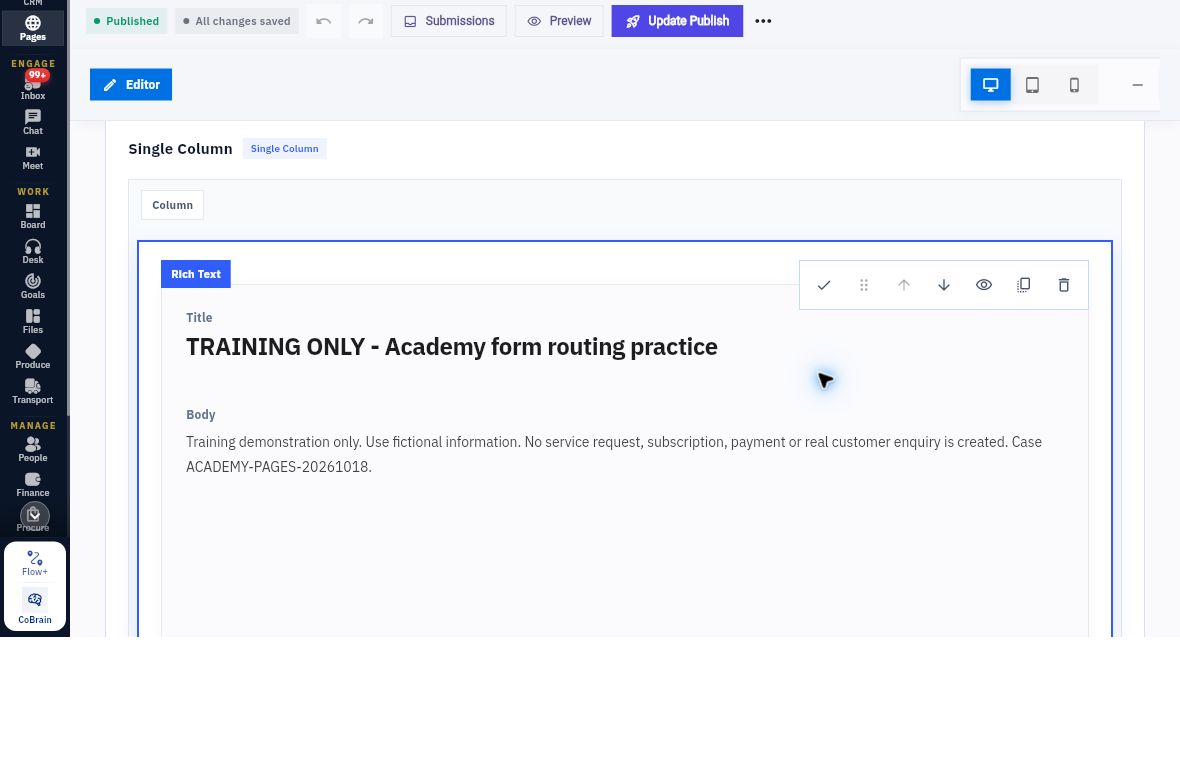
Structure metadata and retained content
For an existing Rich Text block, Edit content exposes separate Title and Body areas. Replace only the intended text, use Done editing, wait for saved state and reopen the page to compare the retained values. A complete explanation can live in one body; text placed there is not automatically a separate footer or section.
Read structure and choose blocks deliberately
Open More builder actions → Blocks panel, then Structure to inspect the page tree. The builder palette includes Gallery, Blocks, Templates and Structure. The illustrated tree contains Single Column, Column 1, Rich Text and Form Widget. It helps you identify the selected element and its place in the layout.
Available block choices include one-, two- and three-column layouts, Hero Section, Form Widget, Stats Row, Testimonial and Rich Text. Choose a block because its content is useful, not because the template offers it. A Testimonial block still needs approved genuine wording; a Stats Row needs a supported measure. Keep a small enquiry page simple enough that its request is unmistakable.
Desktop, tablet and phone viewport icons support checking different layouts. Inspect headings, text wrapping, field labels, buttons and spacing in each relevant view. Preview shows presentation, not proof of public access or successful data capture. Do not submit a form merely to see whether Preview opens.
Complete page metadata as well as visible copy
Inspector Page includes Slug, Template category, Preview URL, SEO Page title, SEO description, favicon Upload/Choose from Files, Social title, Social description and Social image URL. Page access directs you to Publish settings.
The slug identifies an address component; use the actual supplied URL instead of assembling a public address from the title. SEO title and description help describe the page in browser/search contexts, but do not guarantee ranking. Social metadata describes shared-link previews, not the full page content. A correct headline can coexist with stale “Untitled Page” metadata, so inspect both.
Choose an approved favicon or social image suitable for the intended audience. A Files asset being available to you does not automatically make it suitable for public exposure. Do not insert private material or unrelated branding for decoration.
Review and reopen before continuing
After an authorised edit, wait for All changes saved, leave the page and reopen the same record. Compare every changed value and any surrounding copy that could contradict it. Read the complete preview, including the form and success wording. Do not assume all fields persisted because one headline did.
For practice, plan this page: headline “Discuss a clearer process”; body explaining an initial human-reviewed enquiry; form title “Request a planning conversation”; and a success message that does not promise a booking or automatic email. Inspect a permitted draft and identify where each belongs. If editing is authorised, make one bounded change and reopen it.
Your expected result is a coherent, retained draft with the right internal identity, visible content and metadata. Publication, visitor access, form validation, captured responses and CRM handling remain separate steps covered next.
Turn what you learned into the way the team works.
Mark this lesson complete once the workflow exists in your workspace—not simply when you reach the bottom.