Pages course 02 — Configure forms and CRM routing
A form collects structured answers. A route decides where selected answers should go. Required fields, mapping and processing are separate: a field can be required without being mapped to CRM, and a saved active route can exist before any response has run through it. This chapter explains the Form Widget and a minimal Lead route.
Part of Pages module course
In this lesson
Form identity and field definitions
A form collects structured answers. A route decides where selected answers should go. Required fields, mapping and processing are separate: a field can be required without being mapped to CRM, and a saved active route can exist before any response has run through it. This chapter explains the Form Widget and a minimal Lead route.
In this chapter
- Select the form rather than the page
- Read each field definition
- Make the success behaviour truthful
- Define the routing contract
- Inspect or add the intended route once
- Plan validation without creating duplicate responses
- Practise a mapping review
Select the form rather than the page
Open the exact page in the intended workroom and choose Edit Page. Select the form's title on the canvas. Open More builder actions → Inspector panel if necessary, then confirm Form Widget in the Block tab. If the Inspector shows Page settings or another block, do not start changing values yet.
Read Form title and Form subtitle together. The title should describe the action; the subtitle can explain what information is needed and what happens next. For a planning enquiry, “Request a planning conversation” is clearer than a template promise to “Get your instant report.” Use the actual supported controls rather than altering unrelated body text and assuming the form follows.
The widget also exposes Submit button label and Supporting text. A button should describe what it submits, not promise an outcome the form does not create. “Request a conversation” does not mean a meeting has been booked. Review all these strings together so the visitor receives one consistent explanation.
Read each field definition
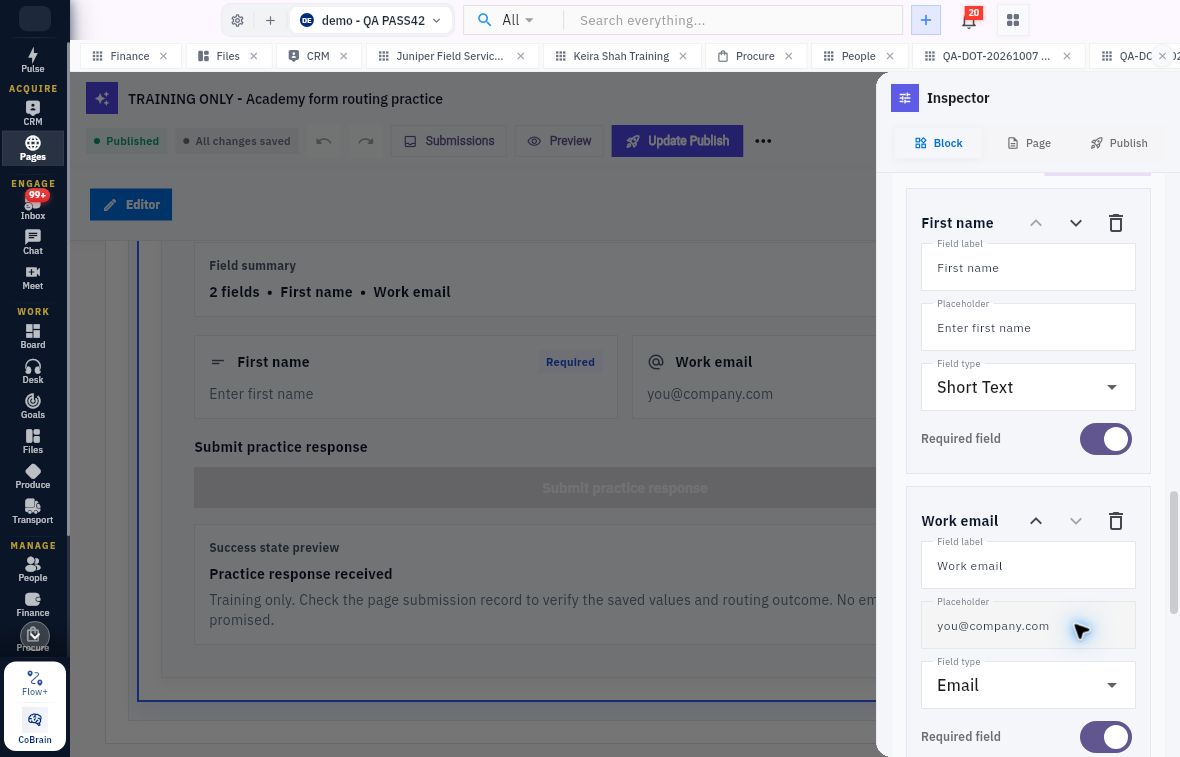
For every field, inspect its Field label, Placeholder, Field type and Required field switch. The label names the question. Placeholder text illustrates an input; it disappears when the visitor enters a value and should not carry essential instructions by itself. Type describes the intended shape, such as Short Text or Email. Required controls omission, not truth or downstream routing.
Success behaviour mapping and validation
The minimal example uses First name, Short Text, required; and Work email, Email, required. Collecting a phone number, employer size or annual revenue merely because a template offers it adds information without an agreed purpose. If an optional Topic is useful, first confirm how it will be captured and where the handler can read it. Do not promise it will appear on a Lead until its mapping is supported.
Visible on page and Track interactions are separate widget settings. Hiding content or enabling tracking can affect visitor experience and data handling; do not toggle them just to explore. Add field may be available, but inspect its actual controls before promising a particular field type or behaviour.
Make the success behaviour truthful
Under Success behavior, the illustrated option is Thank You Panel, with Success title, Success message and Redirect URL controls. A success panel is the screen shown after an action. It is not independent proof that a submission persisted, a Lead was created, an email was sent or a meeting was booked.
A useful message for the example says the enquiry needs review before a next step is agreed. In a training page, make the fictional nature clear and tell the learner to check the saved response. Do not introduce a redirect as an accidental side effect of editing the message. A redirect destination also needs an approved address and audience.
After an authorised copy change, wait for saved state and reopen the widget. Compare the title, subtitle, field labels, required flags, button and success message—not just the visible page headline. Preview helps reveal presentation problems; it does not replace retained-value checks.
Define the routing contract
Write down the destination before selecting it: exact workroom, CRM space, record type and source fields. For the minimal enquiry, the intended route is Lead to the approved Revenue space in the same intended workroom. Another workroom can also have a Revenue space; its name alone is not enough.
Use explicit mapping pairs:
| Form field | Destination identifier | Meaning |
|---|---|---|
| First name | lead.first_name |
Send the submitted first-name value to this Lead field. |
| Work email | lead.email |
Send the submitted email value to this Lead field. |
| Optional Topic | No assumed mapping | Keep the handling decision explicit until a supported destination is established. |
A visible label is not necessarily a stored field identifier. Open a narrow selector when needed to read its actual selected option. Do not invent identifiers such as lead.topic from a friendly label.
Submission only does not mean no information is stored; it means the configuration is not being treated as a demonstrated CRM-creation route. Conversely, selecting Lead does not mean a Lead already exists. Configuration, response persistence and route processing must be checked separately.
Inspect or add the intended route once
In Form Widget, find Routes and inspect the existing route before adding another. If a new route is authorised and none exists for this purpose, use Add route once. Set its name or label, choose Route type: Lead, and select the actual CRM Space. Confirm each source/destination mapping.
Read the displayed condition and state. Always runs, where shown, describes the configured condition; it does not prove a particular response ran. The condition helper describes any group matching while all conditions within a group must match. This is the distinction between OR across groups and AND inside a group. Keep a simple route simple rather than adding condition groups without a business need.
Controls such as Add group, Add mapping and Add webhook are separate changes. A webhook can send data to another system and needs its own approved purpose and verified destination. Do not add one or link a campaign merely to make the form appear more complete. A plan limit or Upgrade control is not a reason to buy a plan for this exercise.
Wait for All changes saved, leave and reopen the same page, then inspect the route label, type, space, mappings and conditions again. Confirm the page's publication state has not changed unexpectedly. A route saying Active does not override a wrong mapping.
If a helper still asks you to select a CRM space while the chosen space and Active state are visible, preserve the discrepancy and ask the responsible owner to resolve it. Repeatedly toggling the selector is not a neutral diagnostic step. A subsequent response trace can establish an outcome, but it should not erase a configuration warning.
Plan validation without creating duplicate responses
For the two-field form, prepare five checks: both fields blank; only First name; only a valid fictional email; both fields with a malformed email such as not-an-email; and both fields with complete distinct fictional values. Isolating each required field helps distinguish omission checks from email-format checks.
Only execute submissions within an approved test plan for the exact route and destination. A preview can behave differently from the published visitor page. Before a valid submission, make sure an earlier uncertain attempt has not already stored a response. The next chapter follows that one response through Submissions and CRM.
Practise a mapping review
Suppose the form requires First name, Work email and Project type. The route maps First name correctly, but Work email points to lead.phone. Project type is intentionally unmapped. The route says Active.
The correct decision is to correct the email mapping through an authorised edit and reopen it before testing. Required Project type does not automatically gain a CRM destination; decide where the handler will read it. Do not add a second route or manually create a Lead to hide the mismatch. Your expected result is a retained, explainable mapping contract and validation plan, not a claim that a customer record has already been created.
Turn what you learned into the way the team works.
Mark this lesson complete once the workflow exists in your workspace—not simply when you reach the bottom.