Finance course 08 — Working with expenses claims advances and reimbursements
Start an employee-spending review by establishing who funded the purchase and whether it is already recorded. In Workroomly, the answer determines which tab and source relationship you need—not just which form is easiest to complete.
Part of Mastering Workroomly Finance
In this lesson
Choose the correct employee-spending route
Start an employee-spending review by establishing who funded the purchase and whether it is already recorded. In Workroomly, the answer determines which tab and source relationship you need—not just which form is easiest to complete.
This chapter covers Finance → Expenses & claims and its five tabs. You will review fields, supporting documents and workflow states using a USD12.50 Riverside travel claim. The practice is read-only; preparing a claim, approving a cost and releasing a payment require separate authority.
In this chapter
- Choose among the five tabs
- Inspect prior spending permission
- Check employee identity and review readiness
- Read the Riverside claim without overstating its result
- Inspect the claim header and its source relationships
- Understand the expense line and receipt controls
- Distinguish saved input from submitted review
- Inspect an advance without treating requested money as paid
- Read the reimbursement form through its source records
- Recognise the direct expense and recognition boundaries
- Practice a read-only evidence and state check
Choose among the five tabs
| Tab | Starting question |
|---|---|
| Direct expenses | Did the business pay the cost directly, and is the cost already represented by another source? |
| Expense claims | Did the employee pay personally and request recognition of an eligible amount? |
| Expense advances | Is money being requested before the employee accounts for the spending? |
| Reimbursements | Which exact supported employee obligation remains to be settled? |
| Pre-spend requests | Does the proposed spending need prior permission under the organisation's policy? |
The Direct expenses form explicitly directs employee-funded spending to Expense Claim. Do not record the same receipt as a direct expense and a claim, or reimburse costs already funded by an advance without resolving that relationship.
Each tab has a search, All statuses and New; an empty register also offers its corresponding Create action. Check the workroom, selected tab and filters before deciding whether a record exists. An empty Direct expenses register does not tell you whether an employee claim exists.
The blank-form examples use NGN; the Riverside travel claim uses USD12.50. Review the currency, rate and dates for your own source rather than copying the examples. Follow your organisation’s required-information rules and resolve validation messages before saving.
Inspect prior spending permission
Open Finance → Expenses & claims → Pre-spend requests. Use Search pre-spend requests, All statuses and New. Read Request, Status, Requested and Needed by together. The example Riverside quality review materials request is a separate NGN18,000 Draft, needed October 23. It is proposed spending, not the USD12.50 taxi claim or a payment.
New opens New Expense Request. Inspect both the upper and lower sections before drawing conclusions about the available relationships:
| Field or area | What to establish before an authorised request |
|---|---|
| Title | A recognisable identity for the proposed spending. |
| Category | The appropriate classification; choose the classification required by your policy. |
| Estimated cost | The proposed cost, not a final incurred expense or approved amount. |
| Priority | The requested priority; use the priority agreed for the request; follow the approval route separately. |
| Description, Notes | The business need and supporting context. Neither is evidence of approval. |
| Attachments | Supporting documents, with Attach from Vault and Upload file. Open the intended document and check its contents. |
| Currency | The currency of the request; check it against the proposed cost. |
| Needed by date | When the spending is needed; use the actual planned date. |
| Department ref, Project | The exact organisational and project references for the proposal. |
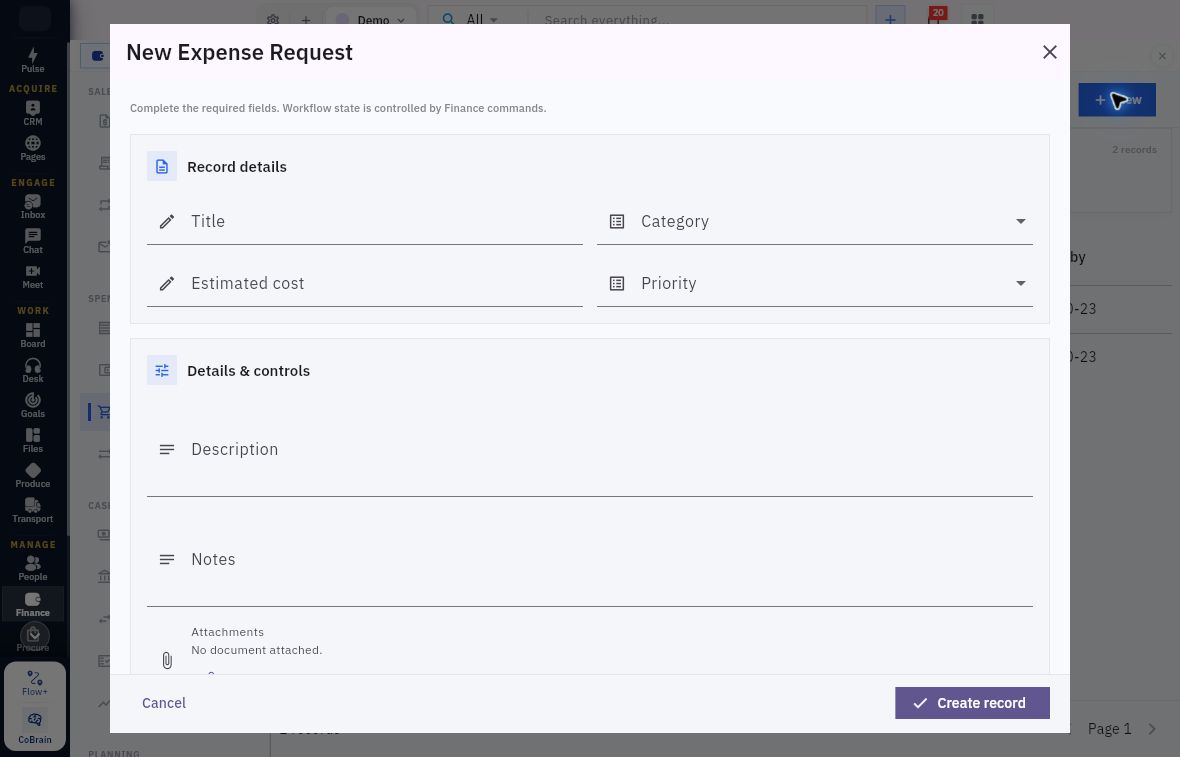
Pre-spend purpose and estimated cost
Enter the proposed Title, Category, Estimated cost and Priority, then explain the business need in Description and Notes.
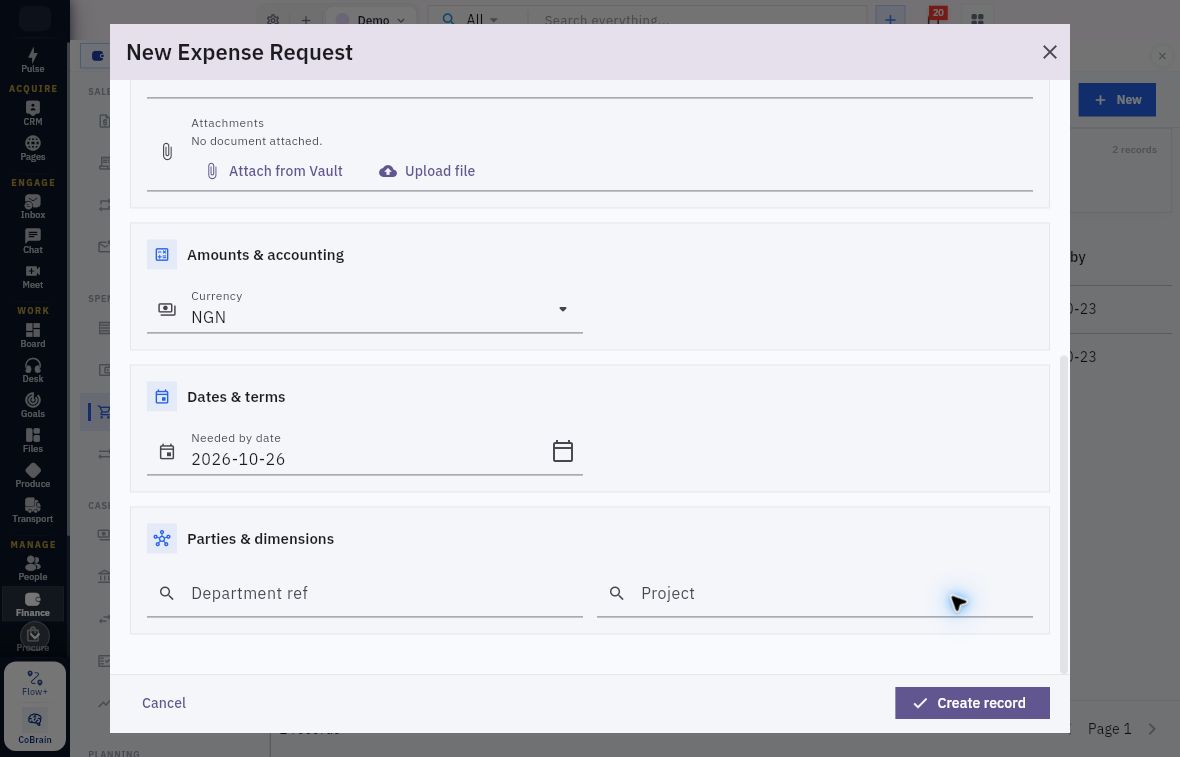
Proposal ownership, timing and attachments
Scroll to Attachments, Currency, Needed by date, Department ref and Project. Check that the proposal belongs to the correct team and project. Cancel the blank form for this exercise.
The parent actions are Cancel and Create record. This section covers request preparation. Follow your organisation’s approval and budget-control procedure before committing the spend. Later, use the exact request in the Expense request reference on the claim or direct expense; check its actual approval rather than relying on the link alone.
Check employee identity and review readiness
Before inspecting a claim, identify the selected employee in People → Directory → Employees and compare the exact name or employee reference. Check the department and any required reporting relationship separately.
Four People fields answer different questions:
- Department identifies the organisational unit.
- Role / Position is workforce metadata, not automatically a Finance permission.
- Manager is the employee's reporting relationship.
- Workspace access describes the linked account state.
Check each relationship separately. For example, Casey Training has a department and role but a blank Manager and Unlinked Workspace access. Resolve incomplete employee setup with the People and Finance owners before relying on manager routing. Leave account and permission changes outside this exercise.
The claimant, reviewer, Finance reviewer and payment owner are responsibilities, not new product role names. Establish who is actually authorised to perform each decision. A Manager approve button does not prove that the correct manager is configured or that the signed-in user may self-approve.
For an advance, also inspect the relevant Finance → Settings configuration with the owner. The documented controls include retirement days, maximum open advances, overdue blocking and reminders. Staff advances control account has a helper stating that it is required before an advance is disbursed. Resolve any configuration issue with the Finance owner before requesting disbursement.
Read the Riverside claim without overstating its result
The worked example is QACLM-000004, Riverside workshop travel practice: a fictional USD12.50 taxi claim for Casey Training and the training department. The line uses 6300 Travel and employee expenses. It is at Manager Review, Version 2.
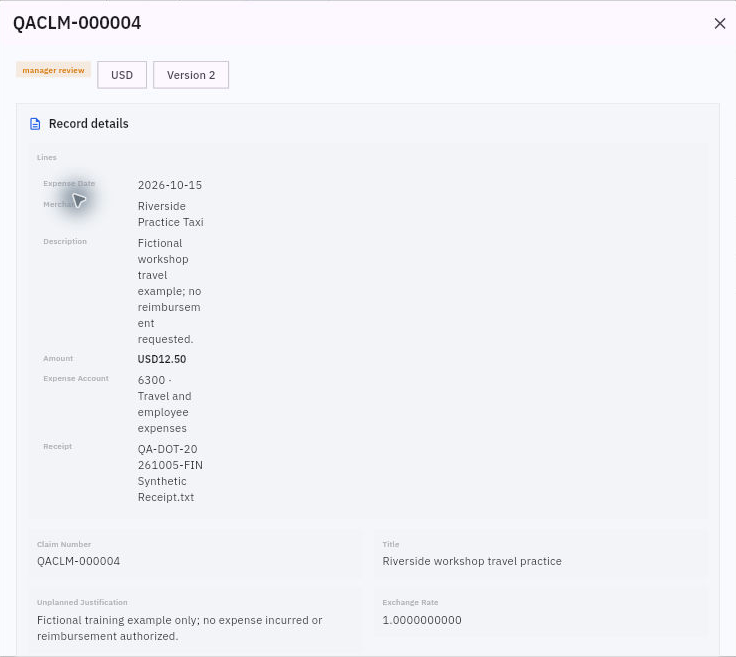
Claim review state versus reimbursement
Read the claim number and Manager Review state, then compare the USD12.50 line, expense account and receipt filename. Check reimbursement separately before reporting that the employee has been paid.
The example links QA-DOT-20261005-FIN Synthetic Receipt.txt, but its preview is access-denied. Treat the receipt as unreadable and refer the access issue to its owner. Keep the line’s Receipt association separate from Source & audit → Attachments None; review the document associated with the specific cost line.
Claim Date and the line's Expense date were October 15. Submitted At was October 16 at 10:19. The date of the cost, the claim date and the submission timestamp are not interchangeable.
Inspect the claim header and its source relationships
Open Finance → Expenses & claims → Expense claims. Search the intended title or source reference and inspect possible duplicates. An empty Direct expenses tab does not establish that no employee claim exists.
New opens New expense claim. For inspection, leave the form unchanged and cancel after reviewing its sections.
| Header field or area | What to compare |
|---|---|
| Employee | The exact claimant, not a similarly named person or the signed-in account by assumption. |
| Department | The approved organisational relationship for this claim. It does not establish the manager. |
| Expense request | A source relationship where the claim follows a request. Select the exact supported request; do not attach an unrelated one. |
| Title | A useful record description. For an existing claim, retain its generated number as well as the title. |
| Unplanned justification | The reason for the unplanned spending. Do not replace the business reason with a generic request for payment. |
| Notes | Supporting context and restrictions. Notes do not override review controls. |
| Claim date | The claim's date, distinct from each expense date and later workflow timestamps. |
| Currency and Exchange rate | The transaction currency and approved conversion basis. Use the approved currency and conversion basis. |
| Lines / Add line | The individual costs and their evidence. Review each line, not only the header total. |
Explain unplanned spending in Unplanned justification and add useful context in Notes. Follow the policy for your claim and resolve validation messages without bypassing the control.
The parent Attachments area offers Attach from Vault and Upload file, alongside Lines / Add line and Notes. Keep parent documents separate from each line’s Receipt; check the correct association when reviewing a saved claim.
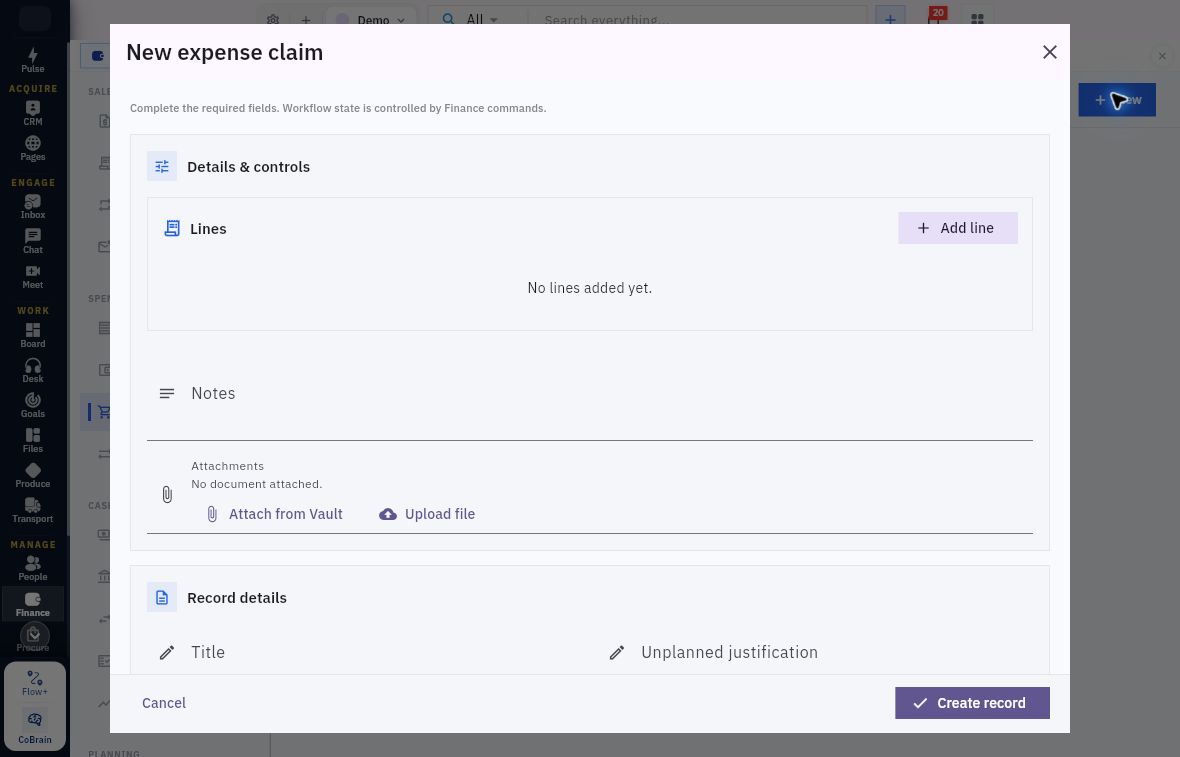
Claim header and supporting documents
Start with the parent Lines and Attachments areas; Title and Unplanned justification appear below. Creating a record is a separate action from saving a line.
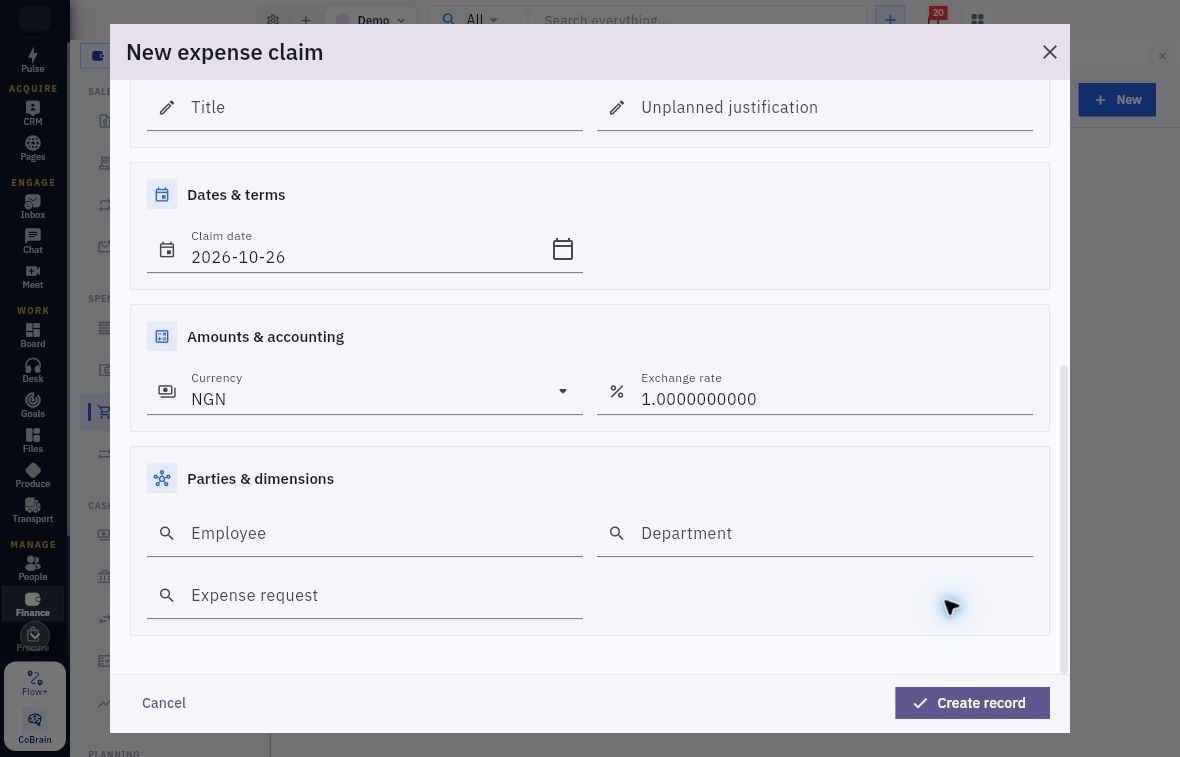
Claim currency and employee relationships
Review Claim date, Currency and Exchange rate, then select the exact Employee, Department and Expense request. Check the manager in the employee record separately.
Understand the expense line and receipt controls
Selecting Add line opens the nested line form:
| Field | Meaning and evidence check |
|---|---|
| Expense date | The date of the underlying cost. Compare it with the receipt. |
| Merchant | The supplier shown by the supporting evidence. |
| Description | What was purchased and why it served the business purpose. |
| Amount | The line's claimed amount. Reconcile it to the actual currency and receipt contents. |
| Expense account | The approved accounting category, selected as an exact reference. |
| Tax code | The approved tax treatment where applicable, not a guessed code to adjust the total. |
| Project | The relevant project relationship where the approved specification requires it. |
| Receipt | The evidence associated with this line. It is not the decision that the cost is eligible. |
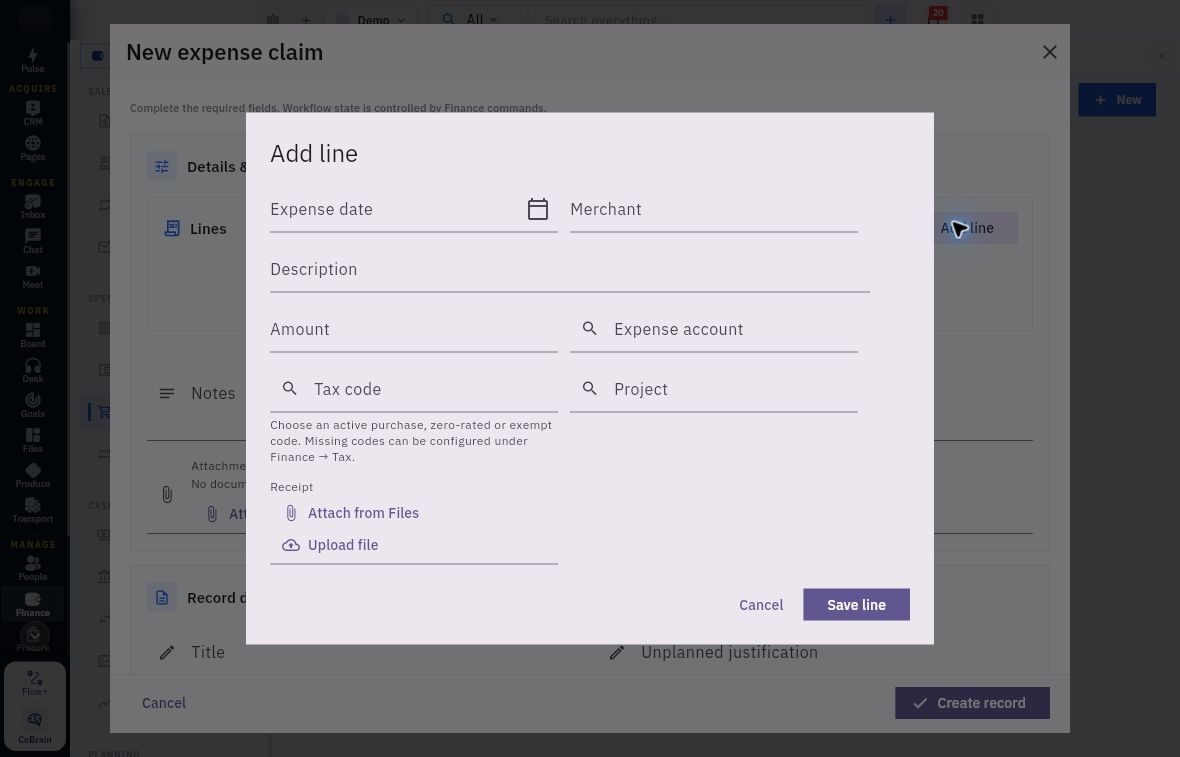
Claim-line accounting and receipt evidence
The line form separates Expense date, Merchant, Description and Amount from the account, tax and project references. Receipt offers Attach from Files and Upload file. Save line belongs to this nested form; Create record remains on the parent behind it.
For Tax code, choose an active purchase, zero-rated or exempt code under the approved treatment; missing codes belong under Finance → Tax. Enter the line’s Expense date and Amount from the receipt rather than assuming the parent Claim date supplies them.
Attach from Files associates an existing permitted file. Upload file is a separate action requiring permission for the file and destination. In an authorised preparation workflow, confirm the full identity of the selected document before Save line, then check that the correct line retains the association. Saving the line does not create the parent claim.
Receipt review needs three distinct checks: the correct file is linked, its contents are readable through a permitted route, and those contents support the claim under policy. Compare merchant, receipt reference, date, currency, items, tax and total. Check whether the same source was already used in another claim, company-paid transaction or advance.
If access is denied or the file is unreadable, retain the specific gap for the owner. Do not bypass access restrictions or reconstruct a receipt from its filename. A valid receipt also does not by itself prove who paid or that the business has not already reimbursed it.
Distinguish saved input from submitted review
An authorised preparer reviews the complete header and lines before Create record, then reopens the exact generated claim. In the example draft, the USD12.50 line persisted while the header showed zero. Later draft registers could display Calculated on Submit. Review the lines and source amounts before Submit, then check the calculated result.
For a checked, authorised Draft, Workflow actions → Submit opens Confirm submit for this record. Confirming Submit advanced QACLM-000004 to Manager Review, Version 2, with Amount and Functional Amount both USD12.50. The line and receipt association remained present.
At Manager Review, the example still awaits review. Manager approve, Reject and Cancel are available actions for the responsible reviewer. Before reporting completion, check the actual decision, accounting and reimbursement records; this example stops before those stages.
If a claim needs correction, retain its number, affected line, original value, supported value and reason. The inspected draft editor does not establish that a Manager Review claim can be edited directly, or how Reject changes its state. Obtain the supported correction route and any renewed-review requirement. Do not create a second claim as a workaround.
Inspect an advance without treating requested money as paid
Open Finance → Expenses & claims → Expense advances. New expense advance exposes the following fields:
| Field | What it describes |
|---|---|
| Title and Purpose | The request's identity and business need. |
| Needed by date | When the money is needed. It is not established as the retirement deadline. |
| Requested amount | The proposed amount, not an approval or disbursement. |
| Currency and Exchange rate | The request's currency and conversion basis. |
| Employee, Department and Project | The person and organisational context to which the request belongs. |
| Attachments | Supporting material, using Attach from Vault or Upload file. |
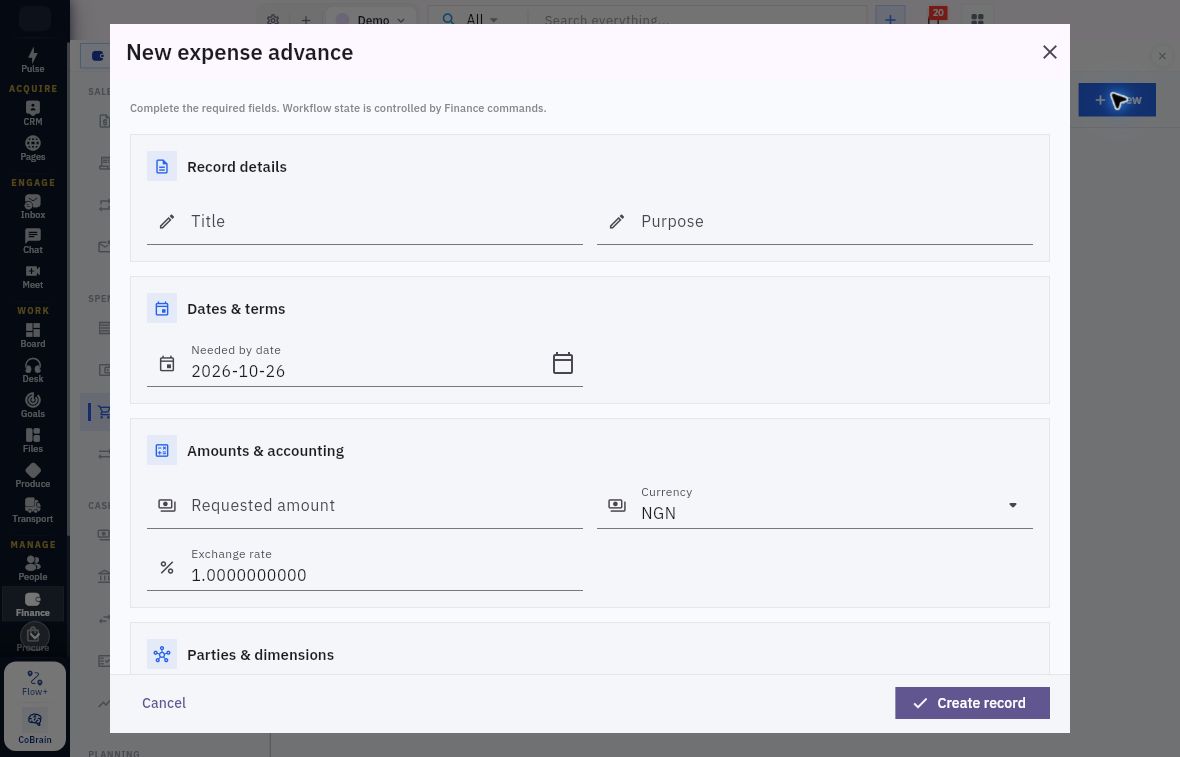
Advance purpose and requested funds
Check Needed by date, Requested amount, Currency and Exchange rate against the planned spending. Requested amount is the request, not the amount already disbursed.
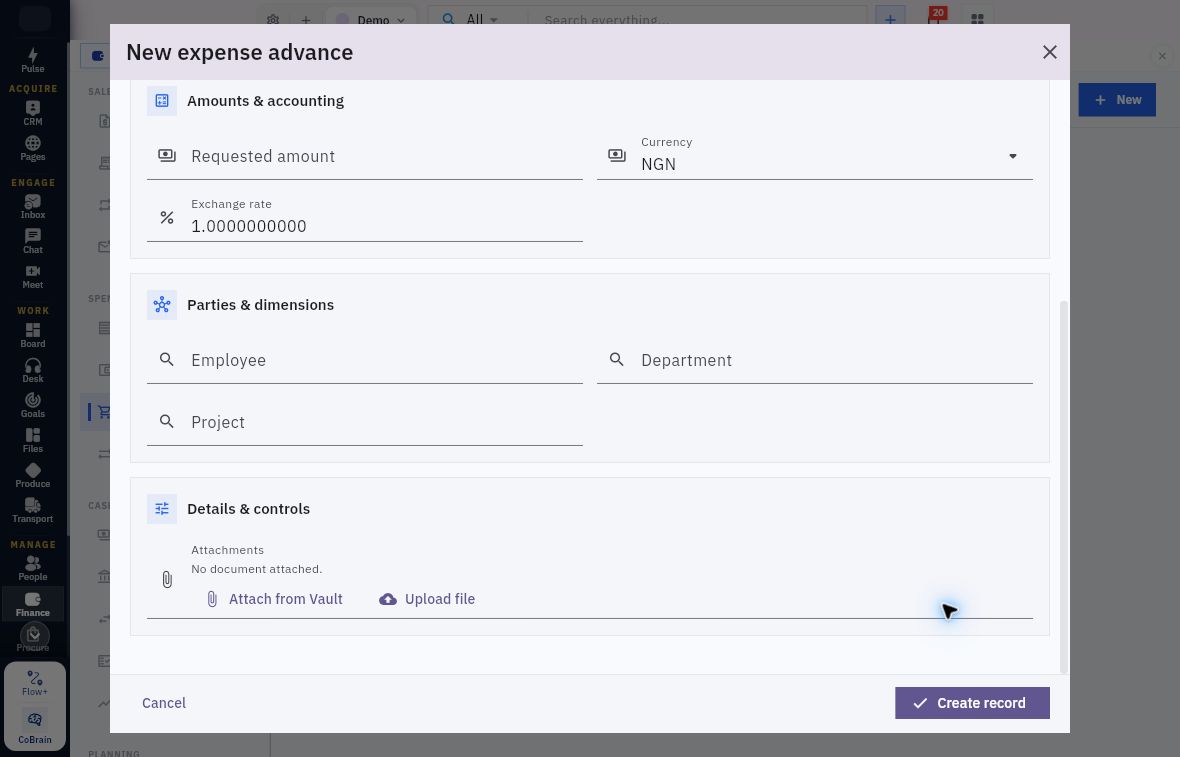
Advance ownership and supporting documents
Scroll to Employee, Department and Project, then associate the supporting documents in Attachments. Check that each document can be opened by the authorised reviewer.
The parent actions are Cancel and Create record. This section covers advance preparation; use your organisation’s authorised review, disbursement, retirement and return procedure for later stages.
On an existing advance, distinguish requested, approved, disbursed, returned, excess and outstanding amounts, together with Retirement Status and any retirement lines. A zero outstanding amount is not proof that money was spent and fully accounted for when disbursement is also zero and the record remains in review.
For Riverside's taxi cost, an employee-funded claim and an advance-funded cost are alternative funding situations, not two claims to enter. If an advance already funded the cost, resolve its retirement and any genuine remaining employee balance before considering reimbursement. Do not reimburse the same supported cost again merely because a receipt exists.
Read the reimbursement form through its source records
Open Finance → Expenses & claims → Reimbursements. Use Search reimbursements and All statuses to check existing payments before choosing New or Create expense reimbursement. New expense reimbursement has Payment date, Provider reference, Payment method, Claim, Expense advance, Cash account and Payment evidence, with Cancel and Create record.
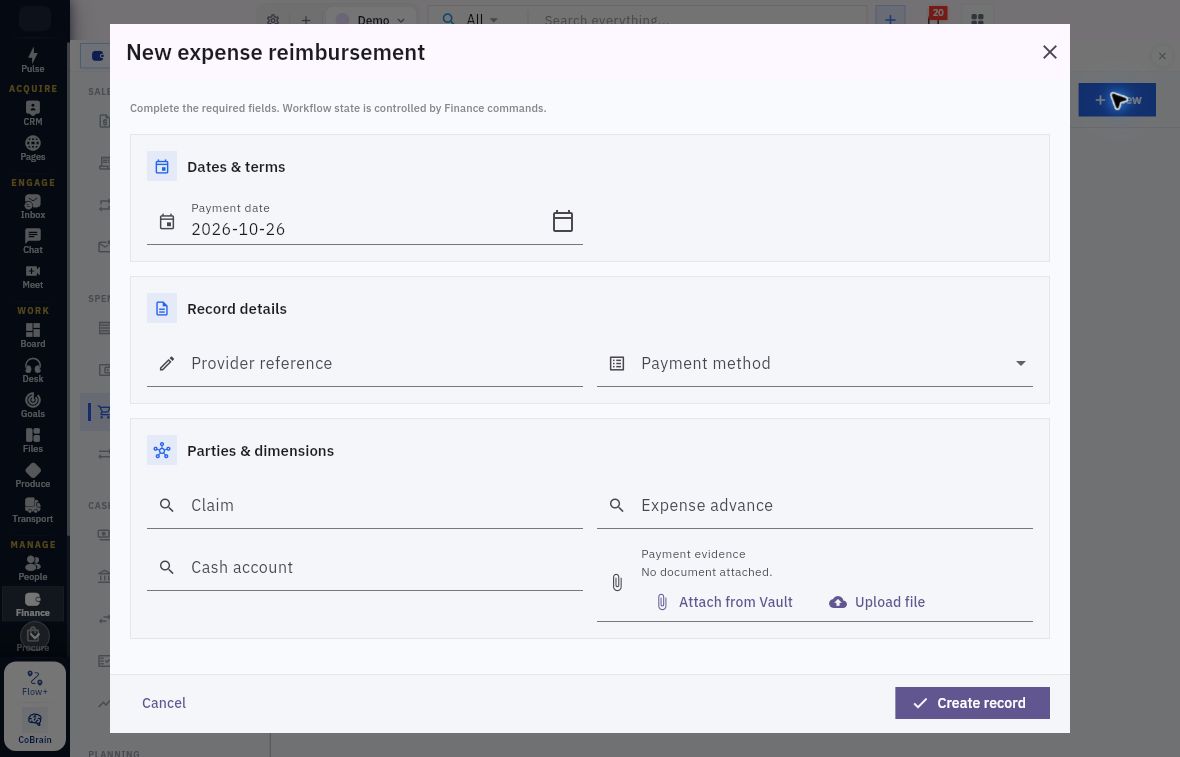
Reimbursement source and payment evidence
Identify the source Claim or Expense advance, then check Cash account and Payment evidence. There is no separate Amount input in this form. Set Payment date and Provider reference from the supported payment, not the screen’s prefills.
Payment date and Provider reference must describe the supported payment, not an invented success. Cash account identifies the intended source of cash. Claim and Expense advance are source relationships: their presence does not establish that both must be filled or which states are eligible.
The form has no separate Amount field. Confirm the payment amount and how the selected source determines it through the authorised reimbursement procedure. Do not select another claim to obtain a desired value.
To confirm reimbursement, match the employee obligation, review decision, payment evidence, accounting and final balance. The USD12.50 example remains at Manager Review, without a completed reimbursement.
Recognise the direct expense and recognition boundaries
Open Finance → Expenses & claims → Direct expenses. New opens New Expense Record, with Cancel and Create record as parent controls. Use Cancel for this read-only inspection; check the actual payment separately from the saved expense. Its fields include:
| Field or area | Meaning and check |
|---|---|
| Paid by | The funding route. Choose Paid from a company cash account. The helper directs employee-funded spending to an Expense Claim. Confirm the actual funding source before saving. |
| Category, Payment method | Classification and payment route. Choose the values required by your organisation’s process. |
| Recognition method | The accounting-timing choice; use the approved treatment. |
| Date | The date supported by the expense source. |
| Merchant or payee, Approved vendor | The helper says to use the former for an ad-hoc payee or choose an approved vendor. It does not establish that both must be entered. |
| Department ref, Project, Expense request | The cost’s dimensions and prior request; check approval and funding separately. |
| Expense account, Cash account | The cost classification and cash reference. Select supported accounts rather than using free text as proof of a resolved record. |
| Payment evidence | Attach from Vault or Upload file, initially no document attached. Link the intended evidence and check that it is readable. |
| Amount, Currency, Exchange rate | The supported amount, transaction currency and approved conversion basis. |
| Tax code | The helper asks for an active purchase, zero-rated or exempt code; missing codes are configured under Finance → Tax. Ask the configuration owner to resolve missing codes. |
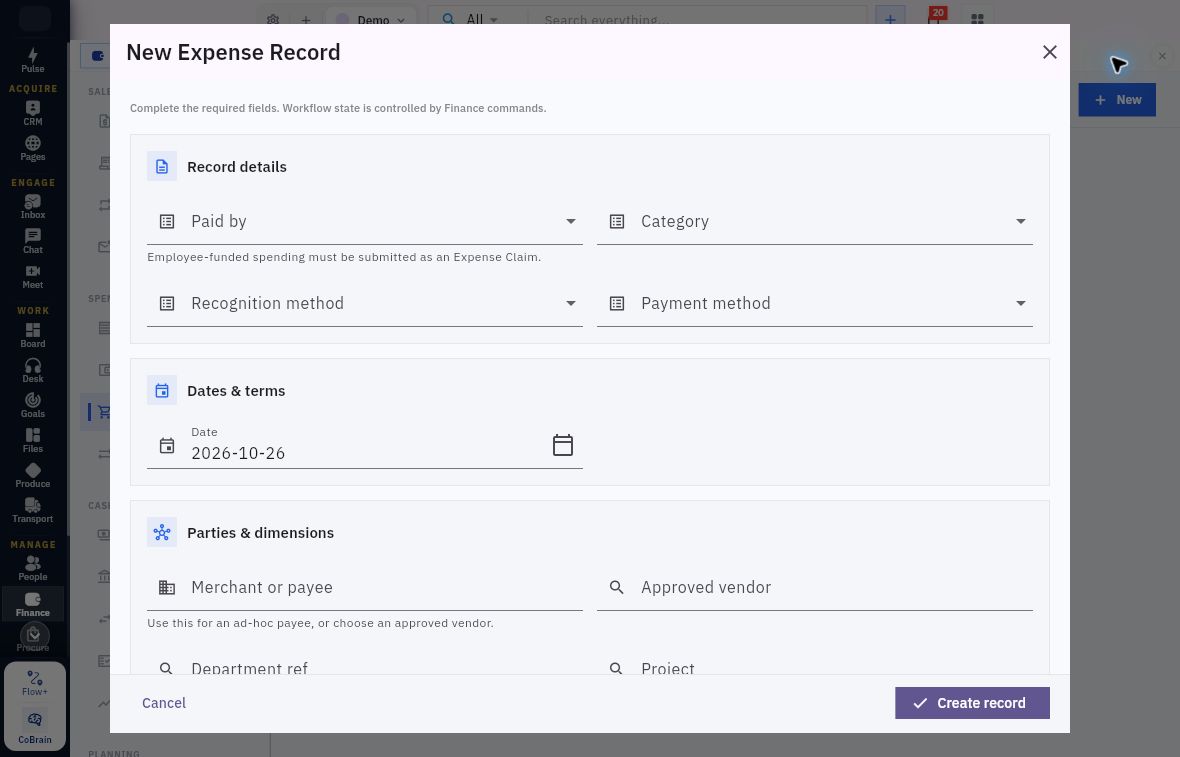
Direct-expense funding and recognition
Read the employee-funded-spending warning before choosing a route. Paid by, Category, Recognition method and Payment method show no selected value in this initial form.
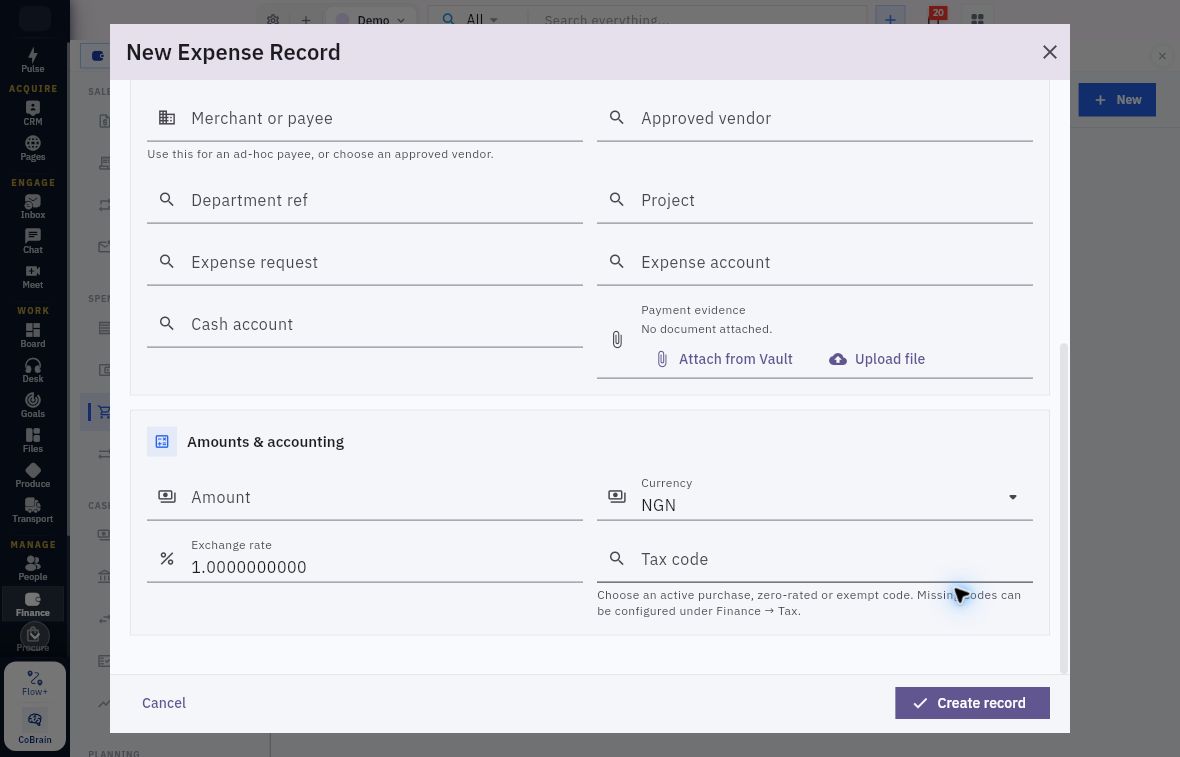
Direct-expense accounts and safe practice
The lower form separates Expense request, Expense account and Cash account from Payment evidence, then shows Amount, Currency, Exchange rate and Tax code. It is a blank preparation form, not an accounting or payment result.
Recognition choices include Immediate and Monthly straight-line. The direct-expense monthly branch uses Recognition deferred account alongside Expense account and Cash account. Check the timing fields and approved deferred-cost treatment with your Finance owner before using that branch; this chapter does not provide a complete recognition setup. Do not copy the customer invoice’s deferred-revenue setup into a cost workflow.
Chapter 11 explains the schedule and event checks to make after an authorised recognition workflow. Keep recognition timing separate from expense approval and reimbursement.
Practice a read-only evidence and state check
Choose a permitted existing claim, or use the Riverside worked example if no suitable record is available. Do not create a substitute.
- Identify the correct Expenses & claims tab and explain who funded the cost.
- Match the actual Employee and Department. Identify the review owner without assuming that Role / Position or an available button grants authority.
- Read one line's date, merchant, amount, account and receipt association. Separately record whether the receipt contents can be read and compared.
- If prior permission is relevant, inspect the Pre-spend requests register and distinguish Requested cost and Draft from an actual approval; cancel any blank request form without creating one.
- Read the claim's actual state and timestamps. State which later decision or payment evidence is still missing. Cancel any inspection-only form.
Expected result: identify who funded the cost, which source and receipt support it, and what decision or payment remains. For QACLM-000004, report USD12.50 at Manager Review with an unreadable linked receipt and no completed reimbursement. Assess another claim from its own records.
Next, inspect budgets and commitments to understand how proposed and committed spending differs from these actual cost and settlement records.
Turn what you learned into the way the team works.
Mark this lesson complete once the workflow exists in your workspace—not simply when you reach the bottom.