Finance course 09 — Reading budgets commitments and cash forecasts
A budget proposal, an outstanding obligation and a forecast payment are different records. This chapter shows how to read their scope, understand the fields that connect them and identify which result is actually supported before making a spending recommendation.
Part of Mastering Workroomly Finance
In this lesson
Budgets, commitments and forecast context
A budget proposal, an outstanding obligation and a forecast payment are different records. This chapter shows how to read their scope, understand the fields that connect them and identify which result is actually supported before making a spending recommendation.
You need Finance read access, the intended planning period and currency, and the budget owner’s identification of the governing version. Use existing permitted records. This practice does not create or activate a budget, reserve funds, relieve a commitment, place an order or change payment dates. The examples include a blank NGN form and older saved USD/EUR records; compare each example’s currency and state before using its values.
In this chapter
- Choose the right planning workspace
- Identify the exact budget version
- Read the newer budget form rather than copying an old limit input
- Explain each allocation line
- Read the saved draft and its scope
- Inspect commitments without duplicating an obligation
- Use budget variance as a scoped cross-check
- Read the cash forecast by dates and sources
- Complete a read-only planning review
Choose the right planning workspace
Open Finance → Budgets or Finance → Commitments, under Planning. For dated cash expectations, open Finance → Cash forecast, under Cash. Planning and Cash are sidebar headings, not additional pages to click.
Use Budgets for the proposed or governing plan and its allocation lines. Use Commitments to inspect the relationship between a budget line and a source obligation. Use Cash forecast to examine expected timing. A budget amount is not a bank balance, and a positive forecast does not approve a purchase.
Riverside's service example remains the same: an accepted USD80 supplier bill and a hypothetical USD50 allocated payment leave USD30 payable. The expense and the payment do not belong in a budget review as two separate costs. If the bill originated from an earlier obligation, that obligation also needs appropriate reconciliation so the same cost is not counted again as fully outstanding.
Identify the exact budget version
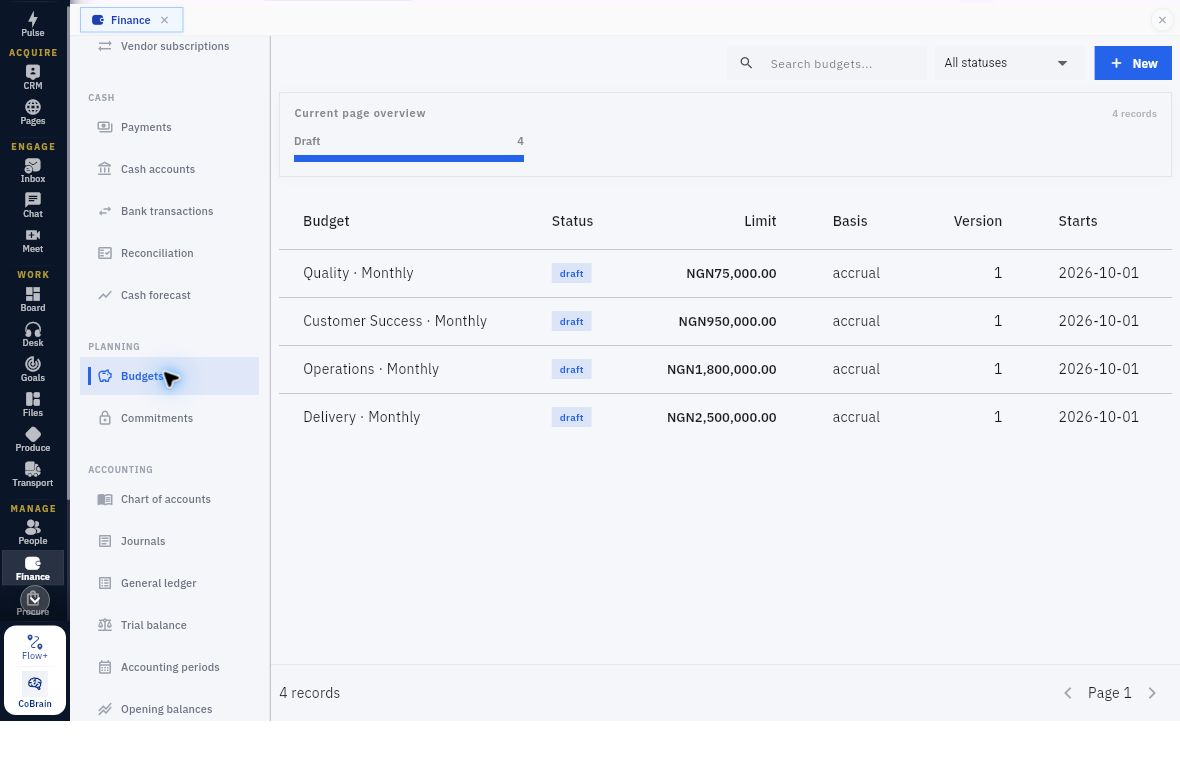
The Budgets register provides Search budgets..., a status filter and New. Read the row's Budget, Status, Limit, Basis, Version and Starts together. Do not select by display name or row position alone.
Draft budget states and displayed limits
Read the state before the amount. These four Demo rows are Draft, accrual, Version 1 and start October 1. Their limits are NGN75,000 for Quality, NGN950,000 for Customer Success, NGN1,800,000 for Operations and NGN2,500,000 for Delivery. They are proposals, not governing active budgets or spending authority.
The next example shows why the same columns matter when several records share a name:
Distinguish same-label budget records
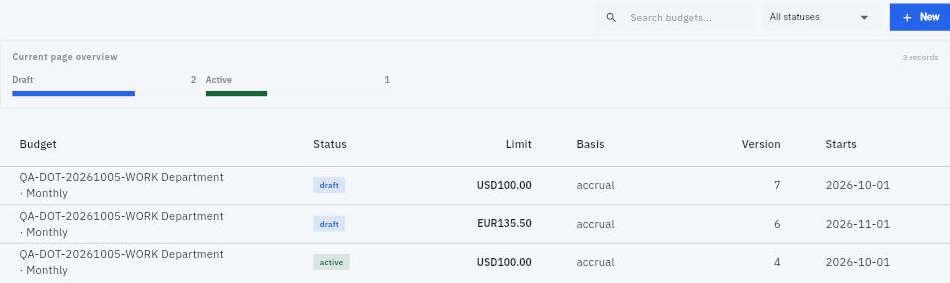
One display name can cover different records. Draft Version 7 has a USD100 limit and starts October 1. Draft Version 6 has EUR135.50 and starts November 1. Active Version 4 has USD100 and starts October 1. The shared department/Monthly label does not make them interchangeable. Version 7 is numerically higher than Version 4 but is still Draft.
Open the intended record and compare its retained lines, dates, currency, basis and note. The budget owner must identify which version governs your decision. A familiar Active badge does not establish all approval, replacement or enforcement rules, and a new draft does not silently replace the existing active record.
The saved detail’s Supersedes relationship displays only Budget. Resolve the exact predecessor before using this label to explain a replacement chain.
Read the newer budget form rather than copying an old limit input
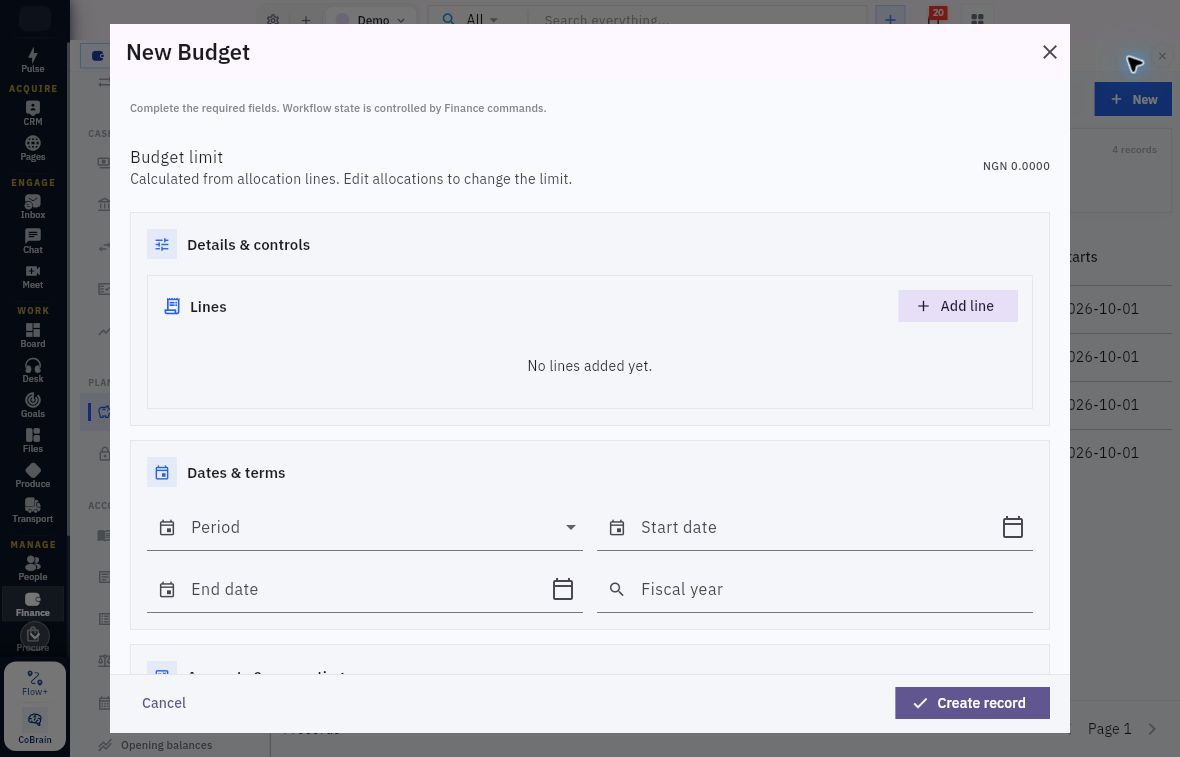
New opens New Budget. Use Cancel for this tour; Create record saves the parent proposal. In the newer form, Budget limit is a calculated summary: Calculated from allocation lines. Edit allocations to change the limit. Older forms used a manual limit input. Follow the controls on your form rather than copying that older input step.
Build the budget through allocation lines
Build the limit through allocations. NGN0.0000 appears beside No lines added yet. Additions belong in the allocation lines, not an independent Limit amount override. During this read-only tour, leave the form empty.
Inspect the complete scrolling header:
| Field or control | What to read or establish |
|---|---|
| Budget limit | The calculated total of allocation lines in the newer form. Reconcile it to the intended lines; do not search for a separate override. |
| Lines and Add line | The allocations that build the proposal. Opening or saving one line is not the same as saving the parent budget. |
| Period | The header's interval selector, such as Monthly. This interval is not the accounting-period reference on a line. |
| Start date and End date | The approved planning boundaries. Confirm calendar choices rather than accepting a convenient prefill. |
| Fiscal year | The selected existing fiscal-year relationship. Match its actual identity and dates. |
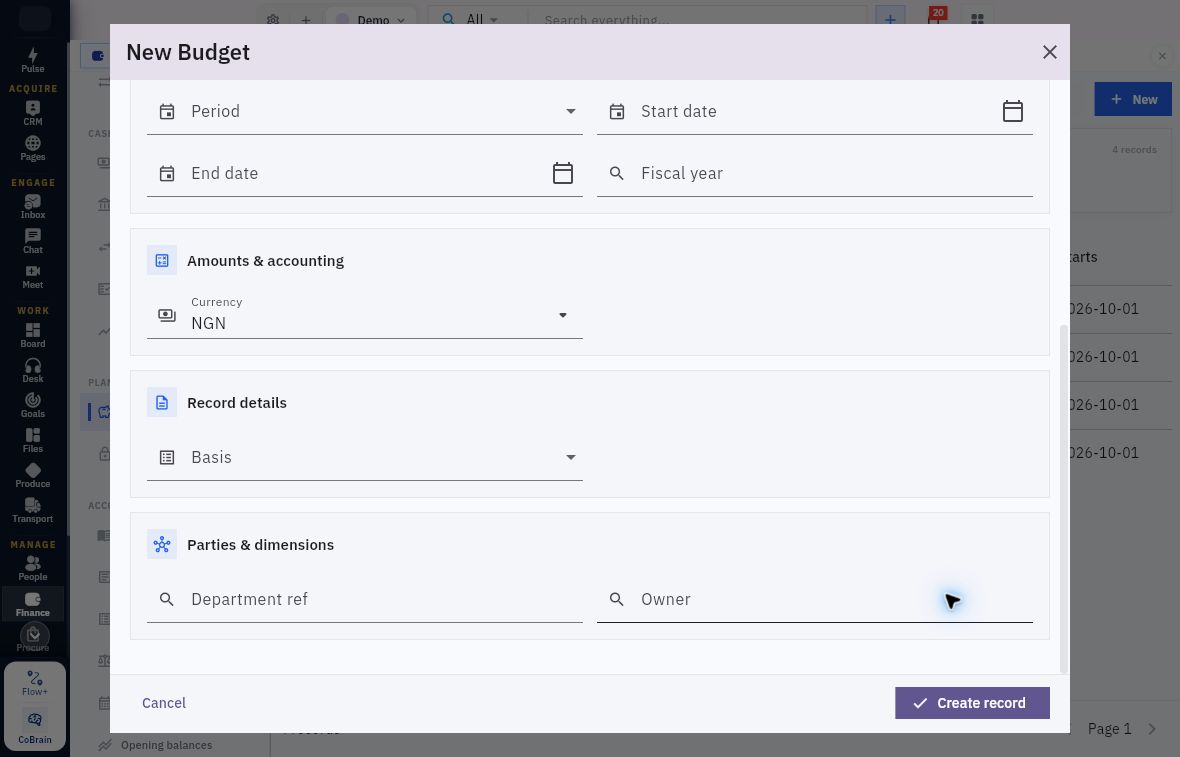
| Currency | The budget currency. The October 26 form displays NGN; the older saved example uses USD. Neither is a recommendation for a different proposal. |
| Basis | The planning basis, such as the retained example's accrual value. It does not by itself establish which source statuses feed actuals. |
| Department ref | The header's department relationship. Compare it with the intended planning scope and line department. |
| Owner | The applicable responsible-owner relationship. Use the approved assignment; the example leaves it blank. |
Budget scope, basis and ownership
Inspect the whole form, not just its total. Currency shows NGN; Period, Start date, End date, Fiscal year, Basis, Department ref and Owner are blank. Choose the intended basis rather than assuming the register’s accrual values are a new-form default. Check required fields and date validation in your authorised workflow. Do not create departments, accounts or years just to make an example value available.
Explain each allocation line
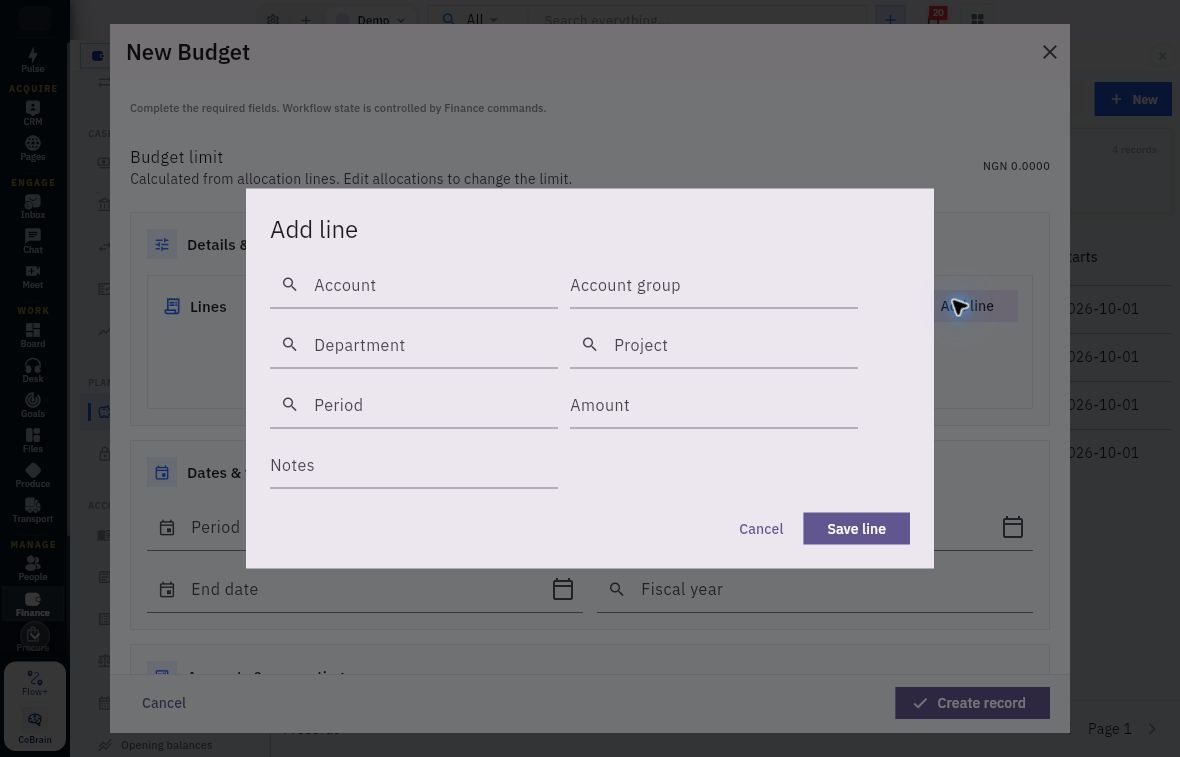
Add line opens Account, Account group, Department, Project, Period, Amount and Notes, with Cancel and Save line.
| Field | Meaning and selection check |
|---|---|
| Account | The approved account receiving the allocation. Check the selected code and full name. |
| Account group | A grouping field where the specification uses it. The supplied example left it unset; do not infer a hierarchy or aggregation rule from the field alone. |
| Department | The allocation's department relationship, checked against the intended scope. |
| Project | A project relationship where applicable; the supplied example left it unset. |
| Period | The actual accounting-period reference, such as Oct 2026, not merely the header's Monthly interval. |
| Amount | The proposed allocation amount. Check currency and scope before adding lines together. |
| Notes | A useful explanation and identity marker for the line; notes do not grant spending authority. |
Allocation accounts and organisational dimensions
Resolve each relationship before saving a line. Select the exact account, department, project and accounting period required by the proposal. Typed search text is not a selected relationship. Leave the blank dialog unchanged during this tour; the populated example below shows how to check retained values.
For Riverside, two authorised allocations of USD70 and USD30 would total USD100. Use this as a calculation check, not as a saved result. If the displayed limit differs, examine the retained lines and their scope rather than forcing an independent limit.
Save line returns the line to the parent. A separately authorised Create record would then need its own independent readback from the register. Record the actual returned name, version and state; do not expect every new proposal to be Version 7.
Read the saved draft and its scope
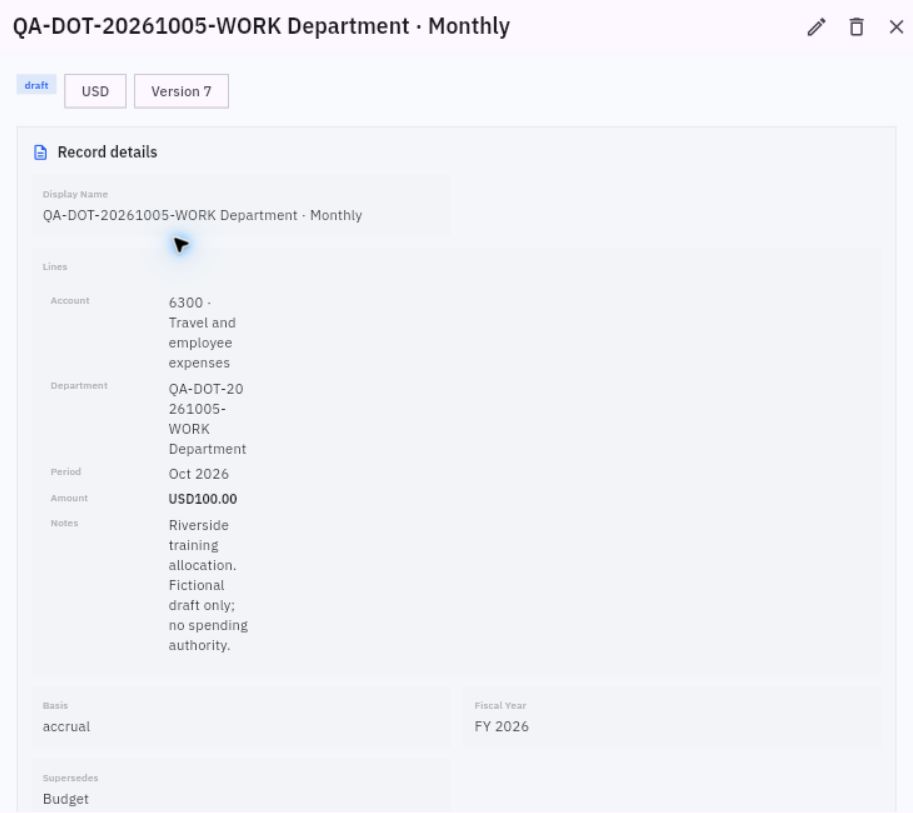
Read the saved budget allocation
Check the retained allocation. This saved Draft Version 7 has account 6300 Travel and employee expenses, department QA-DOT-20261005-WORK Department, line Period Oct 2026 and Amount USD100.00. Its note reads Riverside training allocation. Fictional draft only; no spending authority. Basis is accrual and Fiscal Year is FY 2026.
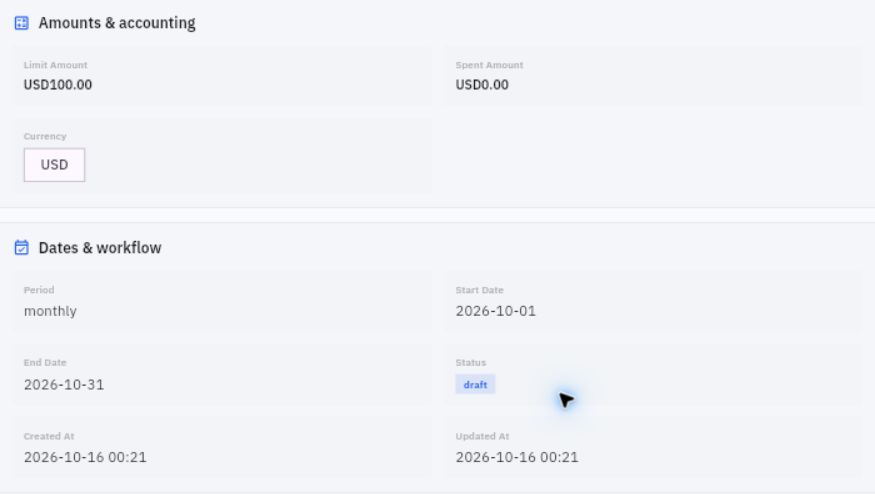
Budget dates versus activity timestamps
Separate scope from activity timestamps. The same retained draft shows Limit Amount USD100, Spent Amount USD0, Currency USD, Period monthly, October 1–31 dates and status draft. Created At and Updated At on October 16 identify record activity; they do not define a new planning month.
The saved example uses the older form. Use it to read allocation scope, not to copy its creation steps into the newer calculated-limit form. Neither USD0 spent nor matching allocation and limit amounts guarantees complete actuals or authority to spend USD100.
The draft offers Submit under Workflow actions. Submission, approval and an active governing version are separate milestones. Before submitting a real proposal, confirm your organisation’s reviewer, replacement procedure and spending controls.
Inspect commitments without duplicating an obligation
Open Finance → Commitments. Use Search commitments... and All statuses to check the register. The Demo view says No budget commitments yet and offers New and Create budget commitment. An empty register does not mean the business has no obligations. Do not create a commitment simply to populate this exercise.
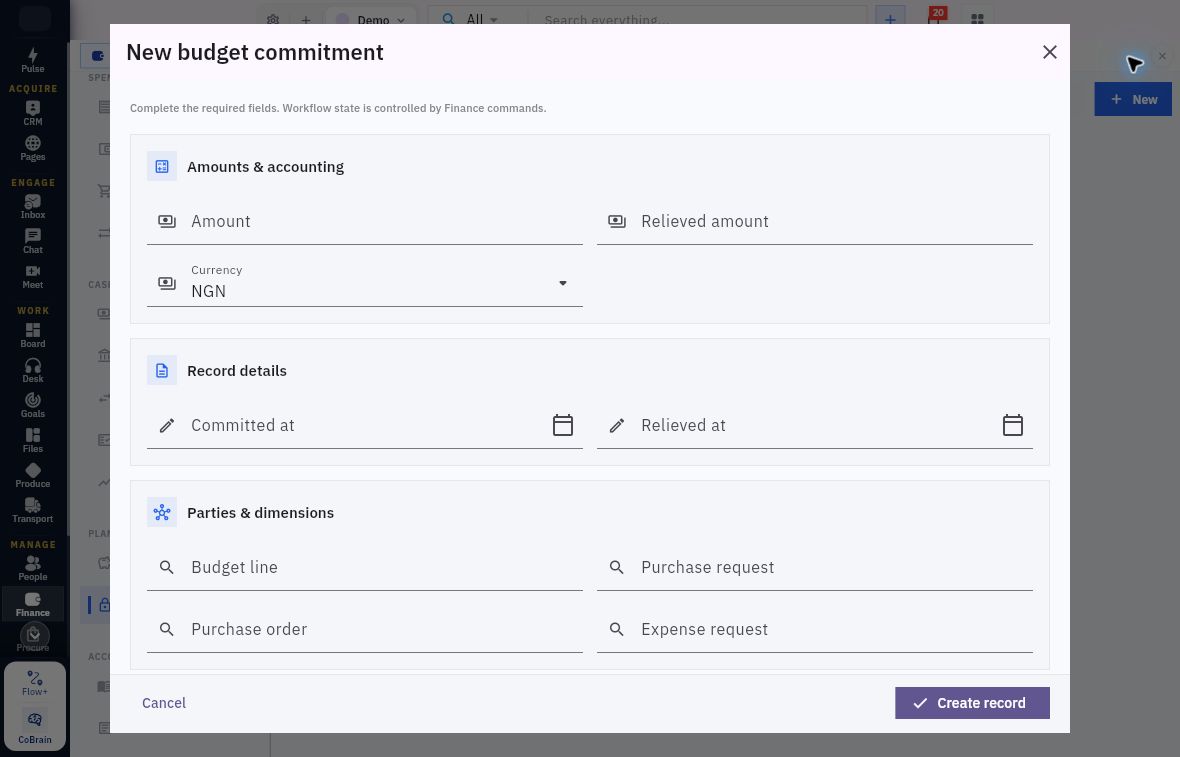
The current New budget commitment form contains:
| Field | What it connects or describes |
|---|---|
| Amount | The original amount associated with the supported obligation. |
| Relieved amount | A separately supported reduction or conversion; do not enter a value merely because the field exists. |
| Currency | The commitment currency, consistent with the intended budget/source scope. |
| Committed at and Relieved at | Dates of the relevant obligation and relief events, not automatically invoice or payment dates. |
| Budget line | The exact allocation being linked, including its governing version, account, department and accounting period. |
| Purchase request, Purchase order and Expense request | Source relationships for the obligation. Two linked documents may represent one obligation, not two amounts. |
Commitment source and remaining obligation
Identify the budget line and source before entering an amount. The blank form shows Currency NGN, with amounts, dates and relationships unset. Confirm the intended currency and exact links; the form’s required-fields notice is not a relief calculation.
Prepare Amount and the exact Budget line before any authorised creation; the earlier form required both. Check your form’s validation rather than assuming other inputs are optional. For this tour, choose Cancel, not Create record.
If the selector offers indistinguishable choices labelled Budget Line, do not choose the first. Knowing that Active Version 4 exists does not identify which choice refers to its account and period. Leave the selection unset and cancel. Give the owner the intended version, account, department, period and currency so they can resolve the relationship without altering a shared budget.
Relief also needs evidence. It can reflect conversion of an obligation into actual cost or cancellation of an unused obligation; it is not synonymous with payment. For Riverside's accepted service cost, inspect whether an earlier commitment still contains an amount already represented by the bill. Do not assume that bill approval, payment or a manually typed relief amount automatically performs the right reservation or release.
Before using a commitment total, reconcile source identities, scope and documented relief under the organisation's approved method. Flag relief greater than the original amount, mixed currencies, unmatched sources and request/order double counting. Confirm the approved procedure and budget effect before reserving, partially relieving or releasing a real obligation.
Use budget variance as a scoped cross-check
Open Finance → Reports, under Administration, and select Budget variance in Financial report. Chapter 13 covers report navigation and scope in depth; here, use it to connect the planning review to reported values.
The report example identifies posted ledger and active commitments as its basis and presents Account, Budget, Actual, Committed and Available. Its account 6300 row shows Budget 100, Actual 0, Committed 0 and Available 100, in USD.
Compare the report's date range and refresh/as-of information with the governing plan and underlying obligations. A zero Committed value does not prove there are no unrecorded obligations. Available is the product's displayed label, not purchasing authority or usable bank cash. Explain source/scope differences instead of creating records to force a report to match a separate calculation.
Read the cash forecast by dates and sources
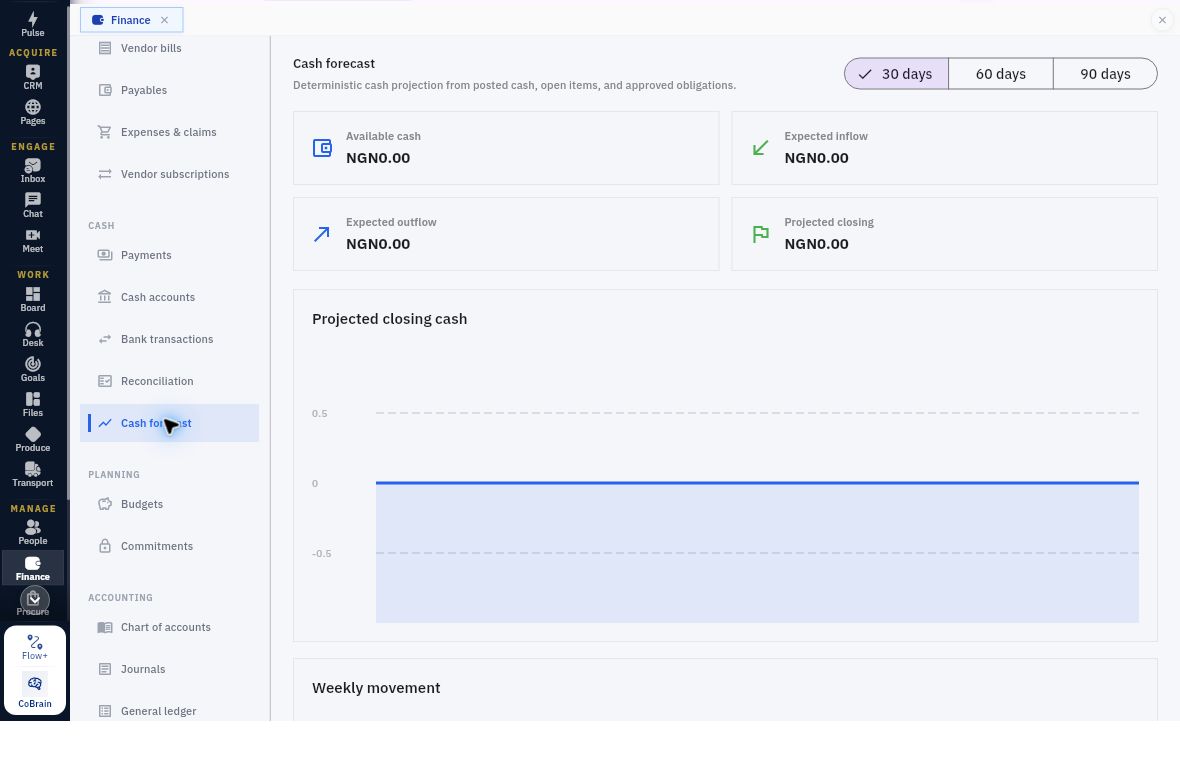
Open Finance → Cash forecast. The page describes its projection as using posted cash, open items and approved obligations. The current controls are 30 days, 60 days and 90 days, with summary cards, a Projected closing cash chart and a Weekly movement table.
Forecast horizon and source checks
Check the sources behind a zero forecast. With 30 days selected, Available cash, Expected inflow, Expected outflow and Projected closing all show NGN0.00. The flat chart reflects that projection, not a bank confirmation or a guarantee that no cash will be needed.
Scroll to Weekly movement for Week, Inflows, Outflows and Closing cash. This 30-day view spans October 26–November 25 with zero values. Inflows and Outflows are clickable; check the destination and its scope before using any detail to explain a forecast amount. The screenshot above stops before the table rows.
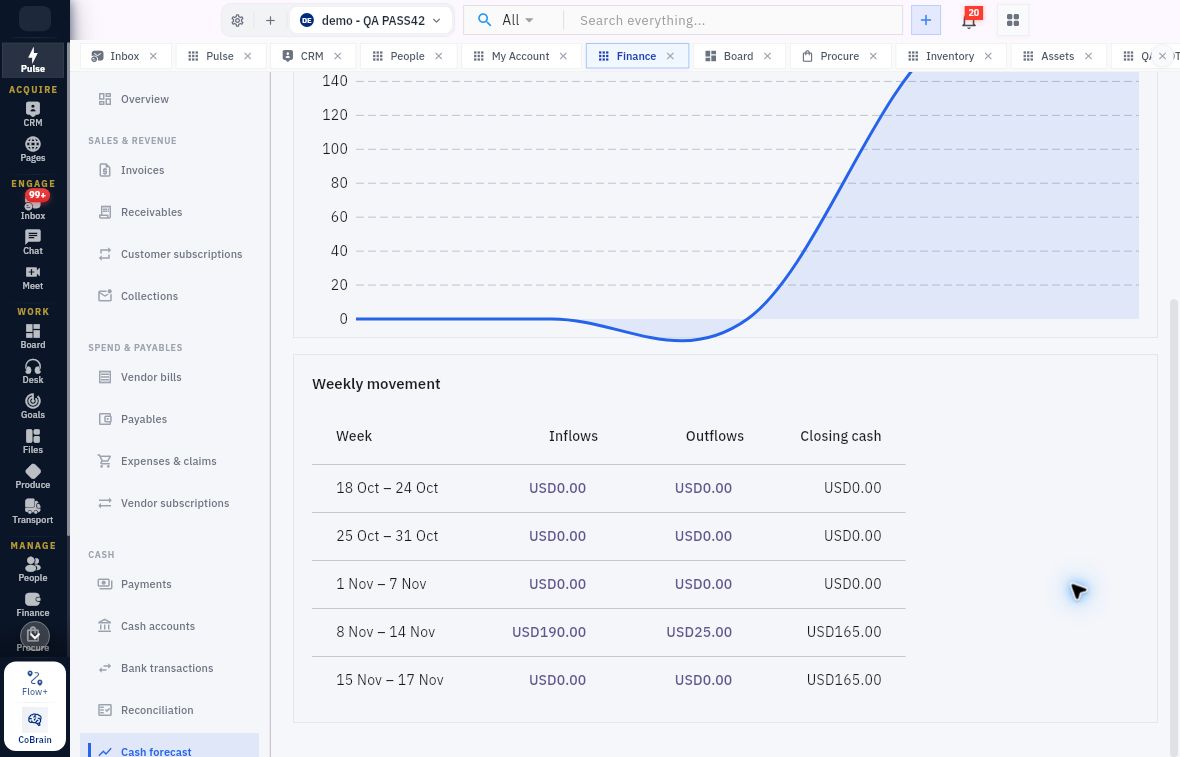
Read Available cash, Expected inflow, Expected outflow and the projected closing value together. Record the workroom, selected horizon and observation time. The populated 30-day example shows USD0 available, USD190 expected inflow, USD25 expected outflow and USD165 projected closing: 0 + 190 − 25 = 165. Those figures belong to its source population, not Riverside's separate USD300/80 trading illustration or a fresh bank statement.
Weekly timing and planning practice
Use the dated rows to interpret timing. November 8–14 contains USD190 inflows and USD25 outflows, leaving USD165 closing cash. The following partial week carries USD165. Read dates and row amounts rather than inferring a transaction or shortage solely from the smoothed chart.
Trace material expected amounts and dates to the actual receivable, payable and approved obligation. Check overdue, disputed or unrecorded items with their owners. A due date is not proof a customer will pay then. If you need a delayed-receipt sensitivity, keep that separate assumption clearly labelled; do not edit a source due date merely to improve the chart.
Complete a read-only planning review
Select an existing budget the owner permits you to inspect.
- Identify its version, state, currency, dates, basis and distinguishing note. Ask which version governs if that is unresolved.
- Compare its allocation references and amounts with the retained total. Distinguish the saved example from any unsaved form you inspected.
- Inspect relevant commitments only when their source and budget line can be identified. Report missing or ambiguous links and possible double counting; do not enter relief.
- Read Cash forecast for the appropriate horizon. Identify one material dated expected flow and the source you would use to validate it.
Expected result: A short review that states the exact plan, source obligations and dated cash assumptions, with a clear remaining decision. A valid result can be “draft inspected, governing version unresolved” or “budget-line identity unavailable.” It is not a claim that a budget was activated, a commitment reserved or cash became available.
Next, examine recurring-service records and how their contracts, billing dates and recognition connect to future obligations and receipts.
Turn what you learned into the way the team works.
Mark this lesson complete once the workflow exists in your workspace—not simply when you reach the bottom.