Finance course 10 — Understanding recurring customer and vendor services
Workroomly has separate records for the service plan, customer subscription, billing activity, source invoice and accounting result. A vendor subscription describes recurring purchased services through a different form. Read each record's purpose before interpreting recurring amounts as revenue, expense or cash.
Part of Mastering Workroomly Finance
In this lesson
Recurring agreements and record relationships
Workroomly has separate records for the service plan, customer subscription, billing activity, source invoice and accounting result. A vendor subscription describes recurring purchased services through a different form. Read each record's purpose before interpreting recurring amounts as revenue, expense or cash.
You need the approved agreement, exact customer or supplier, price unit, dates, billing basis and accounting treatment. Use existing records for this read-only tour. Do not create plans, activate subscriptions, enable automatic invoicing, renew a supplier contract or run billing for practice.
In this chapter
- Start with the agreement and the record relationships
- Inspect the customer plan
- Read the customer subscription form
- Inspect the retained customer subscription
- Inspect billing runs without assuming billing completed
- Keep recognition separate from recurrence
- Inspect a vendor subscription as recurring spend
- Handle changes and renewal with exact scope
- Read-only practice and expected result
Start with the agreement and the record relationships
For Riverside's service business, first establish whether a proposed recurring support price is per customer, seat or service package, and whether it applies monthly, quarterly or annually. A price without its unit and cycle is incomplete. The agreement also determines the first service date, first billable period, renewal conditions and any approved changes.
The customer-side chain to inspect is:
Agreement → Plan → Subscription → Billed period and generated invoice → Source accounting → Recognition where applicable → Receipt allocation.
Each link requires its own record evidence. A subscription amount is not an issued invoice. An invoice is not a receipt. Billing for a period does not by itself establish that the service's revenue has been recognised correctly.
Search for an existing plan with the same identity and meaning, and an existing subscription for the customer and overlapping service dates. Do not create a duplicate subscription because an invoice is late. Existing drafts, inactive or paused records can still be relevant to that duplicate check.
Inspect the customer plan
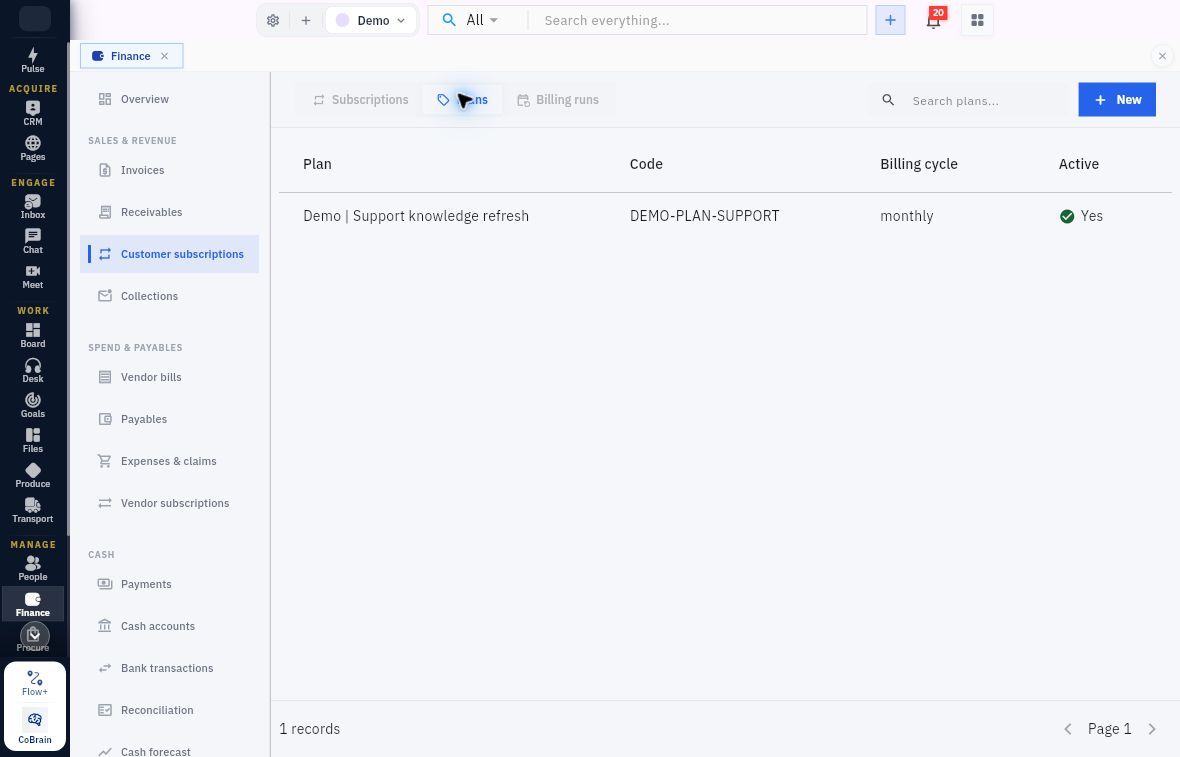
Select Finance → Customer subscriptions → Plans. Use Search plans... to find the intended definition. Read Plan, Code, Billing cycle and Active together, then open the plan to check its retained values.
Plan activation versus customer billing
An active plan is a reusable definition, not a billed customer period. The Demo row is Demo | Support knowledge refresh, code DEMO-PLAN-SUPPORT, cycle monthly, Active Yes. Check that exact plan identity when following a subscription relationship.
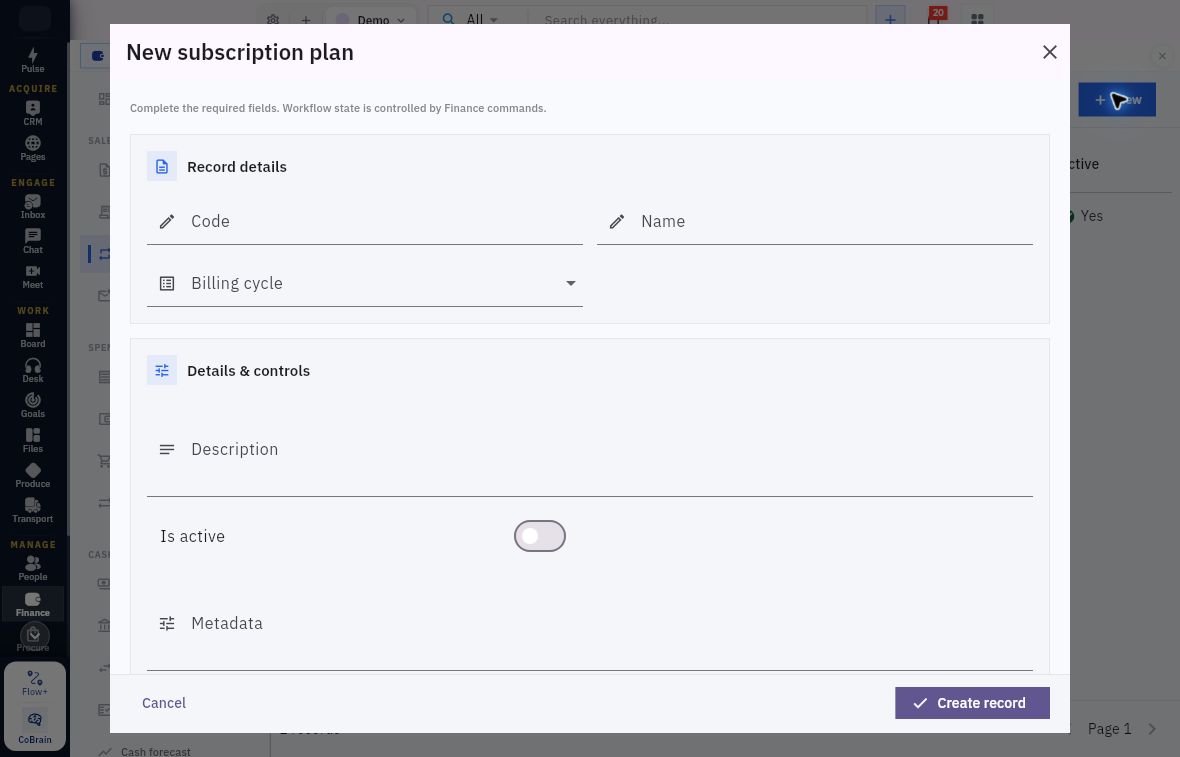
New opens New subscription plan, with Cancel and Create record as parent controls. Cancel ends this inspection; Create record is a configuration save, not activation, billing or payment. Read these fields:
| Field | What the plan specification must explain |
|---|---|
| Code and Name | Reusable identity and clear service name |
| Billing cycle | Billing basis; choices shown are Monthly, Quarterly, Annual and Custom |
| Description | What service and unit the price covers |
| Is active | Whether the definition is active; the blank example has this off |
| Metadata | Additional information entered as key:value per line; use only keys defined by your approved setup |
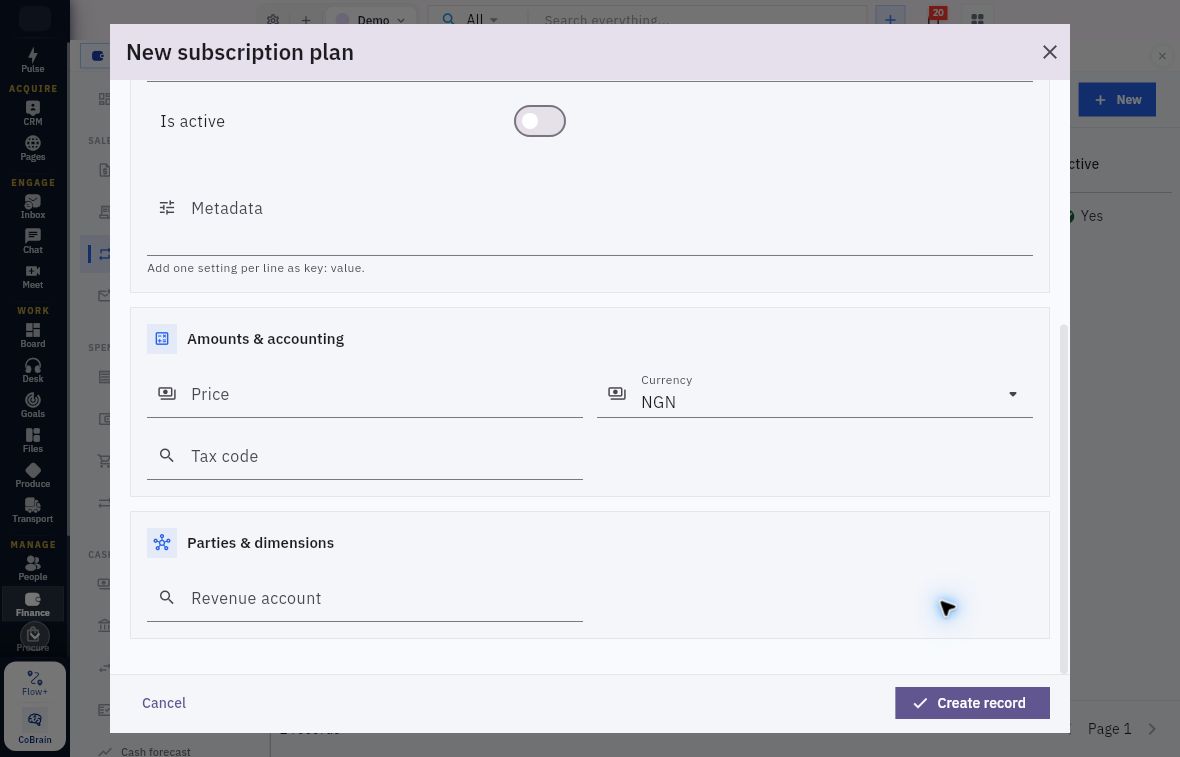
| Price and Currency | Price for the specified unit and billing basis, not an assumed contract total |
| Tax code | The approved treatment for the service |
| Revenue account | The approved revenue relationship, distinct from the receivables control account |
Plan identity, cycle and metadata
Separate identity from activation. The blank plan has no Code, Name or Billing cycle selected, and Is active is off. Scroll down before deciding the specification is complete.
Plan price, tax and revenue mapping
Check the price and both accounting relationships. Currency shows NGN, while Price, Tax code and Revenue account are blank. Choose the approved currency and references rather than copying the prefill. Metadata accepts one setting per line as key: value; it is not an alternative to the named accounting fields.
Do not treat Custom as an arbitrary-days schedule: there is no dedicated interval input in the form shown. Confirm the supported scheduling arrangement before choosing it. Metadata’s key:value syntax is not a substitute for scheduling controls.
The plan has a Revenue account but no deferred-revenue account or recognition-period input. Its billing cycle therefore does not configure a recognition schedule by itself. Check the approved plan account and relevant Finance Settings dependencies without changing a shared setting to fix one subscription.
A plan can be reused. Before changing its price, establish which subscriptions inherit the change, when it takes effect and how partial periods are treated. Do not assume a plan edit affects only one customer’s next bill.
Read the customer subscription form
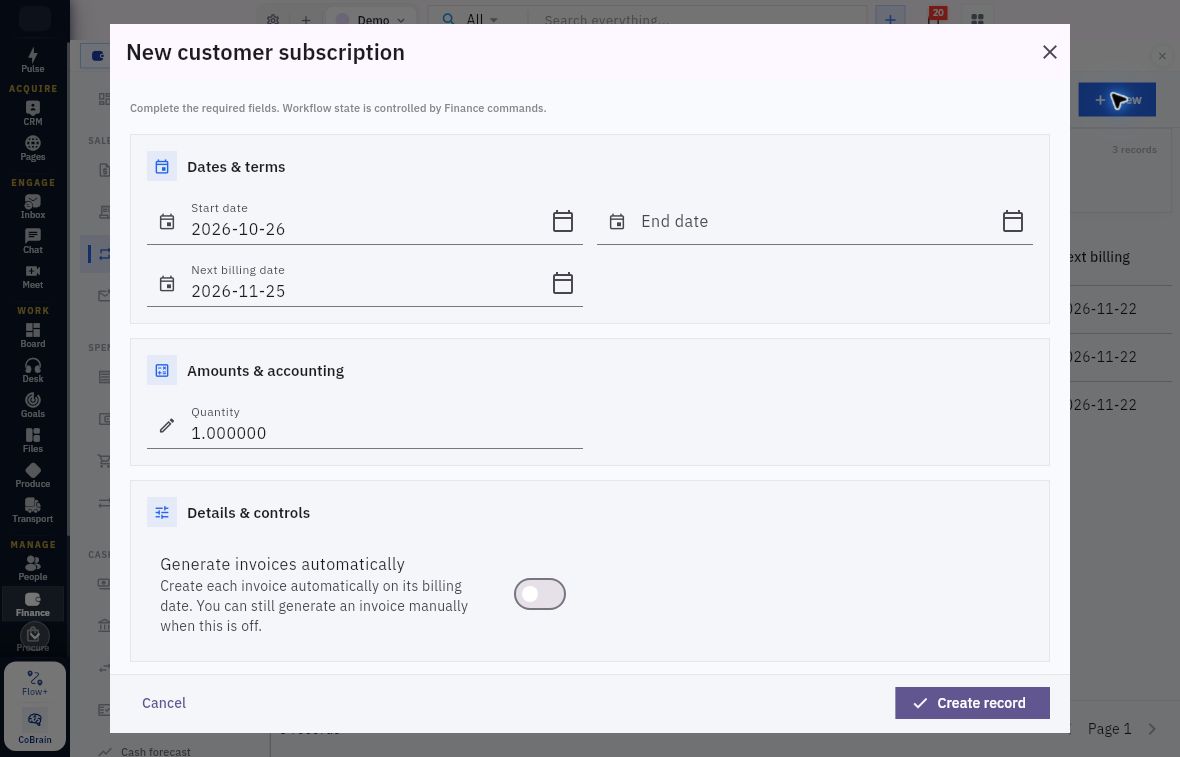
Select Finance → Customer subscriptions → Subscriptions. Search the customer, plan and overlapping dates before opening a candidate. New opens New customer subscription, with Cancel and Create record. Use Cancel for this read-only tour; a saved subscription would still need its own supported lifecycle and billing evidence.
| Field | Meaning and decision point |
|---|---|
| Start date | Beginning of the agreed service/subscription period |
| End date | The agreed ending date, where applicable; compare it separately with the last billing date |
| Next billing date | The next planned billing date, not proof that a bill has already run |
| Quantity | Number of the plan's actual units; identify whether that means seats, packages or another agreed unit |
| Generate invoices automatically | Recurring invoice-generation control; it requires deliberate authority and a tested scope |
| Customer | Exact customer relationship, not a free-text substitute |
| Billing contact | The verified person associated with the billing arrangement |
| Plan | Exact approved plan whose price, currency and service meaning must be checked |
Subscription dates and invoice automation
Read the dates and automation together. The blank example starts with Quantity 1.000000, Start date 2026-10-26, Next billing date 2026-11-25, no End date, and automatic generation off. These are starting values, not an agreed service schedule. Keep the switch unchanged during the tour.
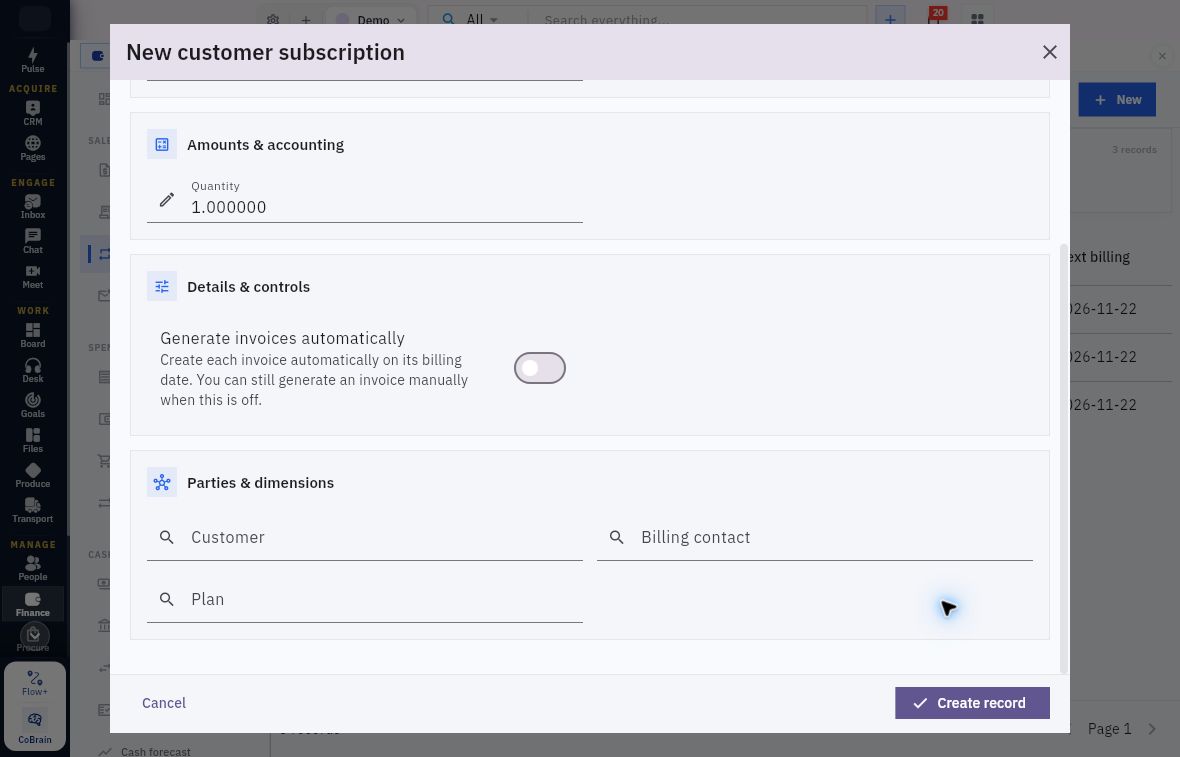
Customer, billing contact and plan links
Complete the relationship chain before relying on the price. Customer, Billing contact and Plan are separate selections. Check the exact customer and billing contact, then inspect the chosen plan’s unit, cycle, currency and price. A label typed into a lookup is not a selected relationship.
Currency and unit price are not direct inputs on this creation form. Read the selected plan and the retained subscription detail. Do not invent a manual unit-price override merely because it would make a proposed amount convenient.
Replace convenient date prefills with the agreed Start date and Next billing date in any authorised setup. The automatic-generation helper says an invoice is created on each billing date and manual generation remains possible with the switch off. Still check the actual invoice, its approval/issue state and delivery separately; automation settings do not establish collection.
For this inspection, leave automation unchanged and cancel any blank form. An apparently harmless draft with automation enabled is not an appropriate experiment in a shared workroom.
Inspect the retained customer subscription
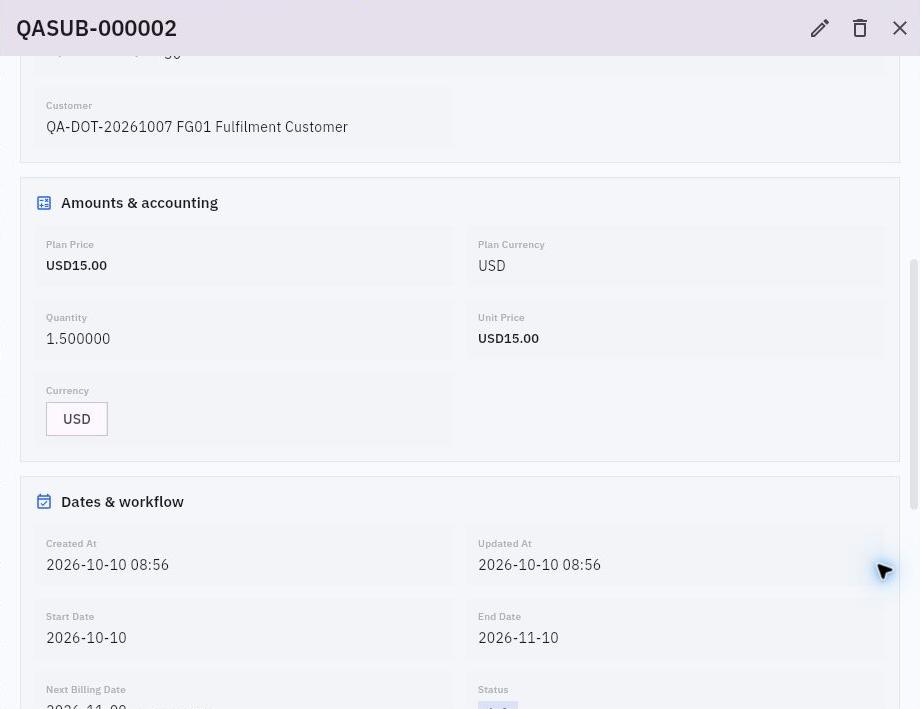
Draft subscription price and quantity
Read the draft’s price basis. QASUB-000002 is Draft Version 1, linked to a test customer and plan. It retains monthly billing, Auto Invoice No, plan price USD15, unit price USD15 and quantity 1.5. Its dates are Start October 10, End November 10 and Next billing November 9. Scroll through the complete detail to compare all three dates.
The calculation is 1.5 × 15 = USD22.50 before applicable adjustments. Treat that as an expectation until you check the generated invoice. Fractional quantity may be stored, but the agreement determines whether fractional seats or packages make sense. Resolve a next-billing/end-date mismatch with the owner rather than silently correcting it during inspection.
The draft offers Submit and Cancel. Leave both workflow actions unchanged in this tour. Confirm the applicable approval route and responsible reviewer before progressing a real subscription; an enabled approval setting does not identify the next lifecycle state.
Inspect billing runs without assuming billing completed
Open Finance → Customer subscriptions → Billing runs. Use Search billing runs and All statuses. The example reads No subscription billing schedules yet and has no visible manual New action.
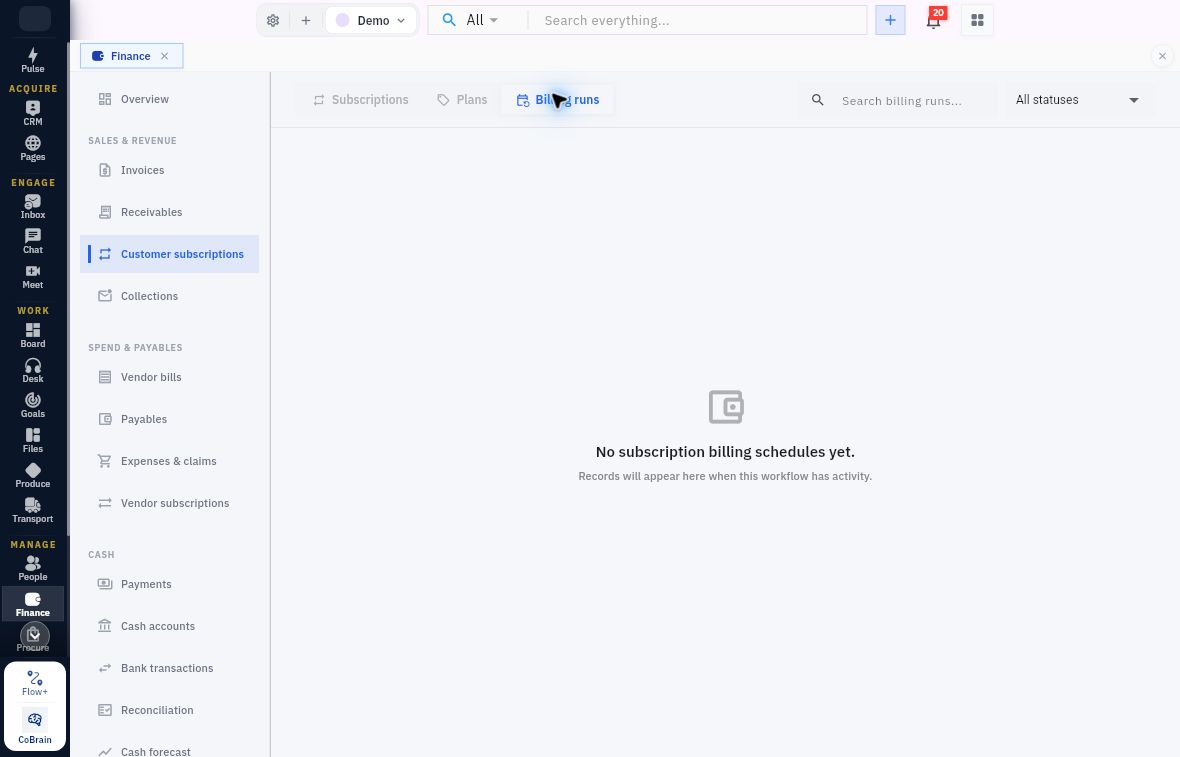
Billing-run scope and missing invoices
Check the selected tab and scope before investigating a missing invoice. This view has no billing schedules to inspect; it does not show a completed run.
An empty view does not prove billing is unsupported, nor that a particular contract has nothing due. Check workroom, filters, subscription identity, state, plan, dates and any existing invoice for the same service period. Do not run billing again to test whether an earlier attempt succeeded. A missing notification is not proof that an invoice was never generated.
Once a generated invoice legitimately exists, inspect its source subscription and billed-period identity, complete charge and retained line treatment. Follow the invoice's own review and Issue route; do not treat generation as issue, or issue as delivery or collection.
Keep recognition separate from recurrence
The invoice line offers Recognition method → Monthly straight-line. That branch reveals Recognition start month, Recognition end month and Deferred revenue account. Check these fields on the actual generated invoice, then trace the schedule and posted result separately.
If Riverside bills before the agreed service is supplied, the Finance owner's approved treatment determines the source accounts and recognition dates. The operator must then verify the actual generated invoice, relevant schedule/event and posted journal. A recurring billing cycle cannot make that accounting decision automatically on the basis of its label alone.
Chapter 11 covers the Recognition workspace and the journal trace. Until an actual event and journal establish the result, describe the setup as prepared or inspected, not recognised.
Inspect a vendor subscription as recurring spend
Select Finance → Vendor subscriptions, under Spend & payables. Use Search subscriptions... and All statuses before starting a new record. The Demo register says No vendor subscriptions yet and offers Create vendor subscription as well as New. An empty register is not confirmation that there are no supplier contracts or recurring charges.
New opens New Vendor Subscription, with Cancel and Create record. Cancel leaves this inspection without saving; Create record must not be described as approval, a bill or a payment. It is not the customer-plan form and its cycle options must be read independently.
| Form area | Fields and meaning |
|---|---|
| Identity | Name, Category, Billing cycle and Seats identify the purchased service and quantity context |
| Dates | Start date and Next billing date describe the agreed service/billing schedule |
| Amounts | Recurring amount, Initial payment amount, Currency and Exchange rate distinguish recurring cost from the initial amount and conversion basis |
| Controls and explanation | Auto renew and Notes describe the intended renewal choice and supporting context |
| Relationships | Vendor ref, Vendor contract, Owner user, Department ref and Expense account connect the service to its exact commercial, responsibility and accounting records |
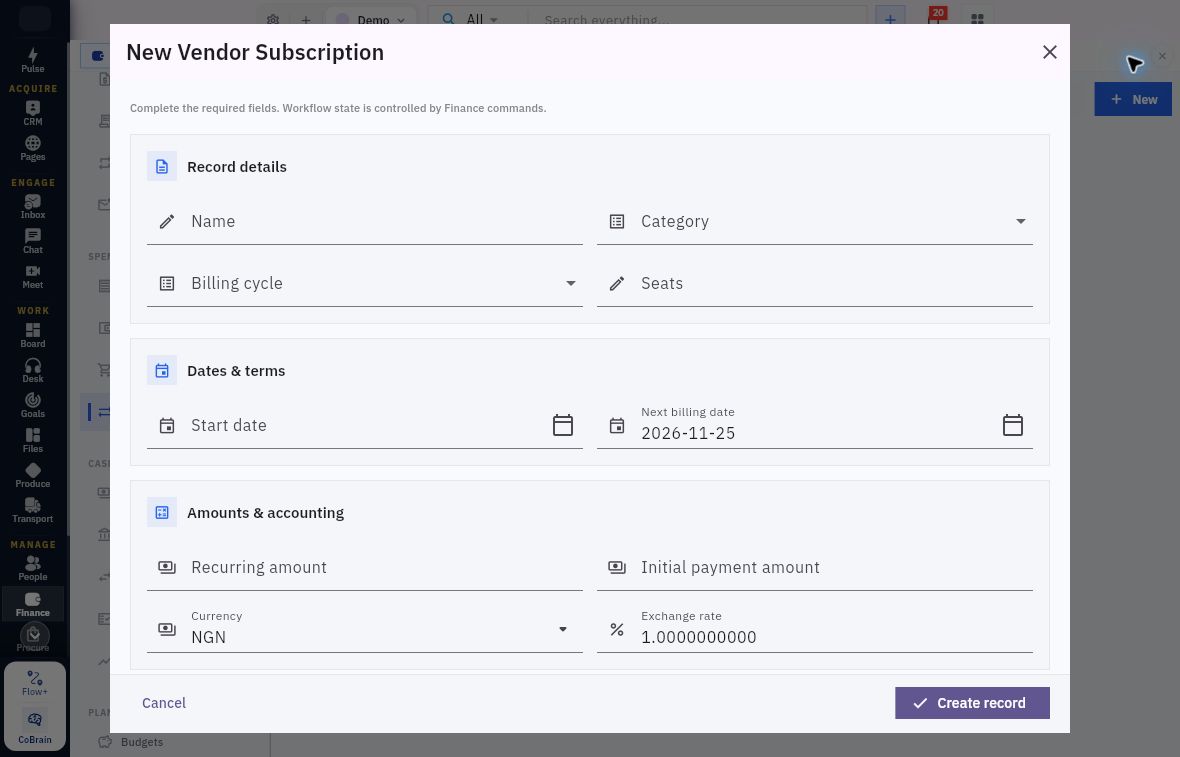
Supplier recurring amounts and seats
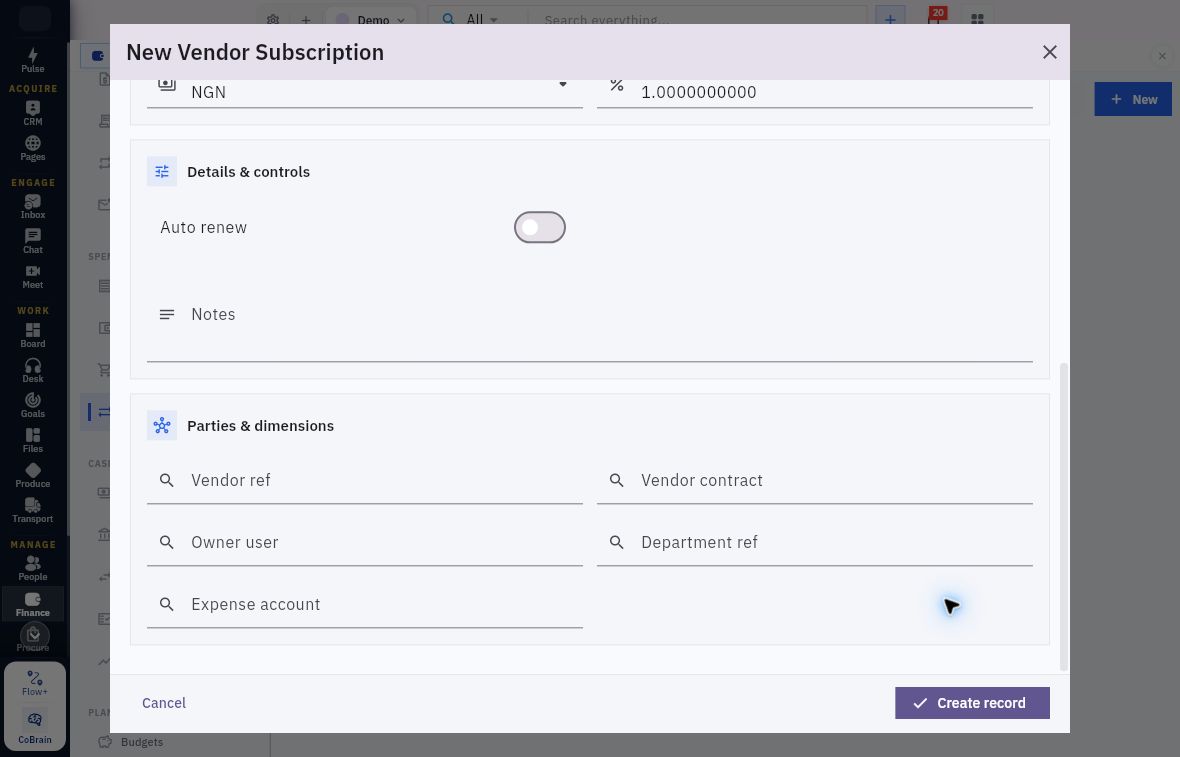
Do not multiply an amount twice. Recurring amount, Initial payment amount and Seats are separate fields. Establish whether the contract amount already covers all seats; do not multiply Recurring amount by Seats unless the contract and supported calculation call for it. The blank example has no Start date, Seats, Recurring amount or Initial payment amount; Next billing date is 2026-11-25, Currency NGN and Exchange rate 1.0000000000. Check the agreement and conversion basis rather than accepting these starting values.
Supplier contract, ownership and practice
Link the supplier, contract and accounting responsibility. Auto renew is off and all five relationships are blank. Vendor ref identifies the supplier; Vendor contract identifies the agreement. Owner user and Department ref assign responsibility and scope. Expense account supplies the accounting relationship, not a substitute for the vendor. Check every applicable selection and the renewal agreement before an authorised save.
This form has no End date or cancellation-notice inputs. Retain those contract facts in the approved source and operating checklist rather than inventing additional form inputs. Compare Next billing date with the actual renewal agreement. An Initial payment amount does not prove money was paid.
The retained synthetic vendor record illustrates another important distinction: its header was paused, GBP, Version 2, while its separate Approval Status was draft. Paused did not mean approved or paid. It showed recurring GBP4.25, exchange rate 1.25 and a functional display of USD4.25. The displayed functional amount does not reconcile to simple multiplication. Confirm the rate direction and calculation with the owner before relying on it. Preserve the displayed facts and escalate the discrepancy; do not substitute an expected number or approve the record to see what happens.
Check for a linked supplier bill, payable, payment and any recognition result before treating a vendor subscription as accounted for. The separate USD25 bill used earlier is not this subscription’s billing result.
Handle changes and renewal with exact scope
For a quantity, price or service change, establish its effective date and whether it affects future periods, an unbilled period or an issued invoice. Keep the original subscription and source history identifiable. Already issued charges may require the separately approved credit workflow; changing a plan is not evidence of a corrected invoice.
For cancellation or renewal, separate the internal record state from the external contract. Auto renew No does not prove a supplier's renewal was cancelled. A paused record does not prove an external payment mandate stopped. Customer cancellation does not automatically authorise a refund. Exact supported commands and their effect on future schedules and old invoices remain necessary before execution.
For a suspected duplicate, preserve the subscription, billing-run and invoice references for the same service period. Ask the responsible owner for the correction route rather than deleting a posted source or retrying generation.
Read-only practice and expected result
Choose an existing permitted customer or vendor subscription and its agreement. If your register is empty, use the saved draft example for this reading exercise instead of creating a subscription. Record its actual identity/state, price basis or recurring amount, quantity/unit, currency, dates and automation/renewal setting. Inspect the linked plan or contract. Then identify whether a matching billed period and invoice/bill actually exist; stop at an absent or ambiguous relationship.
Expected result: Explain the subscription’s state, agreed price basis, dates and automation setting, then identify the next billing or accounting record to check. In the customer example, USD22.50 is an arithmetic expectation and the subscription remains Draft. In the vendor example, investigate the currency discrepancy and distinguish paused from approved. Leave all records unchanged.
Next, follow source-generated and manual journals, and inspect recognition schedules and events without duplicating accounting already recorded by the source.
Turn what you learned into the way the team works.
Mark this lesson complete once the workflow exists in your workspace—not simply when you reach the bottom.