Finance course 07 — Understanding payments evidence and allocations
A payment header identifies the money event. An allocation identifies the invoice or bill it applies to. Neither a saved draft nor a zero unapplied amount proves that cash moved or that the open item was settled.
Part of Mastering Workroomly Finance
In this lesson
Payment identity versus allocation and settlement
A payment header identifies the money event. An allocation identifies the invoice or bill it applies to. Neither a saved draft nor a zero unapplied amount proves that cash moved or that the open item was settled.
This chapter explains the customer and vendor payment forms, their evidence controls and how to distinguish preparation from completed payment. You need read access, exact source documents and counterparty identities, and the approved cash-account reference. Preparation, review and release responsibilities must be established separately. The exercise is read-only: do not create a payment, upload a file, submit, approve or release anything.
In this chapter
- Choose the incoming or outgoing workspace
- Read the payment header
- Understand the allocation line
- Check the actual evidence attachment
- Read the saved customer receipt without overstating it
- Read the vendor draft as a different workflow boundary
- Handle an uncertain save without creating a duplicate
- Verify completion from separate records
- Read-only practice and expected result
Choose the incoming or outgoing workspace
Select Finance → Payments, under Cash. Use Customer payments for customer receipts and Vendor payments for supplier payments. Inspect the register's search and status scope before concluding that a payment is absent. Look for pending or uncertain attempts as well as completed records. Cash is a sidebar section heading, not another click target.
Both example registers in Demo are empty. Each has its own search (Search customer payments or Search vendor payments), All statuses, New, and the corresponding Create customer payment or Create vendor payment action. Check the workroom and filters before treating an empty result as the absence of a payment.
Use the blank forms to learn the fields, then follow the separate USD190 customer receipt and USD25 vendor draft examples to understand saved states. Keep both separate from Riverside’s conceptual USD200/50 amounts.
Start from the exact open item. On the customer side, compare the invoice and receivable; on the supplier side, compare the bill and payable. Check the counterparty, source reference, currency, original and outstanding amounts, and any existing credit or allocation. A due date is not payment authority, and a familiar amount is not a unique identity.
The example bill and payable also exposed Pay. Its presence did not establish whether it opened the same form or performed another action. Use the documented Payments workspace for inspection; do not experiment with Pay to discover whether it moves money.
Read the payment header
New opens New customer payment or New vendor payment according to the selected tab. Both forms separate the total from the allocation lines. Start at Details & controls, where Allocations / Add line and Notes appear; inspect Payment date below, then scroll to Amounts & accounting, Record details, and Parties & dimensions. These are sections of the form, not separate Finance workspaces.
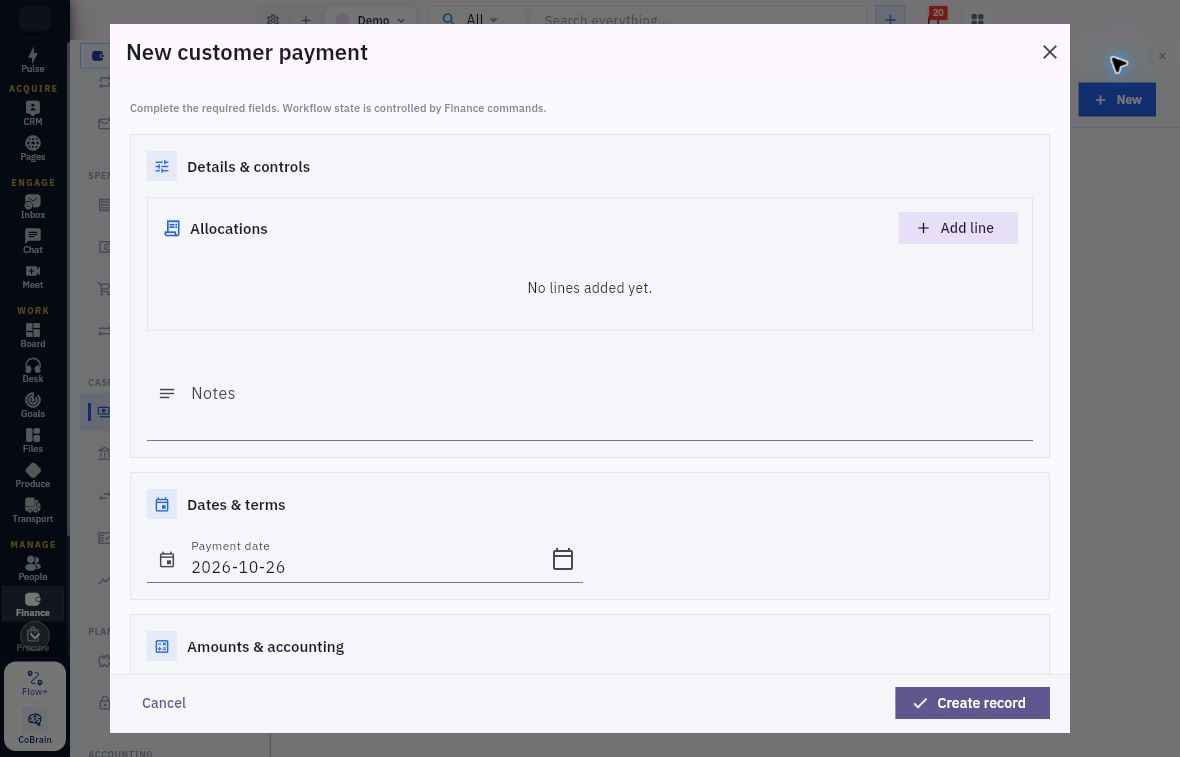
Payment date and allocation preparation
Start with Allocations and Notes, then review Payment date. Set the date from the actual receipt or approved payment basis rather than accepting the prefill automatically.
| Field | Customer receipt | Vendor payment |
|---|---|---|
| Notes | Source and purpose of the receipt | Source bills and scope of the payment |
| Payment date | The date supported by the actual receipt source | The approved date, checked against the actual payment evidence |
| Amount | Total received or proposed in this record | Total payment amount, not the original bill amount by default |
| Currency and Exchange rate | Transaction currency and approved conversion basis | Transaction currency and approved conversion basis |
| Payment method | Actual method for this incoming event | Actual method for this outgoing event |
| Provider reference | The actual external/provider identifier when available | The actual external/provider identifier when available |
| Customer or Vendor | Exact customer relationship | Exact supplier relationship |
| Cash account | Intended receiving cash-account record | Intended source cash-account record |
| Payment evidence | Supporting evidence for the receipt | Supporting evidence for the outgoing payment |
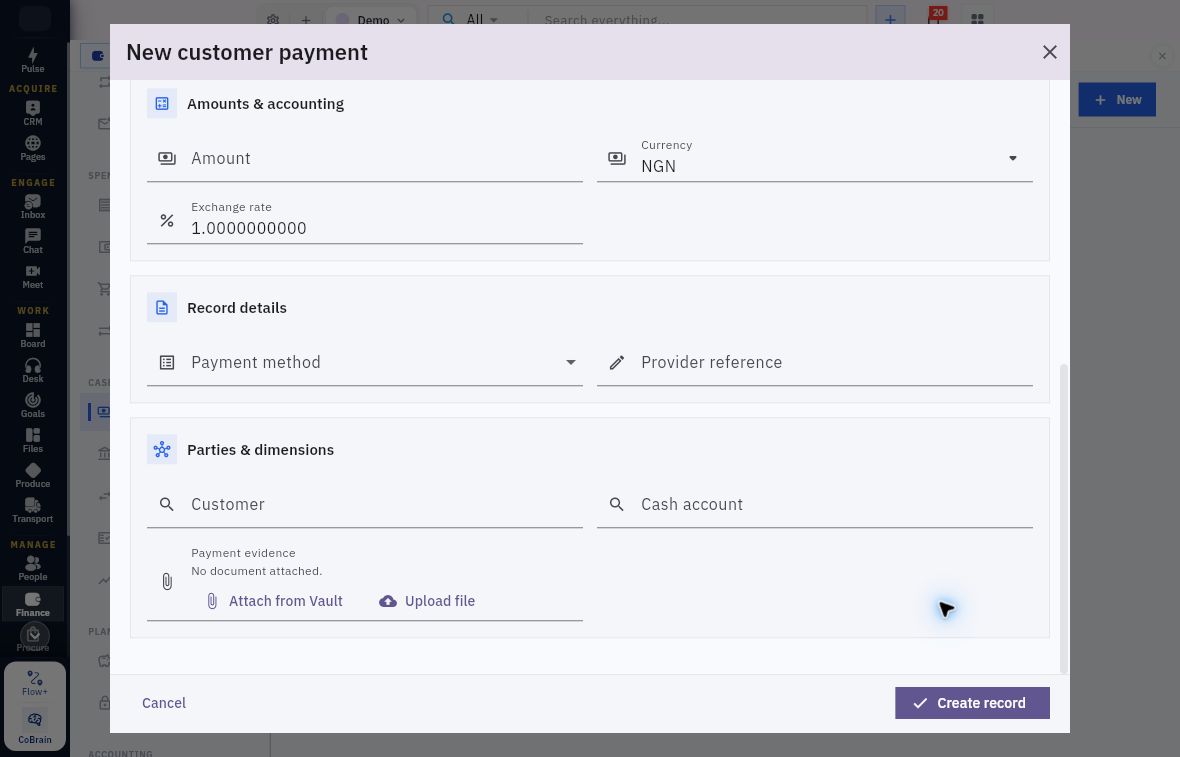
Receipt amount, payer and supporting evidence
Check amount, identity and evidence together. The example lower form uses NGN and exchange rate 1. Enter the supported amount and conversion basis, then identify Payment method, Provider reference, Customer and Cash account. Check Payment evidence before moving beyond the editable draft.
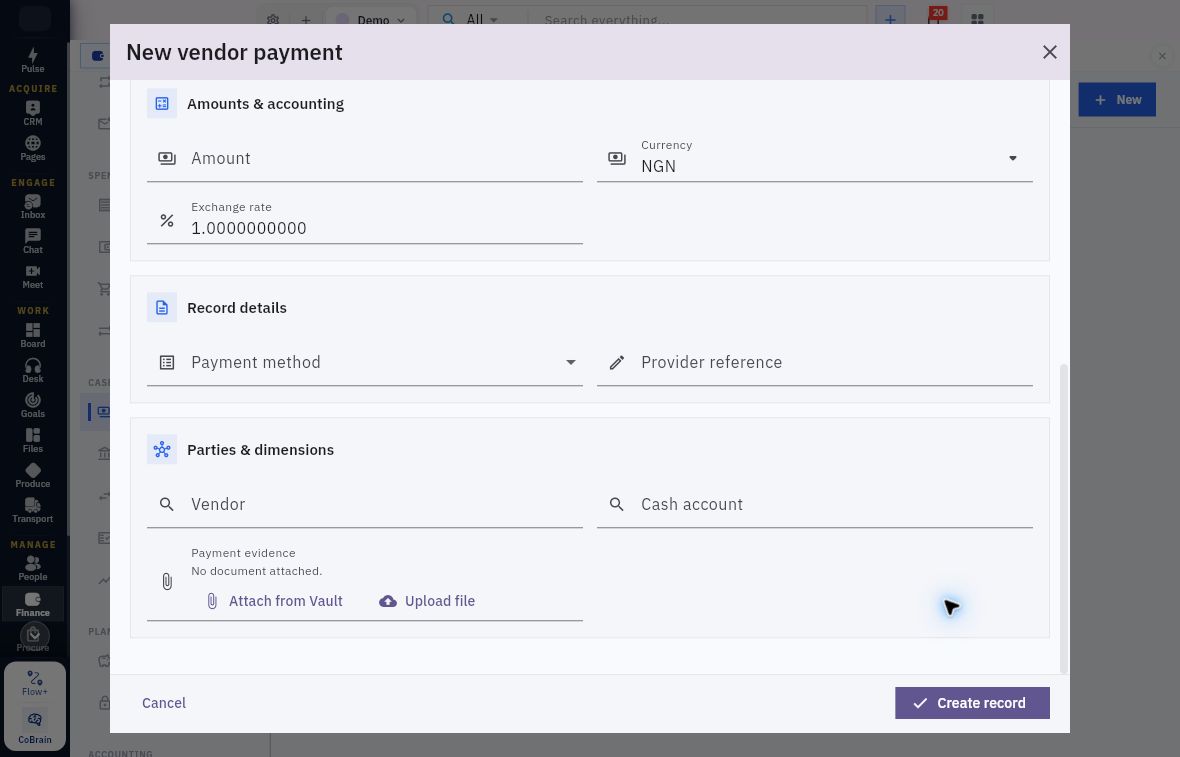
Supplier payment and outgoing cash account
The vendor form uses Vendor rather than Customer. Check the outgoing cash account and payment evidence, then follow the vendor payment’s own approval and release procedure.
The parent controls are Cancel and Create record, with Close in the header. Cancel the blank form for this exercise. For authorised preparation, follow your organisation’s required-information rules and resolve any validation message before saving.
The payment-method example offers Bank transfer, Card, Cash, Mobile money, Payment provider, Cheque and Other. Select the method that matches the money event. Bank transfer describes the method; confirm the transfer through the actual bank or provider evidence. Keep passwords, card secrets and banking credentials out of Provider reference, Notes and evidence files.
A cash-account name is not enough. Check the actual selected record and its currency and accounting relationship. A ledger account with a similar name is not a substitute for the Cash account reference on the payment form.
Understand the allocation line
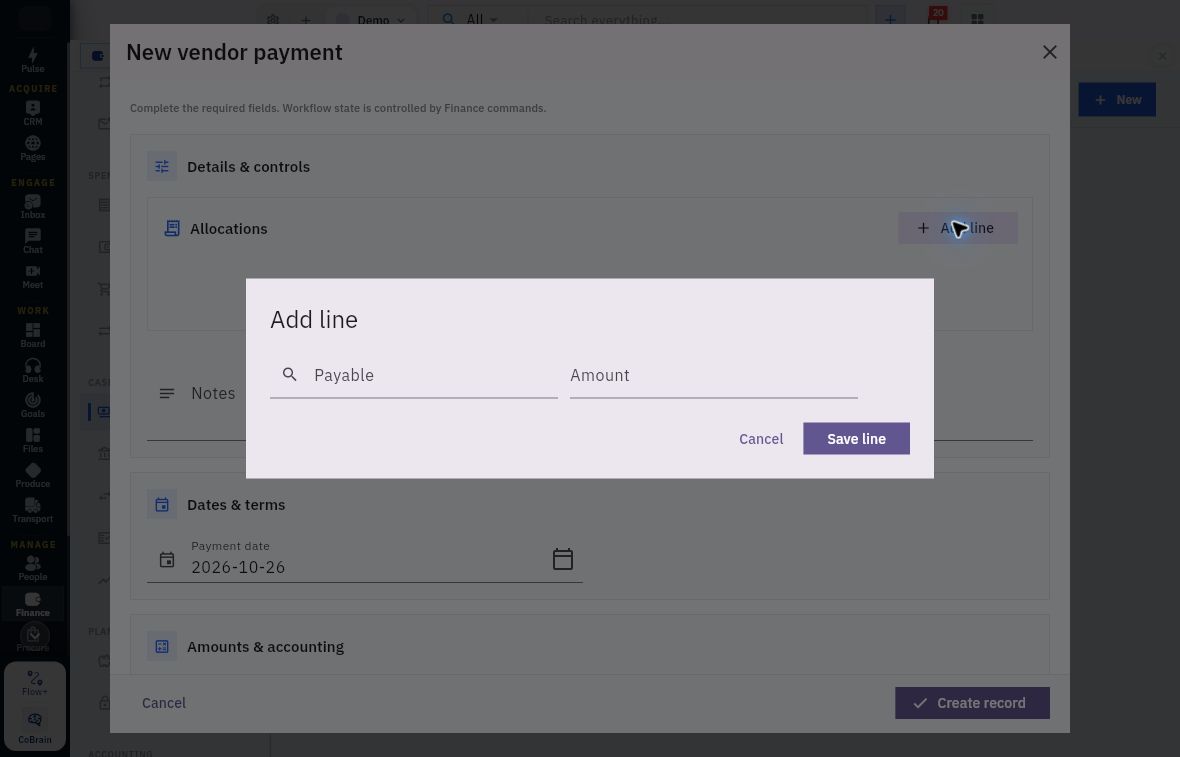
Under Allocations, Add line opens a small dialog. Customer payments use Receivable and Amount. Vendor payments use Payable and Amount. Save line retains the allocation in the parent form; Cancel exits the line inspection. The parent has its own Create record action.
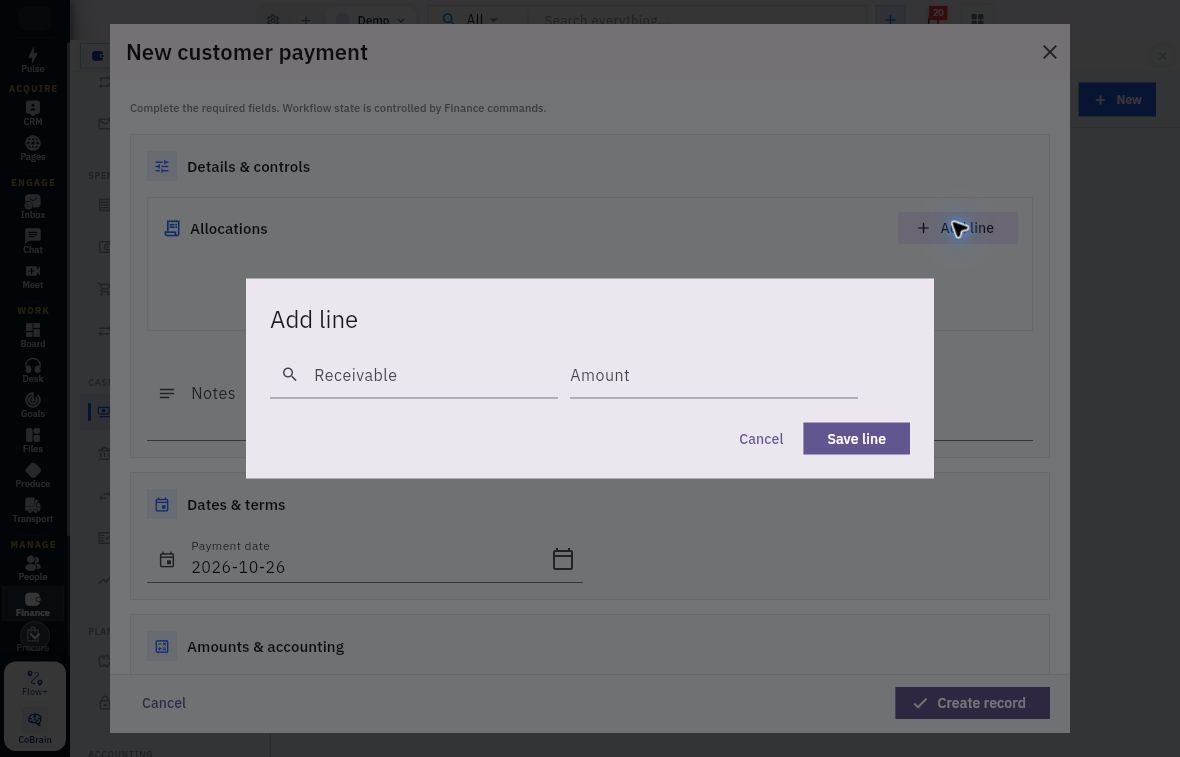
Customer allocation and eligible receivable
Identify the Receivable, then enter the amount to apply. Save line belongs to the allocation dialog; Create record belongs to the payment parent.
Vendor allocation and eligible payable
Use Payable for the supplier obligation and Amount for this payment’s allocation. Cancel exits the line editor without saving.
Two facts are needed. The reference identifies the open item; Amount says how much of this payment applies to it. A correct total does not compensate for the wrong reference. A typed search term is not a selected record.
Riverside's conceptual example has a USD300 customer invoice and a USD200 receipt. The proposed allocation is USD200 to that invoice's exact receivable, leaving USD100 after the supported application completes. Its USD80 supplier bill with a USD50 payment similarly leaves USD30 after valid application. These are arithmetic checks, not assertions that those records exist in the demonstration workroom.
For several allocation lines, independently add the amounts and compare the total with the header. Check each item against its current outstanding amount and avoid repeating the same obligation unintentionally. An unexplained remainder is not permission to allocate the excess to an unrelated item. For cross-counterparty or cross-currency cases, confirm the permitted allocation procedure with the Finance owner before preparing the payment.
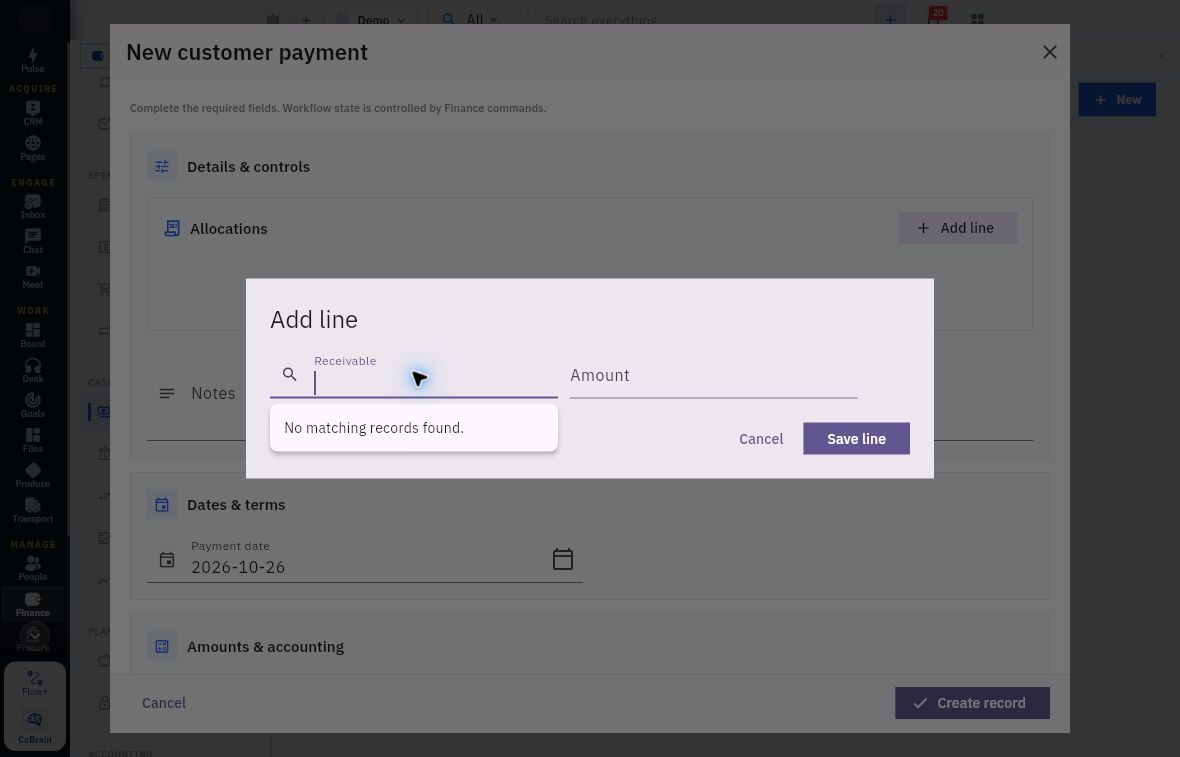
If the picker displays only a generic Receivable or Payable, identify the source independently before proceeding. Do not choose by position. In the blank-form example, both pickers return No matching records found. No source can be selected in that state. Check the workroom, counterparty, access and eligibility with the Finance owner; do not assume which condition caused the result.
Resolve the allocation source before saving
No matching records found means you need to resolve the eligible source before preparing the allocation. The Payable picker can show the same response. Cancel the line for this exercise.
Resolve the existing invoice or bill rather than creating a substitute to populate the picker. When results are available, match the actual source reference and counterparty before saving.
Check the actual evidence attachment
Payment evidence offers Attach from Vault and Upload file. Use the first for an existing authorised file or the second for a permitted upload. Reopen the saved payment to check that the intended attachment is retained and readable.
For an existing payment, inspect the retained evidence through the supported view where available. Compare the source reference, counterparty, date, amount, currency and meaningful payment state. An intended-payment document is not a bank-success record. For training, clearly fictional evidence must not be described as proof of real funds.
Before an authorised workflow passes the editable draft stage, the operator should establish that the correct evidence is actually attached and readable. Do not assume every later state retains an edit or attachment control. The customer example below demonstrates why that matters.
Read the saved customer receipt without overstating it
Fully allocated is not settled
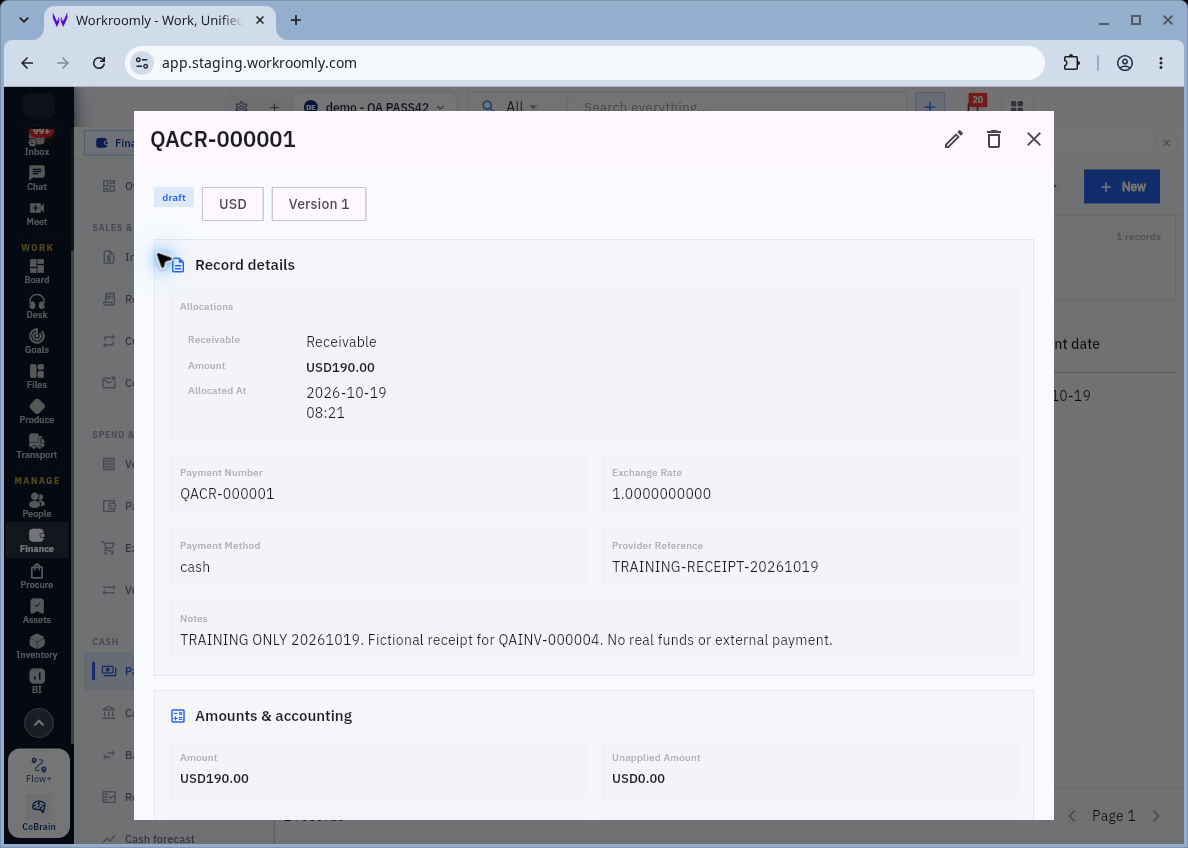
Fully allocated in the draft does not mean settled. This separate October 19 training record is QACR-000001, Draft Version 1, USD190. Its allocation target is displayed only as Receivable. Unapplied Amount USD0.00 describes the amount assigned inside that saved record. It is not Riverside's USD300/200 example.
After this draft was saved, the independently reopened QAINV-000004 receivable still showed Open with USD190 outstanding. The allocation and Allocated At timestamp had not established settlement.
The receipt then used Submit, then Approve, reaching Approved Version 3. The next visible actions were Allocate and Release. Release asked “Release this approved payment for posting?”, but the attempt was blocked by “Attach payment evidence from Files before releasing this receipt.” The receipt remained Approved. Resolve the missing attachment through the supported repair route before trying to release the receipt again.
On the approved USD190 example, the header has only Close: Edit and Delete are no longer available, and there is no payment-evidence attachment control in the detail. Stop and ask the Finance owner for the supported repair route. Do not create a replacement payment or manual journal to work around the blocked Release.
The invoice remains open for USD190, with no receipt/payment journal or cash line in this example. Treat the receipt as Approved, Release blocked, and keep it on the unresolved-payment list.
Read the vendor draft as a different workflow boundary
Supplier draft, release boundary and practice
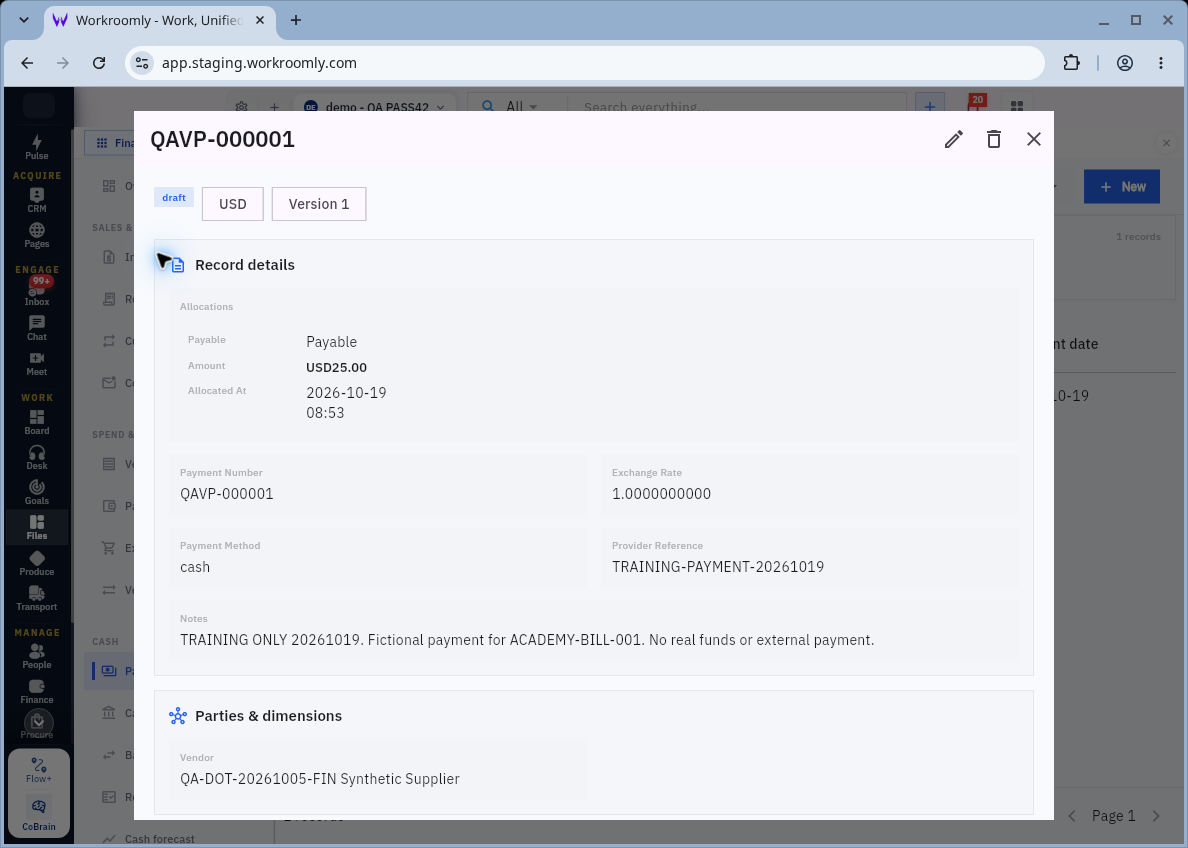
A supplier payment draft remains a draft. The example QAVP-000001 retained USD25, a generic Payable allocation, a cash method, the explicitly fictional provider reference and the intended synthetic supplier. Its underlying source was the separate USD25 ACADEMY-BILL-001, not Riverside's USD80/50 illustration. Its Unapplied USD0 did not establish approval, external payment, posting or reduction of the payable.
In the recorded attempt to attach a training PDF, the chooser selected a file but the form still said No document attached. The edit was cancelled without Save changes. Reopening left Draft Version 1, with Allocate and Submit visible and untouched. That is the truthful checkpoint; selecting a local filename did not establish a successful upload or attachment.
The vendor example ends at Draft. Follow the approved vendor procedure for later review and release rather than copying the customer receipt’s sequence.
Handle an uncertain save without creating a duplicate
The example vendor save initially returned a connection error. The operator did not immediately repeat it. After closing the form and reloading, they checked the register with All statuses and no search restriction. Only after reconciling the result did one authorised same-data retry produce the single retained draft.
The lesson is not “an error always permits one retry.” An error can leave the server result uncertain. Check the original reference, counterparty, amount, date and available records first. If the outcome cannot be established, preserve the uncertainty and ask for the supported reconciliation route. Changing the provider reference does not turn one money event into two legitimate payments.
Verify completion from separate records
For a payment whose supported workflow has actually completed, the checks are distinct:
- Payment: exact identity, counterparty, amount, currency, method, evidence and actual state.
- Allocation: exact receivable/payable source and retained amount applied.
- Accounting: the payment's own posted journal and the appropriate account lines, not the original invoice/bill journal reused as payment proof.
- Open item: independently reopened outstanding amount after all valid applications and credits.
- Cash evidence: the external or cash-source evidence and subsequent reconciliation, where applicable.
Use actual labels and references. Do not assume the result must say Paid or Settled. A lower balance might also be explained by a credit; an aggregate dashboard balance cannot replace the individual source trace.
Read-only practice and expected result
For Riverside's examples, first identify the header and allocation values: incoming payment 200, allocation 200 to the specific 300 receivable; outgoing payment 50, allocation 50 to the specific 80 payable. Expected remaining amounts are 100 and 30 only after valid application.
Then inspect one permitted existing payment, if available. Record its identity, current state/version, header amount, allocation target/amount, evidence availability and the independent open-item balance. Identify which completion checks above are supported and which are not. If no suitable payment exists, inspect the retained draft examples without creating another record.
Expected result: You can explain the difference between a payment header, saved allocation, evidence attachment, recorded decision and completed accounting/settlement. For the illustrated customer receipt, the correct result remains “Approved, Release blocked; USD190 still outstanding.” For the supplier example, it is “Draft; no completed payment shown.” A truthful incomplete result is more useful than a fictitious zero balance.
Next, inspect employee expenses, advances and reimbursements, where the source relationship and payment evidence require the same care but different forms.
Turn what you learned into the way the team works.
Mark this lesson complete once the workflow exists in your workspace—not simply when you reach the bottom.