Finance course 11 — Following journals recognition and ledger entries
Workroomly's journal register contains accounting records, but a manual journal is not the starting point for every transaction. An invoice, vendor bill, asset process or recognition event may already have produced the entry you need. Start by identifying the source and checking for existing accounting before proposing an adjustment.
Part of Mastering Workroomly Finance
In this lesson
Find the accounting source before adjusting
Workroomly's journal register contains accounting records, but a manual journal is not the starting point for every transaction. An invoice, vendor bill, asset process or recognition event may already have produced the entry you need. Start by identifying the source and checking for existing accounting before proposing an adjustment.
This chapter explains the manual-journal fields and the example review/posting sequence, then traces the posted result into General ledger. It also connects recognition fields on source forms to the separate Schedules and Events views.
Use read access in the intended workroom. Any real adjustment needs approved source evidence, account mappings, date, currency and authority for each action. The practice here is read-only: do not create, submit, approve, post, reverse or run recognition.
In this chapter
- Navigate to the correct accounting workspace
- Decide whether another entry is needed
- Understand the manual-journal header
- Select the account rather than merely typing it
- Reopen the exact saved draft
- Read each review and posting checkpoint separately
- Match the journal to independent ledger rows
- Recognise the source fields that may precede a schedule
- Inspect Schedules and Events in their actual scope
- Practice one journal trace and one recognition check
Navigate to the correct accounting workspace
Open Finance → Journals → Journals. The first Journals is a Finance workspace; the second is its journal tab. Accounting is the sidebar section heading, not an additional page to open.
The adjacent Posting rules, Posting attempts and Asset postings tabs serve different purposes; Chapter 4 explains them. Check the resulting journal rather than treating a rule definition or an attempted action as a posting.
Finance → General ledger is the independent account-movement view. Finance → Recognition has separate Schedules and Events tabs. A source form with a recognition choice is not itself either of those records.
Before opening a journal, establish the workroom and available list scope. Match exact source references where present. For a manual draft without a displayed number, use its entry date and full narration together—not a generic “Adjustment” title alone.
Decide whether another entry is needed
For a proposed adjustment, identify the original source or calculation, current balance, intended period amount, approved accounts and sides, currency, and reviewer. Then search for an existing source journal, manual adjustment or recognition event for the same purpose and period.
Riverside's continuing teaching example can include a USD120 prepaid service used over twelve equal months: one month's illustrative recognition is USD10. That arithmetic does not establish Workroomly's month boundaries, rounding algorithm or a saved schedule. If the source already produced the month's correct recognition, another manual entry would duplicate it.
The worked journal QAJE-000003 is a USD10 training adjustment. Its dataset has no preceding prepaid-asset debit, leaving that account at minus USD10. Use it to learn the workflow and trace, not as a complete prepayment example. Do not reproduce the negative balance or invent a purchase to remove it.
The same duplicate check applies to invoices and bills. Do not manually repeat an invoice's issue accounting, a bill's approval accounting or an asset posting merely because you can create a journal. First identify what the existing source did and what, if anything, needs an approved correction.
Understand the manual-journal header
In the Journals tab, New opens New journal entry. Inspect the whole form and use Cancel when you are only learning its controls. Create record is the parent save action, separate from saving a nested line.
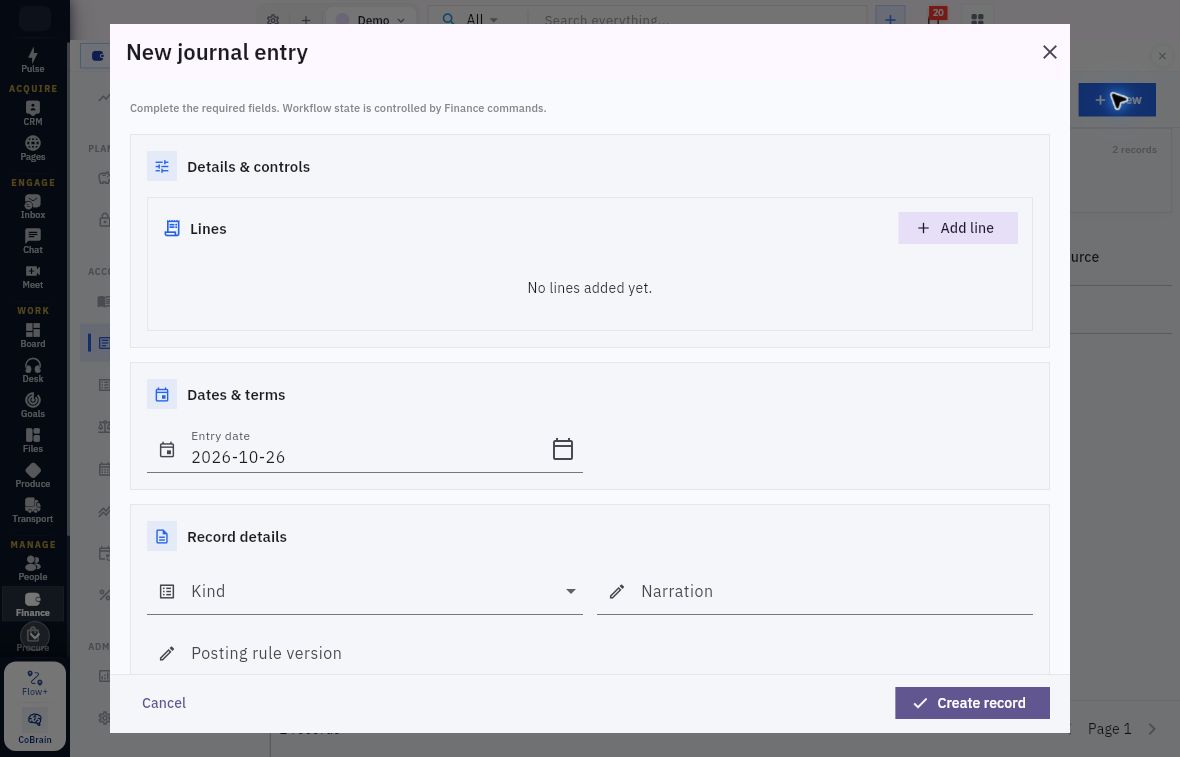
Journal header and retained lines
Check the header and retained lines before treating a journal as prepared.
The blank example shows No lines added yet, Entry date 2026-10-26, and empty Kind, Narration and Posting rule version. The date is a prefill to compare with the intended accounting period, not an approved adjustment date.
| Field or area | What to check |
|---|---|
| Kind | The example uses Adjustment. Do not infer other available kinds or their behavior from this example. |
| Entry date | The intended accounting date. Compare it with the actual period boundaries and state. The example uses October 15; confirm your intended date rather than accepting a prefill. |
| Narration | The purpose and source explanation. Before a number is exposed, full narration helps distinguish otherwise similar drafts. |
| Posting rule version | A separate reference left blank in the manual example. Do not attach an arbitrary rule just because the field exists. |
| Transaction currency | Select the approved currency reference. The blank form has no currency selected; the worked USD example below is not a default. |
| Lines / Add line | The account-level debit and credit proposals. Their retained values must match the approved source. |
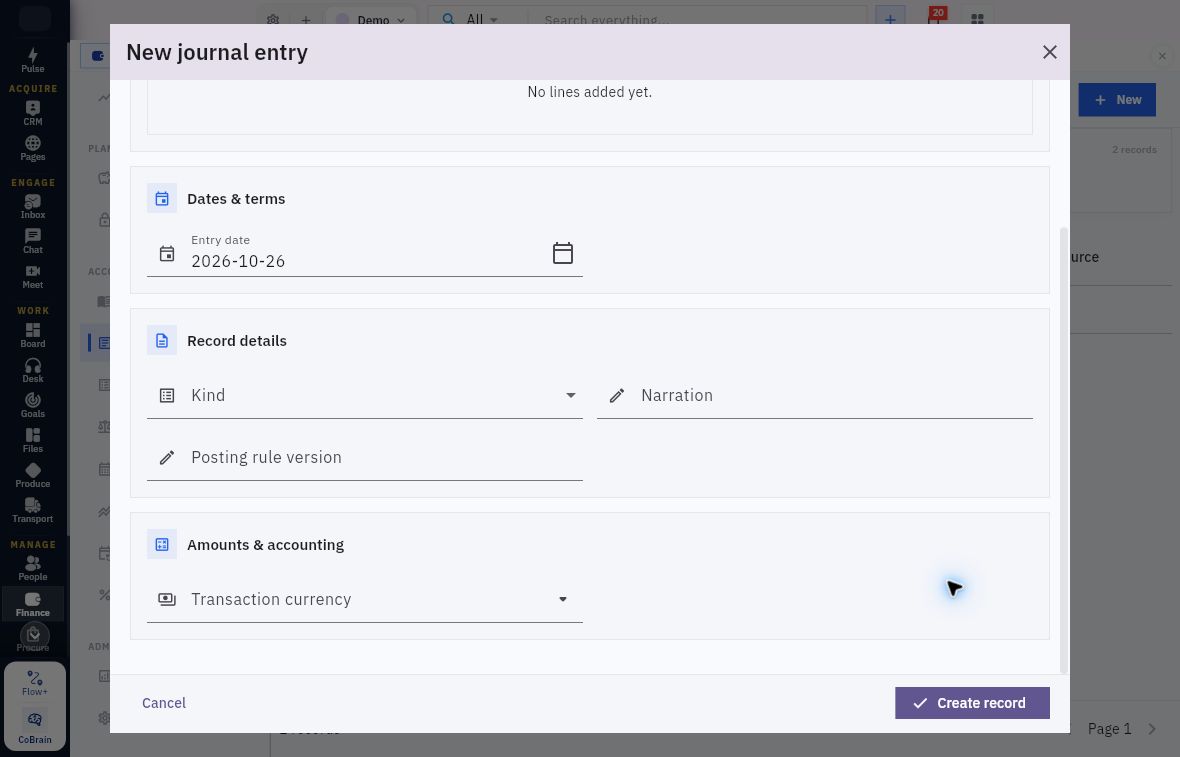
Transaction currency and worked-example scope
Select the intended transaction currency; do not borrow USD from the worked example.
An open period does not approve the treatment or grant posting permission. Check the metadata of the exact accounts to be used. Reading a different account's type, currency or active flag does not verify these accounts' suitability.
The example’s narration included “fictional, unposted” while the journal was a draft. Narration is descriptive text; it does not control the record's state. That distinction becomes important after posting.
Select the account rather than merely typing it
Add line opens the nested account-entry form. The fields are Account, Debit, Credit, Description, Department, Project, Customer and Vendor. Save line retains the line in the parent; the parent has a separate Create record action.
| Line field | Meaning and readback |
|---|---|
| Account | Select the exact named reference from the lookup and compare its code and purpose. A code typed in the search box is not a selected account. |
| Debit and Credit | The separate sides of the proposed line. Compare all amounts with the approved calculation and independently total each side. |
| Description | The explanation for this line, distinguishable from the header narration. |
| Department and Project | The line’s organisational and project relationships. Select the approved scope where applicable; a header narration does not populate these references. |
| Customer and Vendor | Party relationships for the line. Choose the exact party where the approved adjustment requires it; these references alone do not settle an invoice or payable. |
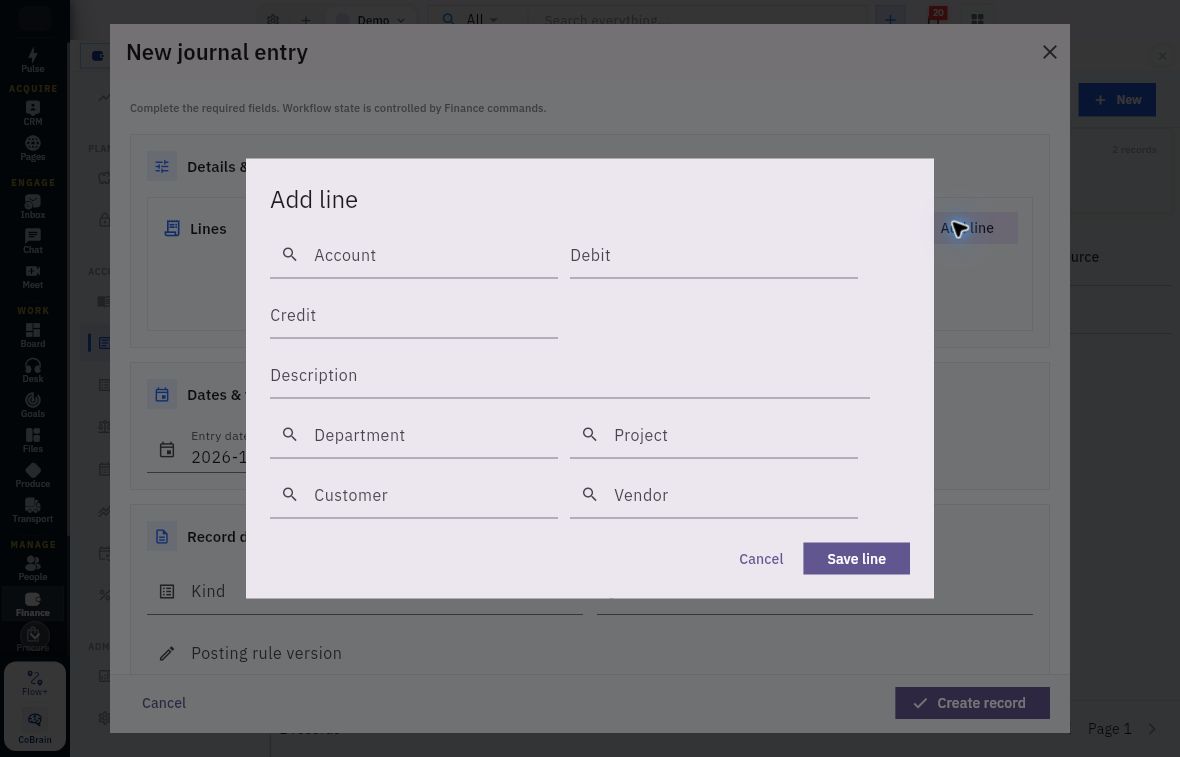
Journal lines and accounting dimensions
Select the account and applicable dimensions, then check the debit and credit sides.
All eight line inputs are blank in this dialog. Entering a number in Debit or Credit does not select an account; typing a relationship label is not the same as selecting its record. Leave Save line untouched for this tour and cancel the dialog before cancelling the parent journal.
The original lookup displayed Account is required until a named suggestion was selected. Resolve the reference in the current line; creating a second journal would not solve that validation problem.
In the example, one line selected 6000 Operating expenses, Debit 10, Credit 0; the other selected 1300 Prepaid expenses, Debit 0, Credit 10. Both had explicit training descriptions. Equal USD10 totals demonstrate arithmetic balance, not that those account choices are appropriate for another business event.
Independently total both sides, even if your view offers a summed total. Check account identity, currency, date and source purpose before any authorised save.
Reopen the exact saved draft
The example’s Create record result appeared in the register as an Adjustment dated October 15. On reopening, the journal retained Draft, Version 1, USD and both USD10 lines. Reopen the record to check the saved values rather than relying on the form closing.
At that checkpoint, no unique journal number was exposed. The full narration and Entry date identified the draft against another adjustment in the list. Created At was October 16 at 01:32, while Entry Date remained October 15. The creation timestamp did not move the accounting into October 16.
If save returns an error or the list seems empty, stop additional writes. Check workroom, search/status scope and the exact record before deciding whether a controlled retry is appropriate. A slow response does not establish rejection, and changing the narration to create another entry can conceal a duplicate.
Read each review and posting checkpoint separately
Use your organisation’s authorised preparer, reviewer and poster. The example below shows the record transitions; it does not determine who should perform them in your workroom.
| Action | Decision and example result |
|---|---|
| Submit | Requests review. The confirmation was Confirm submit for this record. Reopened result: Pending approval, Version 2, at 05:03, with lines unchanged. |
| Approve | Records the authorised review decision. The confirmation asks whether to approve the record and continue its controlled workflow. Reopened result: Approved, Version 3, at 05:08. Approval alone was not posting. |
| Post | Makes the ledger decision after the source, period and posting authority are resolved. The warning explicitly states that posted entries are immutable. Reopened result: Posted, Version 3, with number QAJE-000003, after the 05:10 action. |
Do not repeat any of these actions on the completed example record. For an existing live record, read its actual state and permitted next decision; do not restore an earlier checkpoint to follow the tutorial.
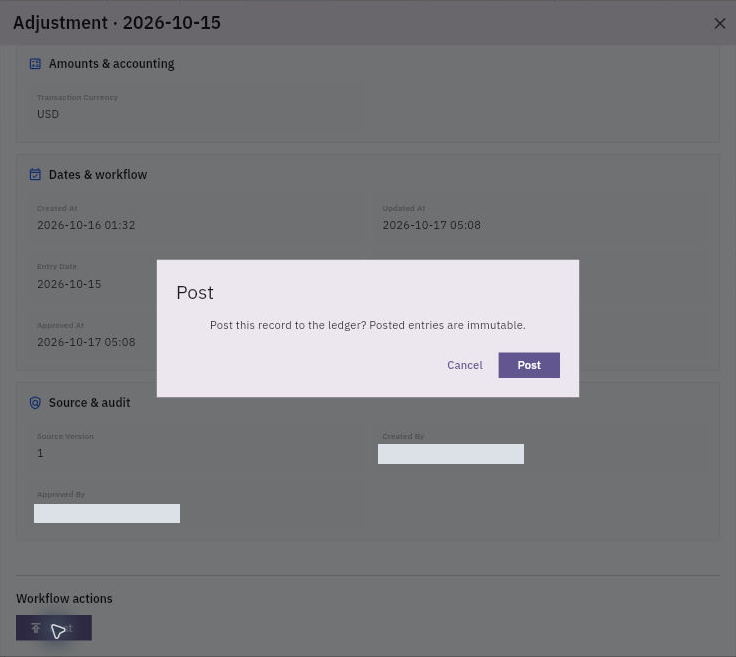
Posting authority and immutable entries
Read the warning before deciding: “Post this record to the ledger? Posted entries are immutable.” Cancel if identity, support, period or authority is unresolved. After an authorised Post, reopen the record to confirm its result.
The posted result remained Version 3, not Version 4. Source Version 1 was a separate audit field. Entry Date remained October 15, while Created At, Approved At and Posted At described later system events.
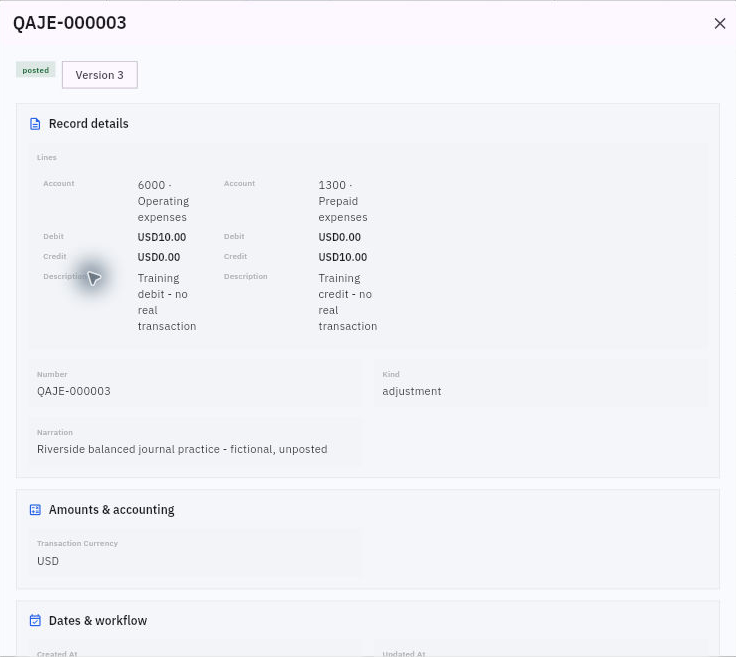
Posted state versus retained narration
Read the Posted state and assigned number together. The old word “unposted” in Narration is retained draft-era wording; it does not override the state or ledger evidence.
Reverse is available on this posted example. Leave it untouched during the tour. For a real error, preserve the journal reference and supporting details, then use the approved correction procedure; confirm period restrictions and the resulting entries before any reversal.
Match the journal to independent ledger rows
Open Finance → General ledger and confirm the relevant date scope. Wait for the populated view rather than interpreting a loading state as zero activity. The columns are Date, Journal, Account, Description, Debit, Credit and Running balance.
For QAJE-000003, match these two rows by journal number rather than position:
| Journal and date | Account | Debit | Credit |
|---|---|---|---|
| QAJE-000003, October 15 | 6000 Operating expenses | USD10 | USD0 |
| QAJE-000003, October 15 | 1300 Prepaid expenses | USD0 | USD10 |
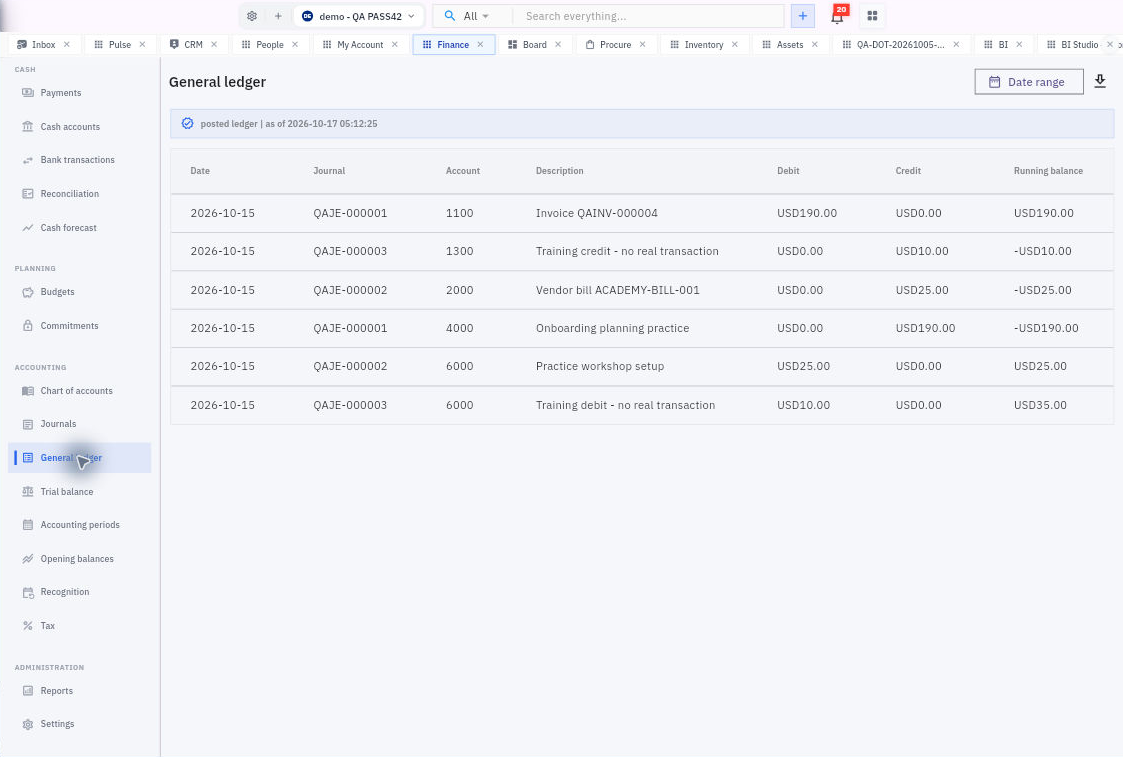
Trace both sides in General ledger
Find QAJE-000003 in the Journal column twice.
Its expense contribution is USD10. The final USD35 running expense balance also includes the separate USD25 vendor-bill journal. Other rows belong to the historical USD190 invoice; they are not lines of this adjustment.
A running balance is not the amount of the current journal. Likewise, account 1300's minus USD10 in this synthetic population is not proof that a real prepaid balance was valid. The screenshot establishes the posted trace, not completeness of the company's books.
If the intended number is absent, inspect context, dates and filters and reopen the original journal before concluding posting failed. Do not post again or prepare a replacement simply to obtain a visible row. Direct row drill-through is not assumed; use Finance → Journals → Journals to open the exact entry independently.
Recognise the source fields that may precede a schedule
Recognition preparation appears on certain source forms. The invoice line offers Recognition method → Monthly straight-line, exposing Recognition start month, Recognition end month and Deferred revenue account. The line's Revenue account remains a separate relationship.
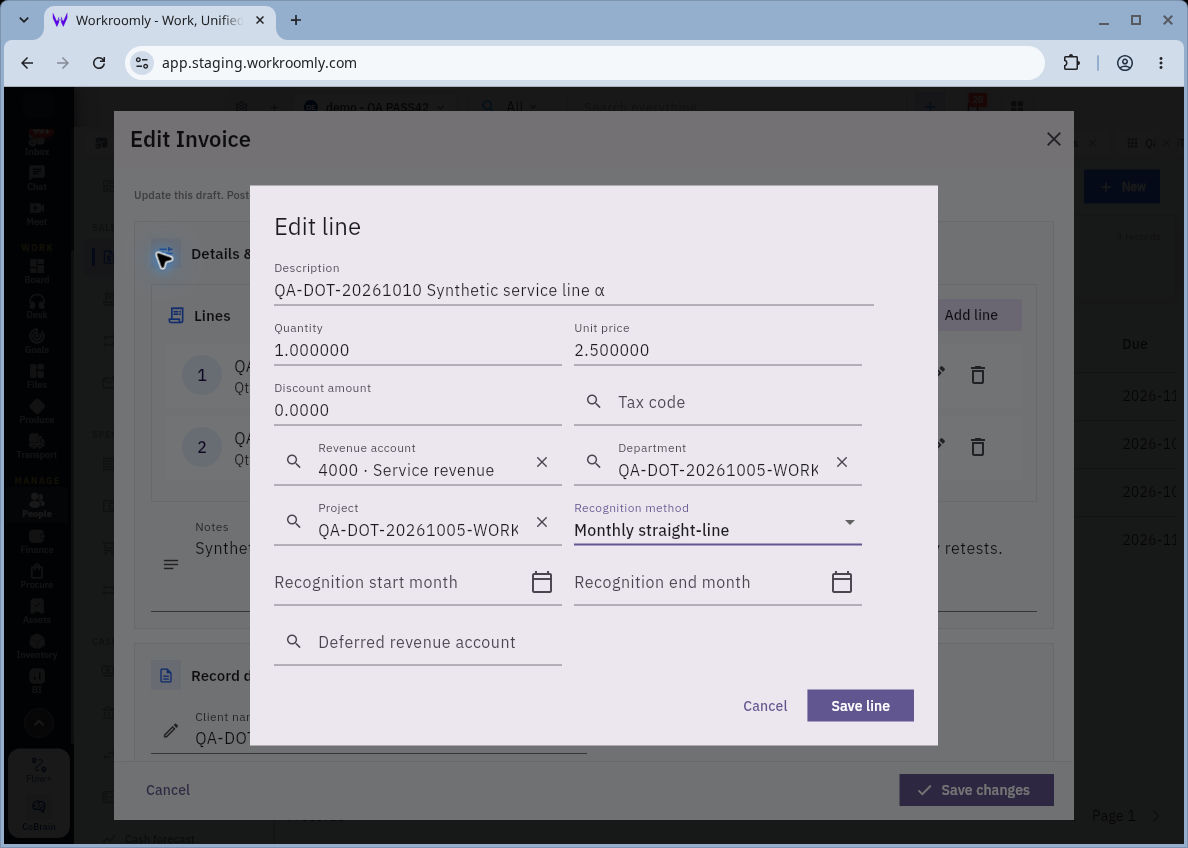
Source-line recognition and deferred accounts
Monthly straight-line exposes the start month, end month and Deferred revenue account. These fields belong to this invoice line, not the manual adjustment. Check the saved source and its resulting schedule separately.
The Direct Expense monthly-recognition branch uses Recognition deferred account, alongside Expense account and Cash account. Check the timing controls on that expense form; do not substitute an invoice’s deferred-revenue account or assume its period setup applies to a cost.
An approved recognition specification needs the exact source, total, timing basis, periods, target accounts and expected period amounts. Visible fields alone do not prove schedule creation, recognition execution, partial-month rules, rounding or the effect of later changes. Nor does a subscription's billing cycle establish how revenue is recognised.
Inspect Schedules and Events in their actual scope
Open Finance → Recognition → Schedules. Use Search schedules and All statuses to find the relevant source. The Demo example reads No recognition schedules yet and has no visible New action.
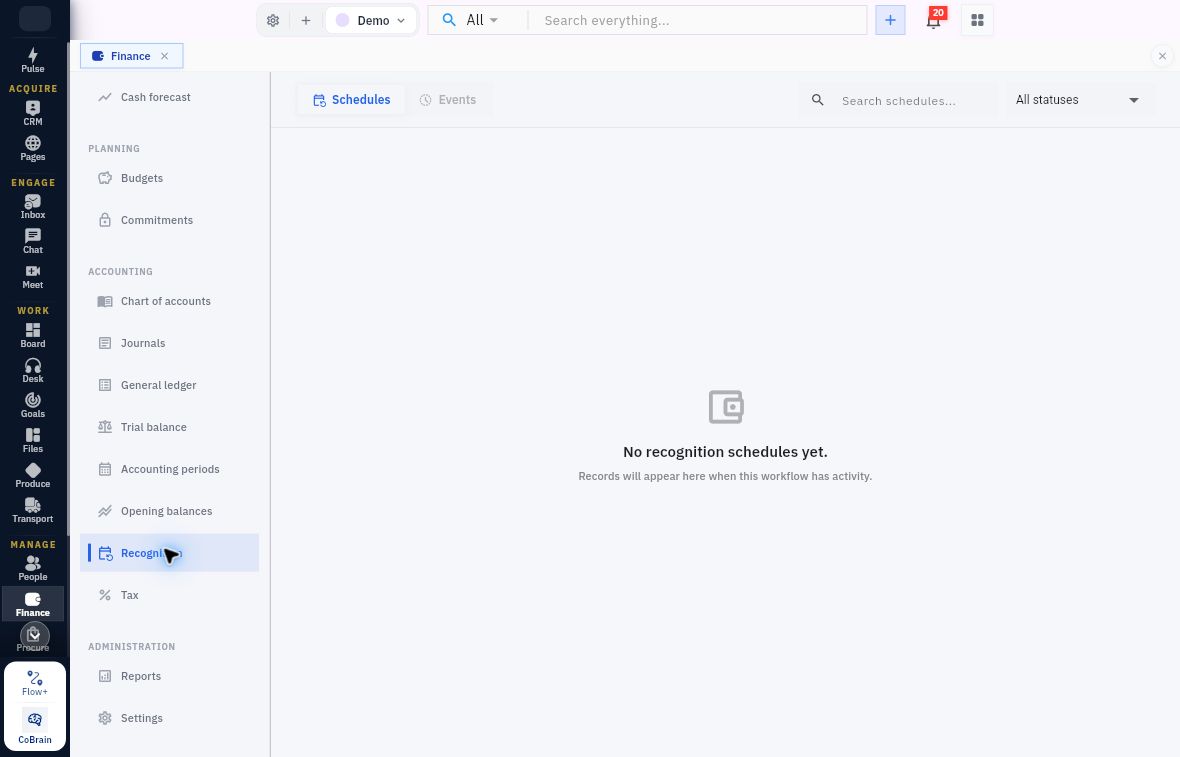
Recognition schedule scope
Check the selected Schedules tab, search and status scope together. An empty view calls for a source and scope check; it does not tell you that the source has been processed.
Choose Events. This separate list has Search events and All statuses. The Demo example reads No recognition events yet, again without a visible New action.
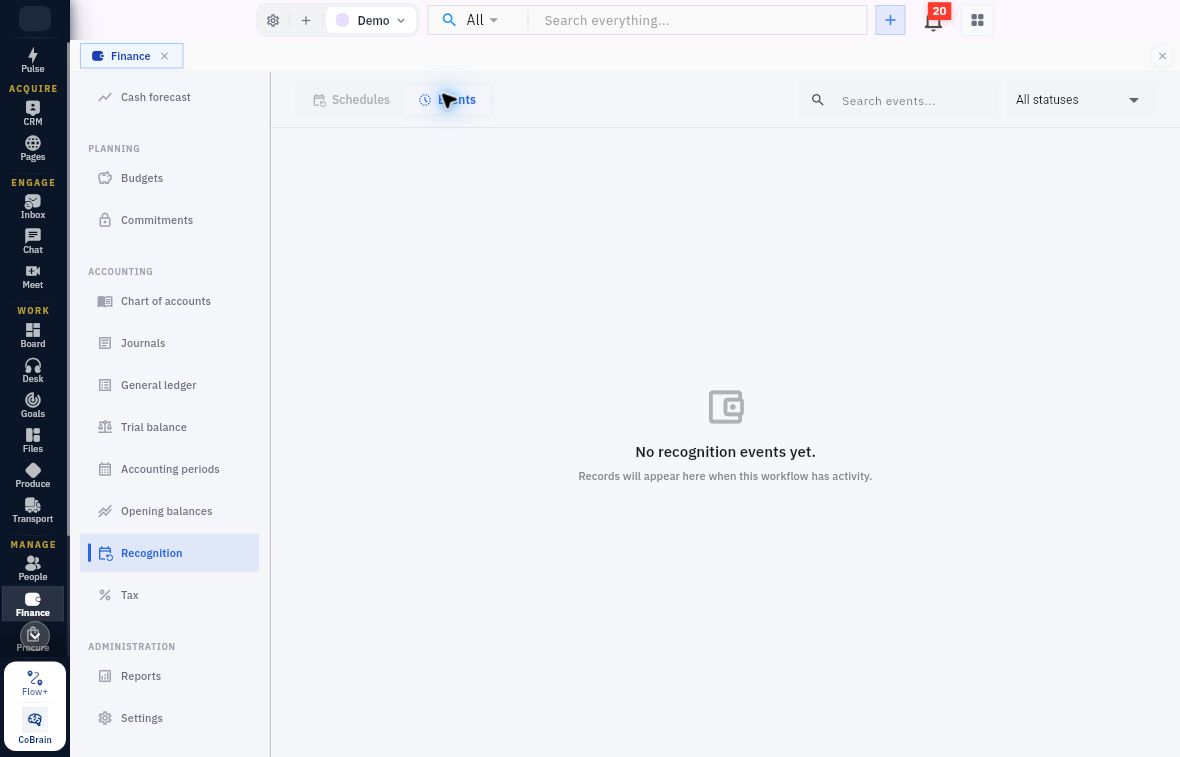
Recognition events and accounting practice
Use Events to check the recognition activity separately from the schedule. An empty list supplies no completed period amount or posted journal to trace.
Use the search and available status choices for the intended source. If you cannot find a schedule, check its source configuration and the supported workflow with the owner. Do not create a substitute journal merely because this view is empty.
To establish an executed recognition result, trace the saved source configuration to its actual schedule, period amounts, resulting event and posted journal, then verify the relevant deferred and income/expense balances. Compare recognised-to-date plus remaining amount with the supported total. Use the source and resulting records for these checks; an empty list cannot supply the amounts.
If an event already posted Riverside's correct period amount, do not add the same manual adjustment. If no event is visible, investigate source configuration, dates, scope and the supported workflow with the owner; absence in one view is not authority to replace automation with a journal.
Practice one journal trace and one recognition check
Use a permitted existing posted journal, or the historical images if no suitable current record exists.
- Identify the workroom, exact journal number, kind, Entry date, state, version and source. Explain whether it is manual or generated by another workflow.
- Independently total the retained lines. Match the exact journal number to its General ledger rows and distinguish those movements from running balances.
- Compare accounting and workflow timestamps. For the example exhibit, explain why “unposted” in Narration and an expected Version 4 would both be unreliable conclusions.
- Open Recognition's Schedules and Events in your permitted workroom. Record the actual list scope and any available source evidence without creating or running anything.
Expected result: Trace the example’s Posted Version 3 journal to two USD10 ledger movements. Explain why its old “unposted” narration does not change that state. In Recognition, distinguish an empty list from a completed recognition event and identify the source checks needed next. Leave all journal and recognition states unchanged.
Next, compare book movements with statement evidence in bank transactions and reconciliation.
Turn what you learned into the way the team works.
Mark this lesson complete once the workflow exists in your workspace—not simply when you reach the bottom.