Finance course 06 — Working with supplier bills and payables
Workroomly keeps the supplier's bill, the outstanding payable and the source journal as related records. This chapter takes you through the bill and credit forms, then shows how to verify the accounting result without confusing approval with payment.
Part of Mastering Workroomly Finance
In this lesson
Supplier documents and accounting relationships
Workroomly keeps the supplier's bill, the outstanding payable and the source journal as related records. This chapter takes you through the bill and credit forms, then shows how to verify the accounting result without confusing approval with payment.
You need the intended workroom, read access to the relevant Finance records, the exact supplier identity, the supplier document and its acceptance evidence. Have the approved account, tax treatment, currency and period available. The practice is read-only: do not create, submit, approve, pay, credit or void a record. The blank-form examples use NGN; the worked ACADEMY-BILL-001 trace uses USD25. Keep these separate from Riverside’s conceptual USD80 bill.
In this chapter
- Start with the supplier and accepted source
- Find the bill register and check for duplicates
- Understand the bill header
- Read each bill line and its classification
- Understand the bill workflow before taking an action
- Verify the payable rather than assuming approval means paid
- Trace the accounting to its exact journal
- Read vendor credits as linked corrections
- Complete a read-only supplier trace
Start with the supplier and accepted source
Use Procure → Suppliers → Directory when you need to check the supplier's master record. Match the reference as well as the name. Supplier status, approval, onboarding evidence and suitability for this purchase are separate checks. Creating a profile or starting onboarding does not approve the supplier, and a visible record does not establish payment-account verification.
Then compare the bill with the actual purchase authority and service or goods acceptance. A purchase order states what was ordered; a goods receipt or acceptance record supports what was received. Neither automatically proves that every amount on the supplier bill is correct.
For Riverside's conceptual service example, the accepted bill is USD80. A later valid USD50 allocation would leave USD30 outstanding. Those are the course's arithmetic values, not the saved USD25 records shown below. Keep the source charge and later settlement separate: paying part of an overstated bill does not correct the bill itself.
An independent service bill may have no purchase-order or goods-receipt link where the approved process allows it. Blank reference fields are not permission to bypass purchasing. Conversely, do not select an unrelated purchase order simply to fill a field. Resolve the intended route and evidence before submission.
Find the bill register and check for duplicates
Open Finance → Vendor bills → Vendor bills. The current workspace has Vendor bills and Vendor credits tabs. Use Search vendor bills... and read All statuses or the selected filter before concluding that no record exists. Inspect the register's Bill, Vendor, Status, Total and Due columns together.
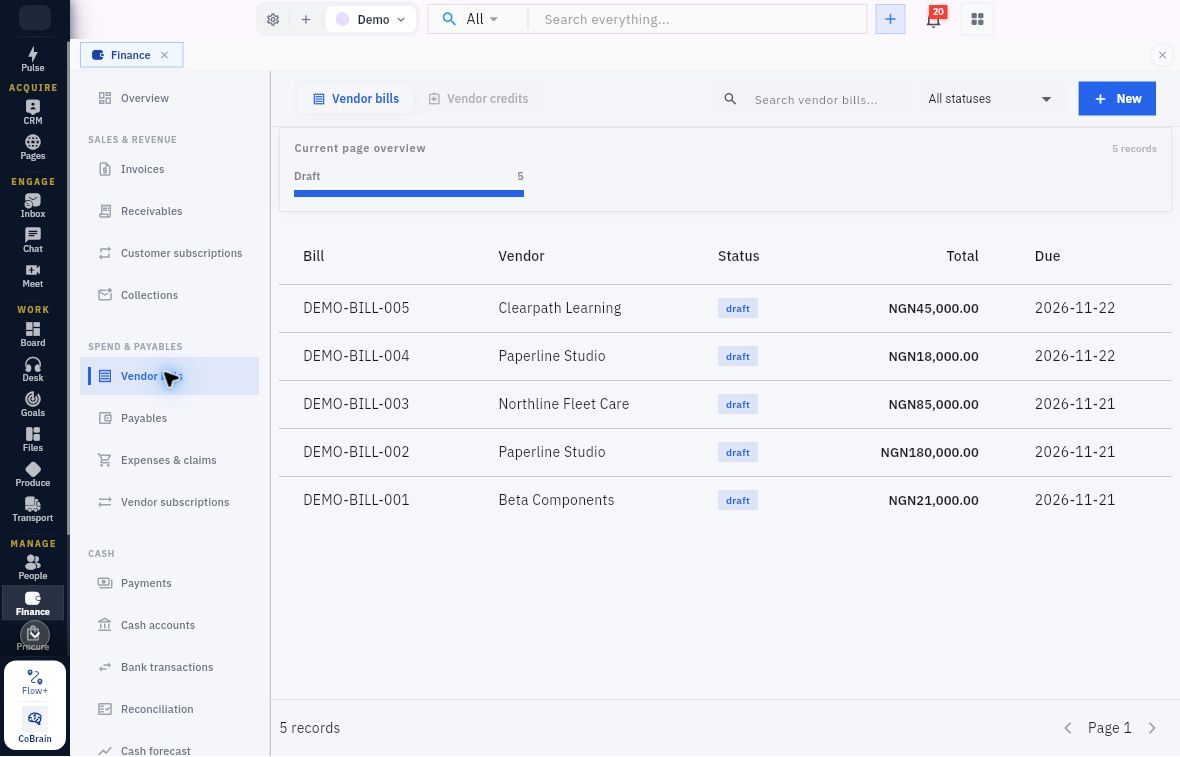
Draft bill totals versus approval
Read Status alongside Total. The example Demo register contains Draft bills with numeric NGN totals, including DEMO-BILL-005 at NGN45,000.00, due November 22. A draft total helps you review the charge; check approval and the related payable and journal separately.
Punctuation or spacing differences in a bill number do not necessarily identify a different charge. A supplier statement is a summary, not another bill to enter. If a save or approval result is uncertain, search the original reference and inspect its current state before another attempt; do not invent a new reference to make a retry look unique.
The register's New control opens New vendor bill. The next sections explain what to read there. For this chapter, inspect an existing authorised record or cancel any blank form without saving.
Understand the bill header
The form scrolls from Lines, Notes and Attachments through the document details and dates to the supplier and purchase relationships. Inspect both sections before treating the form as complete.
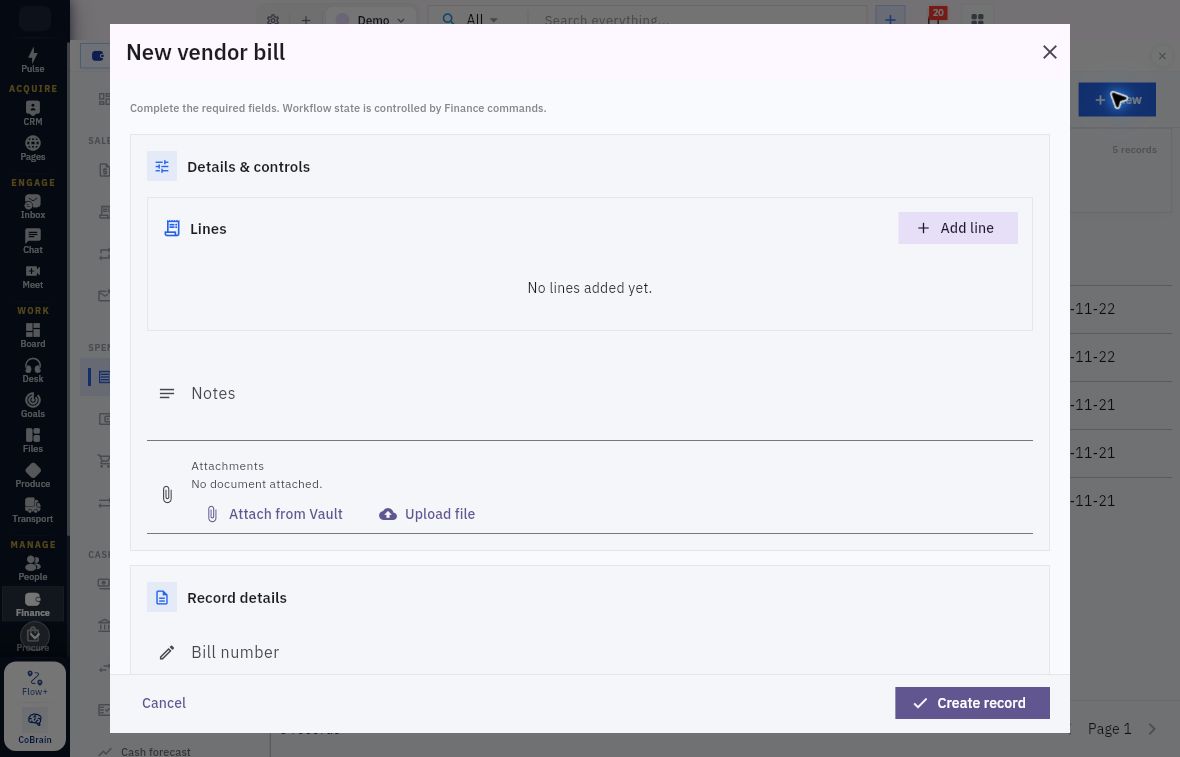
Bill identity and supporting attachments
Keep the source evidence with the bill. Attachments offers Attach from Vault and Upload file. In authorised preparation, choose the correct document, then verify that it remains attached and can be read. Leave both controls unchanged in this read-only exercise.
| Field | Meaning and check |
|---|---|
| Bill number | The supplier-document reference used to identify the claim. Compare it with the document and duplicate search; it is not the supplier's master-record reference. |
| Notes | Context about the source and purpose. Notes do not grant approval or permission to pay. |
| Attachments | Supporting-document area with Attach from Vault and Upload file; verify the intended document and retained attachment in separately authorised work. |
| Bill date | The supplier-document date. Keep it distinct from service acceptance and application timestamps. |
| Due date | The agreed payment date. Check it against terms rather than assuming it is always recalculated from another field. |
| Currency | The currency of the charge. It must agree with the source and approved treatment. |
| Exchange rate | The rate used for the transaction. Use the approved conversion rate; the USD example uses 1. |
| Vendor | A relationship to the exact supplier. Typed search text is not a substitute for selecting and verifying the intended record. |
| Purchase order | The relevant order relationship where the purchasing process requires it. Match the actual source, not a similar amount or vendor name alone. |
| Goods receipt | The relevant received-goods record where applicable. Compare accepted quantities and any rejected items. |
| Add line | Opens the line editor. The line and the parent bill have different save checkpoints. |
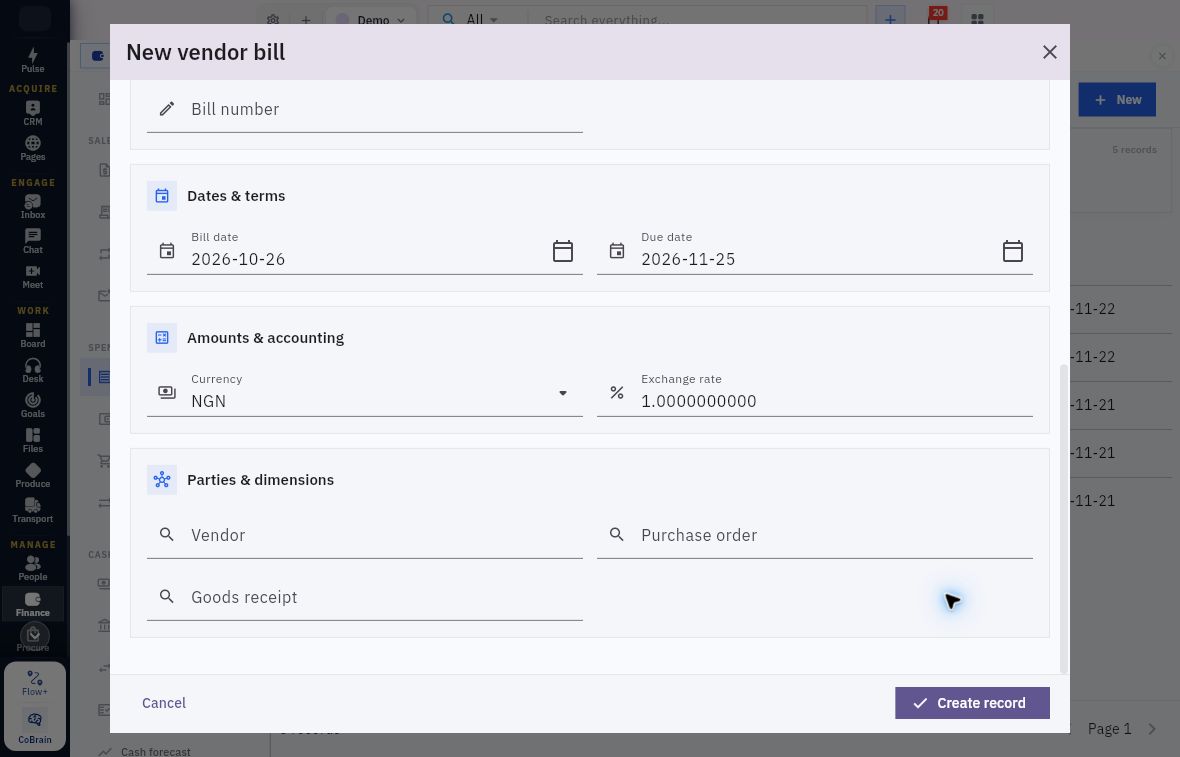
Bill dates, currency and procurement links
Check the source rather than copying the example. Review Bill date, Due date, Currency and Exchange rate, then select Vendor and any applicable Purchase order and Goods receipt. The example uses NGN/rate 1; use the approved conversion basis for a foreign-currency bill.
Follow the requirements for the approved purchasing route. The independent service example below has no Purchase order or Goods receipt link; use the required source relationships when preparing an order-linked bill.
Read each bill line and its classification
Add line exposes the following fields:
| Field | What to inspect |
|---|---|
| Description | The service or goods described by the source and acceptance evidence. |
| Quantity and Unit price | The agreed accepted quantity and unit charge. Calculate the line independently before relying on displayed totals. |
| Expense account | The selected accounting reference. The label does not decide whether a real purchase belongs in expense, inventory, an asset or a prepayment; use the approved treatment. |
| Tax code | The helper calls for an active purchase, zero-rated or exempt code and points to Finance → Tax for missing configuration. Select the treatment approved for the charge. |
| Department and Project | Applicable classification relationships. Confirm the intended records rather than adding arbitrary labels. |
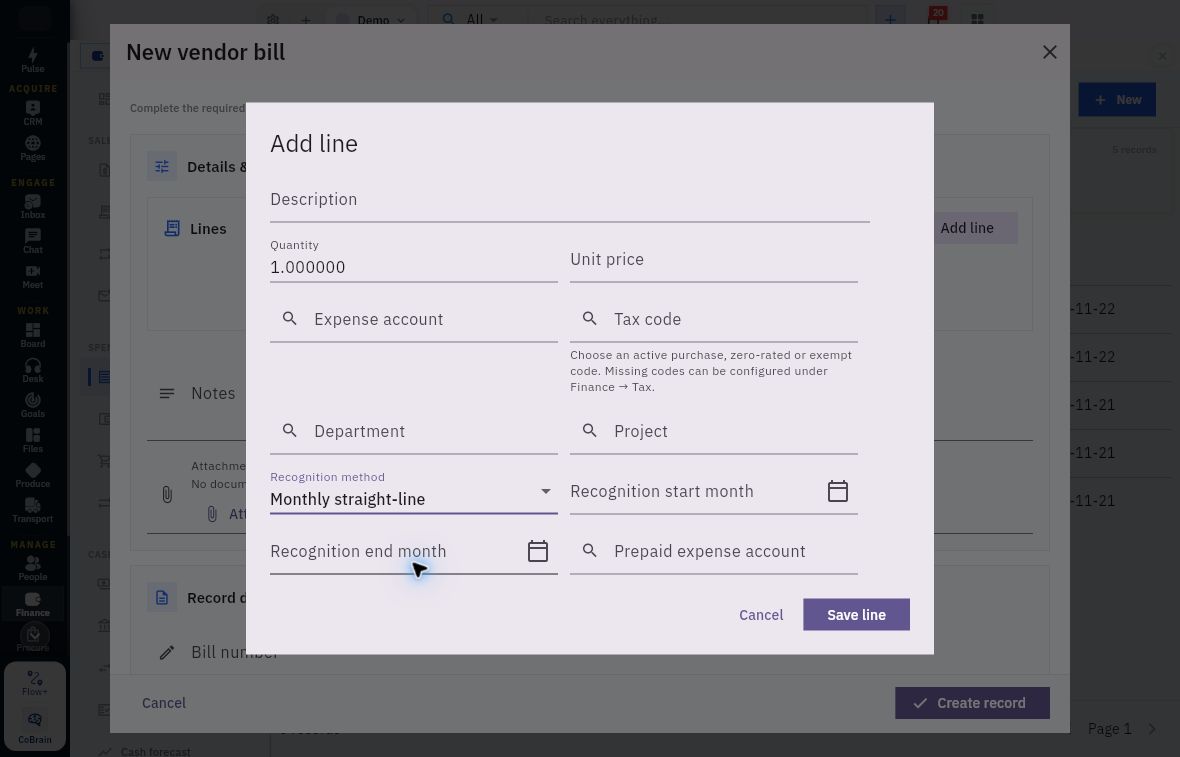
| Recognition method | Choose Immediate or, for an approved recognition period, Monthly straight-line, which adds the three fields below. |
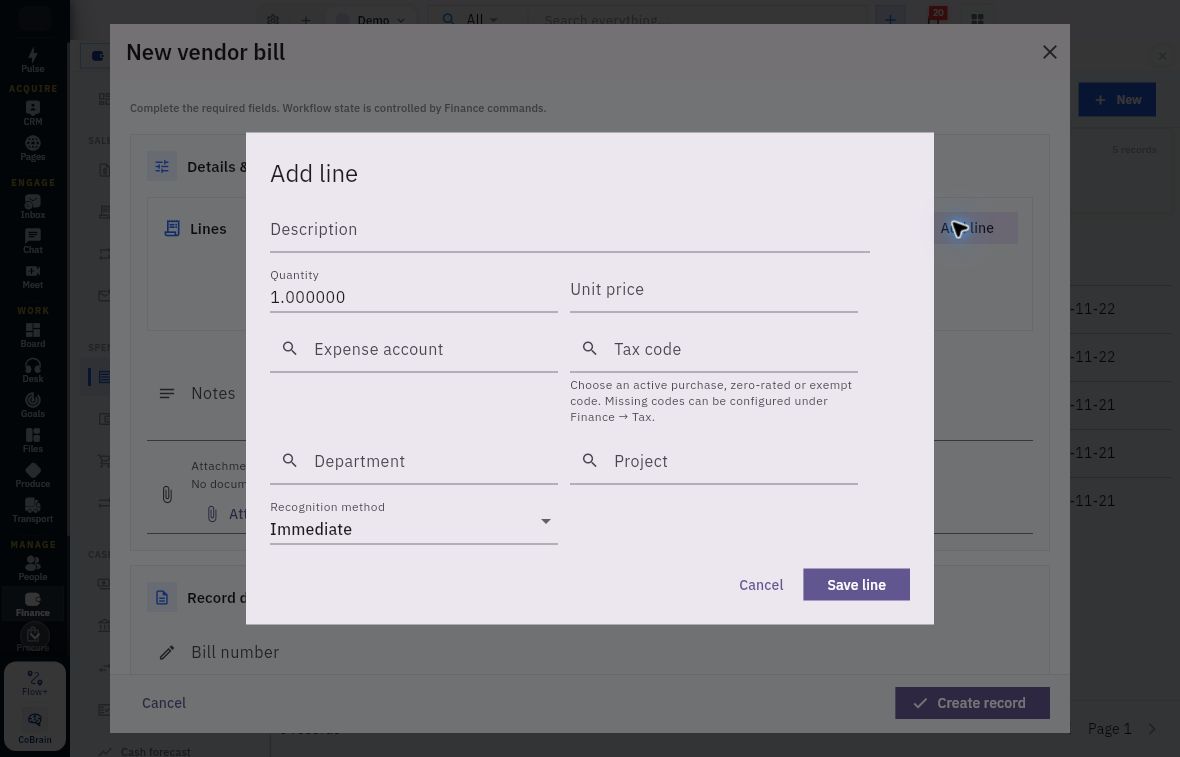
Supplier line amounts and expense mapping
Read this as a bill line, not an invoice template. Set Quantity and Unit price from the accepted supplier charge. There is no Discount field visible in this line form. Do not import invoice discount controls into the bill procedure or assume the blank price is a saved zero. The line has an Expense account reference and the purchase/zero-rated/exempt tax-code helper. Save line retains a line in the parent form; it does not create the whole bill.
Selecting Monthly straight-line exposes:
| Conditional field | Meaning and check |
|---|---|
| Recognition start month | The beginning month of the intended recognition span, from the approved service/timing basis. |
| Recognition end month | The ending month of that span; check it independently rather than assuming the bill's Due date sets it. |
| Prepaid expense account | The selected approved account for the prepaid-cost relationship. This is not the customer invoice's Deferred revenue account field. |
Prepaid recognition and service periods
Set the recognition period from the approved service basis. After the authorised bill workflow, review its schedules and events as explained in Chapter 11. Keep preparation of the recognition fields separate from checking the resulting accounting.
For a separately authorised creation, the operator would check the retained lines and header before Create record, then reopen the same bill from the register. The saved check includes quantity, unit price, account, subtotal, tax, amount, functional amount, currency, exchange rate and dates. Do not use a closed dialog or a notification alone as evidence that all values persisted.
In the USD25 worked example below, USD with rate 1 produces transaction and functional amounts of USD25. For a foreign-currency bill, use the approved rate and check both amounts rather than forcing them to agree.
Understand the bill workflow before taking an action
The example ACADEMY-BILL-001 followed this sequence:
| Checkpoint | Example result | What it does not establish |
|---|---|---|
| Saved bill | Draft, header Version 1 | Approval, posting or payment |
| Submit and confirmation | Pending Approval, header Version 2 | The reviewer's decision or payment |
| Authorised Approve and confirmation | Approved, header Version 2; payable and posted source journal created | Supplier settlement |
The Submit confirmation said Confirm submit for this record. The Approve confirmation asked Approve this record and continue its controlled workflow? A confirmation dialog is only the decision boundary; the operator must still reopen and verify the actual result.
Approving this bill created its payable and source journal. The reviewer must check supplier identity, duplicates, acceptance, permitted route, account, dates, tax and totals before approving. A visible Approve control does not authorise self-approval or prove independent separation of duties.
After approval, Issue Journal displays the generic label Journal Entry, and Pay, Credit and Void are available. Use the Journals register to identify the posting. This bill’s accounting was triggered by Approve, without a separate Issue or Post action. Do not copy the customer-invoice sequence or add a duplicate manual journal. Payment and correction procedures require their own authorised decisions.
Verify the payable rather than assuming approval means paid
Open Finance → Payables. Find the exact bill and supplier, then compare the source identity before reading the balance.
Match the bill to its payable
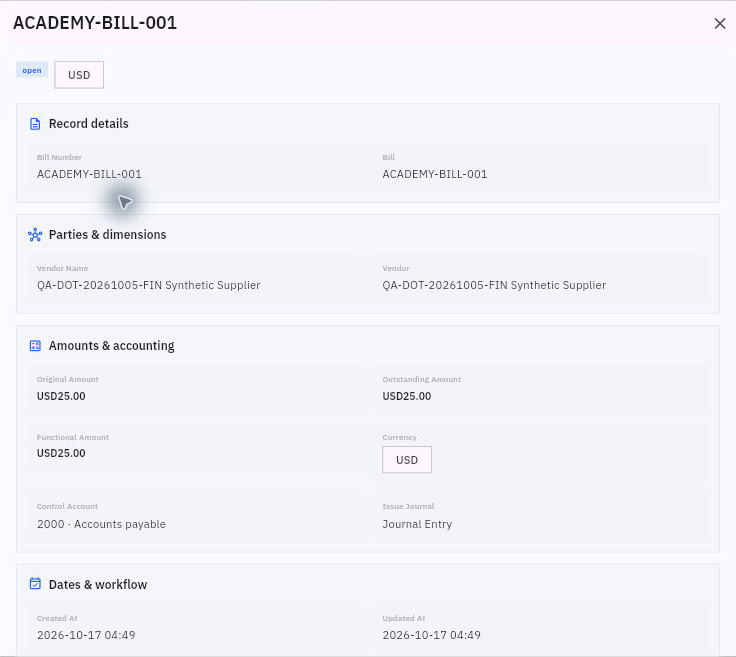
Match the source and the open item. This example payable shows Bill Number and Bill as ACADEMY-BILL-001, with the same supplier in Vendor Name and Vendor. Original Amount, Outstanding Amount and Functional Amount are USD25. Its Control Account is 2000 · Accounts payable, currency USD, and status open. The payable therefore still shows USD25 owed; check its allocation and payment records separately.
The example payable is due November 14, 2026. Scroll through the complete detail to check the actual due date and remaining balance against the bill and any credit or payment allocations.
A later payment appearing elsewhere for USD25 would not by itself prove that this payable was settled. Exact allocation and retained payable readback are required. Chapter 7 examines that separate workflow.
Trace the accounting to its exact journal
Open Finance → Journals → Journals, under Accounting. Locate the journal by the bill reference, source and entry date. The generic Journal Entry relationship label is not a unique journal identity.
Trace the bill source journal
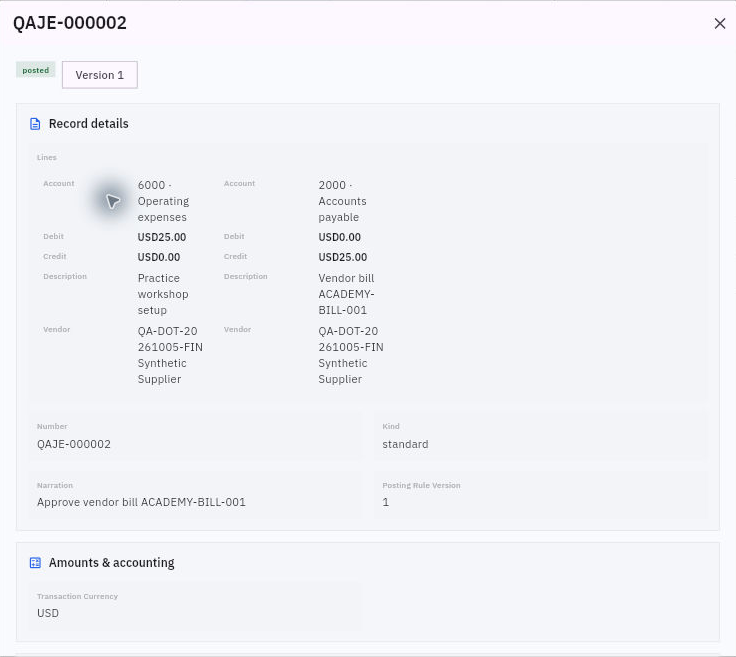
Use the journal number and source together. The example result is QAJE-000002, Posted, journal Version 1, with narration Approve vendor bill ACADEMY-BILL-001. Its lines debit 6000 Operating expenses USD25 and credit 2000 Accounts payable USD25. No cash account appears in this entry.
The original detail records entry date October 15, 2026 and posting on October 17 at 04:49. The journal's source event was Vendor Bill.approve, supporting approval as the trigger. The accounting date and the posting timestamp answer different questions.
Do not force version labels across records to match. The example bill's header Version 2, bill Source Version 1, journal Version 1 and journal Source Version 2 are separately labelled observations. Use the reference, source event, dates and amounts to establish the relationship.
If the payable or journal is missing, check workroom, loading, filters and the saved bill's state. Report the absent link with the exact reference. Repeating Approve, recreating the bill or adding a manual journal is not a safe way to manufacture the expected result.
Read vendor credits as linked corrections
Open Finance → Vendor bills → Vendor credits. Use Search vendor credits and All statuses to look for earlier adjustments. New or the empty-state Create vendor credit action opens preparation. If the register says No vendor credits yet, check your workroom and search before proceeding. A credit needs the supplier's supported reduction, original bill, affected line, reason, amount, currency and any tax adjustment. A genuine credit, a draft-entry error and a duplicate bill are different problems; preserve the source and use the appropriate controlled correction process.
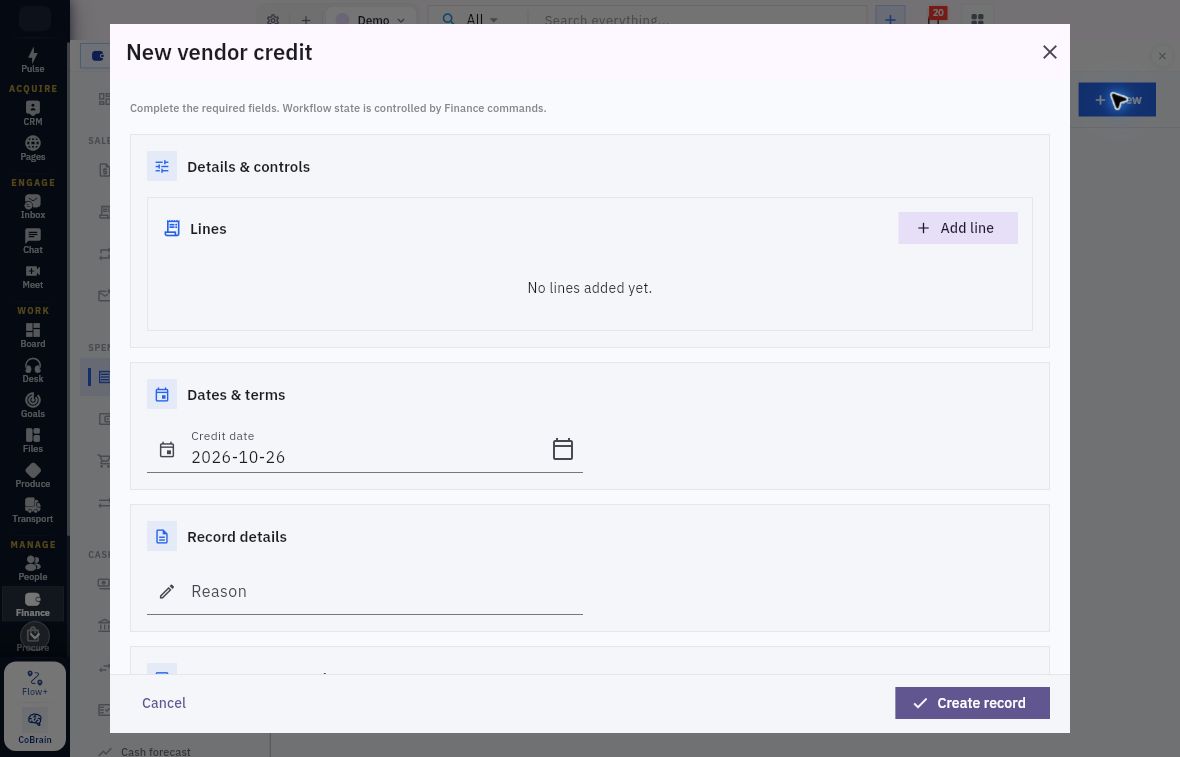
New opens New vendor credit. The header has these fields:
| Field or control | Meaning |
|---|---|
| Lines and Add line | The supported adjustments linked to original bill lines. |
| Credit date | The date of the credit, checked against its source rather than the prefilled date. |
| Reason | The explanation for the supplier reduction. |
| Currency | The credit's currency, consistent with the approved source treatment. |
| Bill | The exact original bill relationship. |
| Payable | The relevant payable relationship; a matching amount alone is not enough. |
Supplier-credit reason and date
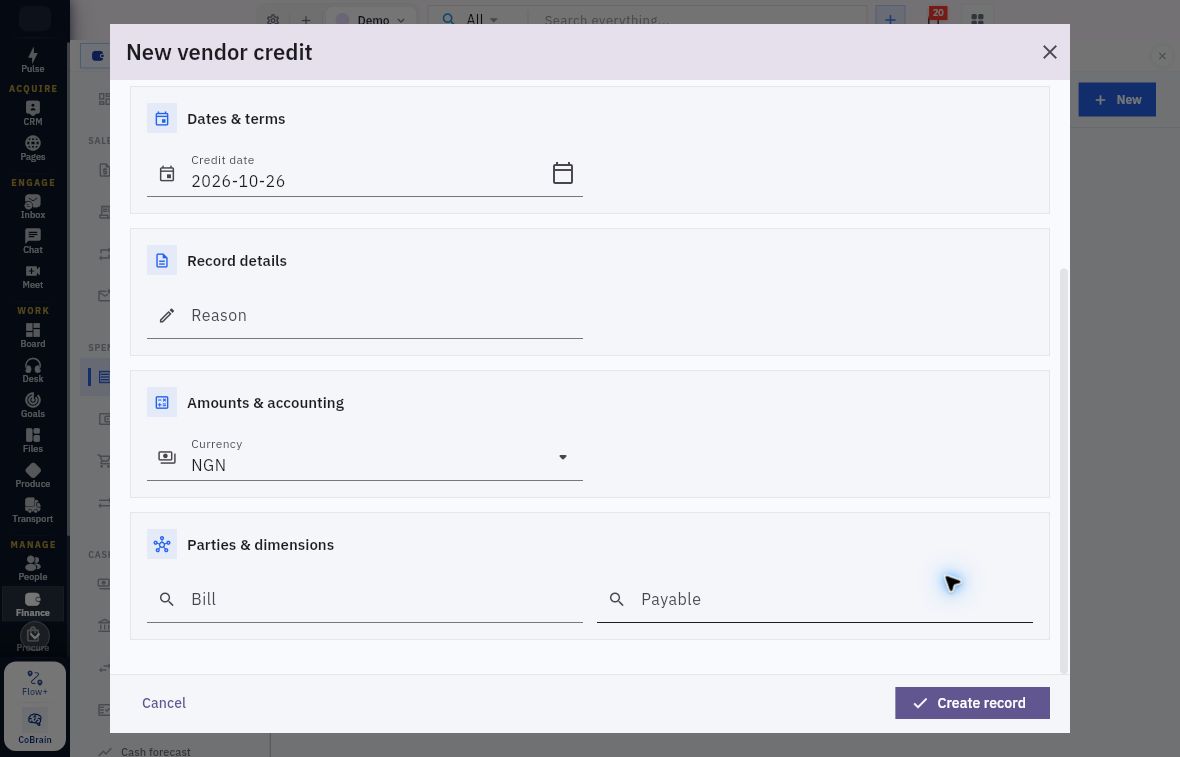
Start with the adjustment lines, Credit date and Reason. Scroll down for Currency, Bill and Payable.
Credit currency and original obligation
The references are part of the correction. Set Credit date and Currency from the supplier’s credit, then select the exact Bill and Payable. The form prefills NGN in this example. Use the supplier credit’s currency rather than copying the prefill. Cancel exits the parent form and Create record saves the prepared record.
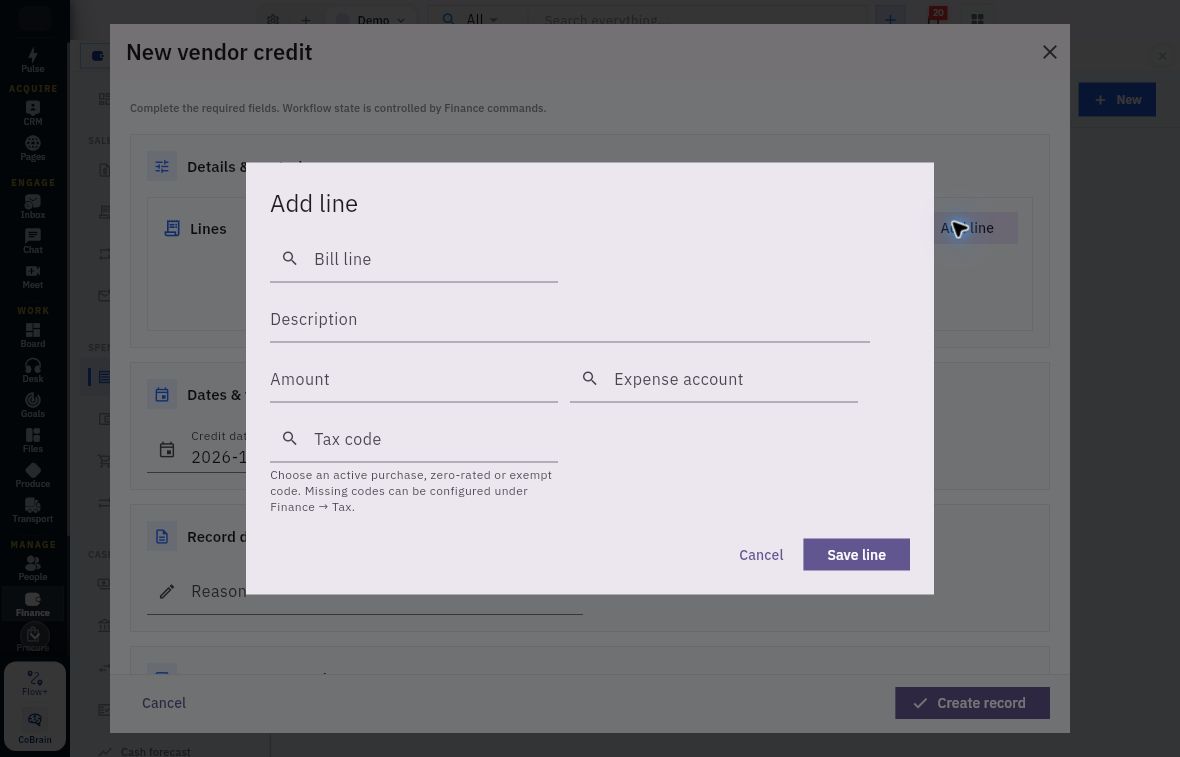
Add line contains Bill line, Description, Amount, Expense account and Tax code. Bill line identifies what is being adjusted; Description explains it; Amount is the intended adjustment; Expense account and Tax code must follow the approved underlying treatment. The Tax code helper asks for an active purchase, zero-rated or exempt code and directs missing configuration to Finance → Tax. Refer missing codes to the configuration owner.
Vendor-credit amounts and safe practice
Do not reuse invoice-line arithmetic fields. This vendor-credit line has Amount, not Quantity and Unit price. Calculate the intended credit from the supplier source before entry. Save line and the parent Create record remain separate checkpoints. For read-only inspection, cancel the line dialog and then the parent form.
This section covers credit preparation. To confirm a completed credit, check its saved identity and original bill, approval/posting history, journal and payable application. Check any refund against separate cash evidence.
Complete a read-only supplier trace
Choose one existing bill your Finance owner permits you to inspect, or use the USD25 examples if no suitable record exists.
- Record its supplier and bill reference, source dates, currency and accepted amount. Identify the purchase-order/receipt links or the approved independent basis.
- Compare header and line fields with the source. Note any duplicate, quantity, price, date, coding or identity discrepancy without editing it.
- Read the actual state. If accounting is evidenced, locate the same bill in Payables and its exact source journal. Keep a draft’s state separate from the approved example.
- Keep credits and payments separate. For Riverside's conceptual no-credit case, USD80 less a valid USD50 allocation leaves USD30; do not replace the real record's values with this arithmetic answer.
Expected result: One short source-to-payable-to-journal explanation with exact references, amounts and state. For ACADEMY-BILL-001, the supported conclusion is an approved USD25 bill, an open USD25 payable and a posted expense/payable journal, with payment still to be checked separately. Where evidence is missing, identify the missing record or decision rather than claiming a completed supplier balance.
Next, inspect payment evidence, allocation lines and the distinction between a prepared payment and a settled payable.
Turn what you learned into the way the team works.
Mark this lesson complete once the workflow exists in your workspace—not simply when you reach the bottom.