Finance course 05 — Working with customer invoices receivables and collections
An invoice, its receivable and its source journal answer different questions in Workroomly. This chapter follows their connections, starting with the customer relationships and ending with the evidence needed to explain an outstanding balance. It also shows the credit-note preparation fields and where collection activity fits without treating either as a payment.
Part of Mastering Workroomly Finance
In this lesson
Customer documents and outstanding balances
An invoice, its receivable and its source journal answer different questions in Workroomly. This chapter follows their connections, starting with the customer relationships and ending with the evidence needed to explain an outstanding balance. It also shows the credit-note preparation fields and where collection activity fits without treating either as a payment.
Use the intended workroom and a permitted existing record. Have the agreed charge, customer and billing-contact identities, dates, currency, tax treatment and accounting instructions available. The default practice is read-only. The workflow below explains documented actions and their consequences; it does not authorise you to create, approve, issue, send or collect a new charge. Preparer, reviewer and issue operator describe responsibilities, not additional Workroomly role names.
In this chapter
- Keep the worked examples separate
- Start with the right customer relationships
- Find an invoice before preparing another
- Inspect the current Riverside draft before any workflow action
- Separate submission approval and issue
- Read the receivable as an outstanding item
- Trace the source accounting independently
- Inspect a credit without assuming a refund
- Understand the Collections boundary
- Practice one source-to-balance inspection
Keep the worked examples separate
Our continuing Riverside example is a USD300 service invoice. A later valid USD200 receipt allocation would leave USD100 outstanding, assuming no other changes. Those are teaching figures, not records you should expect to find.
The worked accounting example is QAINV-000004, for USD190, with source journal QAJE-000001. Its Customer and Billing contact fields are blank. Use it to follow the issue and accounting sequence, but complete the proper customer relationships for your own authorised invoices. Keep its values separate from Riverside’s USD300 teaching example.
A second example, INV-000003 in Demo, is a Riverside Operations invoice at Draft, Version 1, with an NGN950,000 line. Use this record to learn the draft readback; use QAINV-000004 to follow an issued invoice. The two records have different currencies, values and workflow states.
Start with the right customer relationships
A CRM Account, a Contact, the invoice's free-text Client name and a Finance customer profile are different records or fields.
First identify the approved customer organisation and billing person in CRM. Select the correct Account in Customer and its intended Contact in Billing contact. Check both relationships and confirm who should receive the invoice.
Do not create a look-alike customer because the intended one is missing from a picker. Check workroom, CRM space, access and the source identity with the responsible owner. Linking a Contact to an Account does not itself assign billing responsibility or configure finance terms.
Inspect the customer finance profile
Open Finance → Receivables → Customer terms and use Search customer terms to find the customer before preparing another profile. Read the Customer, Payment terms, Credit limit, Currency and On hold columns together.
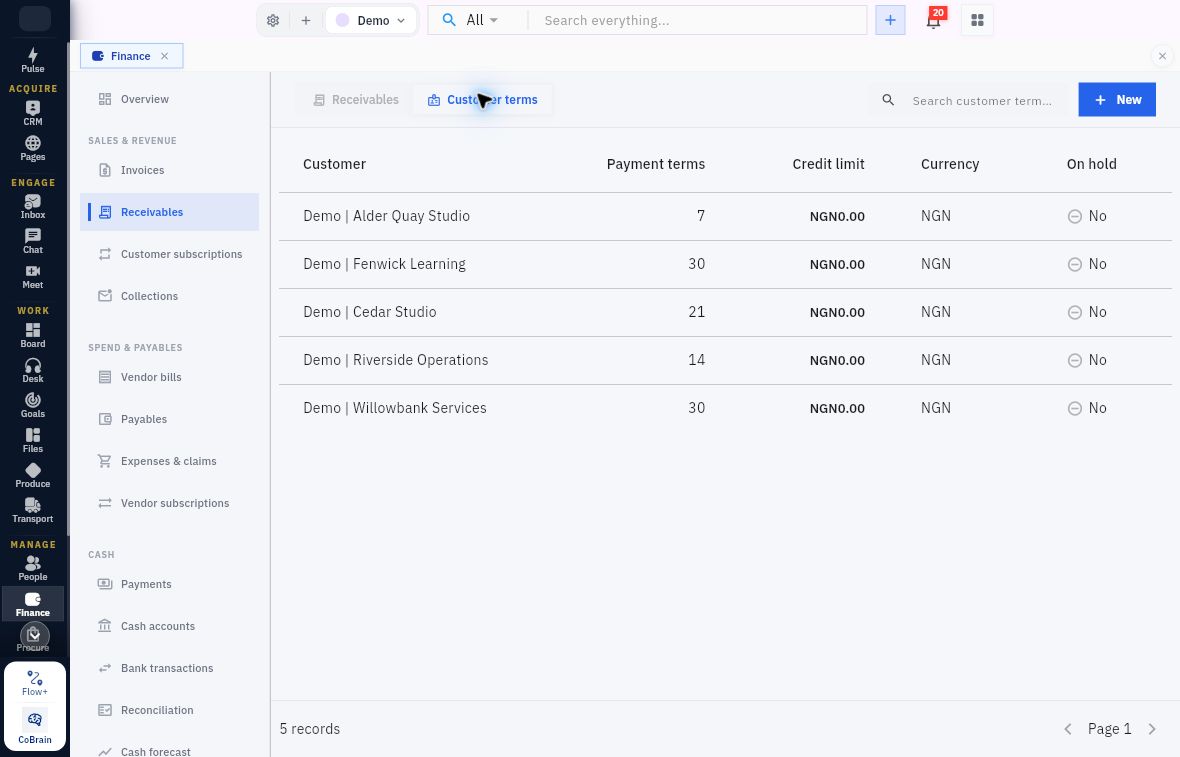
Find the correct customer profile
Find the exact customer first. Riverside Operations shows payment terms of 14 days, credit limit NGN0.00, currency NGN and On hold No. Use the profile for the intended customer rather than copying another row’s terms.
A zero Credit limit needs interpretation under your organisation’s credit-control policy; do not assume it means unlimited credit or an automatic block. Check the invoice’s actual terms and currency separately.
New opens New customer finance profile. Its ten fields serve different purposes:
| Field | What to understand or compare |
|---|---|
| Payment terms days | The expected payment interval. Compare it with the customer's agreed terms. |
| Credit limit | The configured credit-control value, not the amount of this invoice or a revenue account. |
| Currency | The profile's currency value. Do not assume it settles every invoice's currency or conversion basis. |
| Tax identifier | The customer's identifying tax information, where applicable. Keep real identifiers out of training notes and shared screenshots. |
| Legal name | The recorded legal-name information. Compare it with the approved customer identity. |
| Billing address | Use the key: value per line format shown by the helper; confirm the accepted address keys with your Finance owner. |
| Billing preferences | Use key: value, one setting per line, with the supported preference keys agreed by your configuration owner. Check delivery arrangements separately. |
| Is on hold | A separate control flag. Read the value and follow the customer-hold procedure before preparing further invoices. |
| Customer | The relationship to the intended customer record. Select an actual reference, not merely search text. |
| Receivables account | The accounting relationship for the profile. Check its exact code and purpose against the approved setup. |
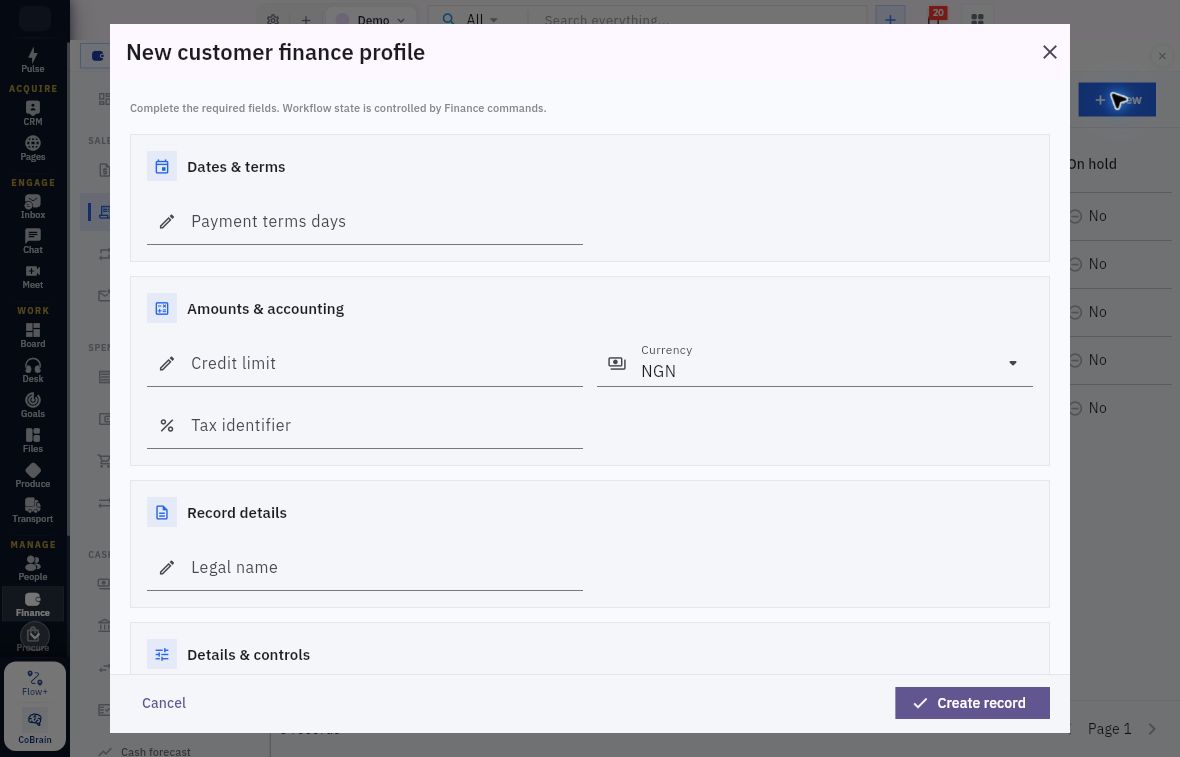
Terms, credit limit and legal identity
Review payment terms and credit limit, then check Currency, Tax identifier and Legal name. The example starts with NGN; select the currency agreed for this profile.
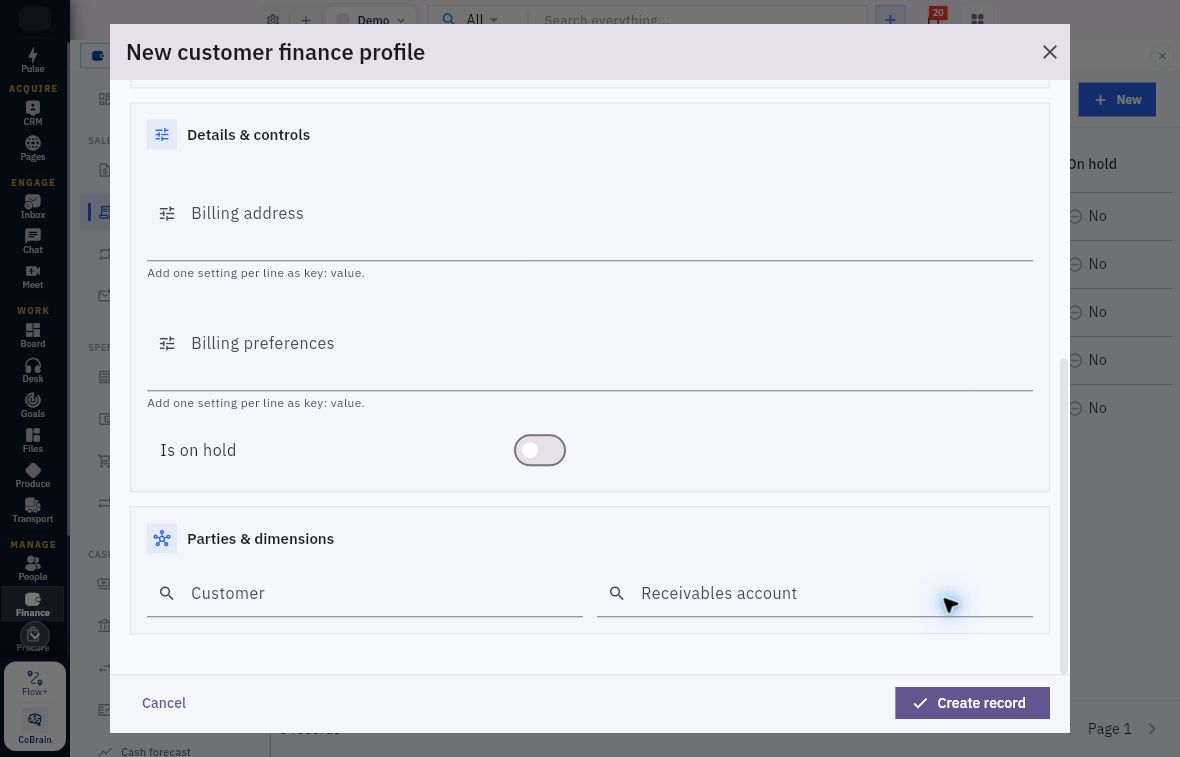
Billing preferences and customer relationships
Billing address and Billing preferences each use “Add one setting per line as key: value.” Use supported keys rather than inventing an address or delivery schema. Review Is on hold, then select the exact Customer and Receivables account.
The blank example starts with Is on hold off and no Customer or Receivables account selected. Check the intended hold status and account mapping before an authorised save; the switch’s starting position is not your credit decision.
The form ends with Cancel and Create record. Cancel for this read-only exercise. Check the invoice’s own values even when a customer finance profile exists; follow your organisation’s rules for required information and changes to existing invoices.
Find an invoice before preparing another
Open Finance → Invoices → Invoices. Confirm the workroom, search and status scope. Search the known invoice reference or source/customer context and inspect plausible matches, including records still in draft or review. A slow response is not evidence that the first attempt failed.
For an existing invoice, record its generated number, actual state and relevant dates before deciding what it needs. If a creation or workflow result is uncertain, stop writes and reopen the exact source. Check downstream records before a controlled retry. A closed dialog or success notification is not a substitute for retained readback.
The register has Search invoices, All statuses and columns Invoice, Customer, Status, Total and Due. A draft may show Calculated on Submit in Total. Credit notes and Write-offs have separate tabs.
New opens New Invoice. Review the upper and lower sections together with the lines.
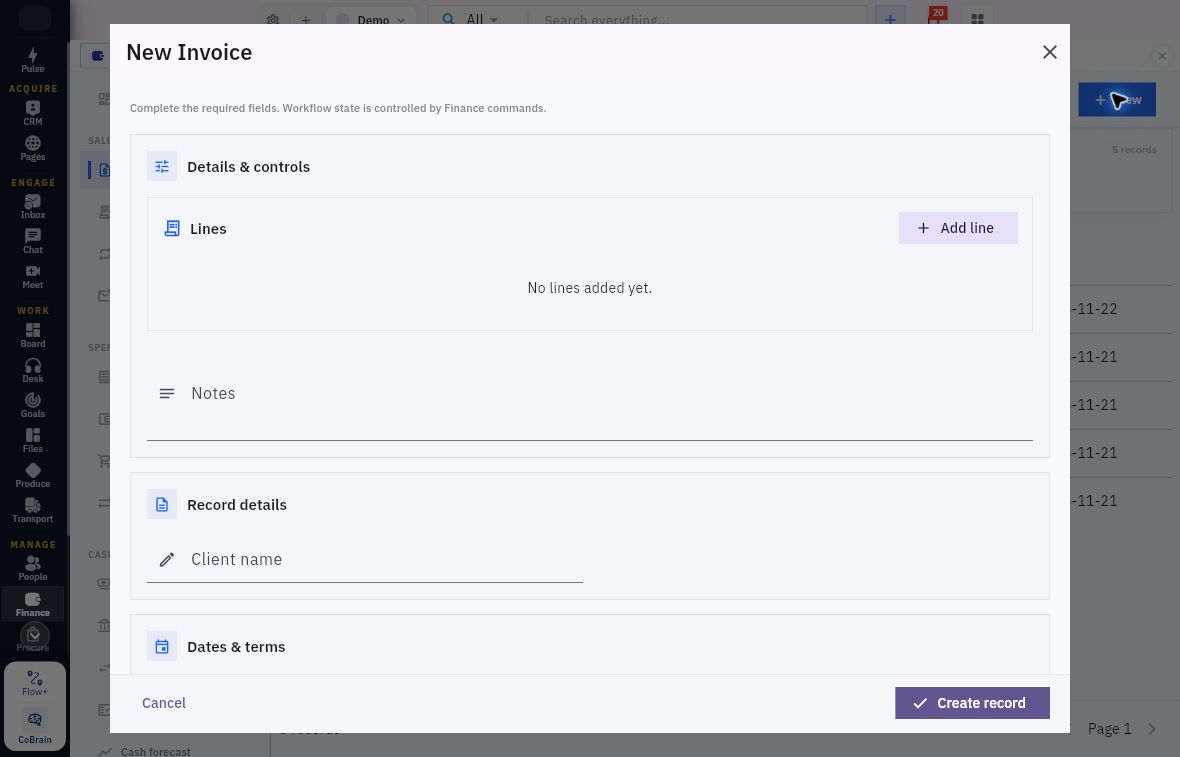
Invoice header and line preparation
Start with Lines and Notes, then Client name; scroll down for dates, accounting values and customer references.
Read the invoice header
| Header field | What to check |
|---|---|
| Client name | Does the descriptive name match the intended customer? It does not replace Customer. |
| Notes | Is there useful source and purpose context? Notes do not grant approval or posting authority. |
| Customer | Is the exact approved customer relationship selected? |
| Billing contact | Is the approved billing person selected, rather than an unrelated or merely similarly named contact? |
| Payment terms days | Do the terms agree with the source? |
| Issue date and Due date | Compare both with the source. Follow the due-date helper: your chosen Due date overrides payment terms and cannot precede Issue date. |
| Currency and Exchange rate | Compare them with the transaction and approved conversion basis. The blank-form example uses NGN/rate 1 and the worked accounting example uses USD; use the approved rate and check the converted amount. |
| Discount amount | Is a document-level discount intended? Keep it separate from the line discount and avoid counting the same concession twice. |
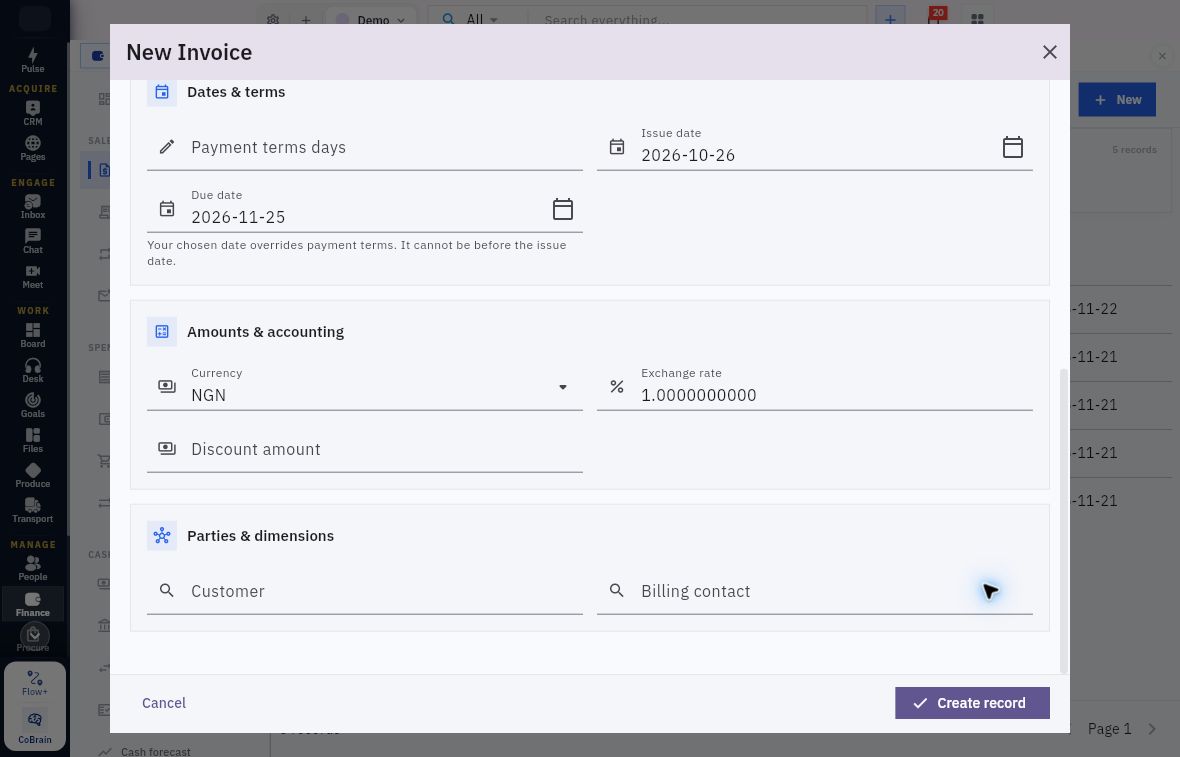
Invoice dates, currency and customer references
Check Issue date and Due date against the agreed terms. Follow the due-date helper: your chosen Due date overrides payment terms and cannot precede Issue date. Review Currency, Exchange rate and Discount amount before selecting Customer and Billing contact.
Use the approved transaction values rather than copying the example’s prefills. Check the permitted period, account mappings and tax configuration before preparing the invoice.
Read the invoice line
Add line opens a child form. It contains Description, Quantity, Unit price, Discount amount, Tax code, Revenue account, Department, Project and Recognition method.
Description identifies the supplied service; quantity and unit price explain the charge. The line Discount amount is a single amount for the line, not a percentage or an amount per unit. The revenue account determines the intended accounting category; department and project are separate classifications. Select approved reference records rather than leaving typed lookup text unresolved. Tax code and recognition method must follow the approved treatment, not whichever choice produces a convenient total. The Tax code helper asks for an active sales, zero-rated or exempt code and directs missing-code setup to Finance → Tax. Ask the configuration owner to resolve a missing or unsuitable code.
For Riverside's USD300 teaching charge, three units at USD110 less one USD30 line discount produce USD300, with header discount zero. The USD190 example instead uses two units at USD100 less one USD10 line discount. Do not combine those calculations with the separate NGN draft.
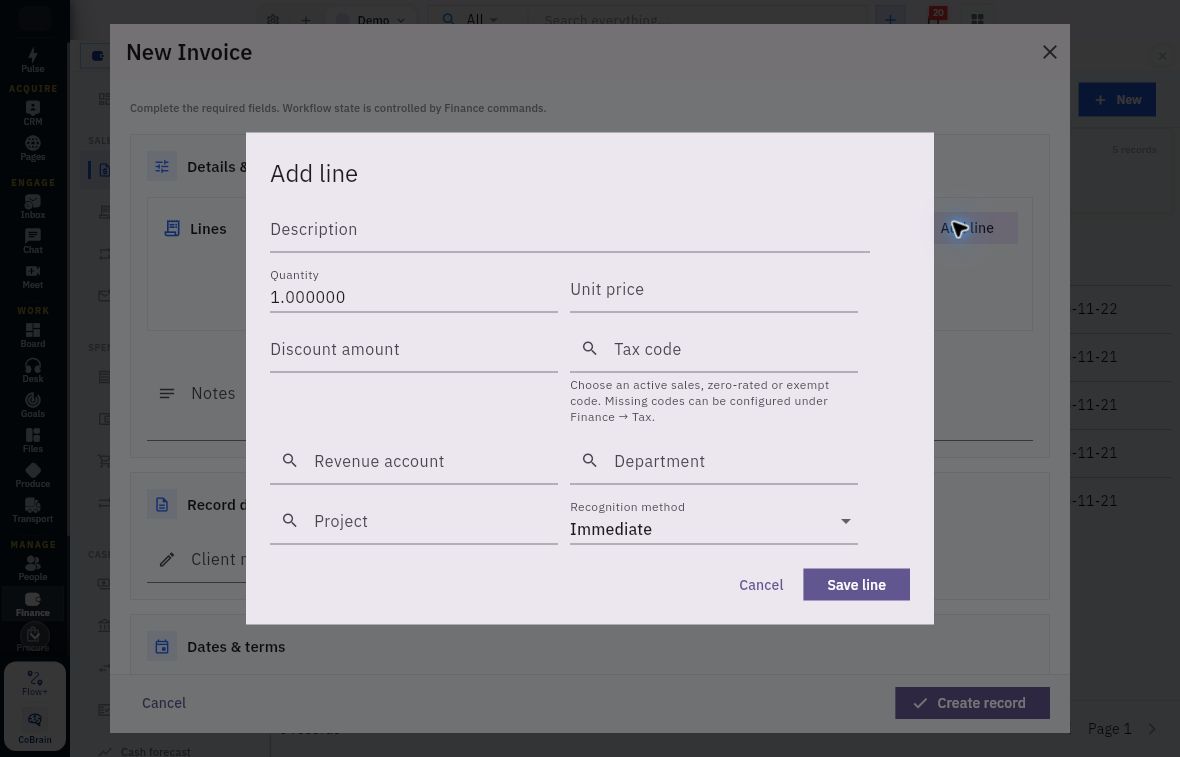
Line amounts, tax and revenue mapping
Replace the Quantity prefill with the quantity supplied and enter the agreed price. Check Tax code, Revenue account, Department and Project before choosing the recognition method.
Save line returns the line to the parent form. It does not create the invoice. An authorised preparer must review the parent header and all lines before Create record, then reopen the generated invoice and compare the retained values.
Recognise the conditional fields
The Monthly straight-line recognition choice exposes Recognition start month, Recognition end month and Deferred revenue account in addition to the line's revenue account. The timing fields and deferred account are not interchangeable with the invoice's issue date, due date or receivables account.
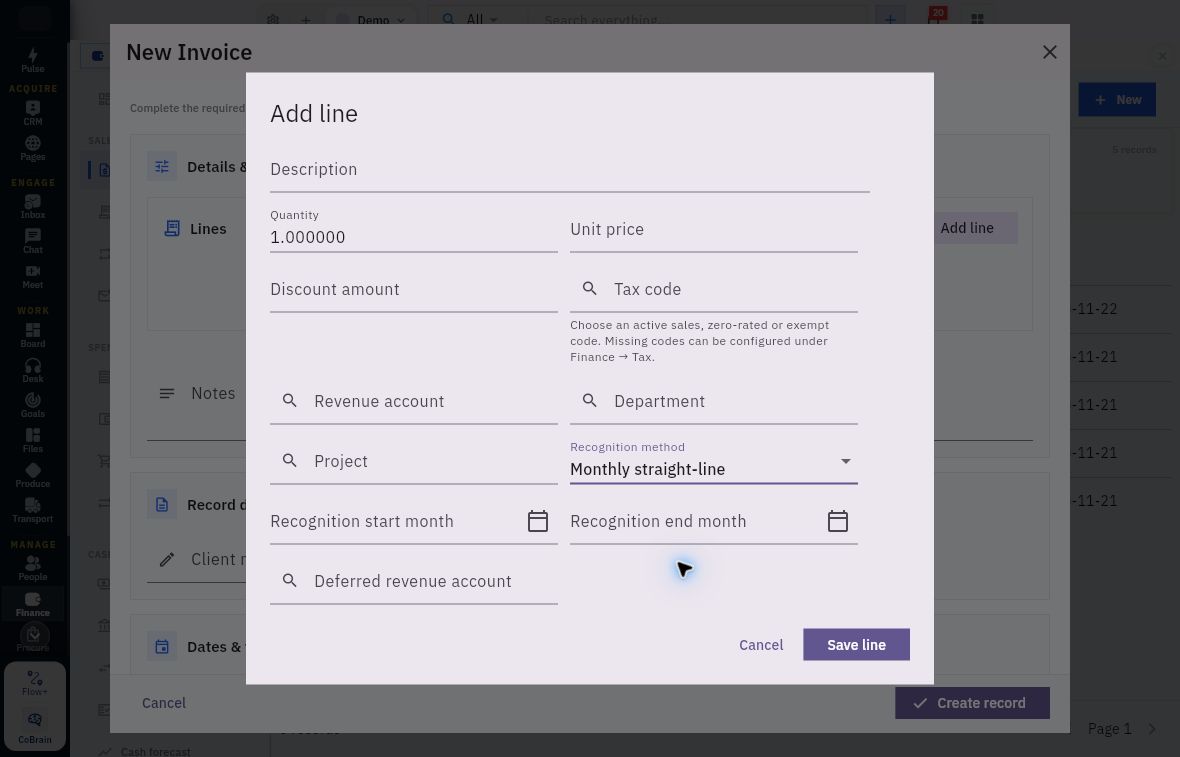
Recognition dates and deferred revenue
Monthly straight-line adds Recognition start month, Recognition end month and Deferred revenue account. Match these to the approved service period and accounting treatment.
After an authorised invoice workflow, check Recognition → Schedules and Events as explained in Chapter 11. Check the source-generated accounting before considering a manual recognition journal, so the same revenue is not recognised twice.
Inspect the current Riverside draft before any workflow action
Open the example INV-000003 in Demo and read Draft, Version 1, NGN, and the banner: Draft totals are calculated on Submit. Review the saved lines below; the draft header does not yet show a final total.
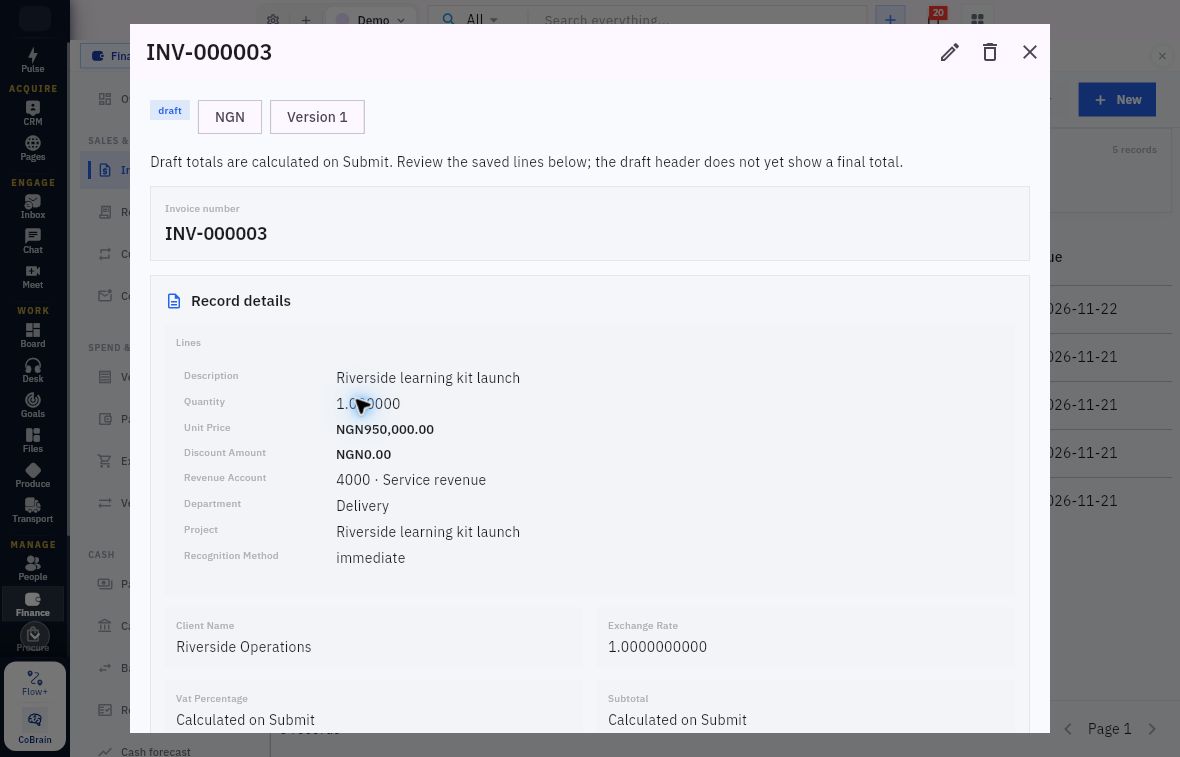
Saved draft totals and submission boundary
This is an existing saved draft, not a newly created exercise. Its Riverside learning kit launch line has Quantity 1, Unit Price NGN950,000, Discount Amount NGN0, account 4000 Service revenue, Department Delivery, the Riverside learning kit launch Project and immediate recognition. The header still lacks a final calculated total.
Read the saved line and currency independently of the header calculation stage. The Client Name was Riverside Operations and Exchange Rate was 1. Subtotal and header amount fields displayed Calculated on Submit. Do not call the invoice issued, paid or finally calculated from the unit price alone.
Under Workflow actions, Submit and Cancel affect the record. The header Close simply exits the detail view. For this exercise use Close, not workflow Cancel; leave the draft unchanged.
Expand Linked entities to see Produce (1) and PO-0009, labelled PRODUCE · Production Order, draft, for Two-card learning kit. Read the entity type as well as its prefix: this is a Produce production order, not a Procure purchase order. Use Open to review a linked record when authorised; leave Add link and Unlink unchanged during this exercise.
Separate submission approval and issue
The USD190 invoice example separates three decisions. Follow the table to understand its recorded outcome; do not repeat completed actions or apply its outcome to the NGN draft.
| Stage | Documented control and decision | Example result |
|---|---|---|
| Submit a checked draft | Workflow actions → Submit; confirmation Confirm submit for this record | QAINV-000004 became Pending Approval, Version 2. Amount and Functional Amount were USD190; VAT Amount and header Discount Amount were zero. |
| Approve the reviewed source | Approve; confirmation asks whether to approve the record and continue its controlled workflow | The invoice became Approved, Version 3. The receivables register was still empty at that checkpoint. |
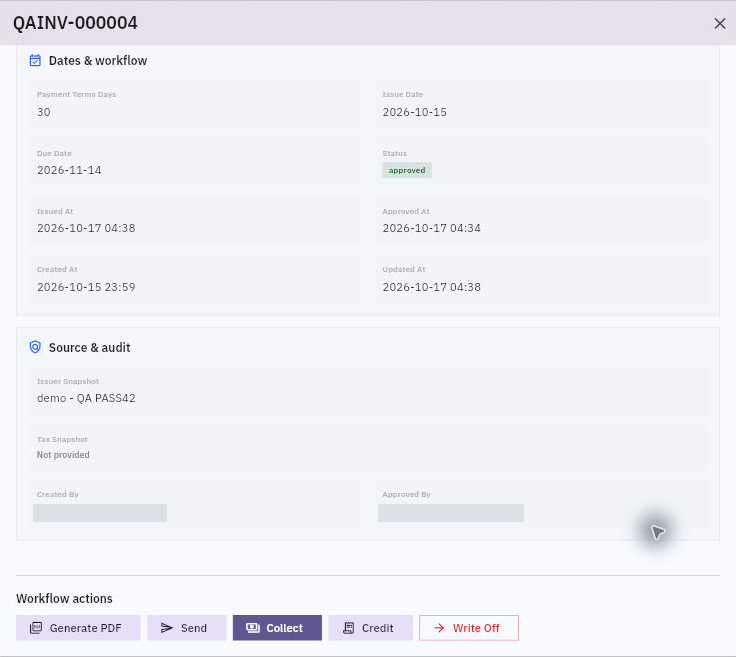
| Issue the approved charge | Issue; confirmation Issue and post this financial document? | Issued At populated, the receivable appeared and the source journal posted. The invoice remained Approved, Version 3. |
The example draft initially displayed zero, and the register could show Calculated on Submit. This is a calculation-stage observation, not a reason to submit unchecked lines. Compare quantities, prices, both discount locations, tax basis, currency and dates first. Review the calculated result before approval.
The assigned reviewer checks commercial evidence and accounting instructions, not just arithmetic. An available Approve button does not establish self-approval permission or independent role separation. Before issue, the responsible operator checks Issued At. If it is already populated, inspect the resulting records rather than issuing again.
Issue timestamps and approval status
QAINV-000004 still says approved after issue. Compare Issue Date with Approved At and Issued At: the document date and workflow timestamps answer different questions.
Do not invent an “Issued” status or assume the version increased at issue. Read the actual state, timestamp and linked results. Generating a PDF, sending the document and receiving payment are separate outcomes; none is established by the accounting issue action.
Read the receivable as an outstanding item
Open Finance → Receivables → Receivables and use Search receivables and All statuses to find the exact invoice reference. Match customer, currency, due date and original amount before reading the outstanding balance. Customer terms is the neighbouring finance-profile tab.
If the list says No receivables yet, check the workroom, filter and invoice’s Issued At before investigating further. This register has no New action in the empty example; return to the invoice workflow rather than trying to enter a second receivable. Do not issue an already-issued invoice again to populate the list.
In the worked example, QAINV-000004 was Open, due November 14, with Original Amount USD190, Outstanding Amount USD190, Functional Amount USD190 and Control Account 1100 Accounts receivable. Its Customer column was blank. Do not infer a saved customer relationship from the free-text client name.
The displayed Collection state active was not evidence of a reminder or receipt. Days Overdue 0 described the observation before the due date; it is not a permanent property of the invoice.
For the USD300 teaching example, USD100 would be the expected remainder only after the correct USD200 receipt allocation was actually applied and no other changes intervened. A payment elsewhere, a matching amount or an allocation entered in an uncompleted draft does not establish that result. Chapter 7 covers payment evidence and allocation boundaries.
Trace the source accounting independently
Open Finance → Journals → Journals. Journals is in the sidebar's Accounting section; Accounting is not another click target. For the worked example, inspect QAJE-000001, with narration naming QAINV-000004.
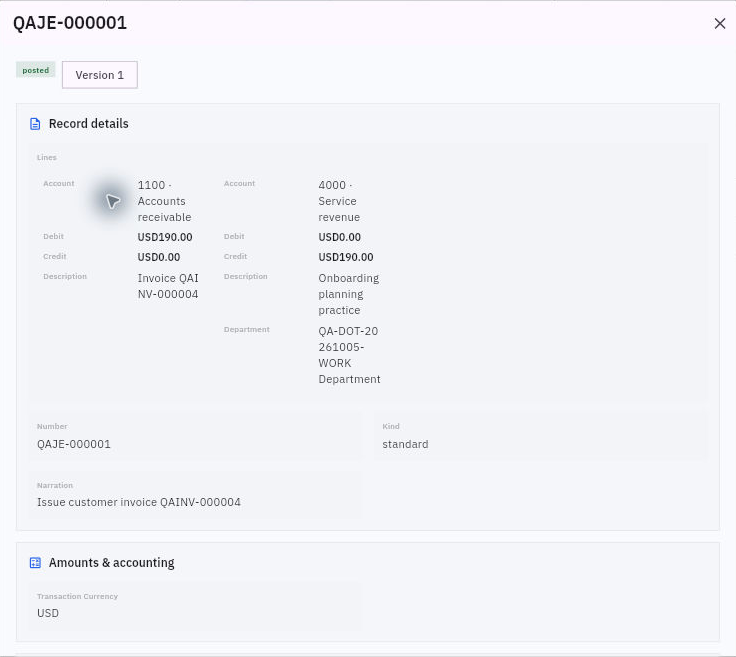
The example journal is Posted, Version 1, kind standard, Entry Date 2026-10-15, Period October 2026, with a USD190 debit to 1100 Accounts receivable and a USD190 credit to 4000 Service revenue. Source Type finance.invoice, Source Event invoice.issue and Source Version 3 connect it to the source. The journal's version and source version are different fields.
Trace the invoice source journal
Match the journal number and invoice reference, then check the USD190 receivable debit and revenue credit. Look for payment accounting separately when checking whether the customer has paid.
Then open Finance → General ledger with the relevant date scope. Match the exact journal number, account, entry date and debit/credit amounts. An account's running balance can include other entries; compare this journal's rows, not the whole balance.
If Issue Journal displays only the generic label Journal Entry, locate the exact journal through the Journals register. Use the invoice reference and source fields to identify it; do not create a replacement journal because a relationship does not open.
Inspect a credit without assuming a refund
First distinguish an unissued-draft correction, a credit against an issued charge, a refund and a write-off decision. Identify the approved reason, original source and line, amount, date and any earlier reduction before choosing a route.
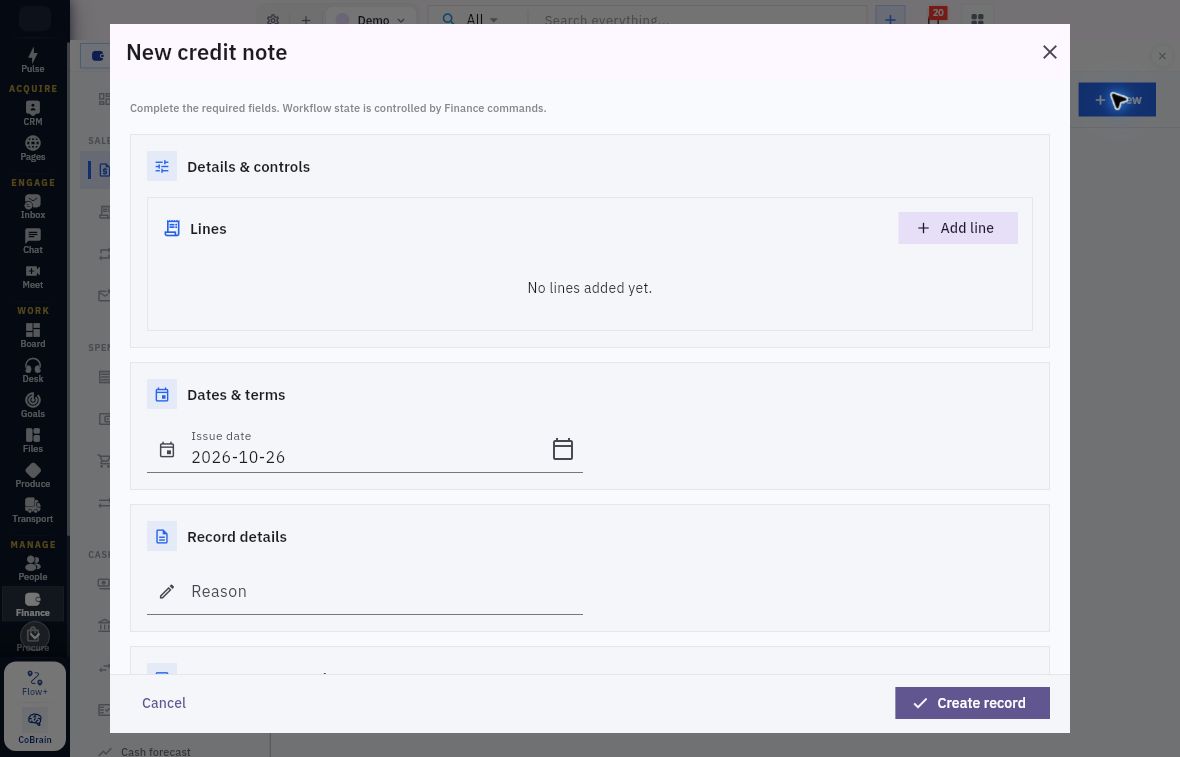
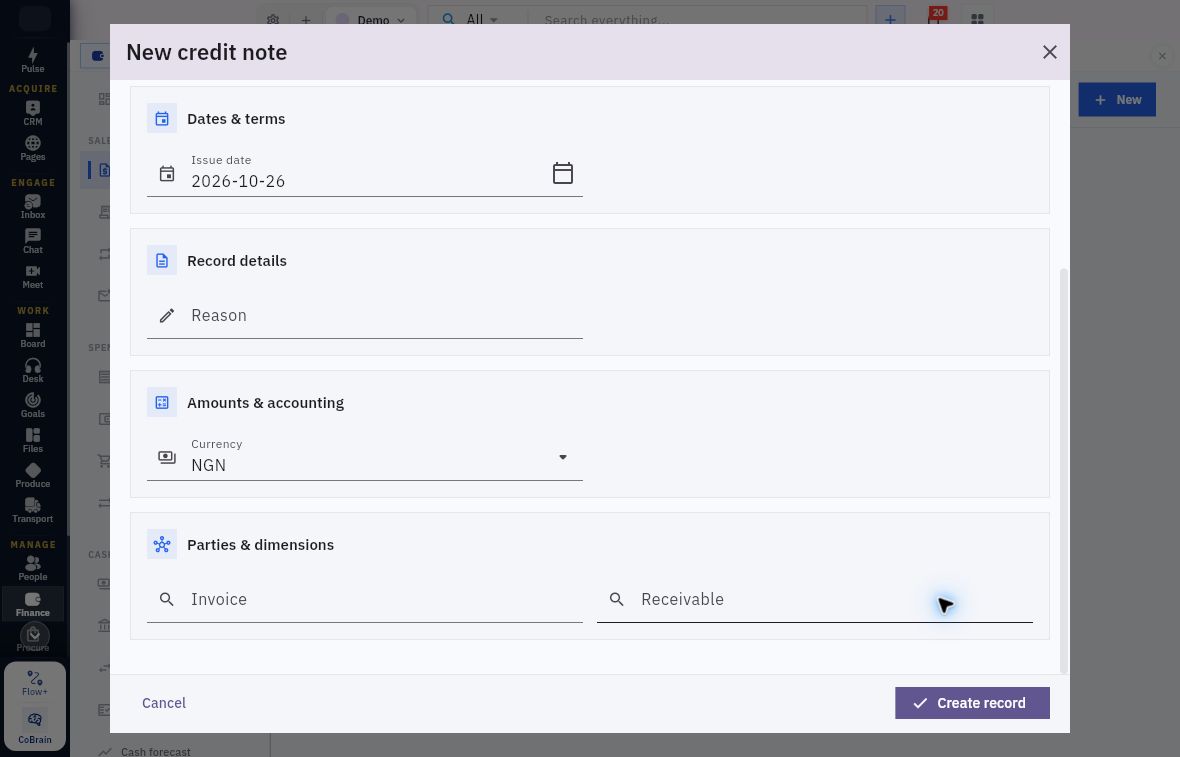
Open Finance → Invoices → Credit notes. Use Search credit notes and All statuses to check for earlier credits. New or Create credit note opens preparation. The New credit note form has Lines / Add line, Issue date, Reason, Currency, Invoice and Receivable, with Create record on the parent. Match Invoice and Receivable to the original charge before entering a reduction.
Credit-note reason and proposed lines
Review the proposed lines, set Issue date from the approved adjustment and give a specific Reason.
Credit currency and original charge
Check Currency, then match Invoice and Receivable to the same original charge. Scroll back to review all lines before an authorised save.
The example form starts with NGN and an issue-date prefill. Use the approved credit’s currency and date. Cancel leaves the preparation form; Create record is the parent save control. Follow the required-information rules for your organisation rather than treating the prefills as a completed credit.
The child line has Invoice item, Description, Quantity, Unit price and Tax code, followed by Save line. Invoice item identifies the original line; the remaining fields describe the proposed reduction. Compare them with the approved source, including tax treatment. The Tax code helper asks for an active sales, zero-rated or exempt code; missing codes belong under Finance → Tax. Refer missing configuration to its owner. Unlike a vendor credit, this line uses Quantity and Unit price rather than a single Amount field and Expense account.
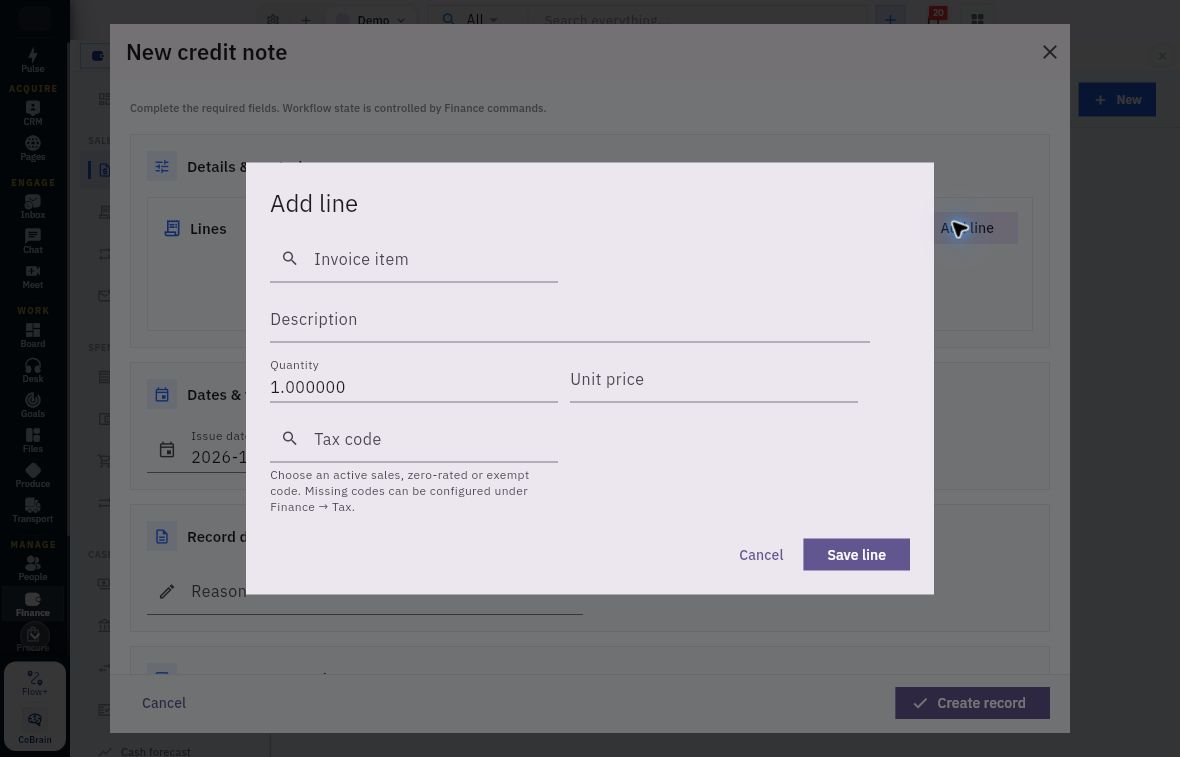
Credit-line quantities and tax treatment
Set Quantity to the quantity being credited, then compare Unit price and Tax code with the approved adjustment. The displayed quantity of 1 is only a starting value.
The invoice also has a Credit control. This chapter covers preparation, not a complete credit or refund procedure. Before an operational credit, confirm the supported sign convention and approval/application process with your Finance owner; do not guess a negative amount.
For an executed credit, inspect the actual credit identity, decision/posting history, source journal and changed outstanding balance. A refund additionally needs payment evidence. Cancel the inspection-only form in this chapter.
Locate write-offs without confusing them with credits
Finance → Invoices → Write-offs is a separate tab with Search write-offs, All statuses, New and Create receivable write off. Check for an existing adjustment before preparing another. A write-off needs its own authorised reason and accounting treatment; do not use it merely to hide an overdue balance.
New opens New receivable write off:
| Field | What to check |
|---|---|
| Write off date | The authorised accounting date for the adjustment, checked against the permitted period. |
| Amount | The approved reduction, compared with the exact receivable’s remaining balance and earlier credits or payments. |
| Currency | The currency of the adjustment. Match it to the receivable and approved accounting basis rather than copying NGN from the example. |
| Reason | The specific business explanation and approval basis for writing off the amount. |
| Receivable | The exact open item to adjust. Match the invoice, customer and balance before selecting it. |
| Expense account | The approved account for the write-off treatment; select the intended accounting reference. |
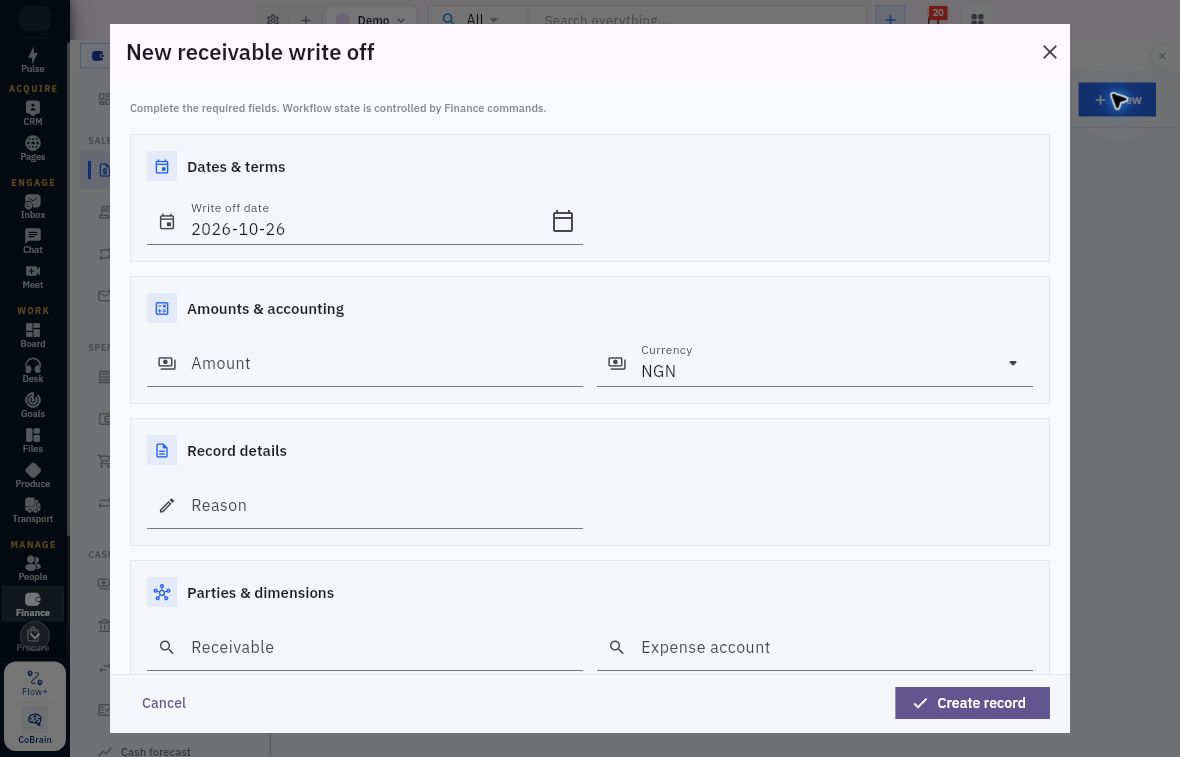
Write-off authority and source accounts
Match Receivable and Expense account to the approved adjustment, then review Amount, Currency, Reason and Write off date. Leave Create record untouched for this read-only exercise and choose Cancel.
This section covers preparation. Before reporting a completed write-off, follow the authorised approval/posting procedure, open the original receivable again and reconcile its remaining balance with the adjustment’s accounting. The form’s Create record control alone does not complete those checks.
Understand the Collections boundary
Open Finance → Collections and choose the relevant tab:
| Tab | Controls and use |
|---|---|
| Collection queue | Search collection queue, All statuses, and the settled empty-state message No receivables yet. |
| Communication history | Search communication history and a settled empty activity list. Use the search to locate the activity you need. |
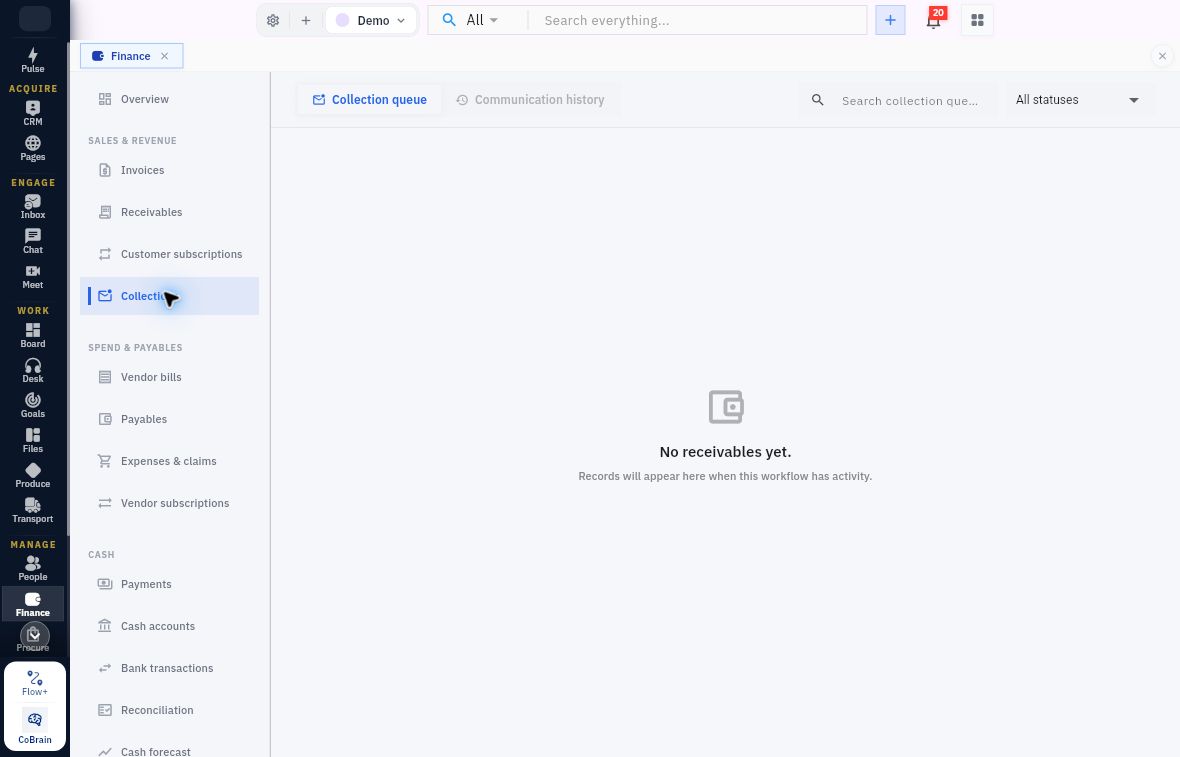
Collections scope and read-only practice
Use Collection queue to review the receivables awaiting attention. Communication history is a separate tab for reviewing activity. An empty queue gives you no collection item to act on.
This chapter covers finding the queue and history, not sending reminders or managing collection decisions. Check the actual communication record before reporting that contact occurred; a Collect button or Collection state label alone does not tell you what was sent.
Keep the exact invoice, customer, amount and communication authority together when handing a collection question to its owner. Do not send a reminder as part of this read-only lesson. Distinguish an amount still owed from an amount disputed, credited, written off or settled using the actual related records—not the outstanding figure alone.
Practice one source-to-balance inspection
Choose one permitted existing invoice. If none is available, use the worked example without creating a replacement.
- Record the actual workroom, invoice reference, customer relationship, currency, amount and dates. Note any missing Customer or Billing contact rather than filling it in.
- Read its current state and Issued At. Explain whether approval alone establishes issue for this record.
- Find its receivable and compare original and outstanding amounts, due date and source identity. If it cannot be found, check the view scope and report the gap; do not issue again.
- Find the source journal independently and match its number to General ledger rows where available. State what accounting is proved and whether any payment is proved.
Expected result: a short account of the exact source, its issue evidence, outstanding item and accounting trace. For the worked example, the defensible conclusion is an issued USD190 charge, open USD190 receivable and posted USD190 source accounting—not a paid invoice or sent customer document. For another existing record, report its actual evidence rather than forcing these values.
Next, compare this customer workflow with supplier bills, where the accounting trigger in the worked example is approval rather than a separate invoice Issue action.
Turn what you learned into the way the team works.
Mark this lesson complete once the workflow exists in your workspace—not simply when you reach the bottom.