Upload a file and find it again
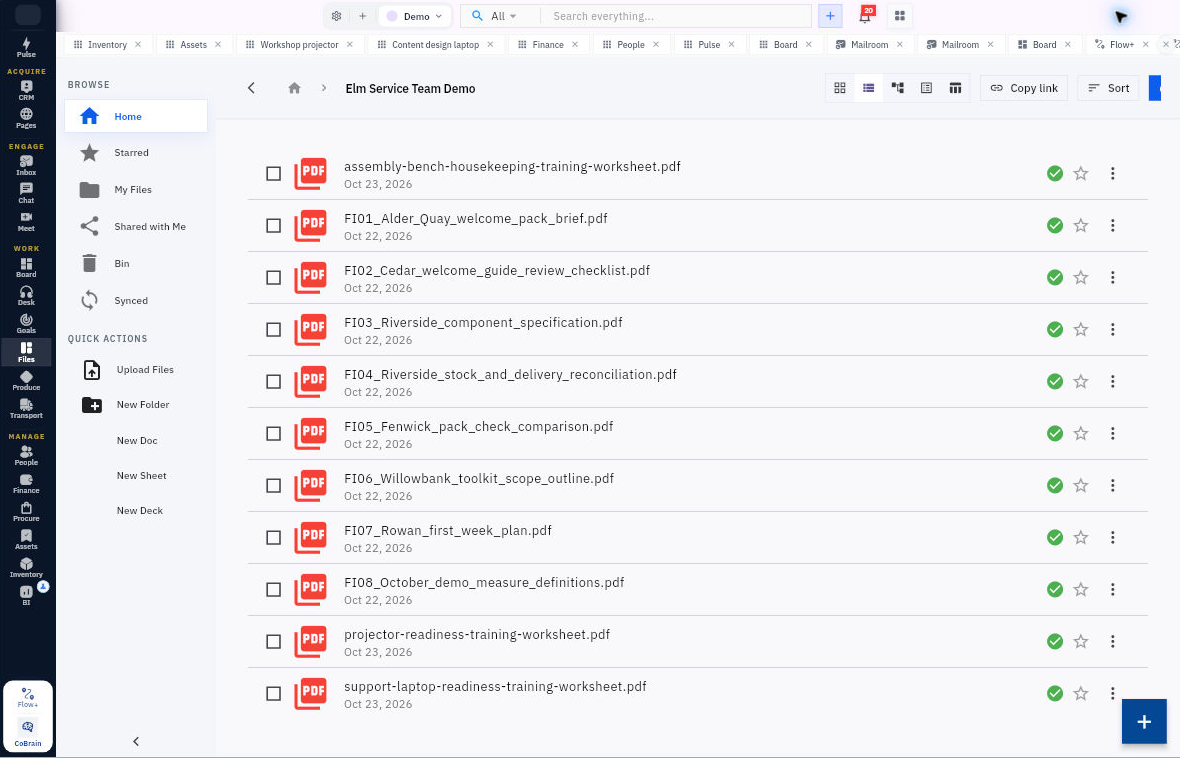
Upload a useful document from your device, then check the saved item in Files.
In this lesson
Upload a file and find it again
Before you start: Choose a file you have permission to store in this workroom. Check its contents, filename and intended audience before uploading.
Upload the file
1. Open the correct workroom, then Files. Check whether you are at Home or inside a folder so you know where you are starting.
2. Select Upload Files under Quick Actions, or the visible Upload control.
3. In your device’s file chooser, select the actual file. Check the complete filename, then confirm the selection once.
4. Wait for the upload to finish. Find the item in the Files listing or My Files and read its actual state. If it still shows progress or an error, do not assume it has finished.
Check what was saved
5. Leave and reopen Files. Find the same item by its full name and location. This also helps you learn where to retrieve it later.
6. Open the file using an available viewing option. Compare the contents with the source you meant to upload—for example, the document’s title and revision.
You should now have a stored item that matches your local source and can be found again. Uploading does not remove the original from your device or automatically give a colleague access.
If something does not look right
- If the upload appeared to time out, search for the file before uploading it again. Avoid creating two indistinguishable copies.
- If your organisation blocks the viewing route, ask the appropriate administrator for help. Do not assume another upload or a broader sharing setting will fix a viewing-policy restriction.
A useful first document has real content, such as a meeting agenda or checklist—not just an empty file with a promising name.
Continue learning
In this series: Organise and share files — guide 2 of 6.
Turn what you learned into the way the team works.
Mark this lesson complete once the workflow exists in your workspace—not simply when you reach the bottom.