Plan and schedule a trip with its delivery
Create the trip, link the prepared delivery and save a schedule before recording dispatch and travel events.
In this lesson
Plan and schedule a trip with its delivery
Have the route, explicit endpoints, prepared delivery and suitable vehicle/driver ready. A route selection is not a substitute for checking the trip’s own origin and destination.
Plan and link
1. Open Transport → Trips and search for the intended trip. If it already exists, open it and continue at step 4 without creating another. 2. Select New Trip. Enter Origin and Destination, choose the appropriate Route, Vehicle and Driver, and review departure/arrival dates. Add a useful Cargo summary; this text does not create package links. 3. Select Plan Trip, then reopen the generated trip and check its identity, endpoints, resources and state. 4. Open the prepared delivery under Deliveries → Assignment & Package. If its Trip already matches, continue at step 6. Otherwise select Assign Trip, choose the intended planned or scheduled trip and select Assign. Do not confuse selecting a trip with saving the assignment. 5. Reopen both delivery and trip. Compare the linked trip reference, package count and unchanged load measurements.
Save the schedule
6. On an unscheduled Planned trip, open Schedule. Set the departure date/time and ETA date/time. Use Select time → Switch to text input mode → OK where helpful. 7. Review dates, AM/PM and the agreed time basis, then select Save Schedule. Reopen Route to check planned departure and ETA. For an already scheduled trip, inspect its saved values instead of scheduling it again.
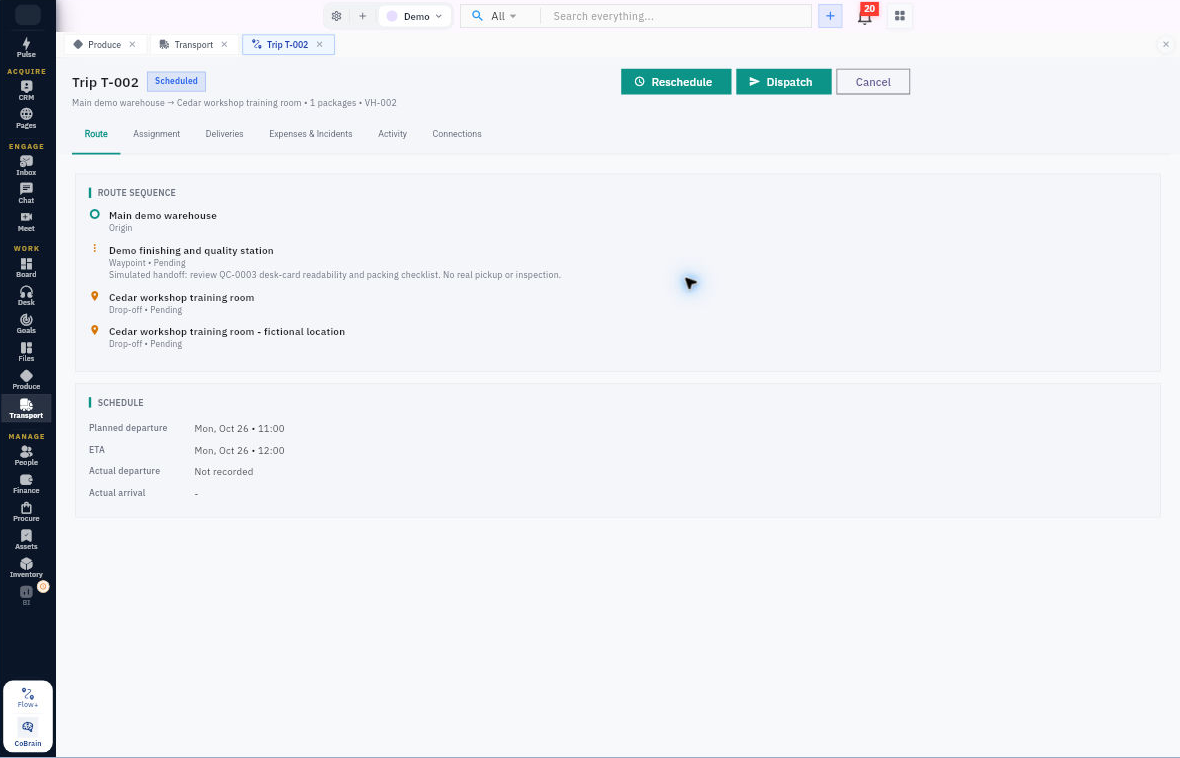
Check the result
Record actual stages
8. Recheck resources, combined load and receiving arrangements. When dispatch is genuinely authorised and has not already been recorded, use Dispatch and check the resulting state. 9. Record actual departure with Start Trip, then actual destination arrival with Record destination arrival, only when each event occurs and has not already been recorded. Read the saved actual fields separately from the plan. 10. Reopen the trip and inspect Activity in chronological order. Continue to the delivery outcome workflow; arrival alone is not recipient acceptance or permission to complete the trip.
Expected result: the correct delivery is linked to a scheduled trip, with any later events recorded truthfully.
Tip: A delivery labelled Scheduled can still point to a trip without saved times. Check the trip’s Route fields. If a save is unclear, reopen the same record before repeating an action.
Continue learning
In this series: Manage trips and deliveries — guide 4 of 7.
Turn what you learned into the way the team works.
Mark this lesson complete once the workflow exists in your workspace—not simply when you reach the bottom.