Find the right file and check who can use it
Identify the correct file, revision and folder before using or sharing it.
Find the right file and check who can use it
A familiar filename is a useful starting point, but it may not be the file or revision you need. Check the item’s location and contents before passing it to someone else.
Before you start: Open the workroom containing the file. You need permission to view that item.
Find the item
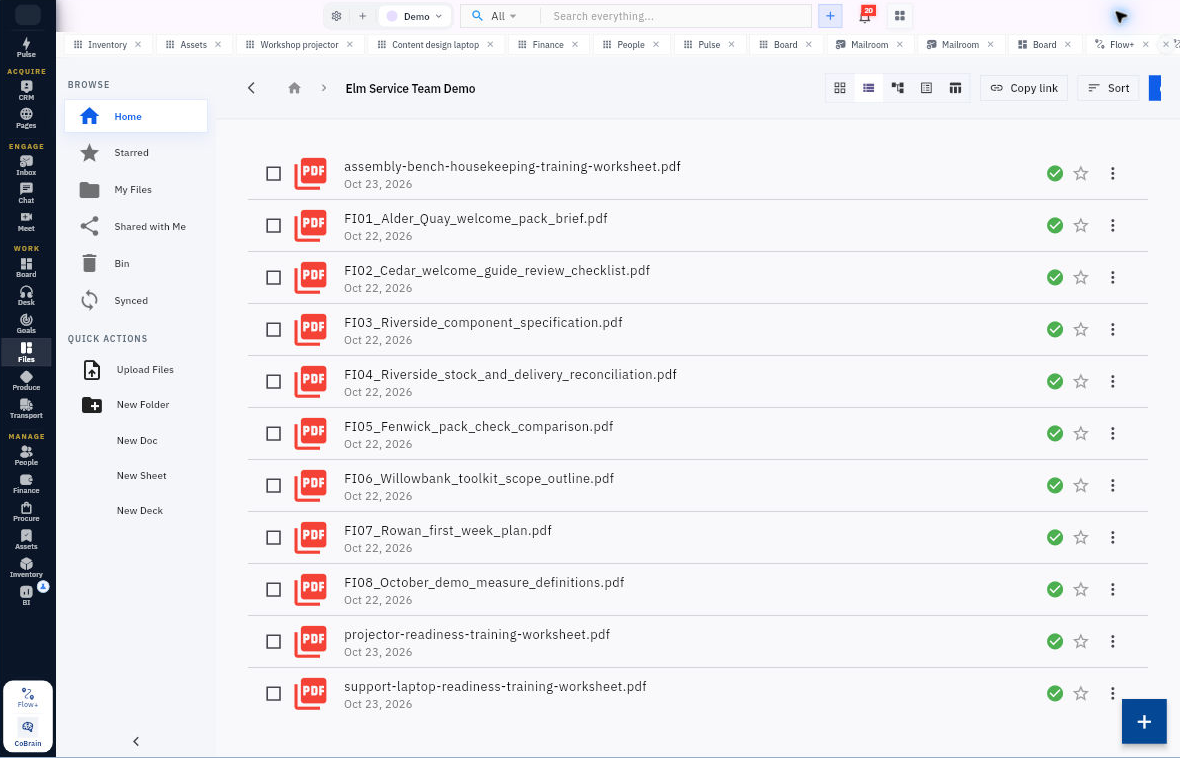
1. Open Files. Use the relevant browse view, such as Home, My Files, Shared with Me or Starred.
2. Open the folder and compare the complete filename with the file you need. Check the breadcrumb as well: similar names can appear in different folders or workrooms.
3. Open the file using the viewing option available to you. Check the actual content and its revision label, not only the filename or modified date. If there are two revisions, choose the one your work requires rather than assuming the newest-looking name is approved.
Check the audience
4. Open the item’s menu and choose Share. Confirm the file name in the sharing panel before reading its access settings.
5. Distinguish people with direct access from access inherited through a folder. Also check whether link access is limited to workroom members or available to anyone with the link.
6. Close the panel when you have finished checking. Selecting a person can grant access immediately, so do not use the people selector just to inspect a name.
What you should have
You can identify the exact file, explain which revision you will use and see how its audience is configured. If a colleague cannot open it, check their access rather than simply copying the same link again.
Remember: A star is a retrieval shortcut, not a sharing permission. Synced describes the displayed synchronization state; it does not mean the content has been reviewed or read by someone else.
Turn what you learned into the way the team works.
Mark this lesson complete once the workflow exists in your workspace—not simply when you reach the bottom.