Record a failed delivery and handle its return
Preserve the reason and custody outcome without treating a transport status as a stock receipt.
In this lesson
Record a failed delivery and handle its return
Keep three questions separate: what happened to delivery, who has the goods now and what Inventory should record. A failure or return label does not answer all three.
Record the delivery exception
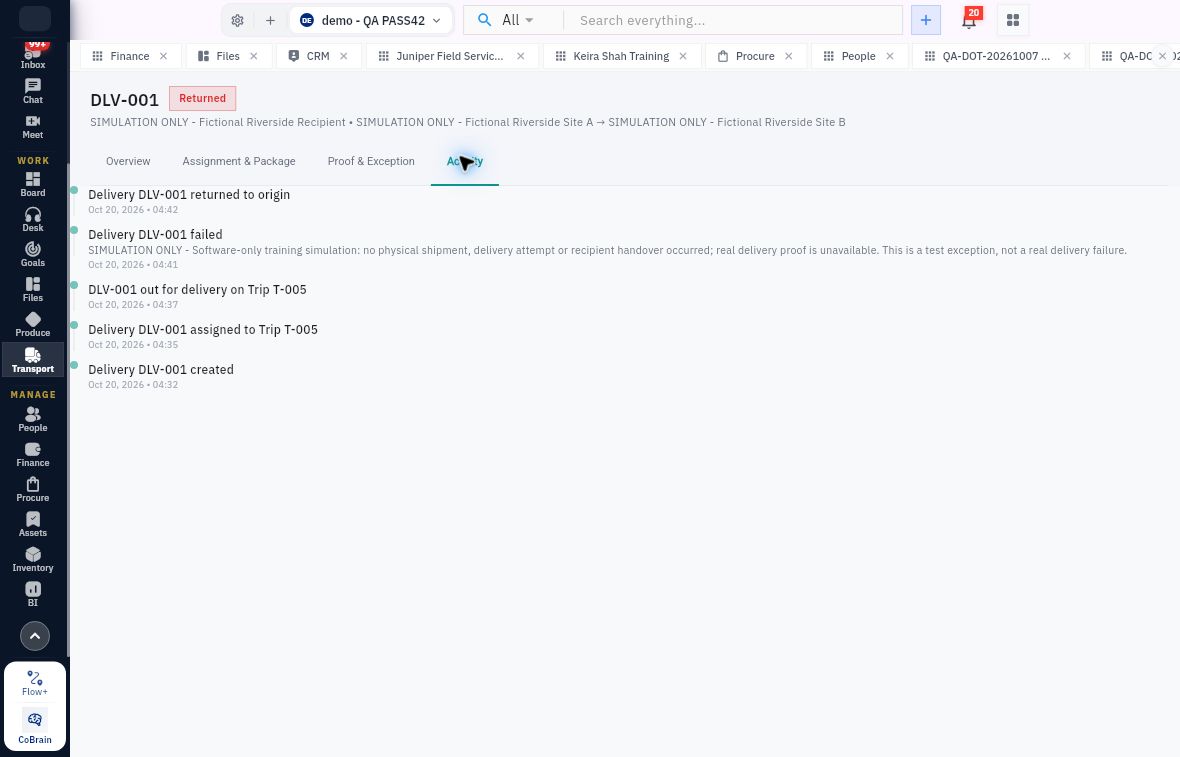
1. Open Transport → Deliveries and match the exact request, recipient, trip and package scope. Read Proof & Exception and Activity first. If the outcome is already recorded, inspect it rather than repeating it. 2. At the eligible Out for Delivery stage, select Fail to open Mark Delivery Failed. 3. Enter a specific Failure reason based on the actual event: what did not complete, which package/request was affected and what remains unresolved. Do not claim a delivery attempt that did not occur. 4. Review the identity and reason, then select Mark Failed once. 5. Reopen the delivery and check Failed plus the complete retained reason in Proof & Exception.
Check the result
Resolve the next step
6. Agree whether the delivery should be rescheduled or recorded as returned. Check the actual goods, custody and source workflow first. 7. Return can apply immediately from Failed, without another confirmation form. Use it only when that is the intended, supported outcome—not to preview the next screen. Do not select it again on an already Returned record. 8. Leave and reopen the delivery. Check its state, source/trip links, proof, Delivered at value and Activity history. 9. For stock-linked goods, have the responsible Inventory owner verify the actual return receiving/disposition record and location balance separately.
Expected result: the delivery retains the true exception and next outcome, with stock or recipient obligations still visible where unresolved.
Tips: A whole-request failure form does not establish a partial-package split. Do not force mixed delivered/refused quantities into an unsupported control. Preserve the item-by-item evidence and use the supported source workflow. Returned does not automatically mean refunded, replaced or received into Inventory.
Continue learning
In this series: Manage trips and deliveries — guide 6 of 7.
Turn what you learned into the way the team works.
Mark this lesson complete once the workflow exists in your workspace—not simply when you reach the bottom.