Organise files into a useful folder
Create a clear destination, move the right file and keep it easy to find.
In this lesson
Organise files into a useful folder
Before you start: Choose an existing file you can organise. Use a destination with the right audience; moving a file can affect access inherited from a folder.
Choose or create the destination
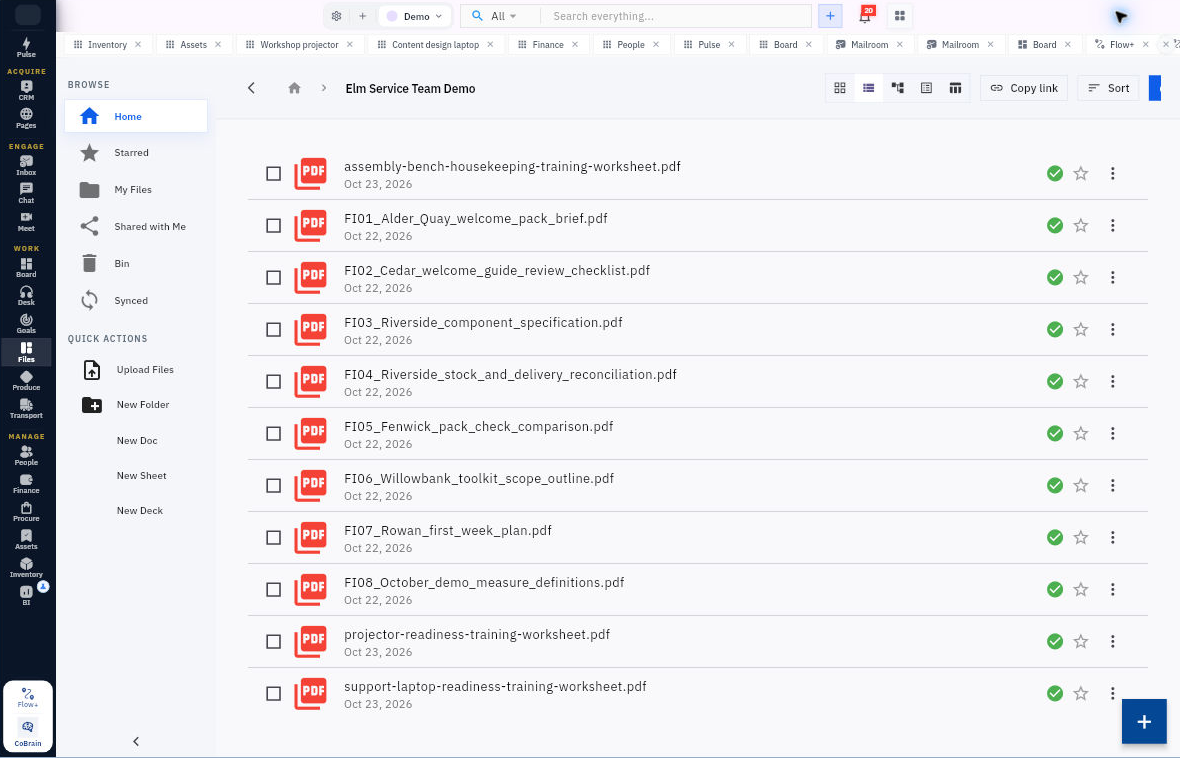
1. Open Files and look for a suitable existing folder. Check its location and sharing settings before reusing it.
2. If you need a new folder, select New Folder under Quick Actions. In Create New Folder, enter a useful Folder Name, such as Team meeting materials, and select Create. Open the new folder and check its breadcrumb.
Move the file
3. Return to the file’s current location. Read its complete name, open its three-dot menu and choose Move.
4. Check the filename in the Move dialog, then choose the intended destination. Do not assume the selector starts at Root; it may show the file’s current folder.
5. Select Move once. Open the destination independently and check that the same file appears under the correct breadcrumb.
6. Reopen Share for the moved item and review direct and inherited access. Make sure the destination has not introduced an audience that is unsuitable for the file.
Add a shortcut if useful
Choose Star from the file’s menu, then open Starred to find it quickly. If it is already starred, keep that state. Starring does not move the file or change its audience.
Your file should now be in the intended folder and easy to retrieve. Seeing it in both Starred and its folder does not mean you have two copies.
If a move is unclear: Check the old and new locations before repeating it. Do not delete a similarly named item until you know whether it is a duplicate or another view of the same file.
Continue learning
In this series: Organise and share files — guide 3 of 6.
Turn what you learned into the way the team works.
Mark this lesson complete once the workflow exists in your workspace—not simply when you reach the bottom.