Set clear service targets
Create an SLA policy with response, resolution and escalation settings your team can support.
In this lesson
Set clear service targets
An SLA policy defines service targets. First response, the next response and final resolution are different commitments, so set each deliberately.
Before you start: You need desk configuration access and agreed service hours and targets. Use an existing suitable policy where possible.
Set up the policy
1. Open the desk’s Config → SLA rules. Review existing policies. Select New SLA policy, or edit the policy you intend to change.
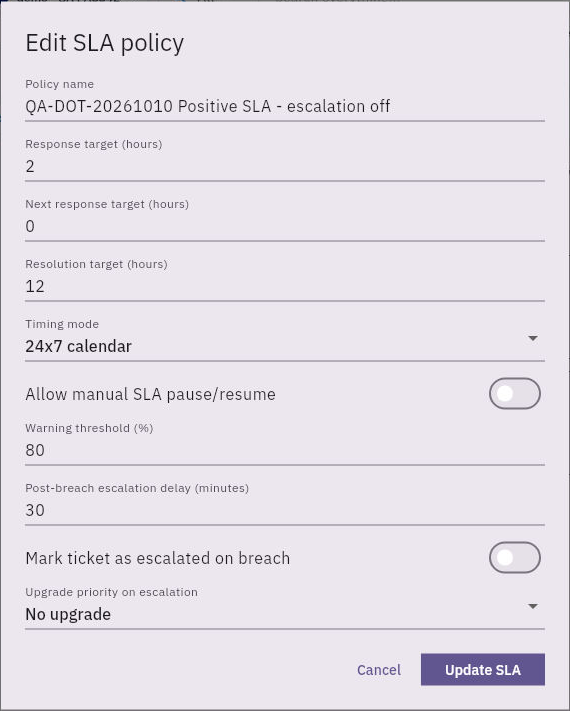
2. Enter a recognisable Policy name. Set Response target (hours), Next response target (hours) and Resolution target (hours) to the service your team has agreed to provide.
3. Choose Timing mode. 24x7 calendar counts continuous time. Business hours exposes Business timezone and Business hours JSON; use your organisation’s supported calendar configuration rather than guessing the JSON format. Do not choose 24x7 merely to bypass a calendar your service actually needs.
4. Review Allow manual SLA pause/resume and Warning threshold (%). These settings should match how your support team manages waiting time and approaching deadlines.
5. Review escalation separately: Post-breach escalation delay (minutes), Mark ticket as escalated on breach and Upgrade priority on escalation. The priority options include No upgrade, Medium, High and Urgent. Do not leave an escalation change enabled by accident.
6. Select Save policy for a new policy or Update SLA for an existing one. Reopen it and compare the saved targets, timing mode and escalation settings with your intended service.
Apply the right policy to the right work
Check the SLA policy on each relevant ticket. A saved policy is not proof that a particular ticket uses it, and configuring a target is not the same as meeting it.
Status-based waiting rules and manual pause permission are separate controls. When checking a ticket’s timing, consider its actual status and history rather than assuming every waiting status pauses every clock.
Your result is an understandable, saved service policy that agents can apply consistently.
Continue learning
In this series: Handle support requests — guide 5 of 14.
Turn what you learned into the way the team works.
Mark this lesson complete once the workflow exists in your workspace—not simply when you reach the bottom.