Capture a complete support request
Create a ticket that gives the next handler enough context to act.
In this lesson
Capture a complete support request
A useful ticket explains what the requester needs, what is happening now and what a successful result would look like. Capture that context once so the next handler does not have to reconstruct it.
Before you start: Choose the right workroom and desk. Have the requester’s details and the actual issue available; check for an existing matching ticket before creating another.
Create the ticket
1. Open Desk → Tickets in the intended desk. Use the ticket list or Kanban to check the request. If it already exists, open it and skip steps 2–6; continue with “Find the saved request” below instead of creating a duplicate.
2. For a new request, select + New ticket. Check Select desk, then enter a clear Issue title that describes the problem or requested result.
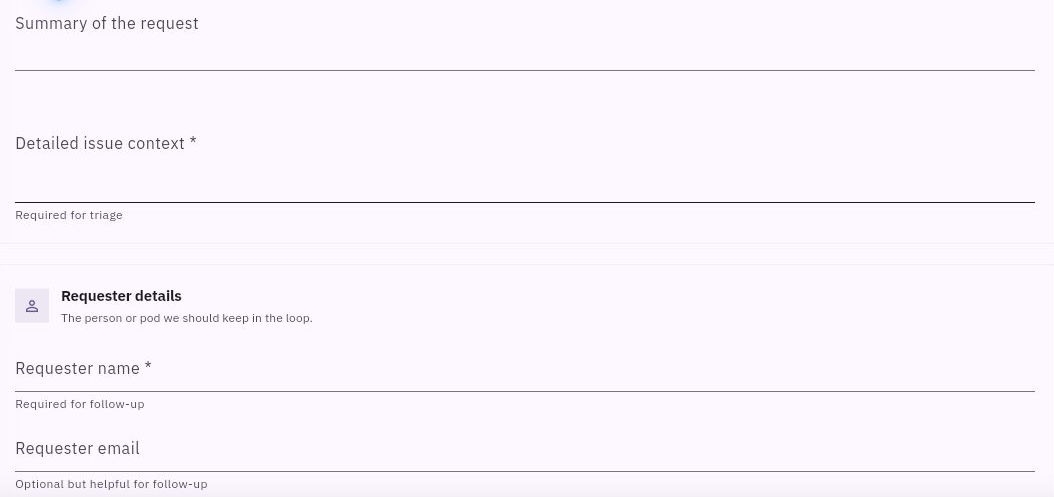
3. Put the complete need in Detailed issue context. Include the relevant source or version, what the requester tried, the result they saw and what they need to accomplish. Summary of the request is a separate short field; it does not replace the detailed context.
4. Enter Requester name and the correct Requester email when needed for follow-up. Do not invent an address. Review the ticket’s Priority, Ticket type, Department, Topic, Status and SLA policy rather than accepting unrelated defaults.
5. Check any required custom fields, Respond by and Resolve by dates, attachments and watchers. Include only people and material needed to handle this request. A watcher is not the assigned agent.
6. Read the entire description and select Create ticket once. If validation appears, correct the indicated field. If the result is unclear, look for the ticket before trying Create again.
Find the saved request
Return to Tickets, find the exact title or reference and open it. Check the requester, full Detailed context and the important routing values. An empty Summary does not mean the detailed context is empty.
A simple context example is: “The onboarding page opens an older checklist. The team needs the approved checklist available from the same page before Friday’s session. Please check the current link and confirm the correct version opens.”
Your result is one findable request with enough information for triage. Capturing it does not mean the issue has been solved.
Continue learning
In this series: Handle support requests — guide 6 of 14.
Turn what you learned into the way the team works.
Mark this lesson complete once the workflow exists in your workspace—not simply when you reach the bottom.