Add a useful custom field to tickets
Capture consistent support information without confusing it with ticket status.
In this lesson
Add a useful custom field to tickets
Custom fields capture information that your support team needs repeatedly—for example, a product area or request category. Use a structured field when it will help agents route or resolve a ticket.
Before you start: You need desk configuration access. Decide what the field means, who should complete it and whether customers should see it.
Create the field
1. Select the desk and open Config → Custom fields. Check for an existing field with the same purpose. Edit that field instead of adding a duplicate when a change is appropriate.
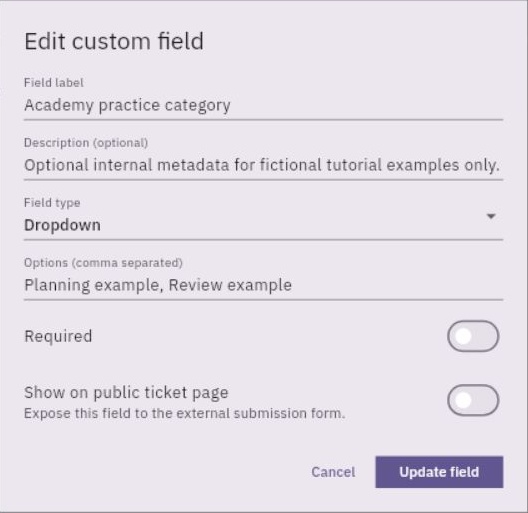
2. For a new field, select New field. In either editor, enter or check the Field label and an optional description explaining what belongs in it.
3. Choose the Field type: Short text, Long text, Dropdown, Number, Date, Checkbox or File upload. A dropdown works well for a small, stable set of categories; free text suits details that vary widely.
4. For a dropdown, enter Options (comma separated). For example, Account access, Product question, Billing question. Keep the options distinct and understandable to the person completing the form.
5. Set Required only when every relevant request should provide the answer. Decide separately whether to enable Show on public ticket page; this exposes the field on the external submission form.
6. Select Save field for a new field or Update field when editing. Reopen it and check its label, type, options and visibility settings.
Put it to use
When preparing a ticket, look for the custom field and supply its actual value. Creating a field definition does not fill in existing tickets.
Keep the field’s purpose separate from built-in routing controls such as Priority, Ticket type, Department, Topic, Status and SLA policy. A category describes the request; a status describes where it is in the support process.
Your result is one reusable field with sensible choices and visibility—not a collection of overlapping labels that agents must interpret differently.
Continue learning
In this series: Handle support requests — guide 4 of 14.
- Previous: Set up a support department
- Next: Set clear service targets
- Browse tutorials
Turn what you learned into the way the team works.
Mark this lesson complete once the workflow exists in your workspace—not simply when you reach the bottom.