Review and update your sales forecast
Choose a forecast period, review the underlying deals and update a deal’s forecast assumptions when the customer information changes.
In this lesson
Review and update your sales forecast
Choose a forecast period, review the underlying deals and update a deal’s forecast assumptions when the customer information changes.
Before you start: You need access to Commercial Forecast. Changes to forecast values or manager overrides require the appropriate CRM role and your team’s agreed forecasting definitions.
Steps
1. Open CRM → Commercial → Forecast. Choose the relevant Month or Quarter and read the displayed start and end dates before interpreting the totals.
2. Check the search and filter scope: Category, Owner, Pipeline and Team. Read each summary label with its amount, including Open pipeline, Weighted, Commit, Best case and Target gap. Keep the same scope when comparing two reviews.
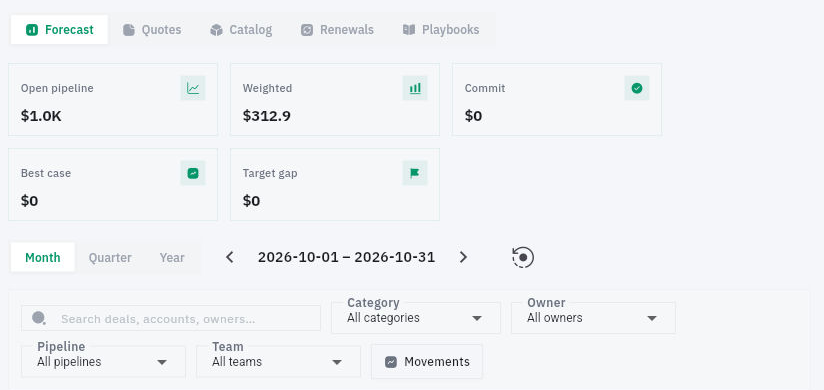
Check the result
3. Inspect the deal rows behind the figures. Review the Account, amount, probability, forecast category, lifecycle stage and close date. A forecast category such as Pipeline is separate from the deal’s lifecycle stage.
4. Open the corresponding record through CRM → Deals when you need to verify the commercial context. Look for current customer information that supports the amount, expected decision date and probability. An optimistic percentage does not resolve missing scope or an old close date.
5. Return to Commercial → Forecast. To update an assumption, select the pencil on the exact deal row. In the Update dialog, check Forecast owner, Forecast category, Deal probability (%) and Forecast notes. Explain the reason for the change in the notes.
6. Select the category that matches your team’s definition. The menu includes Pipeline, Best case, Commit, Closed and Omitted. Use a Manager override only when that is the intended management decision, not to force a more attractive total.
7. Review your changes and select Save. Reopen the forecast with the same period and filters, then check the deal row and summary. Review the Data quality area for missing or stale close dates and follow up on the underlying records.
Expected result
Your forecast review is tied to a clear period and population, and any updated assumption has a specific customer-based reason.
Common pitfalls
- A forecast is a planning view, not an invoice total or cash received. Confirm the currency and amount basis before combining figures.
- If an editor field is blank while the row shows a value, do not overwrite it just to make the displays match. Establish whether a default or override applies.
Continue learning
In this series: Manage customer relationships — guide 13 of 15.
Turn what you learned into the way the team works.
Mark this lesson complete once the workflow exists in your workspace—not simply when you reach the bottom.