Create an account and link a contact
Create a company record, add its contact and check that the two records are linked.
In this lesson
Create an account and link a contact
Create a company record, add its contact and check that the two records are linked.
Before you start: You need permission to create Accounts and Contacts in your CRM space. Have the company name, contact’s name and any confirmed role or contact details ready.
Steps
1. Open CRM → Accounts in the correct space. Search for the company and check likely matches. If the correct Account already exists, skip steps 2–3 and continue at step 4. Check your owner and status filters if you cannot find it.
2. For a new company, open the floating plus → New Account. Confirm Space assignment and enter Account name. Check Owner. Leave Primary contact empty if the person has not been created yet.
3. Complete only the business fields you know. Add useful context in Key notes; leave unconfirmed revenue, health, website or renewal details empty. Review the form and select Create account once.
4. Open the saved Account and check Profile and Details. Confirm its name and notes. Return to Accounts and open the same record again so you know which company you will link.
5. Open Contacts and search for the person before creating another record. If the existing Contact is correctly linked, skip to step 8. If its company link needs resolving, do that with the record owner rather than creating a duplicate. For a new contact, select the floating plus → New Contact. Check Space assignment, enter Full name and, if known, Title / Role.
6. In Account (optional), select the exact saved company. Check the selected value before continuing. Add confirmed email, phone or other profile information only when it belongs to this person; leave unknown fields empty.
7. Review the contact and select Save contact once. Open Profile and Details to check the person’s name, role and selected Account. Return to the Contacts list and reopen the same person.
8. Open Accounts separately, reopen the company and scroll to Contacts. Check that the intended person appears. This confirms the association from both the person and company views.
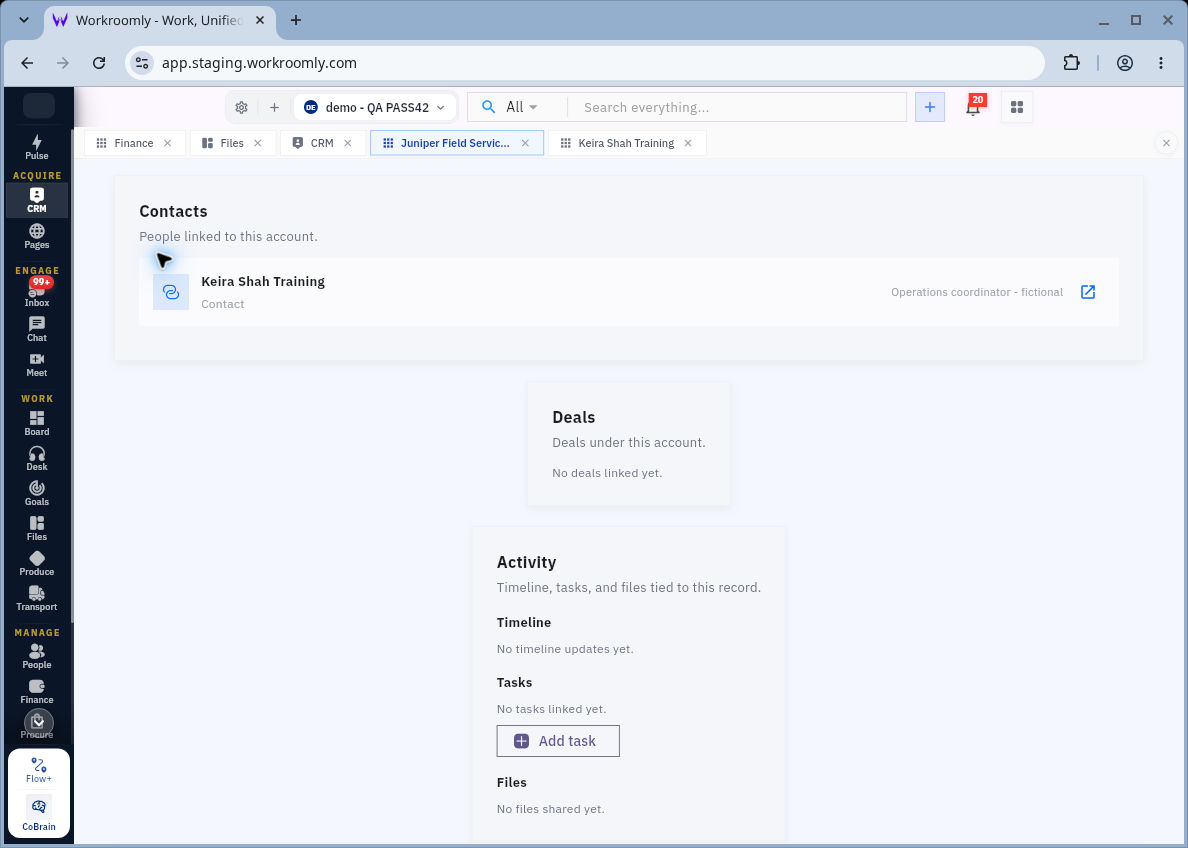
Check the result
Expected result
The Account and Contact are saved, and you can find the person under the correct company. You have not had to duplicate either record to create the relationship.
Common pitfalls
- An Account selected on a Contact is different from the Account’s Primary contact field. Set that additional role only when it is intended.
- A subscription label or preferred channel does not establish marketing consent. Check the person’s actual communication preferences before outreach.
- If a save result is unclear, search for the record before submitting it again.
Continue learning
In this series: Manage customer relationships — guide 3 of 15.
Turn what you learned into the way the team works.
Mark this lesson complete once the workflow exists in your workspace—not simply when you reach the bottom.