Capture and update a customer enquiry
Save a lead with a useful enquiry summary, then update and find it again when the next action becomes clearer.
In this lesson
Capture and update a customer enquiry
Save a lead with a useful enquiry summary, then update and find it again when the next action becomes clearer.
Before you start: You need permission to create and edit Leads. Have the enquiry’s source, customer need and next question ready. Use your team’s naming convention so colleagues can find the record.
Steps
1. Open CRM → Leads in the correct workroom and space. Search for the person or enquiry and open possible matches. If it is the same enquiry, skip steps 2–4 and continue at step 5. Keep a genuinely different request distinct.
2. For a new enquiry, select the bottom-right Quick actions plus → New Lead. Confirm Space assignment and enter the required Full name. Add only confirmed company or contact details, and keep the appropriate owner.
3. Scroll to Signals & scoring → Context. Write a short summary covering what the customer wants, where the enquiry came from, important unknowns and the next investigation. For example: “Asked about an onboarding workshop by email. Scope and timing to confirm. Next step: agree the questions for a discovery call.”
4. Select Create lead once. When the record opens, check the full name and Context in Details. Read its actual stage, status and step rather than assuming that capture also qualified the enquiry.
5. When the next action changes, open the same lead and select Edit. Update Context with the current position, next question and relevant date. Keep uncertain budget, authority or timing labelled as uncertain.
6. Select Update lead. Read the saved Details, then return to the Leads list, search the exact name and open the record again. Confirm that the revised summary is still present.
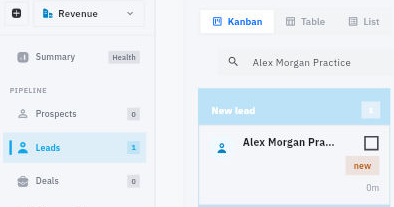
Check the result
7. If the summary describes work someone must do, create a separate follow-up task using the activity and follow-up workflow in CRM06. A date written in Context helps a reader, but does not create a task or reminder.
Expected result
Your enquiry is easy to find, its current summary is saved, and a colleague can see what should happen next without treating unconfirmed facts as commitments.
Common pitfalls
- If saving appears uncertain, search and inspect the existing record before creating another copy.
- A saved Lead does not automatically establish an Account link, convert to a Deal or prove that the customer is qualified.
- Keep the original enquiry available through your team’s usual recordkeeping process; a short summary should not erase its meaning.
Continue learning
In this series: Manage customer relationships — guide 4 of 15.
Turn what you learned into the way the team works.
Mark this lesson complete once the workflow exists in your workspace—not simply when you reach the bottom.