CRM course 04 — Build audiences and prepare broadcasts
A campaign audience defines who should be considered for a communication. A broadcast contains the message and its delivery plan. Neither a matching record nor a Subscribed label proves that the person agreed to receive the particular message. This chapter connects audience rules, suppression, message composition and preview so that you can prepare a purposeful communication without confusing a draft with a send.
Part of CRM module course
In this lesson
Purpose audiences and exclusions
A campaign audience defines who should be considered for a communication. A broadcast contains the message and its delivery plan. Neither a matching record nor a Subscribed label proves that the person agreed to receive the particular message. This chapter connects audience rules, suppression, message composition and preview so that you can prepare a purposeful communication without confusing a draft with a send.
In this chapter
- Start with the purpose and permitted audience
- Read Campaigns before defining rules
- Understand enrollment and suppression fields
- Work through the Broadcast wizard
- Compose content that survives real recipient data
- Preview before any authorised release
- Practise an audience and draft review
Start with the purpose and permitted audience
Write the purpose before opening the composer: for example, a monthly practical tip for people whose recorded preference covers that newsletter. Keep service replies and marketing subscriptions separate. Someone who asks for a reply about one enquiry and says “no newsletter” should not enter the newsletter audience because their job title matches a useful segment.
Open the Contact and inspect identity, Account, actual communication destination and preference evidence. Persona segment, Lifecycle status and Preferred channel describe classification or preference; they do not replace the original communication permission. A contact can display Subscribed even when no usable email address is stored. Check both the application state and the source of the person's choice.
If subscription displays conflict, hold the affected send and ask the responsible owner to reconcile them. Do not interpret an optimistic label as permission. For training, use approved sample records and avoid external sends.
Read Campaigns before defining rules
Open CRM → your space → Campaigns and select the intended campaign. Its tabs include Overview, Audience, Sources, Journeys, Performance and Governance. Confirm the campaign identity and state before interpreting any count; a Planned campaign is not an active delivery result.
In the audience controls, source choices include Prospects, Leads, Contacts, Deals and Accounts. Choose the record population that matches the purpose. A Lead-stage rule does not define a Contact newsletter merely because both concern customers.
The Condition builder provides a match mode, condition rows, Add condition and Add group. Each condition uses Field, Operator and Value. For example, a Contact title rule classifies people by role; a lifecycle rule classifies relationship stage. Neither is a permission rule unless the selected field actually carries the required evidence.
All conditions must match means an AND combination. An OR group admits a record when any condition in that group is satisfied. Review grouping as well as individual values: “has permission AND (role A OR role B)” is different from “has permission AND role A OR role B” if the latter admits every role-B record.
Check a few known included and excluded sample identities, not just a total. A plausible count can conceal the wrong people. Also decide how membership changes after approval will be handled. A rule-based audience may change as data changes; do not assume an earlier count freezes the eventual recipients.
Understand enrollment and suppression fields
New rule opens an enrollment rule with Name, Description, Member type, Priority, Suppression mode, Re-enroll window in hours, Active, Allow re-enrollment and Condition builder. The member type must match the intended records. Priority concerns the rule's handling, not the customer's importance. A re-enrollment window and the allow toggle are separate controls; review both before permitting repeat entry.
The illustrated defaults include Lead member type, priority 100, Module and campaign suppression, zero-hour re-enrollment window, Active on and Allow re-enrollment off. These are not recommended values for every campaign. For inspection, cancel without creating a rule. For an authorised setup, confirm the required rule and its actual resulting membership before using it operationally.
Add suppression distinguishes these fields:
| Field | Meaning to check |
|---|---|
| Key type | Email, Phone, Lead ID or Contact ID identifies what will be matched. |
| Key value | The actual destination or native record identifier, not a worksheet label. |
| Reason | Why this item must be excluded. |
| Source | Where the exclusion instruction came from; manual is an available source. |
| Expires at | Optional end of the exclusion; confirm the effective timezone. |
| Module-wide suppression | Whether scope extends across campaigns in this CRM space. |
| Active | Whether the suppression is enabled. |
Do not substitute a person's display name for a native Contact ID. Do not let an optional expiry silently cancel an ongoing preference. After an authorised suppression change, check the saved rule and a recipient preview that should exclude that person. A saved exclusion record alone is not a delivered-message result.
Work through the Broadcast wizard
Open Broadcasts, under Engagement, then Create. New Broadcast is organised as Basics, Audience, Message and Preview & Send. The directory separates Draft, Scheduled and Sent. Read row-level Audience, Sent and Delivered separately: they describe different stages of delivery.
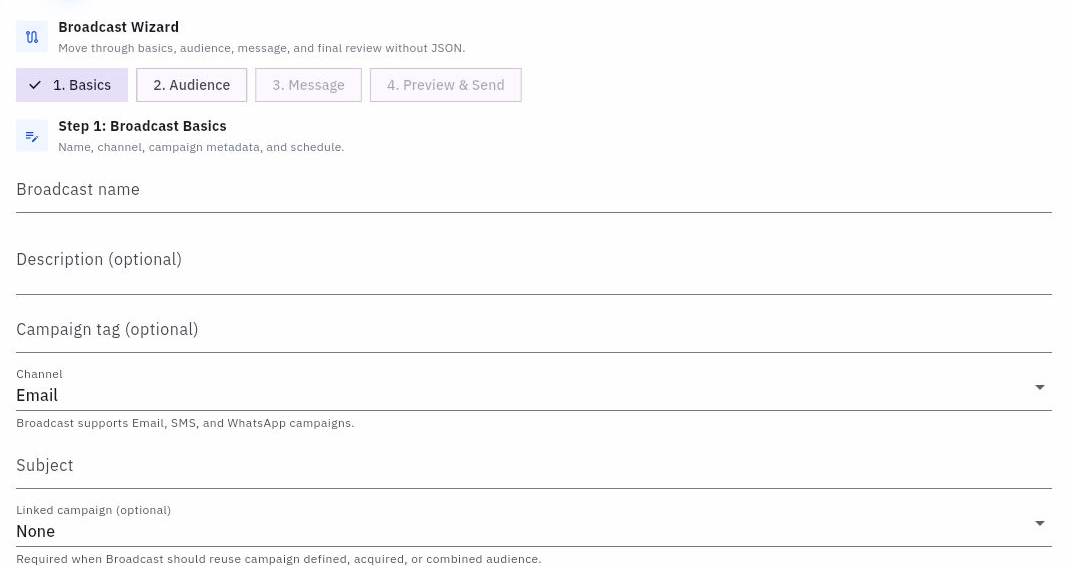
Message preparation preview and delivery checks
In Basics, Broadcast name is the internal label. Subject is recipient-facing. Description and Campaign tag are optional metadata; a tag is not the same as the Linked campaign selector. Linking a campaign is needed to reuse its defined, acquired or combined audience. Do not link an unrelated campaign merely to enable an option.
Read Channel and the scheduling controls deliberately. Email is the illustrated default. With Schedule send off, the helper says the broadcast will send immediately when the send action is used. Save draft, Schedule and Send now are different commitments. A draft save is the appropriate boundary for preparing content without release; it is not a test send.
In Audience, choose Custom audience or the appropriate linked-campaign audience. Campaign-defined, acquired and combined choices can be unavailable without a campaign link. Target entities include Prospects, Leads, Deals, Contacts, Accounts and Tickets. Match the rules to the selected record types, then read Include Rules and Exclude Rules, including their AND/OR logic. Use the recipient estimate as a check, not as the sole approval basis.
Compose content that survives real recipient data
Message opens the composer. Design provides visual authoring; HTML provides source-based authoring. The block palette includes Rich Text, Image, Video, Button, Footer and layout sections. Begin with the message's purpose and next action, then choose the blocks needed to express them. Decorative content should not obscure the link or reply instruction.
Insert personalization offers entity-specific fields, such as Lead first name and Contact first name. Select the field appropriate to the audience rather than typing a guessed token. Check a known name, missing name and unusually long name in preview. If you do not have a verified fallback, a plain greeting can be clearer than broken personalization.
Under Builder settings, inspect Email intent, brand profile, footer and unsubscribe requirements. A UI field being optional does not settle your organisation's communication obligations. Attach files, Insert from Files and Use inline asset involve different uses of material; check the exact version, relevance and recipient access. Save as template creates reusable design work and should be reviewed separately from saving this broadcast.
Preview before any authorised release
In Preview & Send, read Estimated recipients and the audience description. Live Preview offers Desktop, Mobile and Plain Text. Preview record provides type/search controls. A sample preview without a selected record does not prove the actual recipient fields render correctly.
Inspect the full subject, message, links, attachments, footer, sender and reply route. Check at least one intended inclusion and one intended exclusion. A fresh server preview is a release prerequisite shown by the wizard; an old preview may not reflect revised rules or content.
An internal test-send control still sends a message. Use only an explicitly approved internal test list and check the resulting receipt against its log before inferring delivery. The Send log separates All, Sends, Test sends and Resends. A queued or sent event is not the same as delivery, and an open event is not proof that the recipient understood the content.
If a draft save or send result is uncertain, inspect the existing directory and log before retrying. Repeated clicks can create duplicate attempts. Keep the exact broadcast, version, audience and observed outcome together when asking the owner to resolve a failure.
Practise an audience and draft review
Consider three sample contacts: one explicitly requested this newsletter, one requested only an enquiry reply, and one has no usable address. Only the first is a candidate, subject to current suppression and destination checks. A matching job title does not change the other two outcomes.
Inspect a sample campaign rule and broadcast draft without sending. Explain the population, include/exclude logic, subject, message action, preview identity and delivery state. Your expected result is a reviewable draft and a reasoned recipient decision—not an external communication or a claim that delivery has succeeded.
Turn what you learned into the way the team works.
Mark this lesson complete once the workflow exists in your workspace—not simply when you reach the bottom.