CRM course 05 — Manage journeys renewals and forecasts
Customer work continues after the first enquiry. Journeys organise repeated follow-up, relationship views bring together commitments, Renewals prepare continuation decisions, and Forecast helps review possible future business. These screens answer different questions. An active sequence is not a completed customer outcome, and a forecast is not recognised revenue or cash.
Part of CRM module course
In this lesson
Journey design and relationship review
Customer work continues after the first enquiry. Journeys organise repeated follow-up, relationship views bring together commitments, Renewals prepare continuation decisions, and Forecast helps review possible future business. These screens answer different questions. An active sequence is not a completed customer outcome, and a forecast is not recognised revenue or cash.
In this chapter
- Choose a Journey target and purpose
- Read the builder from audience to activation
- Review exits goals and limits
- Review the relationship before a renewal
- Prepare a Renewal with the right basis
- Read Forecast with its population and period
- Practise a continuing-customer review
Choose a Journey target and purpose
Open CRM → your space → Journeys, under Engagement. Read the status filter and Show archived before interpreting the list. A detail panel can remain selected even when its row is hidden by the current filters; check its title and any archived warning rather than creating a duplicate.
New opens Create sequence. The important setup choices are:
| Control | What you decide |
|---|---|
| Sequence name | A recognisable internal identity and purpose. |
| Target record type | Lead, Prospect or Deal in the illustrated menu. A Contact or Account is not interchangeable with these. |
| Primary linked campaign | An optional actual campaign relationship. |
| Limit audience to linked campaigns | Whether campaign membership restricts eligible targets. |
| Primary channel strategy | Email first, multichannel, SMS first, WhatsApp first or task assist. |
| Audience mode | Manual, bulk, segment rule or event trigger. |
| Initial objective | Outbound follow up, onboarding nurture, customer success, support follow through or custom. |
| Require journey approval | Whether the planned journey needs that approval control. |
Choose settings from the intended outcome, not from convenient defaults. Event trigger is not a configured connection merely because it is selected. Task assist does not guarantee every step is internal-only or that a person is assigned. For a read-only tour, use Cancel; for an authorised setup, review the actual audience and timeline before activation.
Read the builder from audience to activation
The builder is organised as Audience, Timeline, Exit/Goal and Review/Activate. Audience separates enrolled, active, exited and failed totals. Preview audience, Sync audience and Manage enrollment are distinct operations; syncing or enrolling can affect who will run through the journey.
In Timeline, read the sequence from START through each action to EXIT. A step's summary should explain what it does. Use its pencil to inspect Edit journey step. Add step offers Email, WhatsApp, SMS, Schedule Meeting, Create Task, Condition / Branch and Wait. Inspect the actual sequence rather than assuming its channel-strategy name describes every action.
For Create Task, fields include Wait before this step and its unit; destination Board, optional Task status and Project; Task title and description; Due in hours and Priority. Waiting before creating work is different from the time allowed to finish it. An interval of 24 hours does not establish a specific calendar deadline and timezone. Confirm ownership separately where the step does not expose an assignee.
Retry policy includes Max retries, Backoff strategy, Initial delay and Max delay. These settings describe retry preparation, not evidence that a failed action recovered. A retry can be consequential if the first attempt actually created a task or sent a message but its response was lost. Reconcile destination records and logs before manually repeating an uncertain action.
A Wait step has its own validation; the illustrated form rejects a zero wait with “Wait value must be 1 or greater.” A Condition / Branch step uses Branch label, Field, Operator, Value, Go to step and an optional Default path. Its helper says the first matching branch wins; unmatched records use the default path or next step. Plan the unknown-data route deliberately so a missing value does not accidentally trigger an outreach action.
Review exits goals and limits
In Exit/Goal → Configure controls, examine Exit on reply, Exit on unsubscribe and Exit on lead converted. The goal engine has a Goal type and Auto-exit when goal is achieved. Defining a goal and automatically exiting when it occurs are separate choices.
Execution policy includes Daily send limit, Per-lead cooldown hours, window start/end, Weekday only and Respect lead timezone. Also inspect the email provider and reply-to destination, journey re-entry, re-enrollment cooldown and global suppression checks. Read the saved summary as well as the editor: a displayed time window is not sufficient if the summary still says Any time.
Review/Activate reports blockers and warnings. A missing target enrollment or auto-enrollment rule can block activation; no automatic exits, no configured goal or an unlimited daily limit can require attention. Do not treat a visible Publish or Activate control as proof that the intended audience, limits and outcome are ready.
Under Versioning + analytics, distinguish Published, Draft and archived versions. Publish draft, Save draft snapshot and Restore to draft affect different states. A version label does not prove a new execution. Before release, check a safe sample target, included/excluded cases, branch outcomes, destination records and recovery behaviour through your team's authorised process.
Review the relationship before a renewal
Open the exact Account and inspect its Contacts, Deals, activity and commitments. On a Contact, relationship areas can include Deal roles, Open commitments, Documents, Renewals, Meaningful interactions and link provenance. Direct deals concern that person's direct role; Account deals may appear through the parent organisation.
When two views disagree about a task, open the source work record and compare its actual output and state. A Done label does not prove that a missing customer deliverable was supplied. Distinguish a correction needed to meet the original agreement from a genuinely new service request. A one-time workshop does not become recurring simply because a Renewal month field exists.
Prepare a Renewal with the right basis
Open Commercial → Renewals. Read date, outcome and status filters, then search the customer and arrangement before choosing New renewal. Summary cards include Due in 90 days, At risk, Committed and Completed. Outcome filters include Renewed, Expanded, Contracted and Churned; these labels are not proof that your current customer reached one of those outcomes.
Renewal decisions and forecast scope
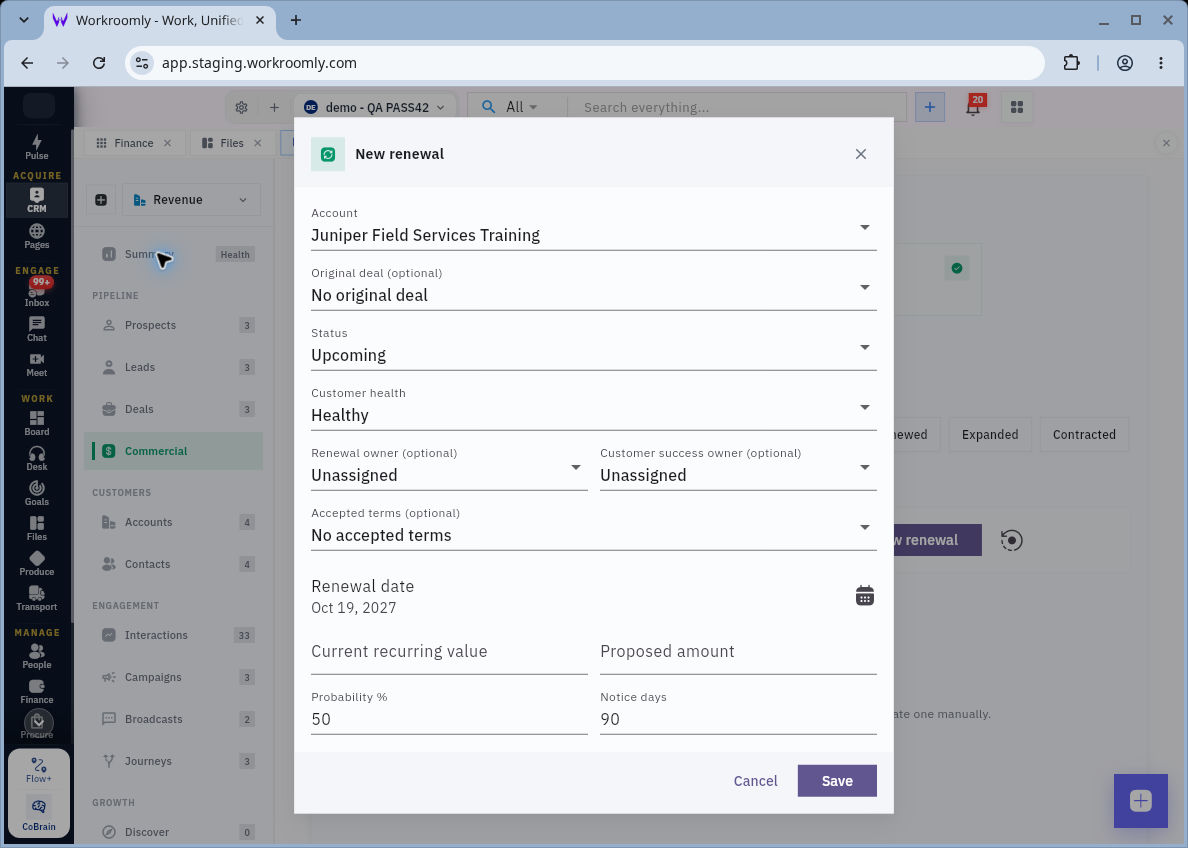
In the form, verify the Account, even if it is preselected. Original deal and Accepted terms should point to the actual source arrangement, not a similarly named draft. Renewal owner and Customer success owner represent different responsibilities; Unassigned is a gap, not an implicit assignment to you.
Status includes Upcoming, Preparing, Customer contacted, Negotiation and Commit in the illustrated menu. Choose a state supported by what actually happened. Customer health describes the relationship assessment. Renewal date, Current recurring value, Proposed amount, Probability percent and Notice days need a reviewed business basis. Confirm the amount's currency and period before entering a bare number. Do not copy a default probability or notice interval as if it came from the agreement.
Use Next action for the specific work and Risk reasons for supported comma-separated reasons. Keep the service end, renewal decision deadline and invoice due date distinct. A date written in Next action does not establish a scheduled reminder.
For an authorised creation, review the complete form, save once, return through Renewals and reopen the exact item. Compare source links, owners, dates, amounts and state. If the list is empty and you are only learning the screen, cancel the form; you do not need to create a recurring arrangement just to populate it.
Read Forecast with its population and period
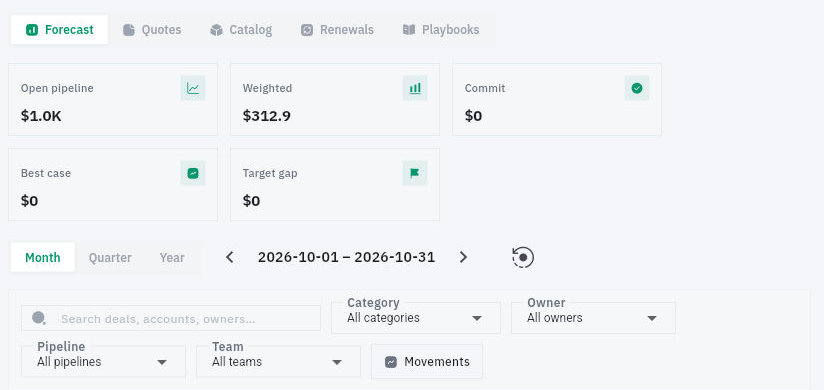
Open Commercial → Forecast. Read the selected Month, Quarter or Year window before interpreting the figures. Inspect search and the Category, Owner, Pipeline and Team filters, plus the Movements selection. A total is meaningful only with its population and period.
Forecast corrections and continuing customer practice
The cards include Open pipeline, Weighted, Commit, Best case and Target gap. Read source rows for exact amounts, probability, category, lifecycle stage and close date. A forecast category is not a lifecycle stage: two Deals at different stages can both be in Pipeline. A zero Target gap does not by itself prove a meaningful target was configured or achieved.
For a simple arithmetic check, GBP800 at an explicitly assumed 25 percent gives GBP200 weighted value. It is still a possible GBP800 purchase, not GBP200 of agreed revenue. Do not mix currencies or substitute zero for an unknown probability. A compact card such as $1.0K may round more exact row amounts.
The lower Data quality area includes Missing close date and Stale close date. Those checks do not certify identity, price, permissions or every aspect of record quality. Review unusual or old assumptions with the owner instead of interpreting two zero counters as a clean pipeline.
The forecast row's pencil opens Update with Forecast owner, Forecast category, Deal probability (%) and Forecast notes. A blank owner can use the Deal owner, as the helper explains. Category choices include Pipeline, Best case, Commit, Closed and Omitted. Manager override provides separate category and probability override controls. Do not enable them just to make a chart look better.
If the row shows a probability but the editor is blank, investigate the basis rather than filling the blank to match. For an approved correction, establish the source, exact record and intended change, then save and reopen both record and forecast with the same scope. Distinguish a retained field change from its effect on aggregate reporting.
Practise a continuing-customer review
For an approved sample customer, identify one commitment, its output and its actual owner. Decide whether an unfinished item is a delivery correction, renewal question or new opportunity. Then inspect a journey and explain its target, first action, delay, exit and activation blocker without running it.
Finally, read a forecast period and one row. State its amount basis, category, stage, probability and close date, preserving unknowns. Your expected result is an accurate plan for the next customer action and a scoped forecast interpretation—not a claim that the journey ran, the renewal was accepted or money arrived.
Turn what you learned into the way the team works.
Mark this lesson complete once the workflow exists in your workspace—not simply when you reach the bottom.