CRM course 02 — Capture enquiries and manage accountable opportunities
A useful enquiry record tells another person what the customer wants, what is still uncertain and who is taking the next action. This chapter follows that information through Leads, Deal lifecycle controls, chronological Notes and linked Board tasks. It does not treat a saved record as a qualified purchase or a task assignment as proof that work is complete.
Part of CRM module course
In this lesson
Enquiry capture and context
A useful enquiry record tells another person what the customer wants, what is still uncertain and who is taking the next action. This chapter follows that information through Leads, Deal lifecycle controls, chronological Notes and linked Board tasks. It does not treat a saved record as a qualified purchase or a task assignment as proof that work is complete.
In this chapter
- Find or create the right Lead
- Qualify the opportunity without inventing certainty
- Read and use a lifecycle transition
- Record history where colleagues can find it
- Create a linked task for the next output
- Practise the complete enquiry loop
Find or create the right Lead
Open CRM → your space → Leads, under Pipeline. Search for the exact enquiry and inspect plausible matches. Check filters and full record context before creating a duplicate. If you are practising, use a distinct training label that will remain recognisable later.
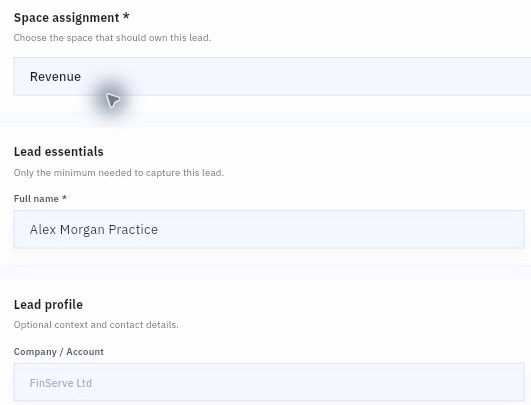
Choose the bottom-right Quick actions plus and New Lead. Space assignment determines the destination; Full name identifies the Lead. The menu's “Capture high intent buyer” description is not a qualification decision. Optional Company / Account, email and phone should reflect known source information, not guesses.
Qualification and lifecycle decisions
Scroll to Signals & scoring, then Context. Write the need, source, useful outcome, unresolved questions and next investigation. For example: “Cedar Services asks for a 90-minute workshop for 12 coordinators. Robin coordinates dates. Budget and purchasing approver remain unknown. Next action: confirm the decision process and available dates.” The participant count describes scope; it does not establish 12 billable sessions.
Choose Create lead once. Read the saved Details and Context. The illustrated starting lifecycle is New lead / New / New lead intake, with medium priority. Read your own values rather than altering them to match the illustration. A new record may have defaults that are operational labels, not customer facts.
To improve an existing enquiry, open its Edit action, locate Context and make the specific supported correction. Preserve the original source meaning: “possible budget” must not become “approved budget.” Save through the form's action, leave the record and reopen it from Leads. Confirm the full text, including qualifiers that a shortened card may hide.
Qualify the opportunity without inventing certainty
Qualification means deciding what evidence supports doing next. Confirm the need, audience, intended outcome, fit, decision process, commercial basis and timing. Unknowns are useful when they have an owner and a next action. A customer's deadline alone is not a commitment or proof that your team has capacity.
Keep three dates distinct: expected close date concerns the buying decision; delivery date concerns the service; next-review date concerns your team's check. Similarly, separate a buyer's ceiling from your proposed price and the accepted amount. A GBP900 ceiling does not automatically become a GBP900 Deal or an agreed sale.
A Deal is a specific possible purchase. Open Deals, search for the exact item and compare its Account, owner and scope. Read Amount, Probability, Close date and the lifecycle together. A compact amount such as $1K may be rounded, and a dollar symbol alone does not establish the currency code. Not set probability is not zero or 100 percent.
Read and use a lifecycle transition
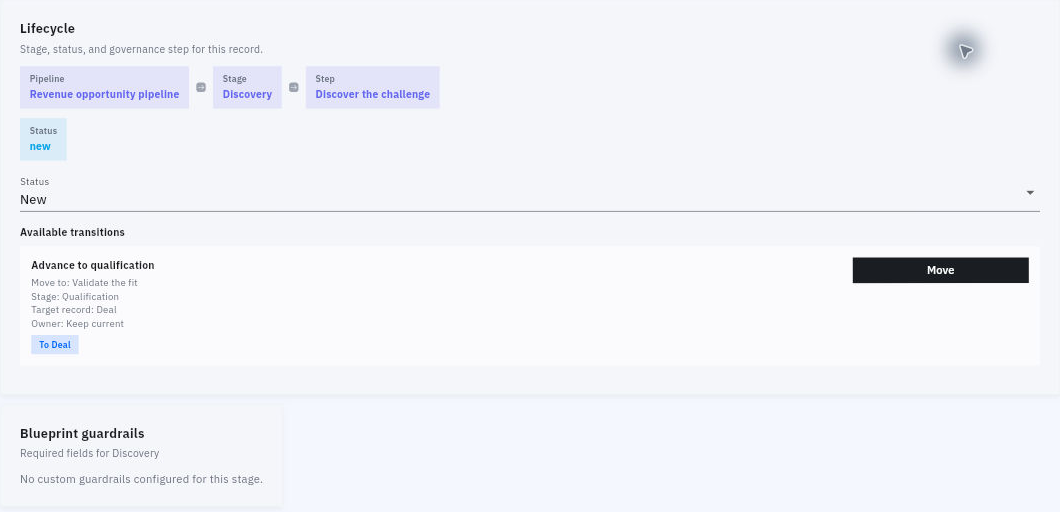
Scroll to Lifecycle. The record shows pipeline, stage, step and status separately. In the illustration, Revenue opportunity pipeline contains stage Discovery, step Discover the challenge, and status new. The separate Status selector reads New.
Activity history and accountable work
Under Available transitions, read the entire card before using Move. The example Advance to qualification specifies Move to: Validate the fit, Stage: Qualification, Target record: Deal and Owner: Keep current. These values explain what the action is intended to change. The card is not a reason by itself to make that change.
For an authorised move, first confirm that the customer evidence meets your team's stage criteria. Select Move, review Confirm transition, and confirm only when the destination and record type match the intended decision. Cancel if they differ. Afterward, read Lifecycle, leave the record and reopen it through Deals. Confirm the stage, step and owner, and check which values did not change. In this example, Qualification / Validate the fit can coexist with status New; the move does not mark the Deal won.
If the next transition is unavailable, inspect the stated requirements and ask the responsible owner to resolve the specific missing fact or permission. Do not change Status, reset the stage or create a replacement record to imitate a permitted move. The absence of custom guardrails also does not remove your team's review requirements.
Record history where colleagues can find it
A current Context summary and a chronological note serve different purposes. Context explains the present enquiry. Notes, labelled Chronological updates tied to this record, records what happened and when. Contact profile Notes is another separate field; it is not a substitute for the Lead's activity history.
On the exact Lead, choose Add note. The editor asks you to capture the update, observation or next step. Include the event date, participants, channel or source, conclusion, remaining questions and next action. If you enter a past event today, distinguish the event date from the entry date. Choose Save, then read the complete note in Notes and reopen the record to confirm it remains.
For the Cedar enquiry, a useful entry is: “Robin confirmed the audience is 12 coordinators. The purchasing approver is still unknown. Sam will identify the approval process and return a recommendation before the next internal review.” This records the source and limit. It does not claim that a customer message was sent or that Sam received a task.
Create a linked task for the next output
Use Add task from the exact Lead when the next action needs accountable work. First inspect Linked Work to avoid duplicating an existing task. Choose the intended Board. The task form can include a generated description beginning Generated from CRM lead detail, followed by the Lead name and identifier. Preserve this source reference; a manually typed customer name alone is not the same link.
Set Task Title to the specific output, such as “Confirm Cedar purchasing process.” Add the completion condition and relevant context to Description without removing the generated source. Under Status & Planning, Backlog fits work not yet started. Due Date selects a calendar day and uses OK to confirm it. If the commitment has a time and timezone, include them in the description and use your team's scheduling process; a date-only field does not establish a timed alert.
Use Assign Members for the verified eligible person who will do the work. A fictional example name is not a real workroom account. Review the selected Board, task title, description, status, date and assignment, then choose Create Task. Leave unrelated sprint, parent, watchers and priority settings unchanged unless they are part of your actual plan.
Return to the Lead and check Linked Work → Tasks. Open the exact task from its card. Compare the Board, generated source, title, due date and assignment. Then locate the same item in Board independently. If reopening unexpectedly shows a blank New Task form, find the existing card rather than creating again.
A saved assignee is not proof that the person accepted the action or can access the needed material. Agree responsibility through your normal team process. Mark work complete only when its required output exists and has been checked; “called customer” is not the same output as “confirmed decision process.”
Practise the complete enquiry loop
Take the Cedar example and write a Context summary that preserves the unknown budget and approver. In an approved practice record, add a clearly labelled note and one linked task for the missing decision-process information. Reopen the Lead and task from both directions.
Your expected result is a discoverable enquiry, a dated history entry and a task with the right source, owner, date and completion condition. If the Deal's transition is part of your authorised exercise, explain the evidence for it and verify the resulting stage separately. None of these actions establishes a quote, agreement, delivery booking or payment.
Turn what you learned into the way the team works.
Mark this lesson complete once the workflow exists in your workspace—not simply when you reach the bottom.