CRM course 01 — Navigate CRM and build reliable customer identities
CRM brings together customer identity, enquiries, possible purchases and the work needed to move a relationship forward. Start by learning which record answers which question. An Account describes an organisation or customer relationship. A Contact describes a person. A Lead captures interest that needs investigation. A Deal describes a particular possible purchase. Saving any one of them does not create the others or establish an agreed sale.
Part of CRM module course
In this lesson
Customer records and working context
CRM brings together customer identity, enquiries, possible purchases and the work needed to move a relationship forward. Start by learning which record answers which question. An Account describes an organisation or customer relationship. A Contact describes a person. A Lead captures interest that needs investigation. A Deal describes a particular possible purchase. Saving any one of them does not create the others or establish an agreed sale.
This chapter takes you through the workspace, Account and Contact forms, then shows how to check their saved relationship. Use an approved practice space for creation. You can also complete the inspection and decision exercises without changing records.
In this chapter
- Find the correct workroom and CRM space
- Understand the lifecycle before entering customer data
- Create an Account with useful rather than guessed information
- Add the person and select the organisation relationship
- Check the relationship from both sides
- Practise and check your result
Find the correct workroom and CRM space
Read the workroom name in the top bar before opening CRM from the module rail. Then read the CRM space selector. Revenue is the example space in the illustrations; your team may use another name. A workroom and a CRM space are different levels. Two workrooms can each contain a Revenue space without sharing their customer records.
Within CRM, use Leads, Contacts, Accounts and Deals for customer records. Commercial brings together commercial and forecast work; Campaigns, Broadcasts and Journeys support engagement; Config contains administration. Open the destination that matches your task rather than creating another record because the current list looks empty.
A list's search and owner/status filters determine what you see. Check them before concluding that a customer is missing. Open likely matches and compare identity and context. A shortened name in a card is not enough to distinguish two people with the same name. If a colleague sees a space that you cannot see, ask the space owner to check your access. Creating a similarly named space does not give you access to the existing one.
The Owner of a customer record is the person responsible for that record. Workroom membership and role permissions determine access and allowed actions. A CRM Contact is not automatically a workroom member. Keep these three ideas separate when planning who will maintain a relationship.
Understand the lifecycle before entering customer data
A pipeline organises progress. A Stage is a broad checkpoint, a Step is the work within it, and Status is a separate execution-state label. In the illustration, lead stages and deal stages occupy different columns. New lead intake belongs to the New lead stage; Discover the challenge belongs to Discovery for a Deal.
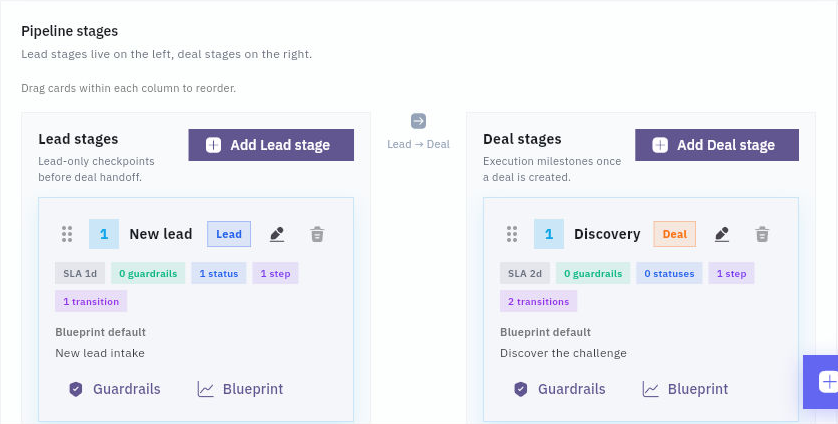
Account identity and lifecycle meaning
Do not change a Status to imitate a stage move. A lead at a qualification checkpoint and a Deal at Qualification are not necessarily the same record. Later chapters explain the transition card that actually describes the destination and target record type.
Create an Account with useful rather than guessed information
First search Accounts for the organisation and reasonable spelling variants. Inspect candidates before creating. A trading name, contracting entity and billing name can differ; record what you actually know, and resolve the legal/billing identity before relying on it for an agreement or invoice.
From Accounts, open the floating plus control and choose New Account. Read Space assignment even if you have already selected a CRM space. This required field controls the record's destination. Account name is also required. Enter a distinctive, accurate organisation name; pale placeholder examples are not saved values.
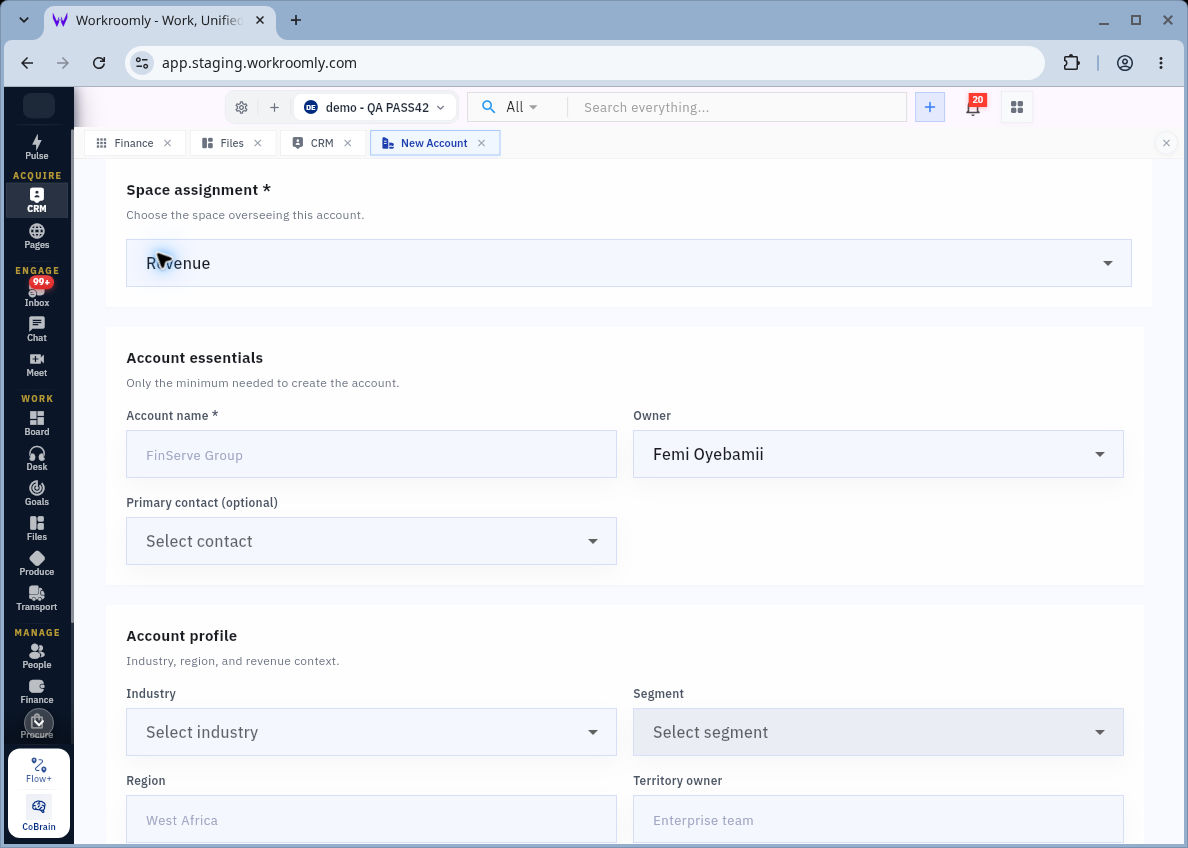
Organisation and person fields
The form's fields describe different parts of the relationship:
| Field | How to use it |
|---|---|
| Space assignment | Confirm the intended CRM space before saving. |
| Account name | Identify the organisation, not the current enquiry. |
| Owner | Select the responsible eligible account under your team's assignment policy. |
| Primary contact | Choose the person who actually holds this role; leave it empty if unresolved. |
| Industry and Segment | Classify the business using your team's agreed meanings. |
| Region and Territory owner | Record geographic and responsibility context, not an assumed address. |
| Annual revenue | Describe the customer's business scale, not your Deal value. Read the currency shown. |
| Health status | Assess the relationship using Healthy, Warm or At risk where offered. Support the choice with current facts. |
| Renewal month | Use for a relevant renewal arrangement, not every one-time purchase. |
| Website and Key notes | Keep a verified organisation address and concise relationship context. |
The form may include configured custom fields. If it says no custom fields are configured, do not repurpose another field to hold an unrelated requirement. Unknown revenue, industry or renewal information can remain unknown; filling every optional box with guesses makes the record less useful.
Review the entire form, choose Create account once, then inspect the resulting Profile and Details. Read the retained name, Owner and Notes. A summary such as Missing or Not set can accurately describe an optional field you left empty. Return to Accounts and reopen the same organisation. A changed directory count alone does not establish that the right record was created.
On an Account detail, an Owner control may save assignment changes immediately. Treat it as an active edit, not a harmless selector to explore. Communication controls such as Email or Call also have consequences; opening a customer record does not give permission to contact them.
Add the person and select the organisation relationship
In Contacts, search the person first. A changed job title is usually a reason to verify and update an existing person's record, not to create a duplicate. From the floating plus, choose New Contact. Check required Space assignment and Full name. Add Title / Role with the person's actual responsibility, not assumed purchasing authority.
Choose the exact saved organisation in Account (optional). Writing the employer in Notes is not the same as selecting this relationship. The Contact's Account association is also separate from the Account's Primary contact field.
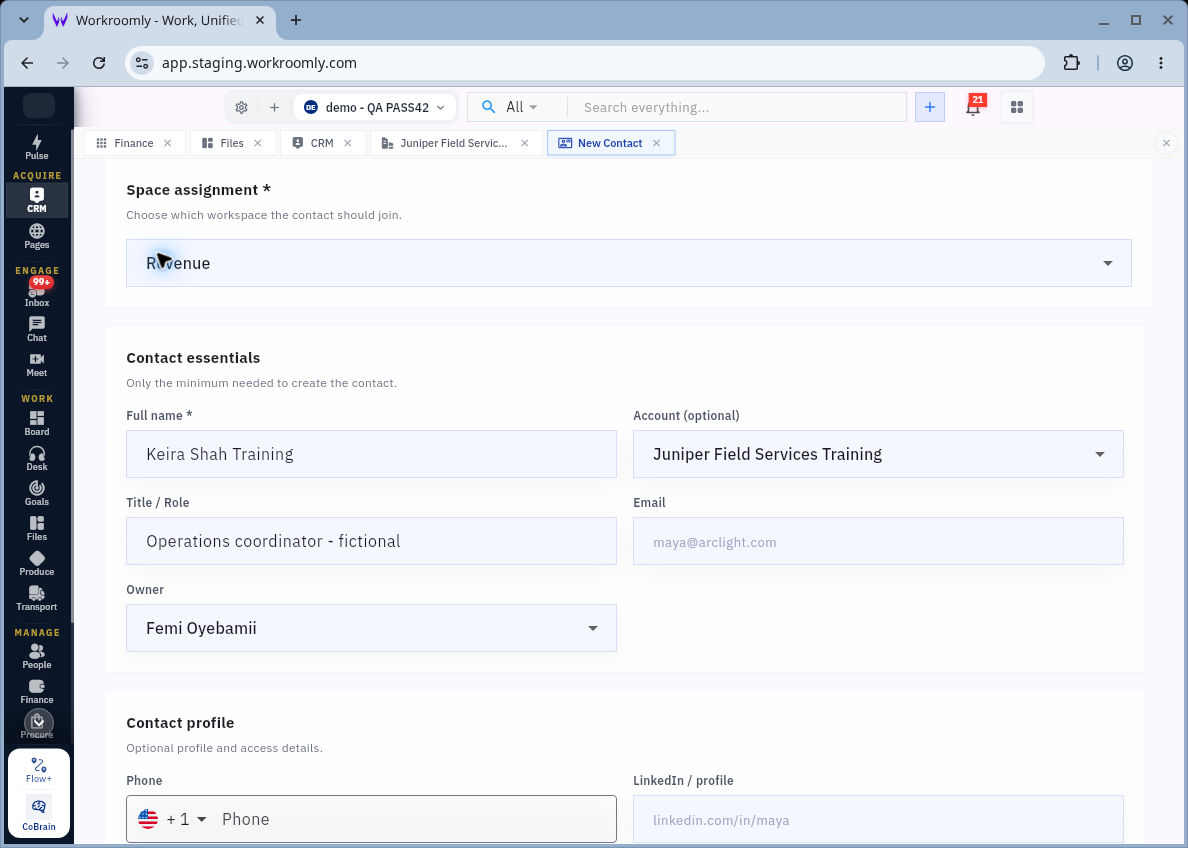
Saved relationships and practice
Email, Phone and LinkedIn / profile are communication or identity details. Enter verified information only when needed. The faint email example and dialling-code default in the illustration are not saved contact destinations. Timezone helps interpret local availability; a default does not prove the person's location. Persona segment and Lifecycle status classify the relationship. The illustrated lifecycle options include Prospect, Customer, Partner and Advocate. Preferred channel offers Email, Phone, WhatsApp and Video. Preference is not blanket permission to send every kind of message.
Use Notes for useful context and restrictions. For example: “Coordinates the workshop enquiry; purchasing approver still to be confirmed; requested a reply about this enquiry only.” This preserves the distinction between a coordinator and an approver. Choose Save contact, then compare Profile and Details with your intended values.
Check the relationship from both sides
Reopen the Contact from the directory. Confirm its name, role and Account. Then open the Account independently and find the person in Contacts. These checks establish both directions of the association. They do not prove that the person is the Account's Primary contact, a Deal's primary contact or an authorised billing recipient.
When reading a Contact, distinguish Direct deals from Account deals. An Account deal can appear because of the parent organisation without making this person primary on that Deal. Similarly, a Communications subscription label is application state, not the original permission evidence. Review the person's actual preferences before broadcast use.
Practise and check your result
Use this example: Cedar Services asks about a team workshop. Robin coordinates dates; the purchasing approver is unknown. Identify which facts belong on the Account, Contact and later Lead. The Account is Cedar Services; Robin is the Contact; the workshop request is the Lead. Do not enter an approved budget or assign Robin buying authority.
In an approved practice space, search before creating a clearly labelled sample Account and Contact. Leave communication destinations blank if outreach is unnecessary. Link the Contact to the Account, save and reopen both. Your expected result is one organisation, one person and the correct visible association—not a Deal, invoice, membership invitation or accepted sale. If a save is uncertain, search and inspect before repeating it.
Turn what you learned into the way the team works.
Mark this lesson complete once the workflow exists in your workspace—not simply when you reach the bottom.