Add a customer update and create a follow-up task
Keep the latest customer update on the lead and turn the next action into a linked Board task with an owner and due date.
In this lesson
Add a customer update and create a follow-up task
Keep the latest customer update on the lead and turn the next action into a linked Board task with an owner and due date.
Before you start: You need an existing lead and permission to add notes and create tasks on the Board your team uses. Know what needs doing, who will do it and when it is due.
Steps
1. Open CRM → Leads, find the lead and read its Notes and Linked Work. If the identical update already exists, skip step 2. If the intended follow-up task already exists, skip steps 3–6 and use the opening/checking actions in steps 7–8 without creating it again or resetting its current status.
2. Select Add note in the lead header. Write what happened, when it happened, the important customer information and any next step. Select Save, then read the complete entry in Notes. Keep reported or uncertain facts labelled accurately.
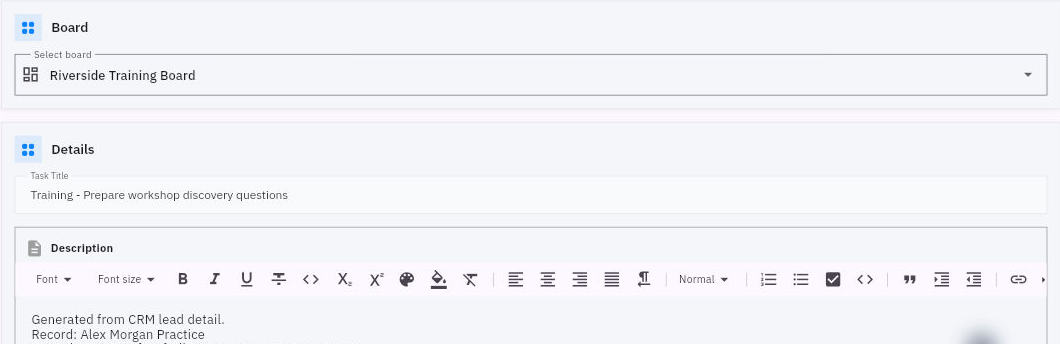
3. Select Add task from the same lead and choose the appropriate Board. Check the generated description: it should identify this lead. Keep that source reference so the task remains understandable from Board.
Check the result
4. Enter a specific Task Title, such as “Confirm workshop scope with the customer”. Add the required outcome and completion check to Description without removing the generated lead reference.
5. Under Status & Planning, choose the status that reflects the work. Use Backlog for work not yet started. Open Due Date, select the agreed calendar date and choose OK. If an exact time matters, include the time and timezone clearly in the description as well.
6. Use Assign Members to select the intended person where available. Confirm the person’s identity and that they can work on the chosen Board. The lead’s owner and the task’s assignee are separate roles.
7. For a new task, select Create Task once. Return to the lead and find the task under Linked Work → Tasks. Open it from the task card and check the title, source description, date and assignment.
8. Open Board → Table and find the same task. Check its Status, Due Date and Assignee. This gives you a convenient place to manage the follow-up alongside the rest of the team’s work.
Expected result
The lead contains a readable customer update and a linked follow-up task that the responsible person can find on the right Board.
Common pitfalls
- A note, CRM owner or watcher does not automatically assign the task. Check the actual assignee and agree the work with them.
- A date in the task description does not create a timed reminder. Use your team’s scheduling process when an exact alert is required.
- If creation appears uncertain, inspect Linked Work and Board before creating another task.
Continue learning
In this series: Manage customer relationships — guide 6 of 15.
Turn what you learned into the way the team works.
Mark this lesson complete once the workflow exists in your workspace—not simply when you reach the bottom.