Update task progress and review actual effort
Keep the task status aligned with the work and distinguish planned effort from actual time.
In this lesson
Update task progress and review actual effort
Update progress when the work changes, not just because a deadline arrives.
Update the task
1. Open the exact task from Table, Kanban or its project. Read the description and completion criteria. 2. Check the actual output and what remains. Use In Progress when work is underway, Review when the output is ready for your team’s review, and Done only when this task’s agreed result is complete. 3. Select the appropriate state under Status & Planning, then select Update Task. 4. Leave the form and reopen the task. Check its status and compare the same row in Table.
Review effort separately
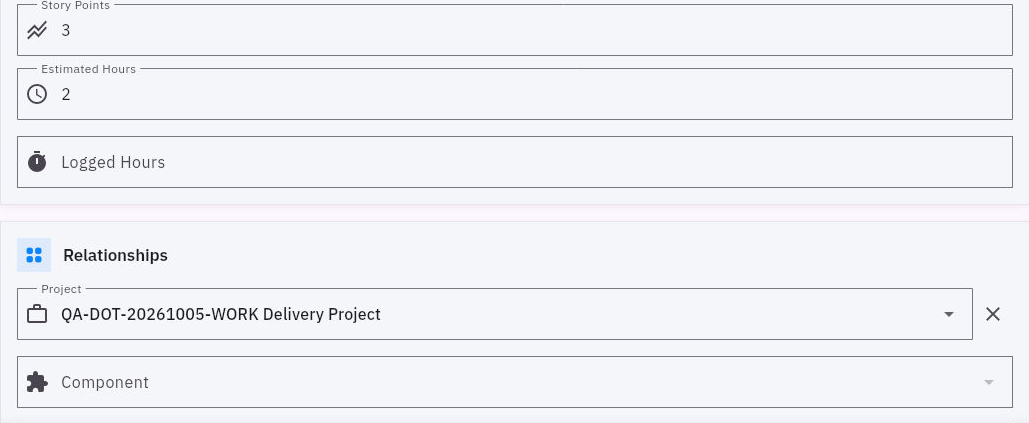
5. Read Estimated Hours, Logged Hours and Story Points as separate values. Compare logged effort with your team’s actual work record before reporting it. 6. Re-estimate the work still needed. If you have spent 0.5 hours and expect another 1.25 hours, the forecast is 1.75 hours—even if the original estimate was 1.5.
Check the result
Expected result: the status reflects the work and your effort forecast uses actual time plus a fresh remaining-work estimate.
Tips: A blank Logged Hours field is not proof that no work happened. Do not assume a timer or automatic project rollup from the presence of these fields. If your team uses a manual total, reconcile it before updating; do not add a cumulative total twice. A finished draft can be Done while a separate review or delivery task remains open.
Continue learning
In this series: Plan and deliver work — guide 10 of 17.
Turn what you learned into the way the team works.
Mark this lesson complete once the workflow exists in your workspace—not simply when you reach the bottom.