Create a sprint and add its tasks
Group a realistic set of tasks into a planning period and check the sprint membership.
In this lesson
Create a sprint and add its tasks
A Sprint groups work for a period. A Project groups work toward a delivery result. A task can belong to both, but choosing one does not set the other.
Create the sprint
1. Open Board → Sprints. Search for the intended sprint before creating a new one. If it exists, open it and check its name, dates and current status, then continue at step 6 without resetting its status. 2. Select + New Sprint (or Create Sprint in the empty state) and confirm Select board. 3. Enter Sprint Name, Start Date and End Date. Choose a period that fits the team’s available time and required inputs. 4. Keep Planned selected. If you use Sprint Goal, write a concise purpose for the period. 5. Select Create Sprint, then return to Sprints and reopen it. Check the name, dates, status and goal text.
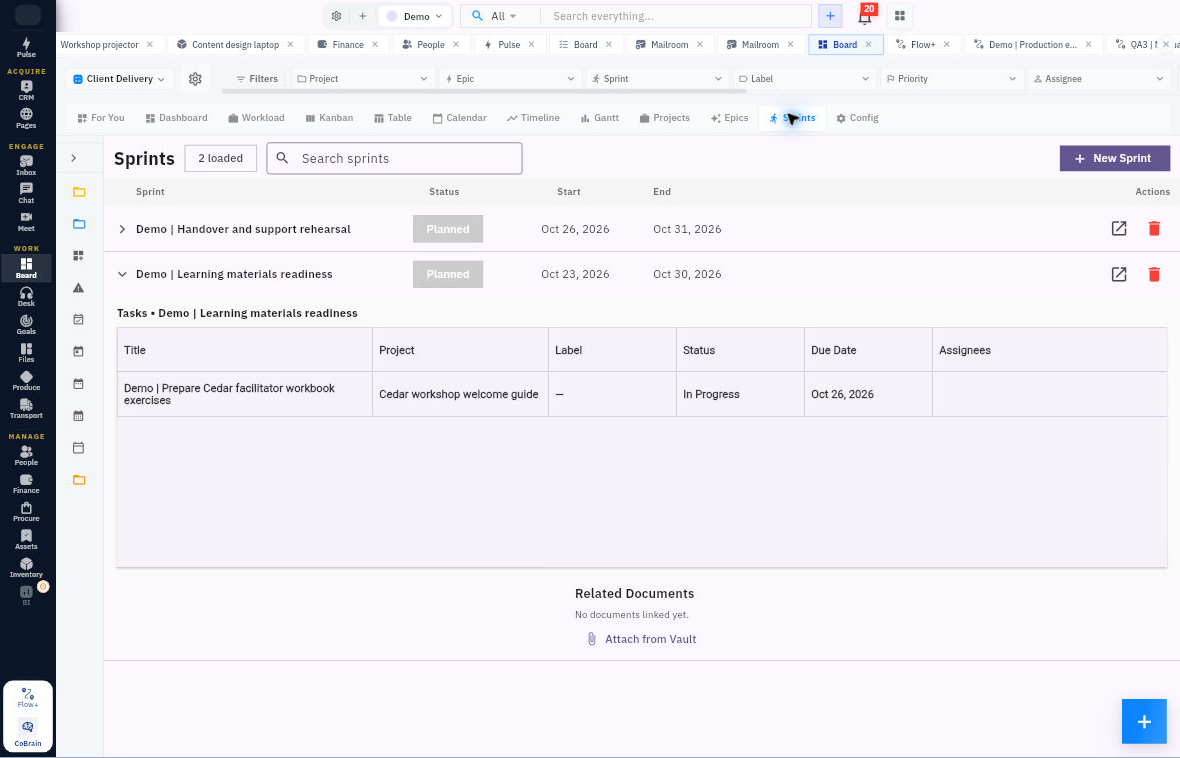
Check the result
Add and check the tasks
6. Open an existing task and go to Relationships → Sprint. Select the exact sprint and use Update Task. Keep the task’s Project, dates and other fields unchanged unless you intend to update them too. 7. Reopen the task to check its Sprint value. Repeat for each task that belongs in this period. 8. Return to Sprints and expand the sprint’s left chevron. Compare the listed tasks with your intended scope; open a row if its title is shortened.
Expected result: the sprint retains the right dates and each intended task appears in its expanded list.
Tips: Sprint dates do not automatically become task due dates. Review the individual task dates and assignees. If the goal text does not retain, keep the purpose in your team’s agreed planning record and ask about the supported correction route; do not recreate the sprint.
Continue learning
In this series: Plan and deliver work — guide 8 of 17.
Turn what you learned into the way the team works.
Mark this lesson complete once the workflow exists in your workspace—not simply when you reach the bottom.