Hand a support issue to the right specialist
Turn a support ticket into a clear specialist task, retain the link to the original enquiry, and keep the requester’s outcome separate from task completion.
Part of Hand off support and verify resolution
In this lesson
Hand a support issue to the right specialist
Turn a support ticket into a clear specialist task, retain the link to the original enquiry, and keep the requester’s outcome separate from task completion.
Before you start: Have an existing support ticket, the correct Board, an agreed specialist, a return date and a clear description of the required correction. Confirm that the specialist can read the necessary source material. The support owner remains responsible for the requester’s update and resolution.
Steps
1. Open the exact ticket in Desk → select the intended desk → Tickets. Confirm its reference, requester and full Detailed context. Identify the actual problem and what a successful correction would look like; do not rely on the short Summary alone.
2. In Linked tickets, inspect any existing Board task. If the same work already has a suitable linked task, open it and skip steps 3–6 to step 7. If a suitable task exists but is not linked, skip creation and use step 6 to link it.
3. Select Create task, then choose the correct board in Select board. The Create New Task form does not automatically copy the ticket’s title, context, owner or deadline. Enter a distinctive Task Title that describes the correction.
4. Write the complete brief in Description: the ticket reference, required change, readable source location or necessary source text, what must remain unchanged, and what the specialist should return. Include any agreed time of day and time zone in the brief; a due-date field alone does not express that agreement.
5. Select the specialist in Assign Members, set Due Date, and choose a Task Status appropriate to work that has actually been agreed. Review the brief and select Create Task. Open the saved task and check its full description, assignee, date and state.
6. Return to the ticket and check whether the relationship is already present. If it is missing, choose Link board task, select the board, search for the exact task and select the matching result. Open the retained task card to confirm its destination. Do not create another task to obtain a link.
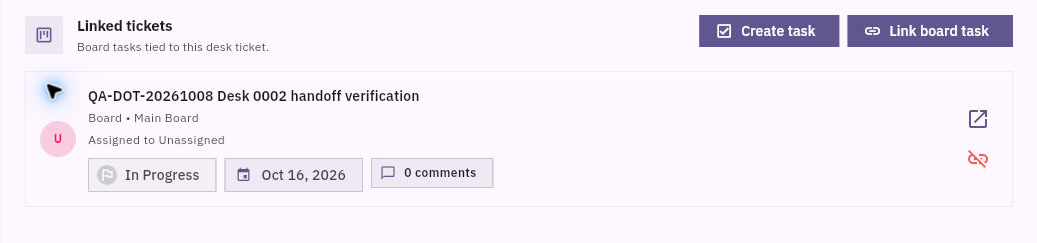
Check the result
7. Agree the scope and return point with the specialist using your normal team communication. A task assignment is not the same as an accepted handoff. When the work returns, compare the actual output with the brief, including any instructions or rules that had to remain unchanged.
8. Once the correction is ready for the requester, use the ticket’s Respond to the customer area. Confirm the intended requester destination and any CC audience, write what changed and any check the requester needs to make, then select Send response. Reopen the thread to check the retained message. If sending is uncertain, inspect the existing attempt before sending again.
9. Confirm the requester’s required outcome before resolving the enquiry. On an eligible open ticket, use Move to Resolved when the resolution conditions are met. If it is already resolved or closed, preserve that state. Closing is a separate policy decision; a Done Board task alone is not enough.
Expected result
The ticket points to a usable specialist task with a clear owner and return requirement. The returned work is checked, the requester receives the relevant update, and resolution follows the customer’s outcome rather than the task label.
Common pitfalls
- The support owner and task assignee are different responsibilities; neither should be inferred from the other.
- Do not assume a comment is private solely because it is labelled Internal. Check the intended audience before including sensitive information.
- A saved response is not proof of receipt, reading or acceptance.
Continue learning
In this series: Customer support and improvement — guide 3 of 6.
Turn what you learned into the way the team works.
Mark this lesson complete once the workflow exists in your workspace—not simply when you reach the bottom.