Dispatch a delivery and close the trip
Connect eligible cargo to a trip, record the actual delivery outcome, and check resources and returns separately.
In this lesson
Dispatch a delivery and close the trip
Before you begin
Confirm the exact source, eligible issued quantity, packages, recipient, addresses, weight and volume. Exclude held stock. A production plan or free-text cargo summary does not create an Inventory issue or a package link.
Prepare the delivery and assignment
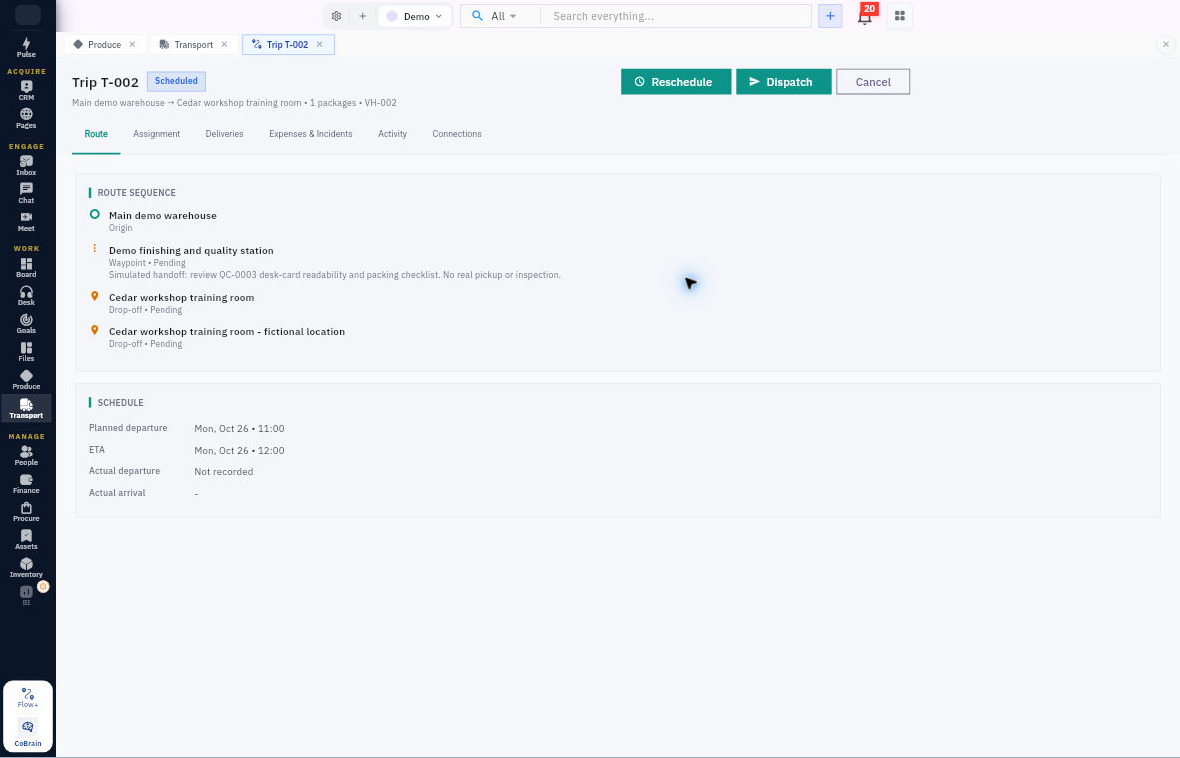
1. Open Transport → Deliveries → All and find the intended source-linked delivery. Use it rather than creating a duplicate. For stocked customer orders, follow Inventory → Fulfilment and its actual picking/issue chain; for warehouse moves, follow the transfer workflow. 2. If no intended delivery exists and a standalone request is appropriate, choose New Delivery, enter the request reference/description, recipient, origin/destination, gross weight, load volume, packages and cargo description, then Create Delivery once. Reopen its identity. A standalone request does not itself remove Inventory stock. 3. Check the intended Route, Fleet vehicle and Driver for current readiness, capacity, availability and the proposed interval. Do not assume an older completed trip makes the resources free today. 4. If the delivery is already assigned to the correct trip, skip assignment and inspect the trip at step 5, continuing only from its current stage. Otherwise, from the exact delivery, choose Assign Trip. Select the appropriate existing pre-departure trip, or Plan a new trip with the explicit origin, destination, route, vehicle, driver and dates. For a new trip choose Plan Trip; then use the separate Assign action. Reopen both records and verify their link and package count. 5. For a Planned trip, choose Schedule, set departure and ETA, then Save Schedule. If it is already Scheduled or later, preserve its legitimate current stage rather than scheduling it again. Assignment alone is not a saved schedule.
Continue the workflow
Record actual progress and outcome
6. At the corresponding actual events, use Dispatch from Scheduled, Start Trip from Dispatched, and Record destination arrival from In Transit. Check the saved state after each action and do not replay an event already recorded. Arrival is not customer acceptance. 7. Open the delivery's Proof & Exception. For a genuine complete handover on an Out for Delivery record, Mark Delivered opens Confirm delivery. Choose the actual proof type and provide the genuine accessible proof document link/reference, then Confirm delivery. Verify the saved result; never use a training image or invented signature as proof. 8. For an actual failed outcome, Fail opens Mark Delivery Failed. Enter the truthful Failure reason, then Mark Failed and reopen it. Use Return only when appropriate to the actual Failed delivery: it can immediately change the record to Returned without a confirmation form. For partial acceptance, establish the supported split process rather than falsely marking the whole load delivered or failed. 9. Follow any returned stocked goods into the exact Inventory return/receipt and quality process. A Transport Returned badge is not a counted warehouse receipt, restock, refund or replacement.
Complete the trip and check resources
10. When the Arrived trip's delivery requirements are resolved, choose Complete. Enter the real ending odometer—not the distance travelled—or use Ending mileage is unavailable when accurate. Choose Complete Trip and reopen the trip and Activity. 11. Check the same vehicle in Fleet and person in Drivers. Read availability and current trip/vehicle/driver fields separately from the historical assignment on the completed trip. Retain any unresolved incident, expense, return or quality obligation with its owner.
Check the result
Trip closure, delivery acceptance, stock return and resource release each have their own verified state. Preserve any remaining customer quantity instead of treating Completed as proof that everything was delivered.
Continue learning
In this series: Operations and fulfilment — guide 5 of 5.
- Previous: Issue an asset and manage its return
- Optional related guide: Check material supply before production
- Browse tutorials
Turn what you learned into the way the team works.
Mark this lesson complete once the workflow exists in your workspace—not simply when you reach the bottom.