Issue an asset and manage its return
Keep one accepted asset connected to its assignment, actual return and any maintenance that follows.
In this lesson
Issue an asset and manage its return
Before you begin
Have the exact asset identity, full accessory list, intended custodian, purpose and expected return. Check actual readiness and required approvals; a saved record is not a physical handover.
Register or reuse the asset
1. Open Assets → Register → All Assets and Registration Review. Search name, serial and tag in both. If the asset is accepted, continue at step 3; if the intended candidate is pending, use its review rather than creating another. 2. For a genuinely new asset, choose New Asset, enter the supported identity, category, acquisition, condition and depreciation details, then Submit for review. Reopen the candidate. The responsible reviewer uses Review & accept, checks the source and corrections, then Accept asset. Reopen All Assets and retain the generated identity.
Assign and hand over
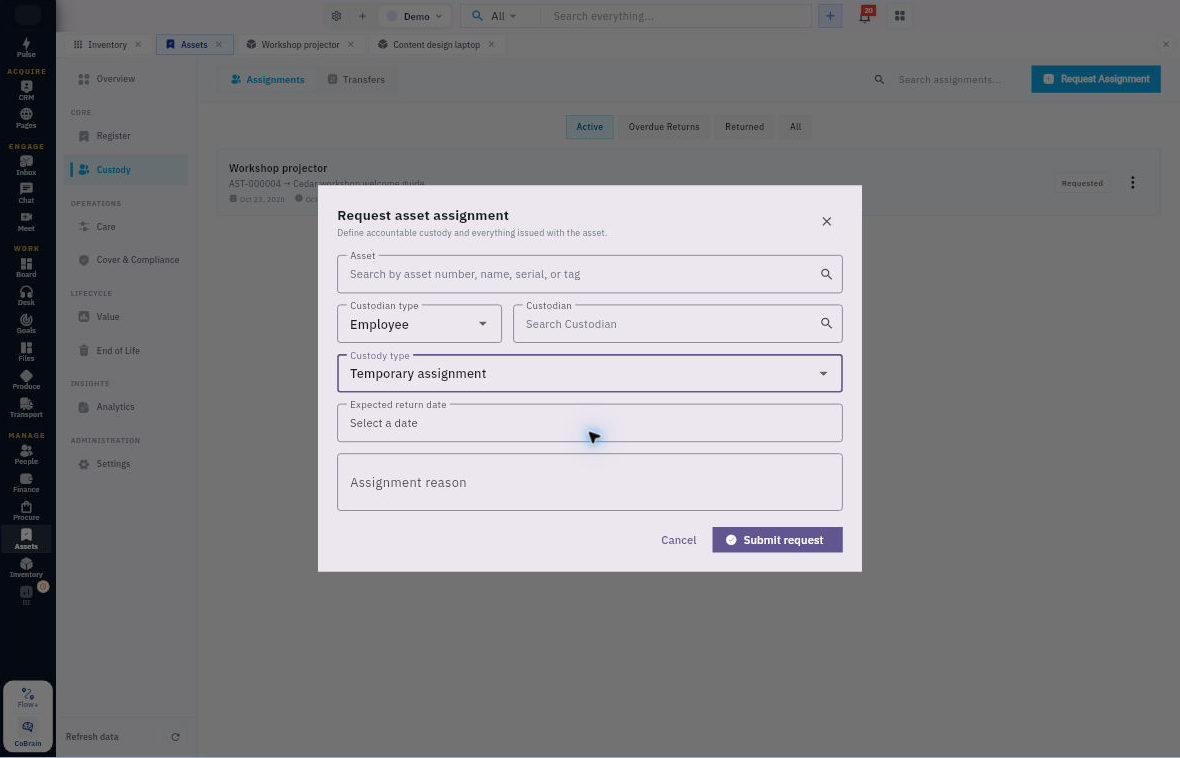
3. Open Custody → Assignments and check for the intended existing assignment or a conflicting active one. For an existing intended record, skip step 4 and use only its matching current-stage action. 4. Choose Request Assignment, select the exact asset and Employee custodian, set Temporary assignment and Expected return date, and enter Assignment reason with the complete issued-item scope. Choose Submit request once and verify Requested. 5. The responsible approver uses Approve request on the checked Requested record. At the actual handover, use Issue asset on the Approved record and confirm Issued. The recipient follows the appropriate Acknowledge receipt process after checking the complete set; confirm Active without substituting an administrator's click for that person's acceptance.
Continue the workflow
Receive and review the return
6. On that Active assignment, choose Return, enter truthful Handover notes and select Request Return. If a return is already underway, resume it rather than requesting another. Custody remains assigned until the return is inspected and reviewed. 7. For a requested return, use Receive Handover only when the asset and issued accessories actually arrive; confirm Handed Over. If already Handed Over, skip receipt. Use Start Inspection only from Handed Over when inspection begins, then check Inspecting. If already Inspecting, continue at step 8; if already Returned, skip steps 7–8 and check the retained assignment and asset state. 8. Record the actual assessed condition, serviceability, resulting route, damage/missing details, evidence and review notes. Choose Submit Review only for the supported decision. Check the Returned record and the asset's Assignment/Summary; do not select Return to Available for an unresolved damaged or incomplete set.
Follow any maintenance needed
9. Check Care → Maintenance → Requests for the same issue. Only if missing, use New Request, enter the exact asset, issue, scope, type and priority, then Submit Request. Reopen it. For a Submitted request ready for assessment, use Triage Request, enter supported estimated cost and notes, then Complete Triage. 10. For an Approved request needing work, use Create Work Order, review scope and technician, then Create Work Order. Find the linked Draft. Reuse an existing converted order instead of making a second one. 11. When that Draft is ready to start, use Start / Resume Work, prepare the required checklist/parts and choose Start Work. After the real work, Complete Work records work performed, completed checks, assessed condition, actual cost, downtime and next date; choose Submit for Verification. 12. Continue only from the matching stage: the responsible review uses Verify Completion on Completed work, then Close Work Order from Verification when closure is justified. Reopen the original request and asset. Keep any unfinished custody or financial review separate from the closed maintenance.
Check the result
The same asset, person and issued set remain traceable. Its availability agrees with the actual return and readiness review—not merely with a completed maintenance badge.
Continue learning
In this series: Operations and fulfilment — guide 4 of 5.
Turn what you learned into the way the team works.
Mark this lesson complete once the workflow exists in your workspace—not simply when you reach the bottom.