Prepare a vehicle and driver for a trip
Find or register the correct resources, then check their readiness for the same load and time window.
Part of Dispatch a delivery and close its trip
In this lesson
Prepare a vehicle and driver for a trip
A resource can be registered and still be unsuitable or unavailable for a trip. Check identity, capacity, assignments and relevant readiness information separately.
Check the existing vehicle; register only if genuinely missing
1. Open Transport → Fleet and search the exact vehicle name or registration. Check the current view and filters before deciding the vehicle is missing. 2. Open the vehicle. Compare its Profile—source, type, capacity and provider—with Current operations, including current trip and driver. For an owned vehicle, use the linked Asset record to check the same resource rather than registering another asset. 3. If a genuinely new external vehicle is needed, choose Add External Vehicle. Enter its name, registration, source, type, Capacity (kg), provider and applicable contract details from the actual source. Do not put volume into a weight field. 4. If you opened a new-vehicle form in step 3, review it and select Add Vehicle, then reopen the saved vehicle through Fleet to check the details. For an existing vehicle, continue at step 5 without another create. If creation is unclear, search before submitting again.
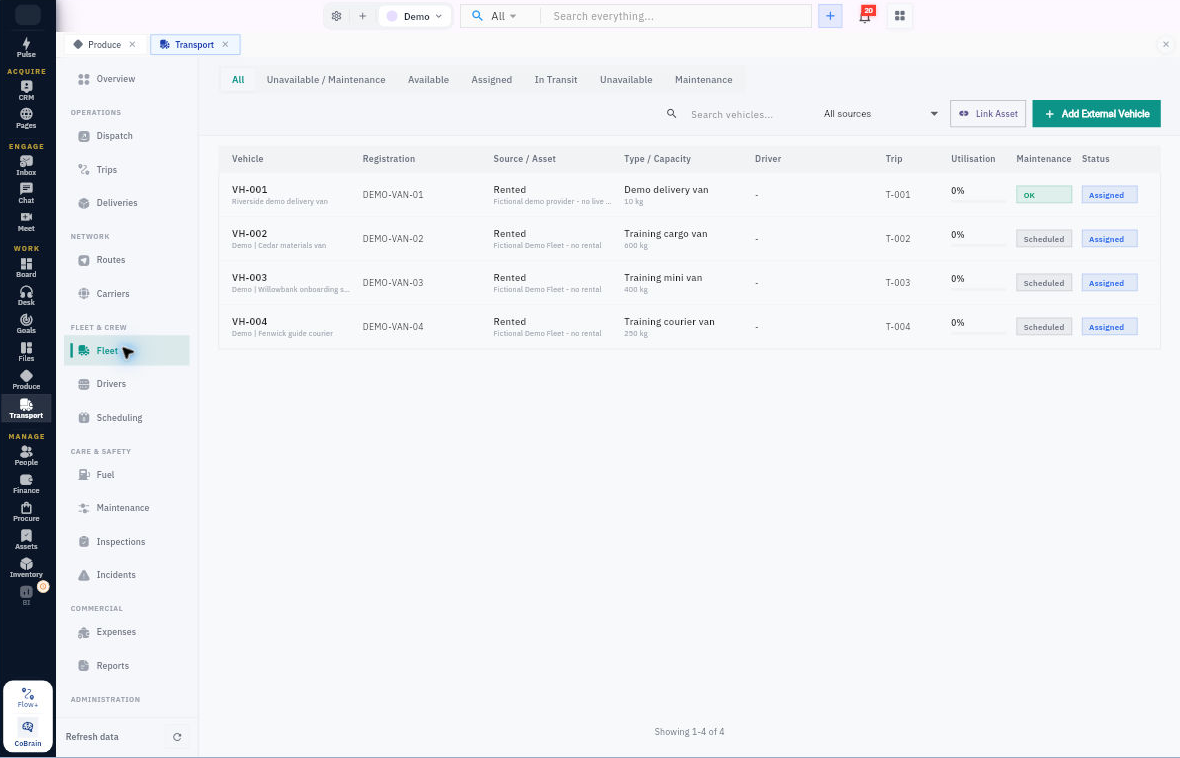
Check the result
Check the driver and readiness
5. Open Drivers and find the exact driver. Match the People link for an internal employee, and read availability, current vehicle and current trip. 6. If a new internal driver is needed, use Add Driver, choose Internal Employee and the exact existing employee. Enter verified licence details, select Add Driver, then reopen the record. 7. Inspect Licence & Availability and the relevant date range/bookings. “Expiry not recorded” means missing information, not a valid or expired licence determination. Readiness stop: For example, an Available driver with “Expiry not recorded” has an unresolved licence-information gap. Keep the proposed trip unconfirmed until the transport manager checks the required licence evidence for that driver and interval. Do not enter a guessed date or treat registration as qualification.
8. Review the vehicle’s relevant Maintenance, Inspections and current assignments for the planned interval. Resolve missing checks or conflicts with the responsible transport manager before dispatch.
Expected result: the proposed vehicle and driver are identified, with any readiness gaps clear before assignment.
Remember: Available is not proof of a passed inspection, a valid agreement or safe load. Scheduling a service is different from completing it. Use actual operational evidence, not the fictional values shown in a demo.
Continue learning
In this series: Manage trips and deliveries — guide 2 of 7.
Turn what you learned into the way the team works.
Mark this lesson complete once the workflow exists in your workspace—not simply when you reach the bottom.