Create a standalone delivery request
Record the correct recipient, route and packed-load measurements without duplicating an Inventory shipment.
Part of Dispatch a delivery and close its trip
In this lesson
Create a standalone delivery request
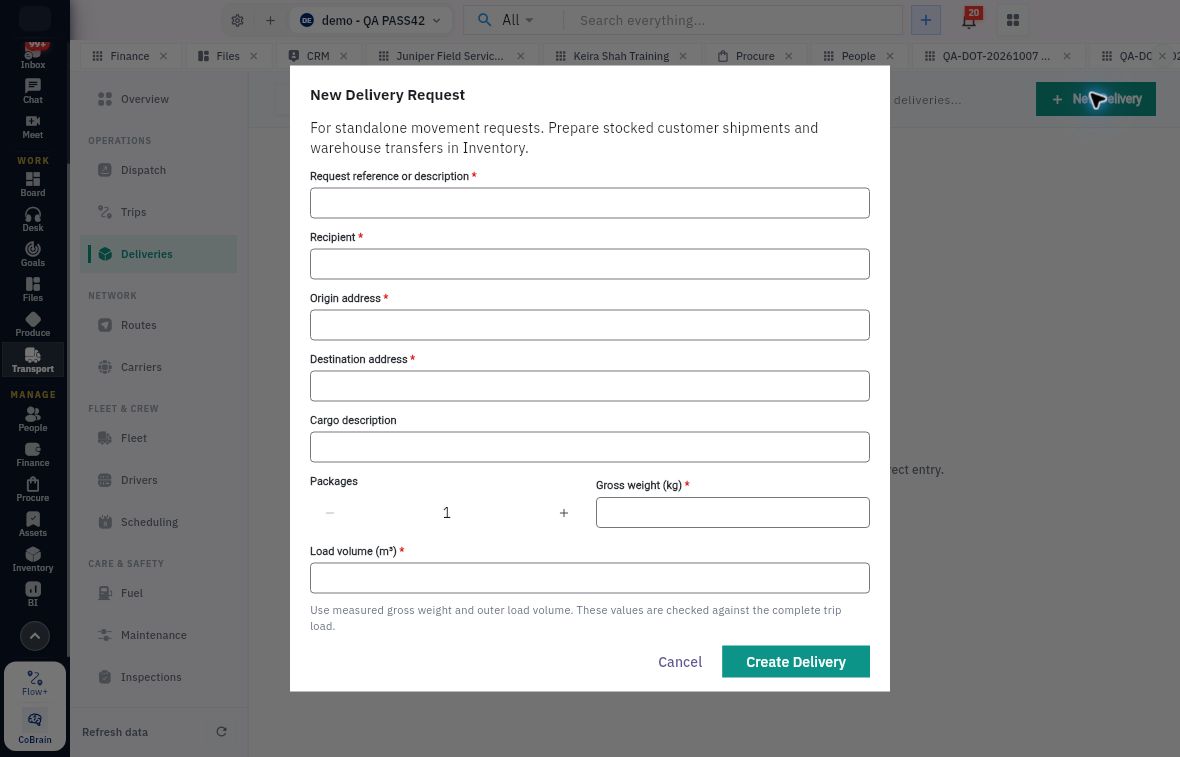
Choose the source route first. Prepare stocked customer shipments and warehouse transfers in Inventory. Use Transport’s New Delivery for a genuinely standalone movement request.
Create the request
1. Open Transport → Deliveries → All and search for the request or source reference. If it already exists, open it and skip to step 7. 2. Select New Delivery and read the standalone-movement helper. 3. Enter Request reference or description, Recipient, Origin address and Destination address. Match the actual request rather than a similar recipient or location. 4. Add a clear Cargo description and the actual Packages count. A package is a handling unit: four crates containing three items each means four packages and twelve items. 5. Enter measured Gross weight (kg) and outer Load volume (m³) for the packed load. Gross weight includes packaging; do not add packaging again when it is already included in the measurement. 6. Review source, destination, package count and units, then select Create Delivery once.
Check the result
Check the saved request
7. Reopen the exact delivery and select Assignment & Package. Compare the package quantity, weight, volume and cargo description with the request. 8. Read Trip, Vehicle, Driver and Carrier separately. A new request can remain unassigned; creation does not prove dispatch or a capacity check. 9. Use the saved delivery reference when preparing the trip and checking the complete combined load. Keep any missing measurement or packing exception visible before scheduling.
Expected result: one saved standalone delivery request with the right endpoints and load information.
If saving is unclear: return to Deliveries → All and search the reference before trying again. A source label on the saved record does not turn standalone text into a stock reservation, pick or issue.
Continue learning
In this series: Manage trips and deliveries — guide 3 of 7.
Turn what you learned into the way the team works.
Mark this lesson complete once the workflow exists in your workspace—not simply when you reach the bottom.