Inspect a trip and its delivery record
Read the trip’s route, schedule, assignments and activity without confusing trip completion with delivery acceptance.
In this lesson
Inspect a trip and its delivery record
Use the trip record to understand the journey, then check the delivery records for what happened to the goods.
Read the trip
1. Open Transport → Trips in the correct workroom. Use All if a status filter might hide the trip you need. 2. Open the exact trip and match its reference, origin and destination. Read its status, vehicle, driver, package count and stops. 3. Open Route. Read the route sequence and compare Planned departure, ETA, Actual departure and Actual arrival as separate values. 4. Check the displayed time basis before comparing times. If no timezone is shown, do not assume one. 5. Open Assignment to inspect the vehicle and driver associated with the trip. Check the relevant vehicle and driver records separately when you need to establish readiness. 6. Open Activity and follow the events in time order. If the newest event is first, read from the bottom upward to understand the sequence.
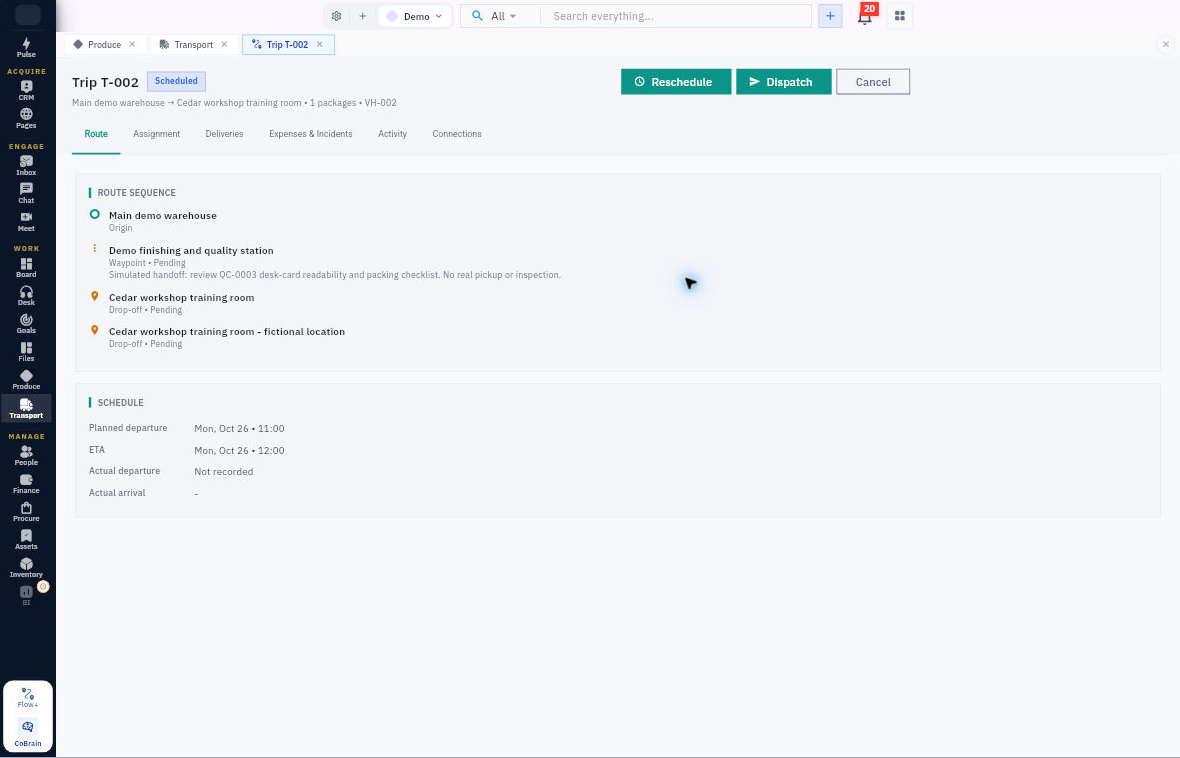
Check the result
Check the delivery outcome
7. Open Deliveries on the trip and inspect the relevant delivery or package records. Check the intended recipient, destination, quantities and actual delivery evidence rather than relying only on the trip’s status. 8. Record the next action for any missing resource, undelivered package or unresolved exception.
Expected result: you can explain the trip’s recorded journey and distinguish it from the delivery outcome.
Tips: Completed trip status is not automatic proof that every package was delivered or accepted. Planned times are not actual event times. A vehicle or driver’s general Active state is also different from their availability for this particular trip.
Turn what you learned into the way the team works.
Mark this lesson complete once the workflow exists in your workspace—not simply when you reach the bottom.