Pulse course 02 — Tracking requests and preparing authorized decisions
Requests answers “where is my request?” Approvals answers a decision-oriented question for the current account. A request in manager review is not necessarily assigned to you, and an Approve button does not establish your business authority.
Part of Pulse module course: Requests and approvals
In this lesson
Request tracking and decision authority
Requests answers “where is my request?” Approvals answers a decision-oriented question for the current account. A request in manager review is not necessarily assigned to you, and an Approve button does not establish your business authority.
In this chapter
- Identify the exact request card
- Inspect Approvals without substituting another record
- Separate authority from evidence readiness
- Treat decision controls as effect-capable
- Practise a decision note
Identify the exact request card
Open Pulse > Requests, select the relevant category and read the card. For an expense claim, compare the reference, full title, type, amount, currency, requested date and displayed stage. A Cancel action can be visible on the requester's card; it is consequential, not an inspection control.
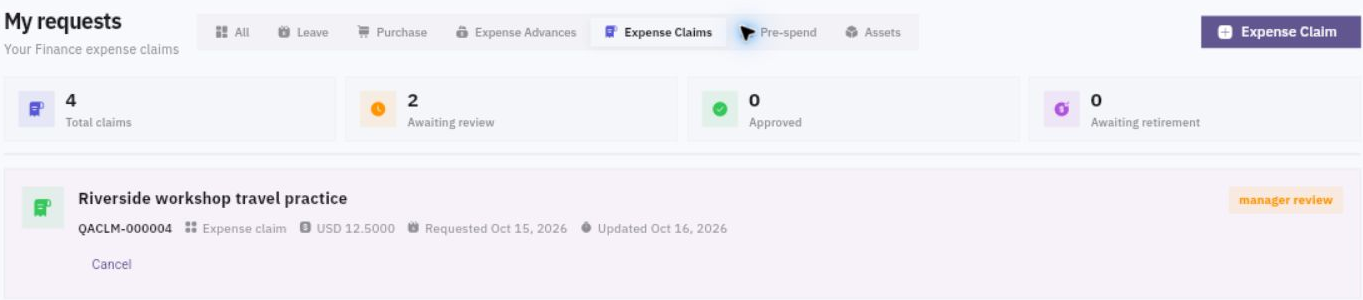
Similar request comparison and approval readiness
For a simple fictional example, two cards both say “Workshop train fare” and USD18.40. One reference is TRAVEL-A, requested today in manager review; the other is TRAVEL-B, requested yesterday in finance review. If the question concerns TRAVEL-A, TRAVEL-B's later stage is irrelevant to its outcome.
Open the originating module through its supported route when needed and permitted. For an expense claim, Finance > Expenses & claims > Expense claims provides the source workflow. Match the same reference and compare the source's full evidence. A requested date is not necessarily the travel/service date, and a claim amount is not a payment record.
Inspect Approvals without substituting another record
Open Approvals only within your authorized scope. The illustrated approval view includes All, People, Procure, Finance and Assets categories. Read the selected category, filters and settled results before concluding that an item is missing.
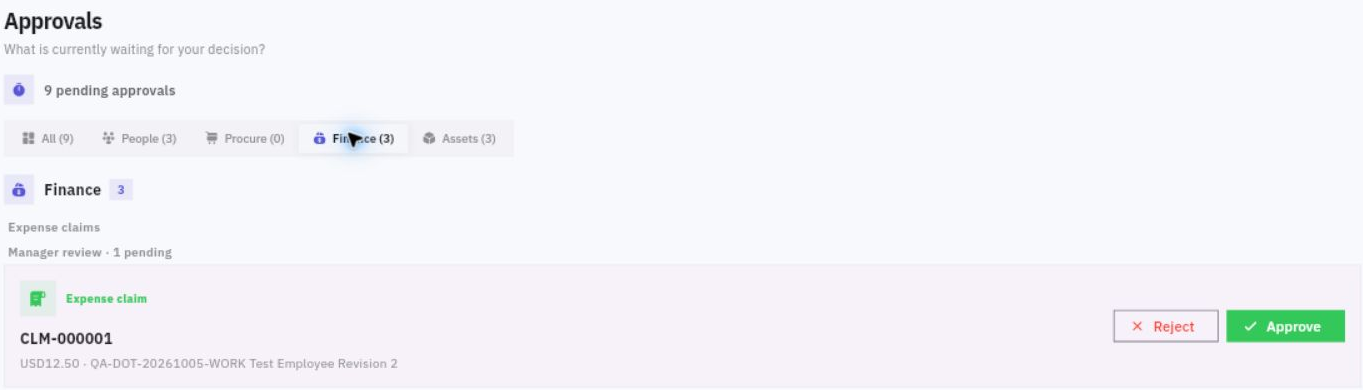
Same-record decisions and resulting state
Find the same request reference. If it is absent, do not approve another claim with a similar title or amount. Check workroom, category, filter and current source state. An empty queue can reflect scope or stage; it is not automatically a routing defect, approval or completion.
A current Requests observation does not prove the present contents of Approvals. Treat each view as its own read. Do not describe a reviewer as unassigned simply because you have not inspected the assignment evidence.
Separate authority from evidence readiness
Before a decision, establish the policy, reviewer role, value limit, conflicts and any delegation. A visible control or broad application role is not a substitute for those business rules.
Consider a fictional policy allowing a reviewer to approve non-self travel claims up to USD50 after purpose, service date, full receipt amount and duplicate-reimbursement checks. A USD18.40 claim with a matching receipt can satisfy the amount comparison while the duplicate check remains incomplete. The decision should remain pending until the missing criterion is established.
A USD60 claim is outside that reviewer's limit even if every receipt matches. A self-claim creates a separate authority issue. Do not reduce the amount, choose a convenient account or infer unlimited authority from an Owner role to make the decision possible.
Review complete evidence, not a filename. An amount typed in a note is not automatically supported by a receipt. A valid receipt total does not establish business purpose, policy eligibility or lack of duplicate reimbursement.
Treat decision controls as effect-capable
Do not click Approve or Reject to discover whether a confirmation dialog appears. A historical manager approval acted immediately and advanced the same reference to Finance review. No confirmation is guaranteed.
For an actual authorized decision, verify exact identity, policy authority, evidence and intended action first. Submit once through the supported control, then read the immediate result. Independently retrieve the same source and queue to confirm the retained stage and decision event. If a reload times out, the retained outcome is uncertain; do not repeat the decision solely because the read failed.
A manager-stage approval is not all-stage approval or reimbursement. A Finance review stage is further work, not evidence that money moved. Preserve the exact stage reached and the remaining condition.
Practise a decision note
For TRAVEL-A, the receipt supports USD16.40 and a separate note claims USD2 without evidence. The total requested is USD18.40. The reviewer has authority under the fictional policy, but evidence readiness is incomplete. A useful draft note names the missing USD2 support and asks for the permitted evidence or correction route. It does not approve, reject or send anything by itself.
You are ready to continue when you can distinguish requester tracking, reviewer assignment, business authority, complete evidence and the actual stage-specific result.
Turn what you learned into the way the team works.
Mark this lesson complete once the workflow exists in your workspace—not simply when you reach the bottom.