Pulse course 01 — Finding the work behind Pulse summaries
Pulse is an attention and request-tracking surface. It helps you find work, but a summary count does not replace the originating record or the evidence needed for a decision. Start with the intended workroom and an account permitted to read the relevant information.
Part of Pulse module course: Requests and approvals
In this lesson
Attention signals and originating records
Pulse is an attention and request-tracking surface. It helps you find work, but a summary count does not replace the originating record or the evidence needed for a decision. Start with the intended workroom and an account permitted to read the relevant information.
In this chapter
- Understand the navigation and scope
- Follow a task rather than interpreting only its count
- Use a small attention example
- Move from attention to request tracking
- Check your result
Understand the navigation and scope
Pulse navigation includes Overview, Requests, Approvals, My Journey, Policies and Learning. This course covers the supported attention, request and approval workflows. The visible names My Journey, Policies and Learning do not establish their full workflows, so no unsupported setup or completion steps are supplied for them.
Overview exposes Personal, Team and Business scope controls. Their names identify different perspectives, not a complete definition of which records are included. A Personal count cannot automatically answer a Team-wide question.
A filter narrows a view; a count aggregates some population. Before comparing counts, check workroom, scope, filters and observation time. A zero can mean no matching items in that view, not no unfinished work anywhere.
Follow a task rather than interpreting only its count
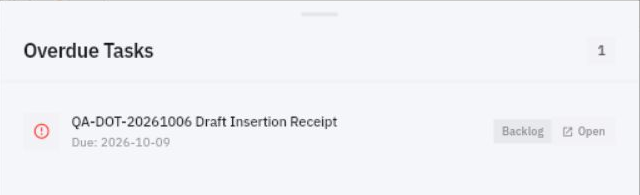
The illustrated route is Overview > Personal > Overdue. It opens an overdue-task view with task title, due date, status and Open. Read the exact task and its own fields. Do not mark it complete or change responsibility just because you opened it from an attention card.
From summaries to Board context
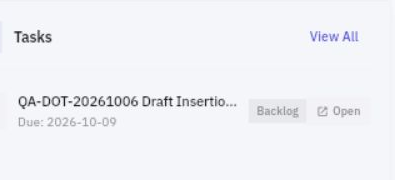
Return to Overview, using Escape to dismiss the panel where supported. Tasks > View All led to Board with For You in the demonstrated route. Confirm the destination Board and view before looking for the same task. A larger Board count can reflect a different population; it is not automatically a contradiction.
Output evidence and attention priorities
The task's full brief tells you what completion requires. Its state, due date and output are separate facts. A task called “Prepare the welcome briefing” can be In Progress while the latest file lacks a required safety section. The next useful question is what still needs preparing and reviewing, not which badge would make the overview cleaner.
Use a small attention example
Suppose Personal Overview shows Overdue 0. A permitted Team view shows a briefing task due yesterday, In Progress, and a supply-count task due tomorrow, Backlog. No common filter or calculation rule is supplied.
You can report the zero Personal display and the Team task facts. You cannot conclude that Team has no overdue work or that the summary is defective. Open the briefing's exact source and inspect the completion condition. If the required section is unwritten, preserve that gap and identify the responsible coordination step through the normal process.
A note such as “confirm who will finish the section and when the reviewer is available” is a proposed next action. It does not assign a real person or create a commitment until that responsibility is actually established.
Move from attention to request tracking
Open Requests and read My requests before interpreting its contents. Observed categories include All, Leave, Purchase, Expense Advances, Expense Claims, Pre-spend and Assets. Choose the category that matches the question, then identify the exact request.
The same title can appear on an original request, a revised draft and another person's request. Use the reference, type, amount/currency, requested date and source context together. A title or amount alone is not enough.
Check your result
You should now be able to explain which scope you read, which exact source record needs attention and what its next unresolved condition is. If the item is absent or access is denied, record the context and precise limit. Do not widen access, create a substitute or change a task merely to reproduce an illustration. The next chapter uses the same identity discipline for requests and approvals.
Turn what you learned into the way the team works.
Mark this lesson complete once the workflow exists in your workspace—not simply when you reach the bottom.