Settings course 04 — Billing domains and Business Email setup readiness
The documented Business Email setup route is under Workroom Settings. Subscription capacity, domain control, DNS management and mailbox creation solve different problems. Prepare each dependency before relying on mail or committing a service change.
Part of Workroom Settings module course
In this lesson
Billing domains and Business Email prerequisites
The documented Business Email setup route is under Workroom Settings. Subscription capacity, domain control, DNS management and mailbox creation solve different problems. Prepare each dependency before relying on mail or committing a service change.
In this chapter
- Read Billing without confusing capacity and payment
- Choose the domain route from the management decision
- Understand the blank Use Existing form
- Separate new-domain defaults from existing service readiness
- Find Business Email and respect its prerequisite
- Use a practical setup and recovery plan
Read Billing without confusing capacity and payment
Open Workroom Settings → COMPANY SETUP → Billing → Billing & Plan. Read the plan, selected billing cycle, seats, next billing date and upcoming renewal context. Seat Management shows assigned seats and Adjust Seats. A display of 1/1 assigned does not establish capacity for additional members. Renewal information is not a paid invoice or receipt.
Renew, Add Fund, Adjust Seats and Schedule Downgrade are consequential commercial controls, not inspection steps. Before an approved change, establish total, currency, one-time or recurring commitment, effective date, seat impact and relevant downgrade or cancellation conditions with the subscription owner. Teaching screenshots are not current price quotes.
Billing usage and add-ons include Storage, AI Credits, Discovery Credits, Data Transfer and Workroomly Sender Email Credit. Storage concerns retained material. Credit categories need their own intended-use and allowance review. Data Transfer's helper refers to outbound traffic from external data tools, including Developer API, Query/Search and analytics OData connections; it does not create an integration.
Workroomly Sender Email Credit concerns bulk CRM broadcasts. It does not register a domain or create a professional team mailbox. Do not buy that credit to solve a disabled Business Email account button.
Choose the domain route from the management decision
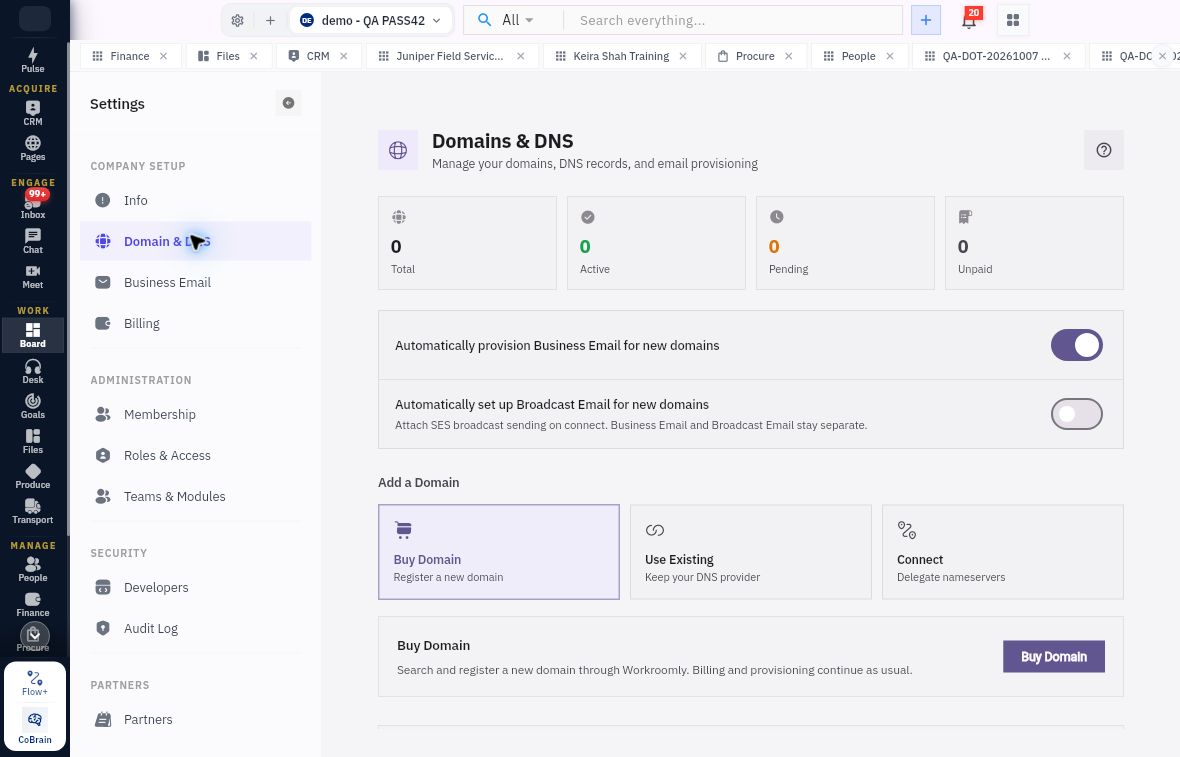
Open Domain & DNS → Domains & DNS. Read Total, Active, Pending and Unpaid, plus the actual domain entries or empty state. Zero counts mean no domain is listed in that view; they do not establish a DNS outage.
Domain ownership and DNS responsibility
Domain routes and new-domain provisioning defaults are separate from an active mailbox or successful delivery.
The three routes have different purposes:
| Route | Intended decision |
|---|---|
| Buy Domain | Register a new domain, with an approved name and commercial commitment. |
| Use Existing | Keep the current DNS provider and add the required Workroomly email records there. |
| Connect | Delegate nameservers, changing DNS-management responsibility. |
Existing ownership does not alone decide between the latter two. If the organisation explicitly intends to keep its DNS provider, Use Existing matches. Delegating nameservers requires review of website, mail and other dependent services; a shorter-looking button is not a reason to switch.
Understand the blank Use Existing form
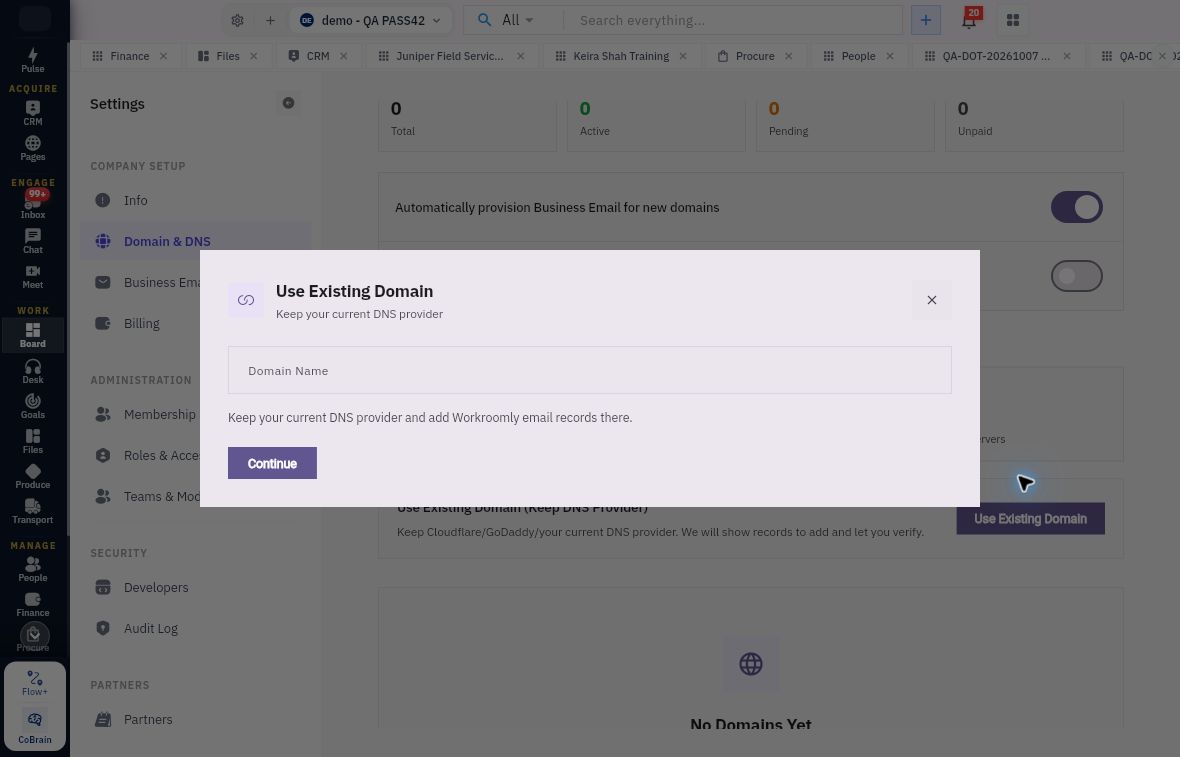
Use Existing Domain asks for Domain Name, with Continue and Close. Its helper says to keep the current DNS provider and add Workroomly email records there.
Domain identity and mailbox readiness
Use Existing Domain keeps the DNS provider and asks for the domain name, not a mailbox address.
For the fictional address help@oakfield.example, the domain is oakfield.example; help is the proposed mailbox name. These reserved example values belong in planning, not a live configuration. Do not enter a full mailbox address as the domain.
The source ends with the blank form closed. It supplies no generated DNS record values, domain verification result or downstream Connect wizard. The authorised domain administrator must use the exact current instructions for the real domain. Never invent record values, propagation timing or provider-specific steps. Keeping the DNS provider also does not guarantee that old and new mail coexist; that needs a reviewed mail-routing or migration plan.
Separate new-domain defaults from existing service readiness
Automatically provision Business Email for new domains and Automatically set up Broadcast Email for new domains are separate switches. The Broadcast helper refers to attaching SES broadcast sending on connect and says Business Email and Broadcast Email stay separate. The pictured ON/OFF values describe sample defaults, not an operational mailbox or a universal recommendation.
For an approved mailbox-only plan, the owner may propose Business Email provisioning without broadcast setup. That proposal does not change current domains or create accounts. A separate broadcast requirement needs its own service decision and commercial capacity review.
Find Business Email and respect its prerequisite
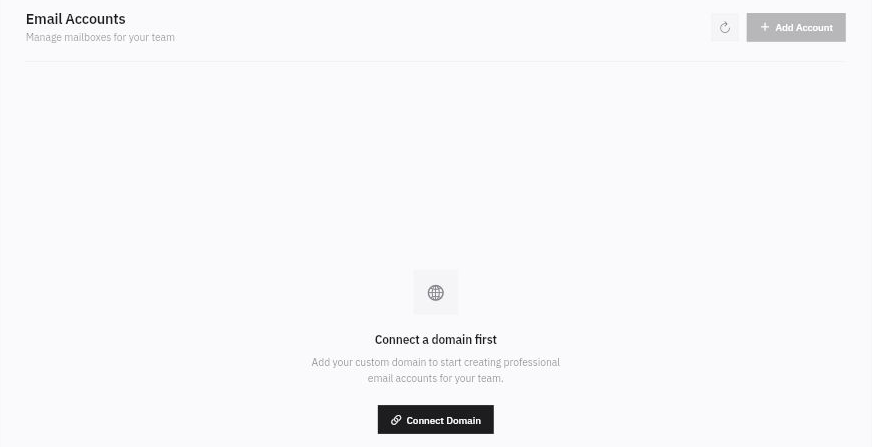
Open Workroom Settings → COMPANY SETUP → Business Email → Email Accounts. This is the mailbox administration surface. The source state says Connect a domain first, provides Connect Domain, and shows Add Account disabled.
Provisioning evidence and delivery boundaries
Business Email requires a connected domain before Add Account becomes available; no mailbox creation form is shown here.
A connected domain is the prerequisite for proceeding to mailbox creation. A Workroomly member, domain registration and mailbox are distinct identities; do not assume every member automatically has a mailbox. Prepare the intended mailbox names, owners, usage and continuity needs before setup.
The supplied evidence does not expose an enabled Add Account form, mailbox field schema or completed provisioning. Treat that as the precise boundary of this lesson rather than inventing password, quota or verification fields. Once prerequisites are legitimately satisfied, the administrator must inspect the actual account form and verify the retained mailbox identity and configuration through the supported route.
Inbox is where authorised communication workflows are used; opening Inbox is not domain ownership verification or mailbox provisioning. Business Email setup and Inbox account/use readiness must be reconciled by the service owner. A message in Sent proves a sender-side state, not recipient receipt, and no private Inbox content is needed to teach this setup boundary.
Use a practical setup and recovery plan
Suppose a fictional organisation owns oakfield.example, keeps its current DNS provider, runs a booking website and retains existing mail until migration is approved. It wants help and operations mailboxes. Use Existing matches the provider-retention decision, but the plan still needs domain ownership, current records/services, mailbox owners, required changes, change window and recovery responsibility. Cost approval belongs to the budget owner; DNS and mail continuity belong to their technical owners.
Before operational use, require the exact domain's retained status and required-record checks, the intended mailbox entries and approved send/receive checks with agreed recipients. Preserve existing website and mail continuity. An Active label, enabled switch or visible Continue button does not replace those results.
If Add Account remains disabled, resolve the connected-domain prerequisite rather than buying unrelated credits or changing DNS experimentally. If an unexpected purchase or delegation confirmation appears, stop before committing. If a change may already have occurred, inspect the retained state and notify the responsible owner before retrying or reversing it. Independent internal training can continue while the optional mailbox branch remains pending.
Turn what you learned into the way the team works.
Mark this lesson complete once the workflow exists in your workspace—not simply when you reach the bottom.