Produce course 03 — Shop floor progress materials and production settings
Shop Floor reports operation progress, while Materials records required, reserved, issued and consumed inputs. A completed operation does not automatically explain its material history, and a configured backflush policy does not justify a second stock deduction.
Part of Produce module course
In this lesson
Operation progress and material quantities
Shop Floor reports operation progress, while Materials records required, reserved, issued and consumed inputs. A completed operation does not automatically explain its material history, and a configured backflush policy does not justify a second stock deduction.
In this chapter
- Locate the exact operation
- Reconcile material states
- Understand settings without using them as evidence
- Record actual work at the supported stage
- Handle an uncertain or incomplete result
Locate the exact operation
Open Produce → Shop Floor. Views include Today, Active, Paused and Completed, with search by order, product or operation. Match all three before opening a card. An empty Active view does not prove that a new operation should be started, and an older completed operation is not today's work on a different order.
Operation detail separates planned, completed and remaining quantities; planned time, active time and recorded downtime; work instructions; Materials; Scrap recorded; and linked operation inspections. Without a start/end interval, adding active time and downtime does not necessarily establish elapsed duration. Read actual instruction text; “No additional work instructions” is not a complete technical procedure.
Reconcile material states
Open Produce → Materials and use Search material/order and status filters. Read each row across Required, Reserved, Issued, Consumed, Shortage, Warehouse, Location, Lot and Status. A row can show an operation completed while issued/consumed remain zero; preserve that discrepancy instead of filling it from assumptions.
Reservation allocates supply to demand. Issue moves or assigns the input to production under the supported process. Consumption records actual use. A later consumption step must not remove the same quantity from the warehouse a second time if issue already moved it to WIP. Loss, scrap and unused return need their own exact source/quantity treatment.
For a fictional eight-set job requiring twenty-four cards, twenty-four issued and one additional authorised replacement gives twenty-five issued. If one card was lost and twenty-four were used in the sets, preserve both loss and use. Do not change the BOM to twenty-five merely to hide the exception or consume another job's reserved card.
Understand settings without using them as evidence
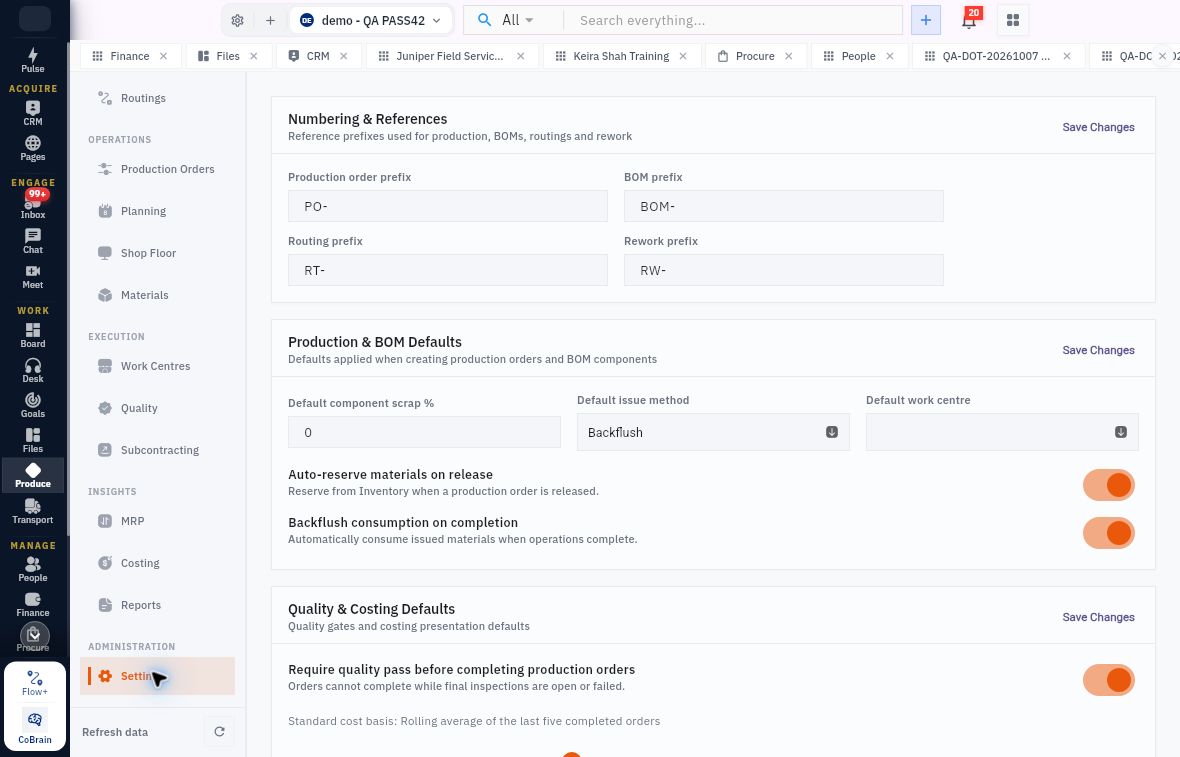
Shop-floor materials and completion controls
Produce Settings separates numbering, BOM defaults, reservation, backflush and the final-quality completion gate.
Settings → Numbering & References contains production order, BOM, routing and rework prefixes. Prefix similarity does not establish that records belong to the same chain. Production & BOM Defaults includes default component scrap percentage, default issue method and default work centre.
Auto-reserve materials on release says it reserves from Inventory when a production order is released. Backflush consumption on completion says it automatically consumes issued materials when operations complete. Read the important word issued: the helper does not establish available material, a successful issue or the cause of a historical zero-consumed row.
Require quality pass before completing production orders says open or failed final inspections prevent completion. Standard cost basis and default shift hours are additional context, not proof a job calculated cost or had a staffed shift. Save Changes alters shared policy; do not toggle a control to bypass a shortage or quality gate.
Record actual work at the supported stage
Before using Start, Pause, Resume, quantity/time, loss or completion controls, inspect the actual eligible operation form and establish whether each entry is incremental or cumulative. The completed-row source does not demonstrate every live execution editor, so do not invent button-by-button fields for an unobserved state.
Match exact order/operation, issued inputs, responsible operator, complete instructions and required checks. Record work that actually occurred, then independently reopen the operation and material trail. A named operator in a selector is not evidence that person performed the work. A ticked checklist needs the corresponding actual result.
Handle an uncertain or incomplete result
If a submission times out, navigate afresh and compare saved quantities, time entries, activity and movements before retrying. Duplicate progress can overstate output or consumption. If a prerequisite is absent, preserve the valid partial state and the next owner rather than changing another module to force success.
For practice, read a Completed operation with planned/completed five, required material ten, issued zero and consumed zero. The truthful result is operation progress recorded with an unresolved material chain. It is not permission to report ten consumed, five available finished units or a fully closed production order. Final output and quality belong to the next chapter.
Turn what you learned into the way the team works.
Mark this lesson complete once the workflow exists in your workspace—not simply when you reach the bottom.