Create a supplier and start onboarding
Save one reliable supplier profile and organise the information needed for its review.
Part of Prepare a supplier for internal review
In this lesson
Create a supplier and start onboarding
Save one reliable supplier profile and organise the information needed for its review.
Before you start
Have the supplier’s trading and legal names, purchasing contact, category and the agreed internal onboarding owner. Use genuine source information for a real supplier; keep confidential documents in your organisation’s approved location.
Create or reuse the supplier
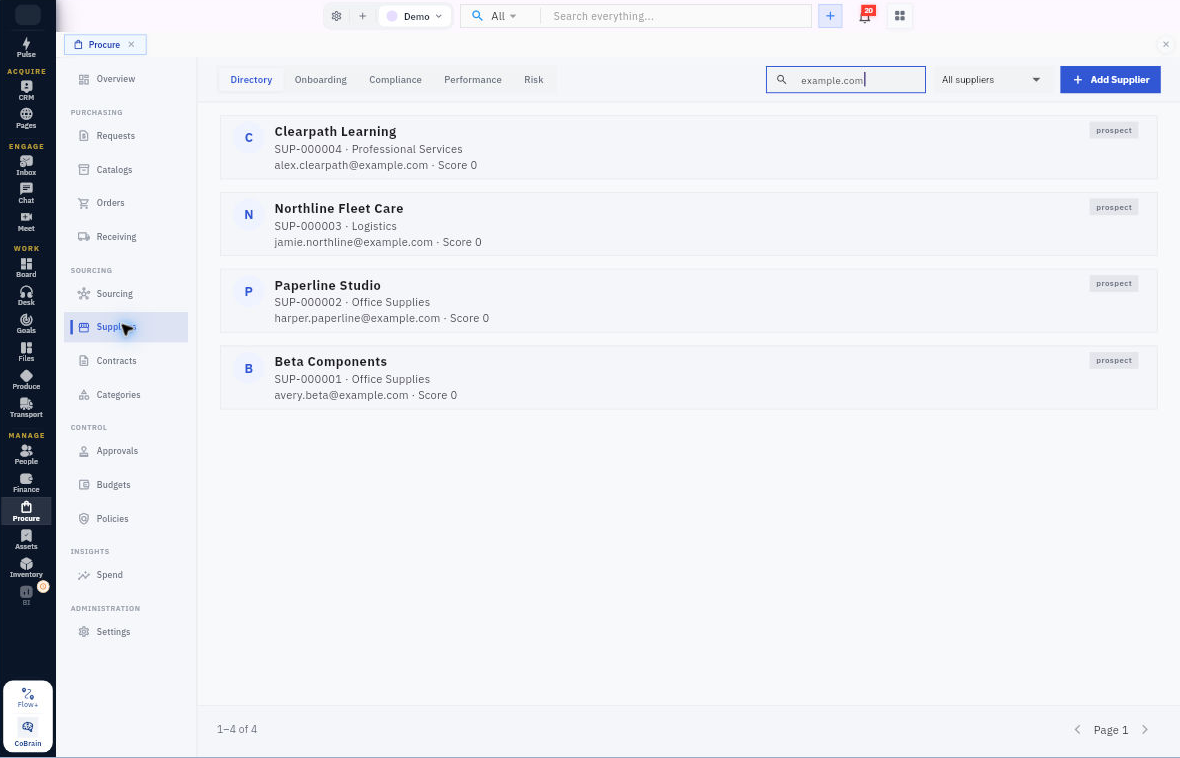
1. Open Procure → Suppliers → Directory. Search the name, variants and known identifiers. Open likely matches before creating another supplier. If the supplier already exists, use its existing profile and continue to onboarding.
2. Select Add supplier. Check Purchasing currency, then enter Trading name, Registered legal name and Primary contact email. Review Country code and Primary category. Do not treat placeholder text as a saved value or guess missing facts.
3. Review the complete form and select Add supplier once. Return through Directory, find the saved supplier reference and reopen it. Compare the identity, contact, category, currency and status. If optional onboarding setup appears immediately, you can use Cancel to check the already saved profile first.
Start and work through onboarding
4. Read the existing case summary. If the correct case exists, open it and skip step 5, continuing with its sections in step 6. For a new one, select Begin onboarding, choose Internal owner, review Who will provide the information? and set Internal completion target.
5. For internal collection, choose Our procurement team. Use Assign to me only if you are the agreed coordinator. Review the setup, select Create onboarding case, then reopen it through Suppliers → Onboarding to check owner, provider, actual due date and required sections.
6. Open a section such as Company profile. Enter the supported facts and use Supporting documents → Add documents where evidence is needed. Work through the relevant contacts, registration, payment-information and products/services sections with their responsible reviewers.
7. Leave This section is complete unchecked until its information has been checked. Select Save progress, leave the case and reopen the same section to verify its values, attachments and completion state.
Expected result
One supplier profile and onboarding case are saved, with missing information and the next reviewer clear.
Remember: Saving progress, completing a section and Submit for internal review are different stages. A saved profile is not a qualified supplier. Read whether progress counts all sections or only required sections, and do not fill missing evidence with invented identifiers just to increase the count.
Continue learning
In this series: Manage purchasing — guide 4 of 17.
Turn what you learned into the way the team works.
Mark this lesson complete once the workflow exists in your workspace—not simply when you reach the bottom.