Prepare an offboarding checklist
Create an offboarding event that identifies the person, departure date and work required for a controlled handover.
In this lesson
Prepare an offboarding checklist
Create an offboarding event that identifies the person, departure date and work required for a controlled handover.
Before you start: Have the agreed departure plan, employee identity, effective date, event owner and checklist. Include handover, property, access, outstanding amounts and records only as relevant to the actual departure.
Steps
1. Open People → Lifecycle → Offboarding and check for an existing event for the same employee and date. If it exists, skip steps 2–7 and inspect its saved checklist in step 8.
2. Select Start Offboarding, then read Event Type. Explicitly choose Offboarding if another type is shown and confirm the title changes to New Offboarding Event.
3. Select the exact employee search result and set the agreed Effective Date. The event date is not a separate timed instruction to disable access.
4. In Template & Steps, use the intended checklist or Custom Steps → Add Step. Give each item a clear title and a description of the completed outcome. For example, “Handover accepted by the successor” is more precise than “Handover”.
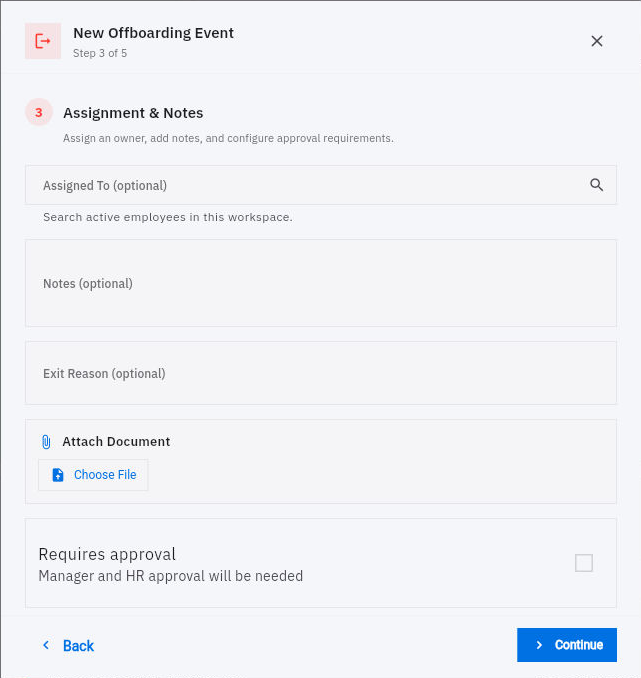
5. In Assignment & Notes, select the overall Assigned To owner where applicable. Add relevant notes and only the necessary departure information. Set Requires approval to match your process and attach a document only when it belongs in this record.
Check the result
6. In Exit Details, choose the supported Exit Reason that matches the agreed record. Do not infer a reason from an unfinished checklist or a departure date.
7. Check Review & Confirm for the exact employee, Offboarding type, date, checklist, assignment and notes. Select Create Event once.
8. Return to Lifecycle → Journey and Offboarding, find the saved event and inspect its details and View Steps. Confirm the intended tasks and current state. If creation was uncertain, locate the original attempt before creating another.
9. Use the checklist to coordinate the real work with its owners. Verify property return, access changes and settlement in their respective records; do not treat creation of the event as completion of those tasks.
Expected result
The departure has one identifiable offboarding event with meaningful tasks and an overall owner.
Common pitfalls
- A checklist description naming someone does not necessarily assign or deliver an application task to them.
- An Offboarded profile label or completed event is not proof that every external account, asset or payment is resolved.
- Keep sensitive departure details out of broadly visible notes and attach only the documents the process needs.
Continue learning
In this series: Manage the employee journey — guide 21 of 25.
Turn what you learned into the way the team works.
Mark this lesson complete once the workflow exists in your workspace—not simply when you reach the bottom.