Create a confirmation event checklist
Prepare a confirmation event with the correct employee, effective date and tasks without confusing the event with the employment decision.
In this lesson
Create a confirmation event checklist
Prepare a confirmation event with the correct employee, effective date and tasks without confusing the event with the employment decision.
Before you start: Have the confirmation decision or review instruction, effective date, meaningful checklist and event owner. Keep any pay, role or access changes in their appropriate separate processes.
Steps
1. Open People → Lifecycle → Journey and Confirmation. Check for an existing event for the same employee, type and effective date. If it exists, skip steps 2–6 and inspect that record in step 7.
2. Select Create Confirmation. Read Event Type immediately and explicitly select Confirmation if another type is shown. Confirm the title is New Confirmation Event before continuing.
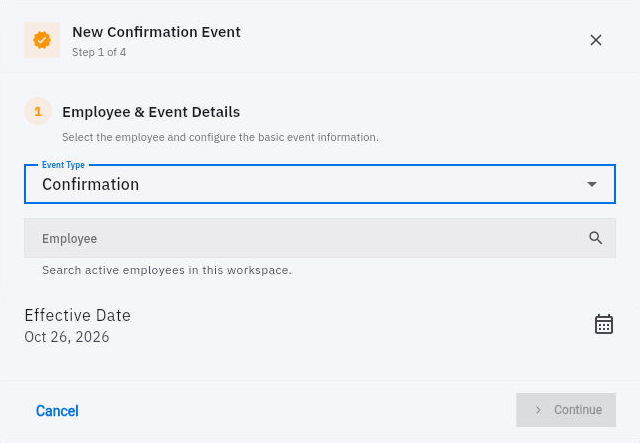
Check the result
3. In Employee & Event Details, search for and select the exact employee. Set the agreed Effective Date, then continue.
4. In Template & Steps, choose a suitable existing template after checking its definition, or use Custom Steps → Add Step. Write clear tasks and descriptions for the confirmation work and set their required flags as intended.
5. In Assignment & Notes, select the event’s Assigned To owner where applicable. Add a concise note identifying the decision or review purpose. Use Attach Document → Choose File only for the intended document and audience.
6. In Review & Confirm, compare the event type, employee, date, template or custom steps and assignment. Select Create Event once when these details are correct.
7. Return to Journey and Confirmation and find the saved event. Open its normal details and View Steps where offered. Compare the employee, date, tasks and current state with the intended process.
8. Complete the actual review work through the responsible owners. Check the employee’s organisational and compensation records separately if an approved decision requires changes; the event label alone does not establish those outcomes.
Expected result
The confirmation event provides a clear checklist and owner for the intended employee and date.
Common pitfalls
- A shortcut label is not enough: check the actual Event Type before creating the record.
- A Completed event with no defined tasks does not prove a meaningful confirmation review.
- The confirmation wizard does not provide a pay amount or probation-decision field. Do not imply that creating it implements those decisions.
Continue learning
In this series: Manage the employee journey — guide 20 of 25.
Turn what you learned into the way the team works.
Mark this lesson complete once the workflow exists in your workspace—not simply when you reach the bottom.